> ## Documentation Index
> Fetch the complete documentation index at: https://docs.comfy.org/llms.txt
> Use this file to discover all available pages before exploring further.
# ComfyUI Wan2.1 Fun InP Video Examples
> This guide demonstrates how to use Wan2.1 Fun InP in ComfyUI to generate videos with first and last frame control
## About Wan2.1-Fun-InP
**Wan-Fun InP** is an open-source video generation model released by Alibaba, part of the Wan2.1-Fun series, focusing on generating videos from images with first and last frame control.
**Key features**:
* **First and last frame control**: Supports inputting both first and last frame images to generate transitional video between them, enhancing video coherence and creative freedom. Compared to earlier community versions, Alibaba's official model produces more stable and significantly higher quality results.
* **Multi-resolution support**: Supports generating videos at 512×512, 768×768, 1024×1024 and other resolutions to accommodate different scenario requirements.
**Model versions**:
* **1.3B** Lightweight: Suitable for local deployment and quick inference with **lower VRAM requirements**
* **14B** High-performance: Model size reaches 32GB+, offering better results but requiring **higher VRAM**
Below are the relevant model weights and code repositories:
* [Wan2.1-Fun-1.3B-Input](https://huggingface.co/alibaba-pai/Wan2.1-Fun-1.3B-Input)
* [Wan2.1-Fun-14B-Input](https://huggingface.co/alibaba-pai/Wan2.1-Fun-14B-Input)
* Code repository: [VideoX-Fun](https://github.com/aigc-apps/VideoX-Fun)
Currently, ComfyUI natively supports the Wan2.1 Fun InP model. Before starting this tutorial, please update your ComfyUI to ensure your version is after [this commit](https://github.com/Comfy-Org/ComfyUI/commit/0a1f8869c9998bbfcfeb2e97aa96a6d3e0a2b5df).
Make sure your ComfyUI is updated.
* [Download ComfyUI](https://www.comfy.org/download)
* [Update Guide](/installation/update_comfyui)
Workflows in this guide can be found in the [Workflow Templates](/interface/features/template).
If you can't find them in the template, your ComfyUI may be outdated. (Desktop version's update will delay sometime)
If nodes are missing when loading a workflow, possible reasons:
1. You are not using the latest ComfyUI version (Nightly version)
2. Some nodes failed to import at startup
* The Desktop is base on ComfyUI stable release, it will auto-update when there is a new Desktop stable release available.
* [Cloud](https://cloud.comfy.org) will update after ComfyUI stable release.
So, if you find any core node missing in this document, it might be because the new core nodes have not yet been released in the latest stable version. Please wait for the next stable release.
## Wan2.1 Fun InP Workflow
Download the image below and drag it into ComfyUI to load the workflow:

### 1. Workflow File Download
### 2. Manual Model Installation
If automatic model downloading is ineffective, please download the models manually and save them to the corresponding folders.
The following models can be found at [Wan\_2.1\_ComfyUI\_repackaged](https://huggingface.co/Comfy-Org/Wan_2.1_ComfyUI_repackaged) and [Wan2.1-Fun](https://huggingface.co/collections/alibaba-pai/wan21-fun-67e4fb3b76ca01241eb7e334)
**Diffusion models** - choose 1.3B or 14B. The 14B version has a larger file size (32GB) and higher VRAM requirements:
* [wan2.1\_fun\_inp\_1.3B\_bf16.safetensors](https://huggingface.co/Comfy-Org/Wan_2.1_ComfyUI_repackaged/resolve/main/split_files/diffusion_models/wan2.1_fun_inp_1.3B_bf16.safetensors?download=true)
* [Wan2.1-Fun-14B-InP](https://huggingface.co/alibaba-pai/Wan2.1-Fun-14B-InP/resolve/main/diffusion_pytorch_model.safetensors?download=true): Rename to `Wan2.1-Fun-14B-InP.safetensors` after downloading
**Text encoders** - choose one of the following models (fp16 precision has a larger size and higher performance requirements):
* [umt5\_xxl\_fp16.safetensors](https://huggingface.co/Comfy-Org/Wan_2.1_ComfyUI_repackaged/resolve/main/split_files/text_encoders/umt5_xxl_fp16.safetensors?download=true)
* [umt5\_xxl\_fp8\_e4m3fn\_scaled.safetensors](https://huggingface.co/Comfy-Org/Wan_2.1_ComfyUI_repackaged/resolve/main/split_files/text_encoders/umt5_xxl_fp8_e4m3fn_scaled.safetensors?download=true)
**VAE**
* [wan\_2.1\_vae.safetensors](https://huggingface.co/Comfy-Org/Wan_2.1_ComfyUI_repackaged/resolve/main/split_files/vae/wan_2.1_vae.safetensors?download=true)
**CLIP Vision**
* [clip\_vision\_h.safetensors](https://huggingface.co/Comfy-Org/Wan_2.1_ComfyUI_repackaged/resolve/main/split_files/clip_vision/clip_vision_h.safetensors?download=true)
File storage location:
```
📂 ComfyUI/
├── 📂 models/
│ ├── 📂 diffusion_models/
│ │ └── wan2.1_fun_inp_1.3B_bf16.safetensors
│ ├── 📂 text_encoders/
│ │ └─── umt5_xxl_fp8_e4m3fn_scaled.safetensors
│ └── 📂 vae/
│ │ └── wan_2.1_vae.safetensors
│ └── 📂 clip_vision/
│ └── clip_vision_h.safetensors
```
### 3. Complete the Workflow Step by Step
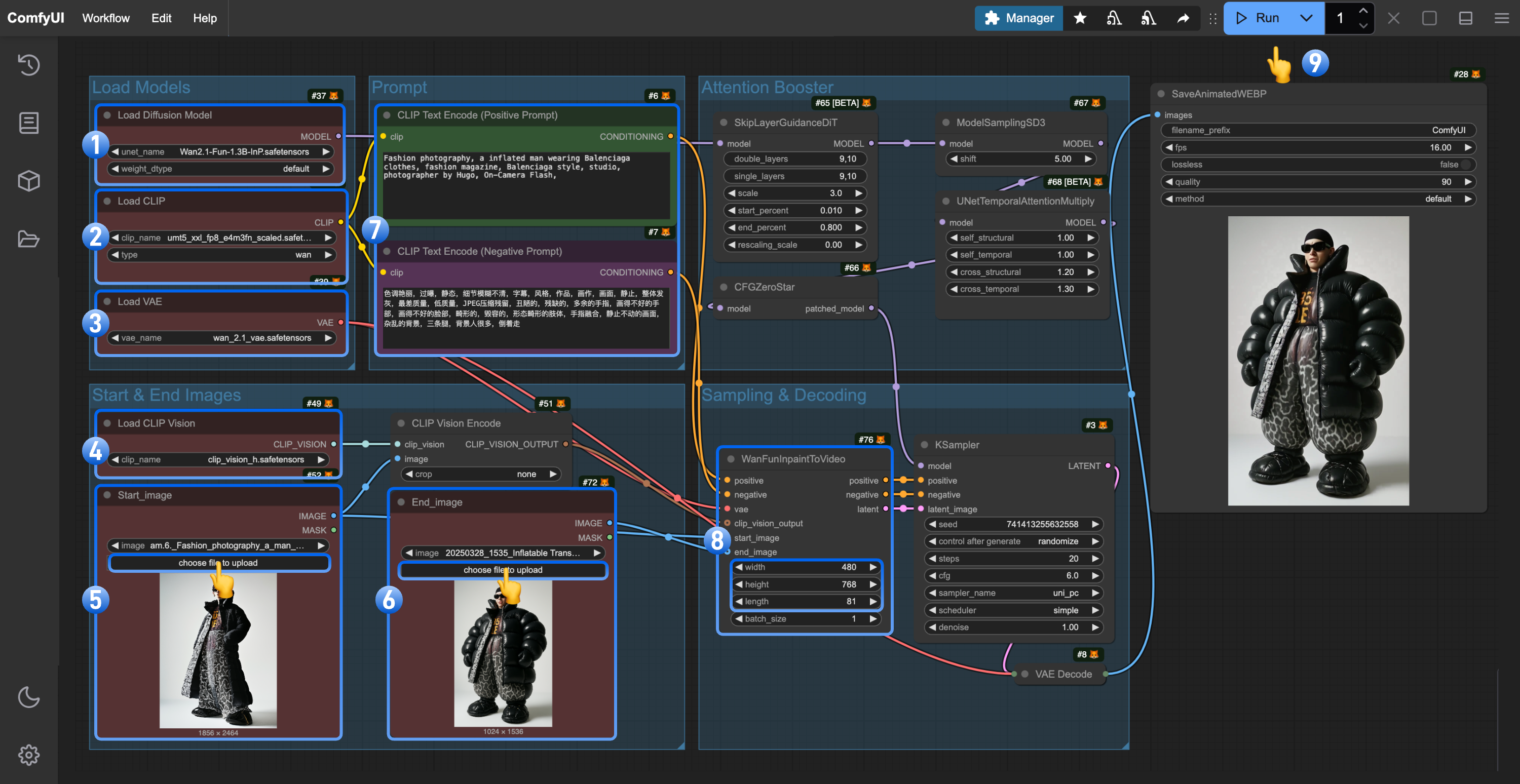 1. Ensure the `Load Diffusion Model` node has loaded `wan2.1_fun_inp_1.3B_bf16.safetensors`
2. Ensure the `Load CLIP` node has loaded `umt5_xxl_fp8_e4m3fn_scaled.safetensors`
3. Ensure the `Load VAE` node has loaded `wan_2.1_vae.safetensors`
4. Ensure the `Load CLIP Vision` node has loaded `clip_vision_h.safetensors`
5. Upload the starting frame to the `Load Image` node (renamed to `Start_image`)
6. Upload the ending frame to the second `Load Image` node
7. (Optional) Modify the prompt (both English and Chinese are supported)
8. (Optional) Adjust the video size in `WanFunInpaintToVideo`, avoiding overly large dimensions
9. Click the `Run` button or use the shortcut `Ctrl(cmd) + Enter` to execute video generation
### 4. Workflow Notes
Please make sure to use the correct model, as `wan2.1_fun_inp_1.3B_bf16.safetensors` and `wan2.1_fun_control_1.3B_bf16.safetensors` are stored in the same folder and have very similar names. Ensure you're using the right model.
* When using Wan Fun InP, you may need to frequently modify prompts to ensure the accuracy of the corresponding scene transitions.
## Other Wan2.1 Fun InP or video-related custom node packages
* [ComfyUI-VideoHelperSuite](https://github.com/Kosinkadink/ComfyUI-VideoHelperSuite)
* [ComfyUI-WanVideoWrapper](https://github.com/kijai/ComfyUI-WanVideoWrapper)
* [ComfyUI-KJNodes](https://github.com/kijai/ComfyUI-KJNodes)
1. Ensure the `Load Diffusion Model` node has loaded `wan2.1_fun_inp_1.3B_bf16.safetensors`
2. Ensure the `Load CLIP` node has loaded `umt5_xxl_fp8_e4m3fn_scaled.safetensors`
3. Ensure the `Load VAE` node has loaded `wan_2.1_vae.safetensors`
4. Ensure the `Load CLIP Vision` node has loaded `clip_vision_h.safetensors`
5. Upload the starting frame to the `Load Image` node (renamed to `Start_image`)
6. Upload the ending frame to the second `Load Image` node
7. (Optional) Modify the prompt (both English and Chinese are supported)
8. (Optional) Adjust the video size in `WanFunInpaintToVideo`, avoiding overly large dimensions
9. Click the `Run` button or use the shortcut `Ctrl(cmd) + Enter` to execute video generation
### 4. Workflow Notes
Please make sure to use the correct model, as `wan2.1_fun_inp_1.3B_bf16.safetensors` and `wan2.1_fun_control_1.3B_bf16.safetensors` are stored in the same folder and have very similar names. Ensure you're using the right model.
* When using Wan Fun InP, you may need to frequently modify prompts to ensure the accuracy of the corresponding scene transitions.
## Other Wan2.1 Fun InP or video-related custom node packages
* [ComfyUI-VideoHelperSuite](https://github.com/Kosinkadink/ComfyUI-VideoHelperSuite)
* [ComfyUI-WanVideoWrapper](https://github.com/kijai/ComfyUI-WanVideoWrapper)
* [ComfyUI-KJNodes](https://github.com/kijai/ComfyUI-KJNodes)