Download JSON Workflow
Run on Comfy Cloud
Download materials below as input: **Reference Image:** 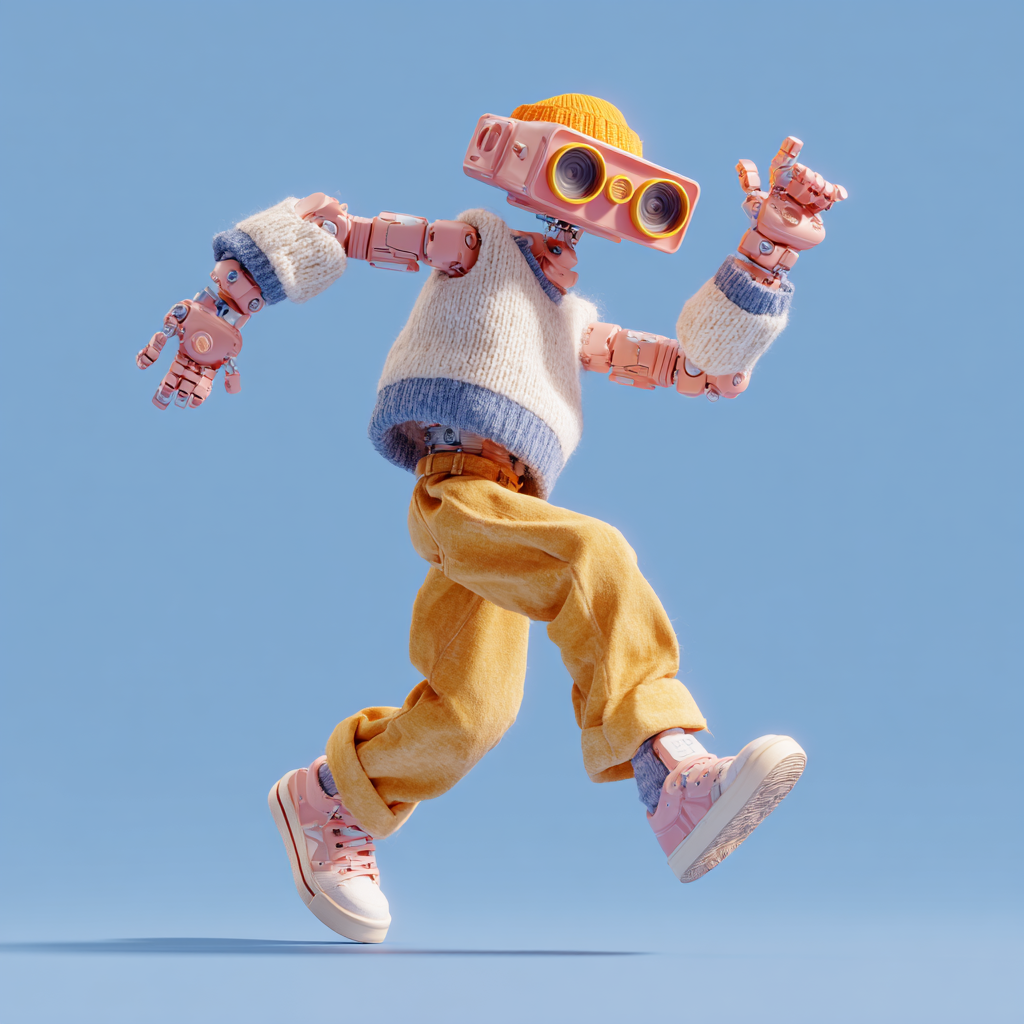 **Input Video** ### 2. Model links **diffusion\_models** * [Wan2\_2-Animate-14B\_fp8\_e4m3fn\_scaled\_KJ.safetensors](https://huggingface.co/Kijai/WanVideo_comfy_fp8_scaled/resolve/main/Wan22Animate/Wan2_2-Animate-14B_fp8_e4m3fn_scaled_KJ.safetensors) This is the model that from Kijai's repo * [wan2.2\_animate\_14B\_bf16.safetensors](https://huggingface.co/Comfy-Org/Wan_2.2_ComfyUI_Repackaged/resolve/main/split_files/diffusion_models/wan2.2_animate_14B_bf16.safetensors) original model weight **clip\_visions** * [clip\_vision\_h.safetensors](https://huggingface.co/Comfy-Org/Wan_2.1_ComfyUI_repackaged/resolve/main/split_files/clip_vision/clip_vision_h.safetensors) **loras** * [lightx2v\_I2V\_14B\_480p\_cfg\_step\_distill\_rank64\_bf16.safetensors](https://huggingface.co/Kijai/WanVideo_comfy/resolve/main/Lightx2v/lightx2v_I2V_14B_480p_cfg_step_distill_rank64_bf16.safetensors) 这是一个 4 步的加速 lora **vae** * [wan\_2.1\_vae.safetensors](https://huggingface.co/Comfy-Org/Wan_2.2_ComfyUI_Repackaged/resolve/main/split_files/vae/wan_2.1_vae.safetensors) **text\_encoders** * [umt5\_xxl\_fp8\_e4m3fn\_scaled.safetensors](https://huggingface.co/Comfy-Org/Wan_2.1_ComfyUI_repackaged/resolve/main/split_files/text_encoders/umt5_xxl_fp8_e4m3fn_scaled.safetensors) ``` ComfyUI/ ├───📂 models/ │ ├───📂 diffusion_models/ │ │ ├─── Wan2_2-Animate-14B_fp8_e4m3fn_scaled_KJ.safetensors │ │ └─── wan2.2_animate_14B_bf16.safetensors │ ├───📂 loras/ │ │ └─── lightx2v_I2V_14B_480p_cfg_step_distill_rank64_bf16.safetensors │ ├───📂 text_encoders/ │ │ └─── umt5_xxl_fp8_e4m3fn_scaled.safetensors │ ├───📂 clip_visions/ │ │ └─── clip_vision_h.safetensors │ └───📂 vae/ │ └── wan_2.1_vae.safetensors ``` ### 3. Install custom nodes Download the following workflow file and drag it into ComfyUI to load the workflow, if you have [ComfyUI-Manager](https://github.com/Comfy-Org/ComfyUI-Manager) installed, you can just click the `Install missing nodes` button to install the missing nodes. We need to install the following custom nodes: * [ComfyUI-KJNodes](https://github.com/kijai/ComfyUI-KJNodes) * [ComfyUI-comfyui\_controlnet\_aux](https://github.com/Fannovel16/comfyui_controlnet_aux) If you don't know how to install custom nodes please refer to [How to install custom nodes](/installation/install_custom_node) ### 4. Workflow Instructions The Wan2.2 animate has two modes: Mix and move * Mix: use the reference image to replace the character in the video * Move: Use the character movement from the input video to animate the character in the reference image (like Wan2.2 Fun Control) #### 4.1 Mix mode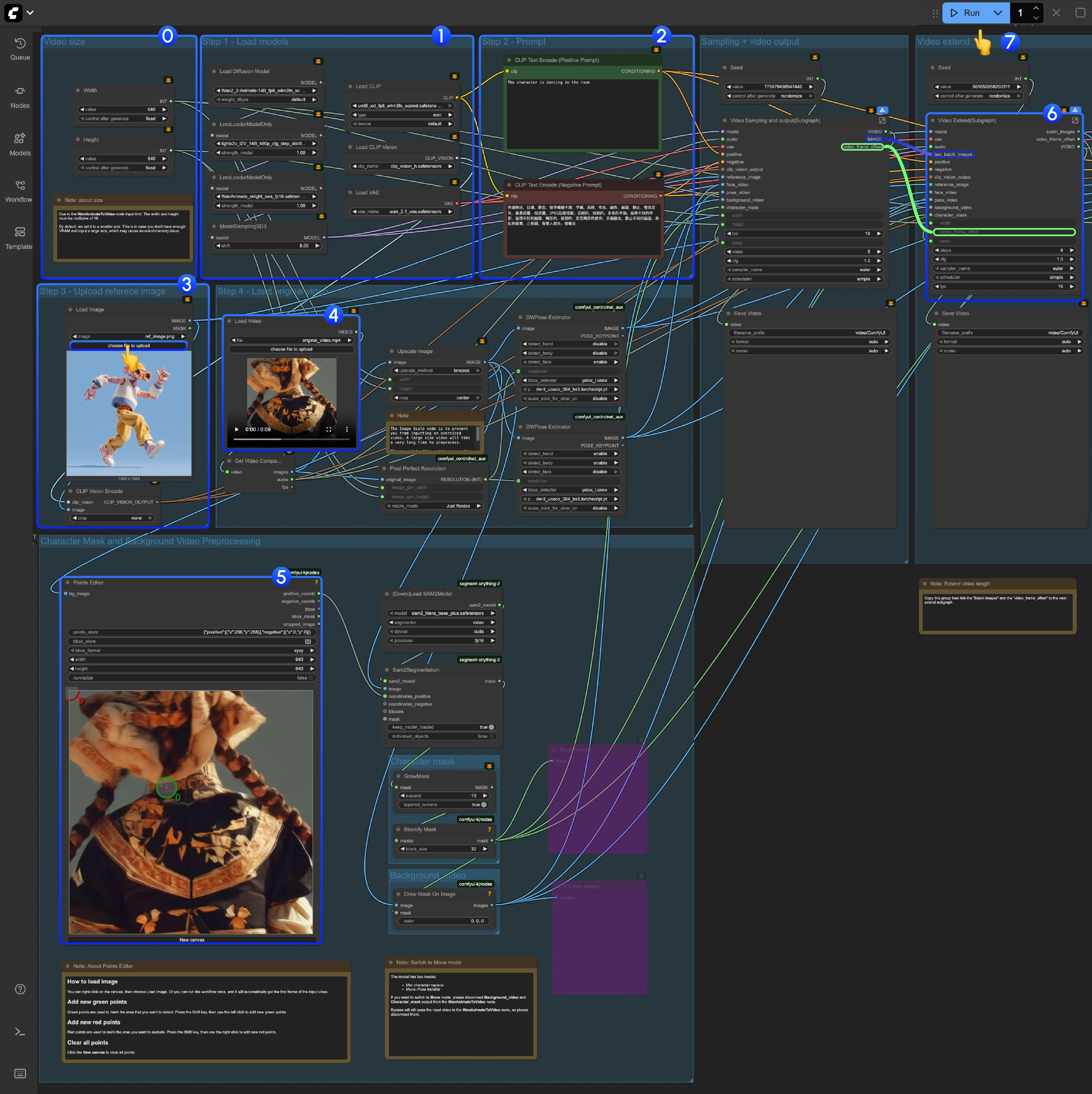 0. If you are running this workflow for the first time, please use a small size for video generation, in case you don't have enough VRAM to run the workflow, and due to the `WanAnimateToVideo` limited, the video width or height should be multiples of 16.
1. Make sure all the models are loaded correctly
2. Update the prompt if you want
3. Upload the reference image, the character is this image will be the target character
4. You can use the videos we provided as input videos for the first time, the **DWPose Estimator** node in [comfyui\_controlnet\_aux](https://github.com/Fannovel16/comfyui_controlnet_aux) will preprocess the input video to pose and face control videos
5. The `Points Editor` is from [KJNodes](https://github.com/kijai/ComfyUI-KJNodes/), by default this node will not load the first frame from the input video, you need to run the workflow once or manually upload the first frame
* Below the `Points Editor` node, we have added a note about how this node works, and how to edit it. Please refer to it
6. For the "Video Extend" group, it's in order to extend to the output video length
* Each `Video Extend` will extend another 77 frames(Around 4.8125 seconds)
* If your input video is less than 5s, you might not need it
* If you want to extend longer, you need to copy and paste multiple times, you need to link the `batch_images` from last Video Extend to next one, and also the `video_frame_offset` from last Video Extend to next one
7. Click the `Run` button or use the shortcut `Ctrl(cmd) + Enter` to execute video generation
#### 4.2 Move mode
We used [subgraph](/interface/features/subgraph) in the Wan2.2 animate workflow, here is how to switching to move mode:
0. If you are running this workflow for the first time, please use a small size for video generation, in case you don't have enough VRAM to run the workflow, and due to the `WanAnimateToVideo` limited, the video width or height should be multiples of 16.
1. Make sure all the models are loaded correctly
2. Update the prompt if you want
3. Upload the reference image, the character is this image will be the target character
4. You can use the videos we provided as input videos for the first time, the **DWPose Estimator** node in [comfyui\_controlnet\_aux](https://github.com/Fannovel16/comfyui_controlnet_aux) will preprocess the input video to pose and face control videos
5. The `Points Editor` is from [KJNodes](https://github.com/kijai/ComfyUI-KJNodes/), by default this node will not load the first frame from the input video, you need to run the workflow once or manually upload the first frame
* Below the `Points Editor` node, we have added a note about how this node works, and how to edit it. Please refer to it
6. For the "Video Extend" group, it's in order to extend to the output video length
* Each `Video Extend` will extend another 77 frames(Around 4.8125 seconds)
* If your input video is less than 5s, you might not need it
* If you want to extend longer, you need to copy and paste multiple times, you need to link the `batch_images` from last Video Extend to next one, and also the `video_frame_offset` from last Video Extend to next one
7. Click the `Run` button or use the shortcut `Ctrl(cmd) + Enter` to execute video generation
#### 4.2 Move mode
We used [subgraph](/interface/features/subgraph) in the Wan2.2 animate workflow, here is how to switching to move mode:
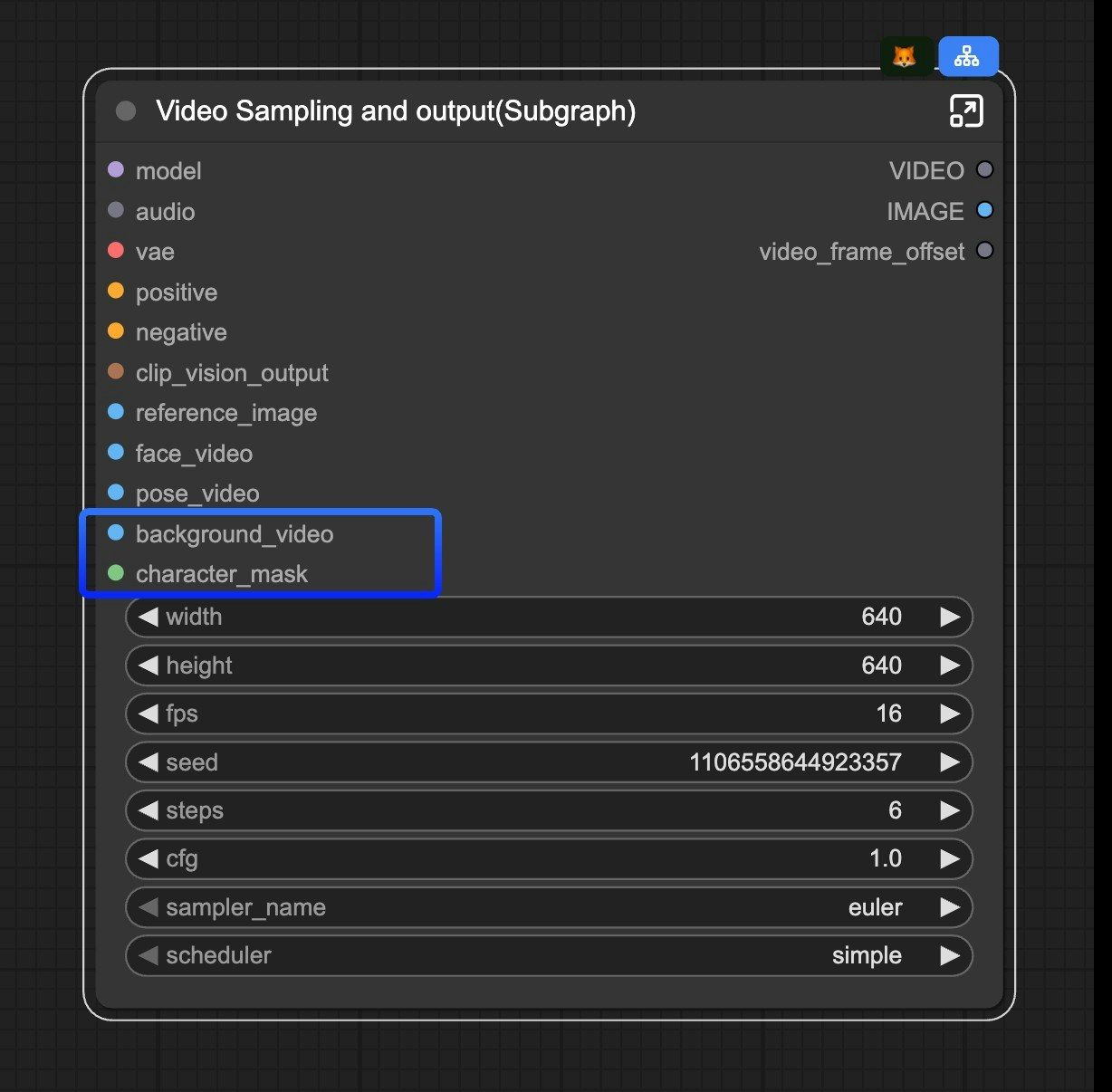 If you want to switch to Move mode, you can disconnect `background_video` and `character_mask` inputs from the `Video Sampling and output(Subgraph)` node.