> ## Documentation Index
> Fetch the complete documentation index at: https://docs.comfy.org/llms.txt
> Use this file to discover all available pages before exploring further.
# ComfyUI Wan2.2 Fun Control Video Generation Example
> This article introduces how to use ComfyUI to complete the Wan2.2 Fun Control video generation using control videos
**Wan2.2-Fun-Control** is a next-generation video generation and control model launched by Alibaba PAI team. Through innovative Control Codes mechanism combined with deep learning and multi-modal conditional inputs, it can generate high-quality videos that comply with preset control conditions. The model is released under the **Apache 2.0 license** and supports commercial use.
**Key Features**:
* **Multi-modal Control**: Supports multiple control conditions including **Canny (line art)**, **Depth**, **OpenPose (human pose)**, **MLSD (geometric edges)**, and **trajectory control**
* **High-Quality Video Generation**: Based on the Wan2.2 architecture, outputs film-level quality videos
* **Multi-language Support**: Supports multi-language prompts including Chinese and English
Below are the relevant model weights and code repositories:
* [🤗Wan2.2-Fun-A14B-Control](https://huggingface.co/alibaba-pai/Wan2.2-Fun-A14B-Control)
* Code repository: [VideoX-Fun](https://github.com/aigc-apps/VideoX-Fun)
## ComfyOrg Wan2.2 Fun InP & Control Youtube Live Stream Replay
## Wan2.2 Fun Control Video Generation Workflow Example
Make sure your ComfyUI is updated.
* [Download ComfyUI](https://www.comfy.org/download)
* [Update Guide](/installation/update_comfyui)
Workflows in this guide can be found in the [Workflow Templates](/interface/features/template).
If you can't find them in the template, your ComfyUI may be outdated. (Desktop version's update will delay sometime)
If nodes are missing when loading a workflow, possible reasons:
1. You are not using the latest ComfyUI version (Nightly version)
2. Some nodes failed to import at startup
* The Desktop is base on ComfyUI stable release, it will auto-update when there is a new Desktop stable release available.
* [Cloud](https://cloud.comfy.org) will update after ComfyUI stable release.
So, if you find any core node missing in this document, it might be because the new core nodes have not yet been released in the latest stable version. Please wait for the next stable release.
This workflow provides two versions:
1. A version using [Wan2.2-Lightning](https://huggingface.co/lightx2v/Wan2.2-Lightning) 4-step LoRA from lightx2v: may cause some loss in video dynamics but offers faster speed
2. A fp8\_scaled version without acceleration LoRA
Below are the test results using an RTX4090D 24GB VRAM GPU at 640×640 resolution with 81 frames
| Model Type | VRAM Usage | First Generation Time | Second Generation Time |
| ------------------------- | ---------- | --------------------- | ---------------------- |
| fp8\_scaled | 83% | ≈ 524s | ≈ 520s |
| fp8\_scaled + 4-step LoRA | 89% | ≈ 138s | ≈ 79s |
Since using the 4-step LoRA provides a better experience for first-time workflow users, but may cause some loss in video dynamics, we have enabled the accelerated LoRA version by default. If you want to enable the other workflow, select it and use **Ctrl+B** to activate.
### 1. Download Workflow and Materials
Download the video below or JSON file and drag it into ComfyUI to load the workflow
Please download the following images and videos as input materials.

> We use a preprocessed video here.
### 2. Models
You can find the models below at [Wan\_2.2\_ComfyUI\_Repackaged](https://huggingface.co/Comfy-Org/Wan_2.2_ComfyUI_Repackaged)
**Diffusion Model**
* [wan2.2\_fun\_control\_high\_noise\_14B\_fp8\_scaled.safetensors](https://huggingface.co/Comfy-Org/Wan_2.2_ComfyUI_Repackaged/resolve/main/split_files/diffusion_models/wan2.2_fun_control_high_noise_14B_fp8_scaled.safetensors)
* [wan2.2\_fun\_control\_low\_noise\_14B\_fp8\_scaled.safetensors](https://huggingface.co/Comfy-Org/Wan_2.2_ComfyUI_Repackaged/resolve/main/split_files/diffusion_models/wan2.2_fun_control_low_noise_14B_fp8_scaled.safetensors)
**Wan2.2-Lightning LoRA (Optional, for acceleration)**
* [wan2.2\_i2v\_lightx2v\_4steps\_lora\_v1\_high\_noise.safetensors](https://huggingface.co/Comfy-Org/Wan_2.2_ComfyUI_Repackaged/resolve/main/split_files/loras/wan2.2_i2v_lightx2v_4steps_lora_v1_high_noise.safetensors)
* [wan2.2\_i2v\_lightx2v\_4steps\_lora\_v1\_low\_noise.safetensors](https://huggingface.co/Comfy-Org/Wan_2.2_ComfyUI_Repackaged/resolve/main/split_files/loras/wan2.2_i2v_lightx2v_4steps_lora_v1_low_noise.safetensors)
**VAE**
* [wan\_2.1\_vae.safetensors](https://huggingface.co/Comfy-Org/Wan_2.2_ComfyUI_Repackaged/resolve/main/split_files/vae/wan_2.1_vae.safetensors)
**Text Encoder**
* [umt5\_xxl\_fp8\_e4m3fn\_scaled.safetensors](https://huggingface.co/Comfy-Org/Wan_2.1_ComfyUI_repackaged/resolve/main/split_files/text_encoders/umt5_xxl_fp8_e4m3fn_scaled.safetensors)
```
ComfyUI/
├───📂 models/
│ ├───📂 diffusion_models/
│ │ ├─── wan2.2_fun_control_low_noise_14B_fp8_scaled.safetensors
│ │ └─── wan2.2_fun_control_high_noise_14B_fp8_scaled.safetensors
│ ├───📂 loras/
│ │ ├─── wan2.2_i2v_lightx2v_4steps_lora_v1_high_noise.safetensors
│ │ └─── wan2.2_i2v_lightx2v_4steps_lora_v1_low_noise.safetensors
│ ├───📂 text_encoders/
│ │ └─── umt5_xxl_fp8_e4m3fn_scaled.safetensors
│ └───📂 vae/
│ └── wan_2.1_vae.safetensors
```
### 3. Workflow Guide
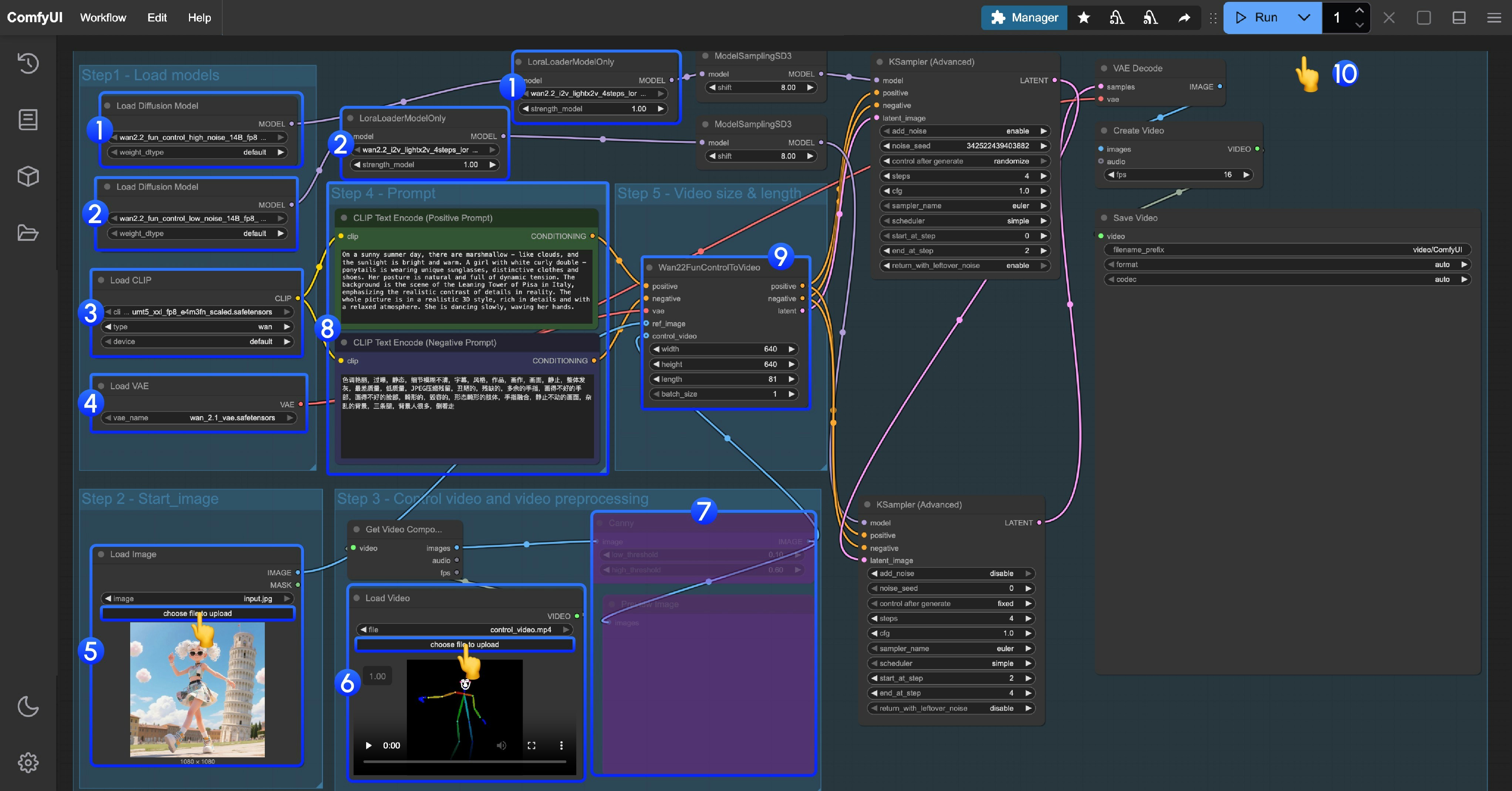
This workflow uses LoRA. Please ensure the corresponding Diffusion model and LoRA are matched - high noise and low noise models and LoRAs need to be used correspondingly.
1. **High noise** model and **LoRA** loading
* Ensure the `Load Diffusion Model` node loads the `wan2.2_fun_control_high_noise_14B_fp8_scaled.safetensors` model
* Ensure the `LoraLoaderModelOnly` node loads the `wan2.2_i2v_lightx2v_4steps_lora_v1_high_noise.safetensors`
2. **Low noise** model and **LoRA** loading
* Ensure the `Load Diffusion Model` node loads the `wan2.2_fun_control_low_noise_14B_fp8_scaled.safetensors` model
* Ensure the `LoraLoaderModelOnly` node loads the `wan2.2_i2v_lightx2v_4steps_lora_v1_low_noise.safetensors`
3. Ensure the `Load CLIP` node loads the `umt5_xxl_fp8_e4m3fn_scaled.safetensors` model
4. Ensure the `Load VAE` node loads the `wan_2.1_vae.safetensors` model
5. Upload the start frame in the `Load Image` node
6. In the second `Load video` node, load the pose control video. The provided video has been preprocessed and can be used directly
7. Since we provide a preprocessed pose video, the corresponding video image preprocessing node needs to be disabled. You can select it and use `Ctrl + B` to disable it
8. Modify the Prompt - you can use both Chinese and English
9. In `Wan22FunControlToVideo`, modify the video dimensions. The default is set to 640×640 resolution to avoid excessive processing time for users with low VRAM
10. Click the `Run` button, or use the shortcut `Ctrl(cmd) + Enter` to execute video generation
### Additional Notes
Since ComfyUI's built-in nodes only include Canny preprocessor, you can use tools like [ComfyUI-comfyui\_controlnet\_aux](https://github.com/Fannovel16/comfyui_controlnet_aux) to implement other types of image preprocessing