Download JSON Workflow
Run on Comfy Cloud
Download the following image and audio as input: Download Input Audio
### 2. Model Links You can find the models in [our repo](https://huggingface.co/Comfy-Org/Wan_2.2_ComfyUI_Repackaged) **diffusion\_models** * [wan2.2\_s2v\_14B\_fp8\_scaled.safetensors](https://huggingface.co/Comfy-Org/Wan_2.2_ComfyUI_Repackaged/resolve/main/split_files/diffusion_models/wan2.2_s2v_14B_fp8_scaled.safetensors) * [wan2.2\_s2v\_14B\_bf16.safetensors](https://huggingface.co/Comfy-Org/Wan_2.2_ComfyUI_Repackaged/resolve/main/split_files/diffusion_models/wan2.2_s2v_14B_bf16.safetensors) **audio\_encoders** * [wav2vec2\_large\_english\_fp16.safetensors](https://huggingface.co/Comfy-Org/Wan_2.2_ComfyUI_Repackaged/resolve/main/split_files/audio_encoders/wav2vec2_large_english_fp16.safetensors) **vae** * [wan\_2.1\_vae.safetensors](https://huggingface.co/Comfy-Org/Wan_2.2_ComfyUI_Repackaged/resolve/main/split_files/vae/wan_2.1_vae.safetensors) **text\_encoders** * [umt5\_xxl\_fp8\_e4m3fn\_scaled.safetensors](https://huggingface.co/Comfy-Org/Wan_2.1_ComfyUI_repackaged/resolve/main/split_files/text_encoders/umt5_xxl_fp8_e4m3fn_scaled.safetensors) ``` ComfyUI/ ├───📂 models/ │ ├───📂 diffusion_models/ │ │ ├─── wan2.2_s2v_14B_fp8_scaled.safetensors │ │ └─── wan2.2_s2v_14B_bf16.safetensors │ ├───📂 text_encoders/ │ │ └─── umt5_xxl_fp8_e4m3fn_scaled.safetensors │ ├───📂 audio_encoders/ # Create one if you can't find this folder │ │ └─── wav2vec2_large_english_fp16.safetensors │ └───📂 vae/ │ └── wan_2.1_vae.safetensors ``` ### 3. Workflow Instructions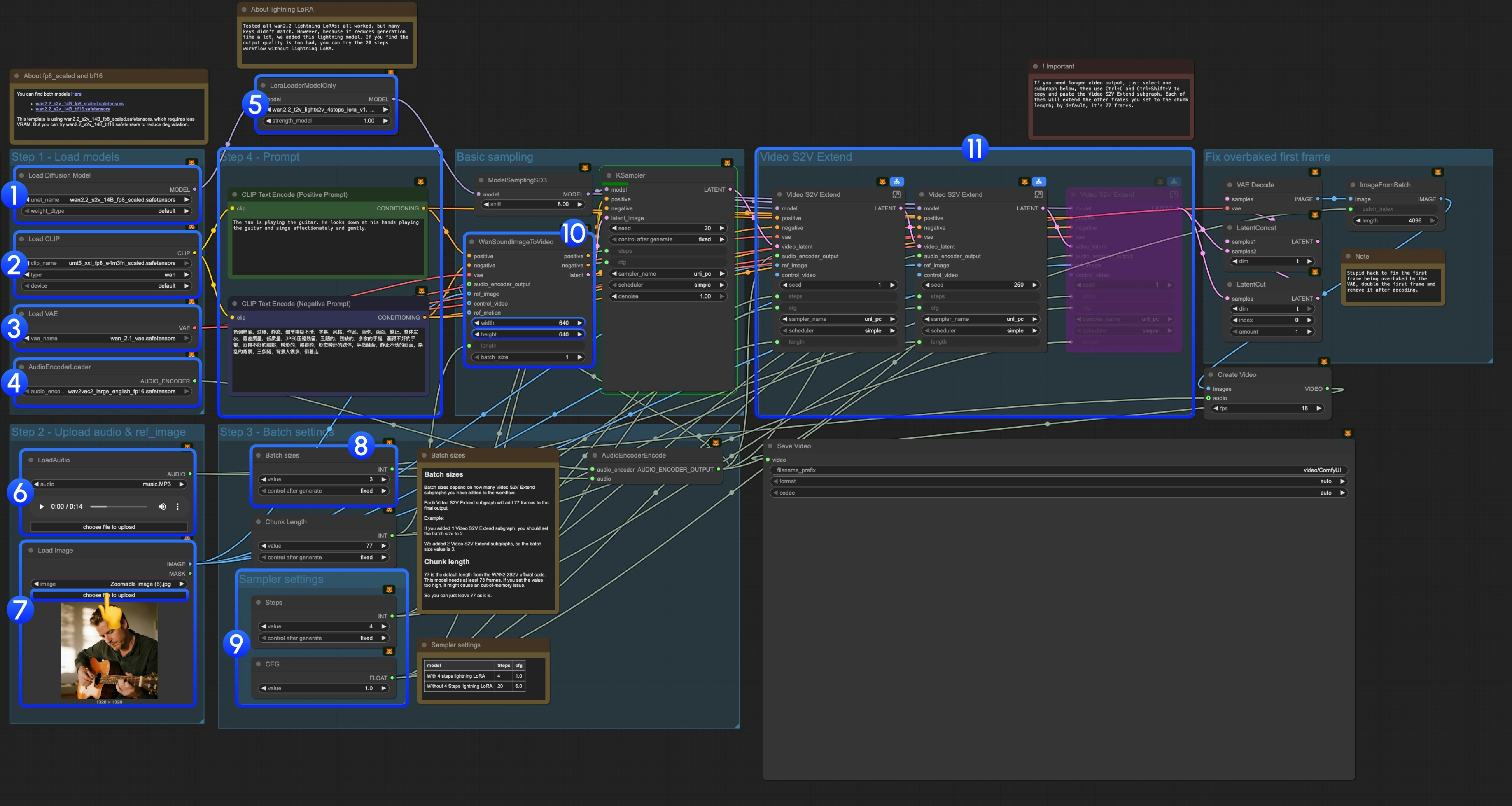 #### 3.1 About Lightning LoRA
#### 3.2 About fp8\_scaled and bf16 Models
You can find both models [here](https://huggingface.co/Comfy-Org/Wan_2.2_ComfyUI_Repackaged/tree/main/split_files/diffusion_models):
* [wan2.2\_s2v\_14B\_fp8\_scaled.safetensors](https://huggingface.co/Comfy-Org/Wan_2.2_ComfyUI_Repackaged/resolve/main/split_files/diffusion_models/wan2.2_s2v_14B_fp8_scaled.safetensors)
* [wan2.2\_s2v\_14B\_bf16.safetensors](https://huggingface.co/Comfy-Org/Wan_2.2_ComfyUI_Repackaged/resolve/main/split_files/diffusion_models/wan2.2_s2v_14B_bf16.safetensors)
This template uses `wan2.2_s2v_14B_fp8_scaled.safetensors`, which requires less VRAM. But you can try `wan2.2_s2v_14B_bf16.safetensors` to reduce quality degradation.
#### 3.3 Step-by-Step Operation Instructions
**Step 1: Load Models**
1. **Load Diffusion Model**: Load `wan2.2_s2v_14B_fp8_scaled.safetensors` or `wan2.2_s2v_14B_bf16.safetensors`
* The provided workflow uses `wan2.2_s2v_14B_fp8_scaled.safetensors`, which requires less VRAM
* But you can try `wan2.2_s2v_14B_bf16.safetensors` to reduce quality degradation
2. **Load CLIP**: Load `umt5_xxl_fp8_e4m3fn_scaled.safetensors`
3. **Load VAE**: Load `wan_2.1_vae.safetensors`
4. **AudioEncoderLoader**: Load `wav2vec2_large_english_fp16.safetensors`
5. **LoraLoaderModelOnly**: Load `wan2.2_t2v_lightx2v_4steps_lora_v1.1_high_noise.safetensors` (Lightning LoRA)
* We tested all wan2.2 lightning LoRAs. Since this is not a LoRA specifically trained for Wan2.2 S2V, many key values don't match, but we added it because it significantly reduces generation time. We will continue to optimize this template
* Using it will cause significant dynamic and quality loss
* If you find the output quality too poor, you can try the original 20-step workflow
6. **LoadAudio**: Upload our provided audio file or your own audio
7. **Load Image**: Upload reference image
8. **Batch sizes**: Set according to the number of Video S2V Extend subgraph nodes you add
* Each Video S2V Extend subgraph adds 77 frames to the final output
* For example: If you added 2 Video S2V Extend subgraphs, the batch size should be 3, which means the total number of sampling iterations
* **Chunk Length**: Keep the default value of 77
9. **Sampler Settings**: Choose different settings based on whether you use Lightning LoRA
* With 4-step Lightning LoRA: steps: 4, cfg: 1.0
* Without 4-step Lightning LoRA: steps: 20, cfg: 6.0
10. **Size Settings**: Set the output video dimensions
11. **Video S2V Extend**: Video extension subgraph nodes. Since our default frames per sampling is 77, and this is a 16fps model, each extension will generate 77 / 16 = 4.8125 seconds of video
* You need some calculation to match the number of video extension subgraph nodes with the input audio length. For example: If input audio is 14s, the total frames needed are 14x16=224, each video extension is 77 frames, so you need 224/77 = 2.9, rounded up to 3 video extension subgraph nodes
12. Use Ctrl-Enter or click the Run button to execute the workflow
#### 3.1 About Lightning LoRA
#### 3.2 About fp8\_scaled and bf16 Models
You can find both models [here](https://huggingface.co/Comfy-Org/Wan_2.2_ComfyUI_Repackaged/tree/main/split_files/diffusion_models):
* [wan2.2\_s2v\_14B\_fp8\_scaled.safetensors](https://huggingface.co/Comfy-Org/Wan_2.2_ComfyUI_Repackaged/resolve/main/split_files/diffusion_models/wan2.2_s2v_14B_fp8_scaled.safetensors)
* [wan2.2\_s2v\_14B\_bf16.safetensors](https://huggingface.co/Comfy-Org/Wan_2.2_ComfyUI_Repackaged/resolve/main/split_files/diffusion_models/wan2.2_s2v_14B_bf16.safetensors)
This template uses `wan2.2_s2v_14B_fp8_scaled.safetensors`, which requires less VRAM. But you can try `wan2.2_s2v_14B_bf16.safetensors` to reduce quality degradation.
#### 3.3 Step-by-Step Operation Instructions
**Step 1: Load Models**
1. **Load Diffusion Model**: Load `wan2.2_s2v_14B_fp8_scaled.safetensors` or `wan2.2_s2v_14B_bf16.safetensors`
* The provided workflow uses `wan2.2_s2v_14B_fp8_scaled.safetensors`, which requires less VRAM
* But you can try `wan2.2_s2v_14B_bf16.safetensors` to reduce quality degradation
2. **Load CLIP**: Load `umt5_xxl_fp8_e4m3fn_scaled.safetensors`
3. **Load VAE**: Load `wan_2.1_vae.safetensors`
4. **AudioEncoderLoader**: Load `wav2vec2_large_english_fp16.safetensors`
5. **LoraLoaderModelOnly**: Load `wan2.2_t2v_lightx2v_4steps_lora_v1.1_high_noise.safetensors` (Lightning LoRA)
* We tested all wan2.2 lightning LoRAs. Since this is not a LoRA specifically trained for Wan2.2 S2V, many key values don't match, but we added it because it significantly reduces generation time. We will continue to optimize this template
* Using it will cause significant dynamic and quality loss
* If you find the output quality too poor, you can try the original 20-step workflow
6. **LoadAudio**: Upload our provided audio file or your own audio
7. **Load Image**: Upload reference image
8. **Batch sizes**: Set according to the number of Video S2V Extend subgraph nodes you add
* Each Video S2V Extend subgraph adds 77 frames to the final output
* For example: If you added 2 Video S2V Extend subgraphs, the batch size should be 3, which means the total number of sampling iterations
* **Chunk Length**: Keep the default value of 77
9. **Sampler Settings**: Choose different settings based on whether you use Lightning LoRA
* With 4-step Lightning LoRA: steps: 4, cfg: 1.0
* Without 4-step Lightning LoRA: steps: 20, cfg: 6.0
10. **Size Settings**: Set the output video dimensions
11. **Video S2V Extend**: Video extension subgraph nodes. Since our default frames per sampling is 77, and this is a 16fps model, each extension will generate 77 / 16 = 4.8125 seconds of video
* You need some calculation to match the number of video extension subgraph nodes with the input audio length. For example: If input audio is 14s, the total frames needed are 14x16=224, each video extension is 77 frames, so you need 224/77 = 2.9, rounded up to 3 video extension subgraph nodes
12. Use Ctrl-Enter or click the Run button to execute the workflow