 ## Wan2.2 TI2V 5B Hybrid Version Workflow Example
Download JSON Workflow File
Run on Comfy Cloud
### 2. Manually Download Models **Diffusion Model** * [wan2.2\_ti2v\_5B\_fp16.safetensors](https://huggingface.co/Comfy-Org/Wan_2.2_ComfyUI_Repackaged/resolve/main/split_files/diffusion_models/wan2.2_ti2v_5B_fp16.safetensors) **VAE** * [wan2.2\_vae.safetensors](https://huggingface.co/Comfy-Org/Wan_2.2_ComfyUI_Repackaged/resolve/main/split_files/vae/wan2.2_vae.safetensors) **Text Encoder** * [umt5\_xxl\_fp8\_e4m3fn\_scaled.safetensors](https://huggingface.co/Comfy-Org/Wan_2.1_ComfyUI_repackaged/resolve/main/split_files/text_encoders/umt5_xxl_fp8_e4m3fn_scaled.safetensors) ``` ComfyUI/ ├───📂 models/ │ ├───📂 diffusion_models/ │ │ └───wan2.2_ti2v_5B_fp16.safetensors │ ├───📂 text_encoders/ │ │ └─── umt5_xxl_fp8_e4m3fn_scaled.safetensors │ └───📂 vae/ │ └── wan2.2_vae.safetensors ``` ### 3. Follow the Steps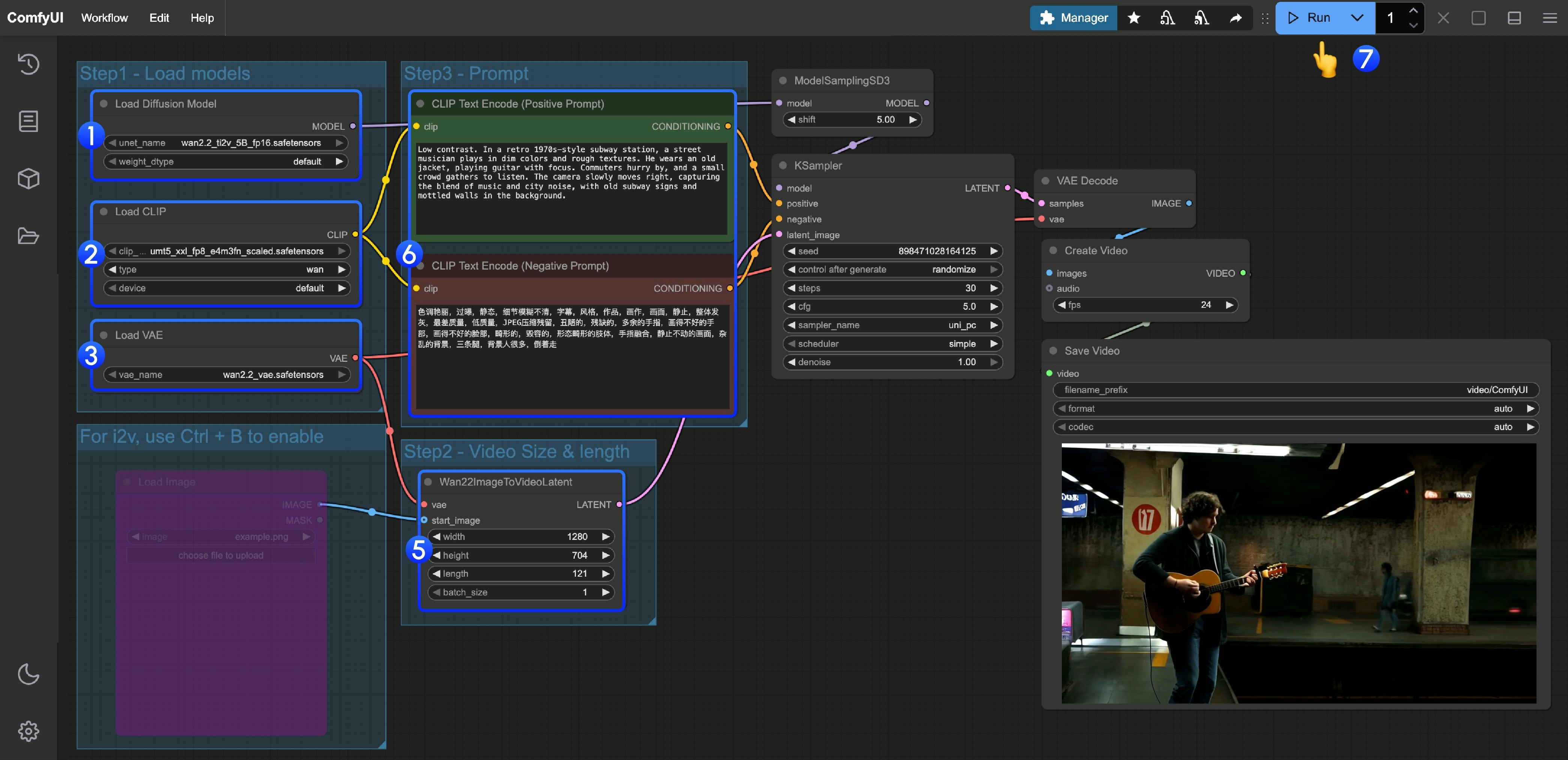 1. Ensure the `Load Diffusion Model` node loads the `wan2.2_ti2v_5B_fp16.safetensors` model.
2. Ensure the `Load CLIP` node loads the `umt5_xxl_fp8_e4m3fn_scaled.safetensors` model.
3. Ensure the `Load VAE` node loads the `wan2.2_vae.safetensors` model.
4. (Optional) If you need to perform image-to-video generation, you can use the shortcut Ctrl+B to enable the `Load image` node to upload an image.
5. (Optional) In the `Wan22ImageToVideoLatent` node, you can adjust the size settings and the total number of video frames (`length`).
6. (Optional) If you need to modify the prompts (positive and negative), please do so in the `CLIP Text Encoder` node at step 5.
7. Click the `Run` button, or use the shortcut `Ctrl(cmd) + Enter` to execute video generation.
## Wan2.2 14B T2V Text-to-Video Workflow Example
### 1. Workflow File
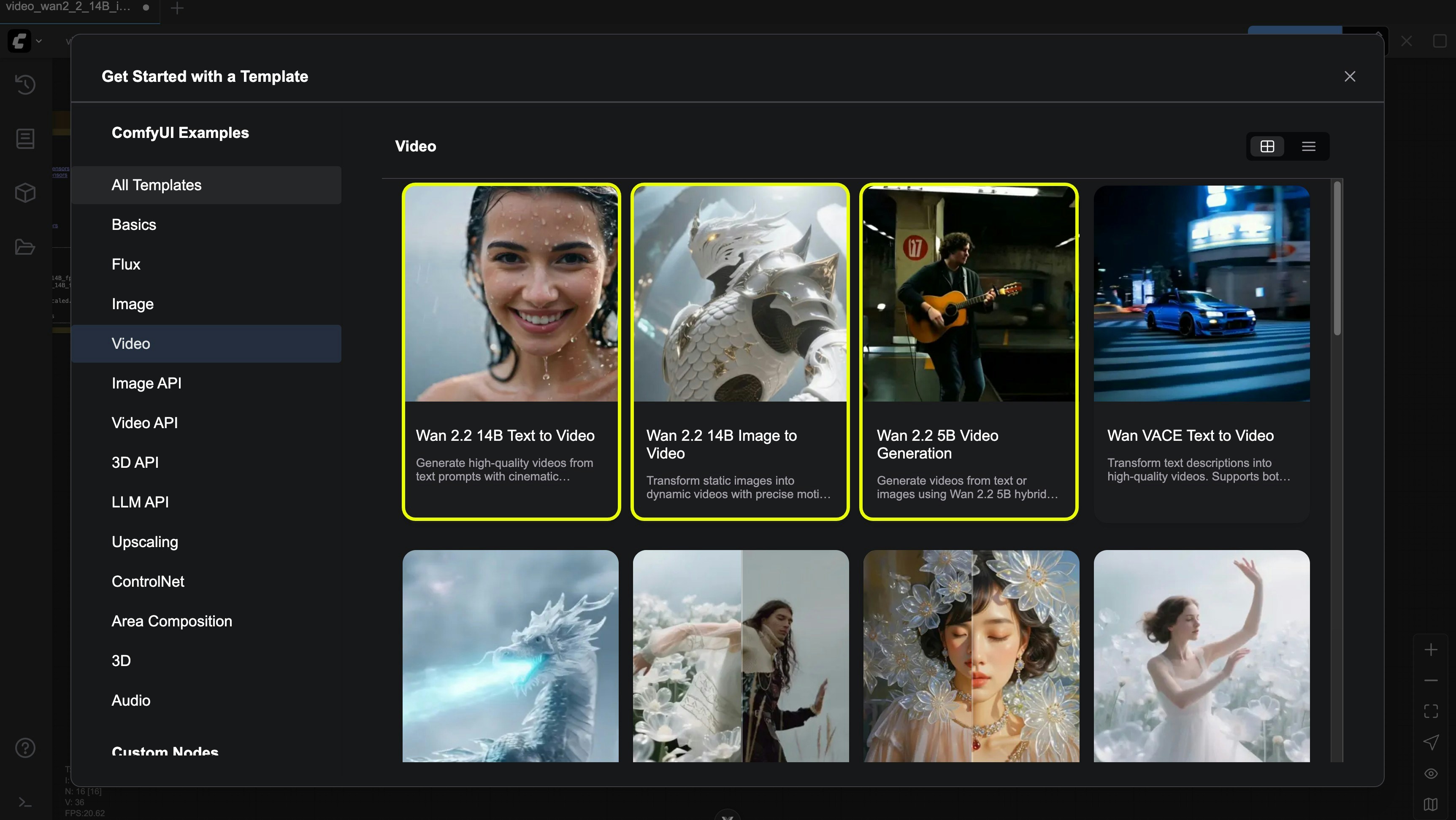
Please update your ComfyUI to the latest version, and through the menu `Workflow` -> `Browse Templates` -> `Video`, find "Wan2.2 14B T2V" to load the workflow.
Or update your ComfyUI to the latest version, then download the following video and drag it into ComfyUI to load the workflow.
1. Ensure the `Load Diffusion Model` node loads the `wan2.2_ti2v_5B_fp16.safetensors` model.
2. Ensure the `Load CLIP` node loads the `umt5_xxl_fp8_e4m3fn_scaled.safetensors` model.
3. Ensure the `Load VAE` node loads the `wan2.2_vae.safetensors` model.
4. (Optional) If you need to perform image-to-video generation, you can use the shortcut Ctrl+B to enable the `Load image` node to upload an image.
5. (Optional) In the `Wan22ImageToVideoLatent` node, you can adjust the size settings and the total number of video frames (`length`).
6. (Optional) If you need to modify the prompts (positive and negative), please do so in the `CLIP Text Encoder` node at step 5.
7. Click the `Run` button, or use the shortcut `Ctrl(cmd) + Enter` to execute video generation.
## Wan2.2 14B T2V Text-to-Video Workflow Example
### 1. Workflow File
Please update your ComfyUI to the latest version, and through the menu `Workflow` -> `Browse Templates` -> `Video`, find "Wan2.2 14B T2V" to load the workflow.
Or update your ComfyUI to the latest version, then download the following video and drag it into ComfyUI to load the workflow.
Download JSON Workflow File
Run on Comfy Cloud
### 2. Manually Download Models **Diffusion Model** * [wan2.2\_t2v\_high\_noise\_14B\_fp8\_scaled.safetensors](https://huggingface.co/Comfy-Org/Wan_2.2_ComfyUI_Repackaged/resolve/main/split_files/diffusion_models/wan2.2_t2v_high_noise_14B_fp8_scaled.safetensors) * [wan2.2\_t2v\_low\_noise\_14B\_fp8\_scaled.safetensors](https://huggingface.co/Comfy-Org/Wan_2.2_ComfyUI_Repackaged/resolve/main/split_files/diffusion_models/wan2.2_t2v_low_noise_14B_fp8_scaled.safetensors) **VAE** * [wan\_2.1\_vae.safetensors](https://huggingface.co/Comfy-Org/Wan_2.2_ComfyUI_Repackaged/resolve/main/split_files/vae/wan_2.1_vae.safetensors) **Text Encoder** * [umt5\_xxl\_fp8\_e4m3fn\_scaled.safetensors](https://huggingface.co/Comfy-Org/Wan_2.1_ComfyUI_repackaged/resolve/main/split_files/text_encoders/umt5_xxl_fp8_e4m3fn_scaled.safetensors) ``` ComfyUI/ ├───📂 models/ │ ├───📂 diffusion_models/ │ │ ├─── wan2.2_t2v_low_noise_14B_fp8_scaled.safetensors │ │ └─── wan2.2_t2v_high_noise_14B_fp8_scaled.safetensors │ ├───📂 text_encoders/ │ │ └─── umt5_xxl_fp8_e4m3fn_scaled.safetensors │ └───📂 vae/ │ └── wan_2.1_vae.safetensors ``` ### 3. Follow the Steps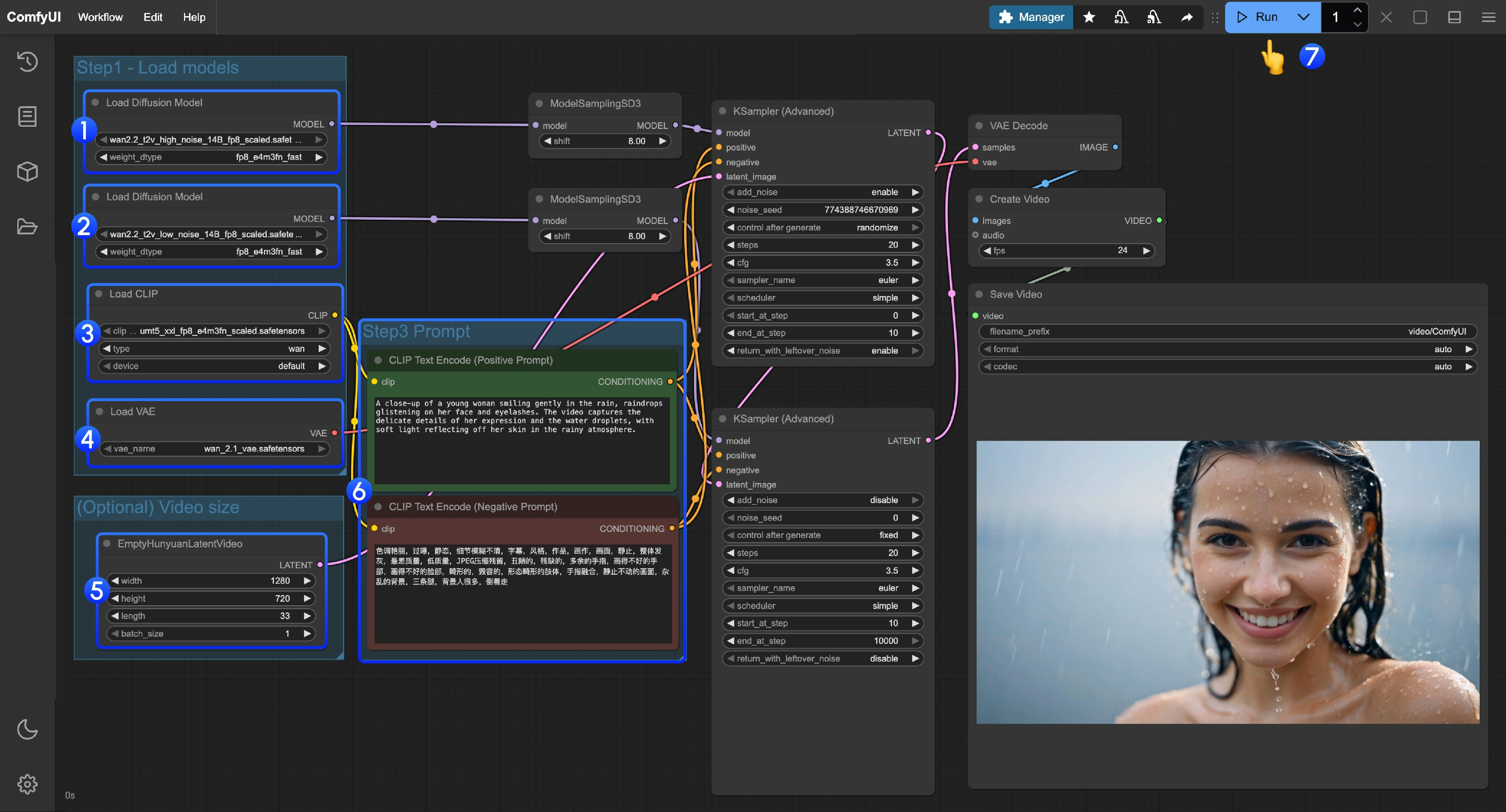 1. Ensure the first `Load Diffusion Model` node loads the `wan2.2_t2v_high_noise_14B_fp8_scaled.safetensors` model.
2. Ensure the second `Load Diffusion Model` node loads the `wan2.2_t2v_low_noise_14B_fp8_scaled.safetensors` model.
3. Ensure the `Load CLIP` node loads the `umt5_xxl_fp8_e4m3fn_scaled.safetensors` model.
4. Ensure the `Load VAE` node loads the `wan_2.1_vae.safetensors` model.
5. (Optional) In the `EmptyHunyuanLatentVideo` node, you can adjust the size settings and the total number of video frames (`length`).
6. (Optional) If you need to modify the prompts (positive and negative), please do so in the `CLIP Text Encoder` node at step 5.
7. Click the `Run` button, or use the shortcut `Ctrl(cmd) + Enter` to execute video generation.
## Wan2.2 14B I2V Image-to-Video Workflow Example
### 1. Workflow File
Please update your ComfyUI to the latest version, and through the menu `Workflow` -> `Browse Templates` -> `Video`, find "Wan2.2 14B I2V" to load the workflow.
Or update your ComfyUI to the latest version, then download the following video and drag it into ComfyUI to load the workflow.
1. Ensure the first `Load Diffusion Model` node loads the `wan2.2_t2v_high_noise_14B_fp8_scaled.safetensors` model.
2. Ensure the second `Load Diffusion Model` node loads the `wan2.2_t2v_low_noise_14B_fp8_scaled.safetensors` model.
3. Ensure the `Load CLIP` node loads the `umt5_xxl_fp8_e4m3fn_scaled.safetensors` model.
4. Ensure the `Load VAE` node loads the `wan_2.1_vae.safetensors` model.
5. (Optional) In the `EmptyHunyuanLatentVideo` node, you can adjust the size settings and the total number of video frames (`length`).
6. (Optional) If you need to modify the prompts (positive and negative), please do so in the `CLIP Text Encoder` node at step 5.
7. Click the `Run` button, or use the shortcut `Ctrl(cmd) + Enter` to execute video generation.
## Wan2.2 14B I2V Image-to-Video Workflow Example
### 1. Workflow File
Please update your ComfyUI to the latest version, and through the menu `Workflow` -> `Browse Templates` -> `Video`, find "Wan2.2 14B I2V" to load the workflow.
Or update your ComfyUI to the latest version, then download the following video and drag it into ComfyUI to load the workflow.
Download JSON Workflow File
Run on Comfy Cloud
You can use the following image as input:  ### 2. Manually Download Models **Diffusion Model** * [wan2.2\_i2v\_high\_noise\_14B\_fp16.safetensors](https://huggingface.co/Comfy-Org/Wan_2.2_ComfyUI_Repackaged/resolve/main/split_files/diffusion_models/wan2.2_i2v_high_noise_14B_fp16.safetensors) * [wan2.2\_i2v\_low\_noise\_14B\_fp16.safetensors](https://huggingface.co/Comfy-Org/Wan_2.2_ComfyUI_Repackaged/resolve/main/split_files/diffusion_models/wan2.2_i2v_low_noise_14B_fp16.safetensors) **VAE** * [wan\_2.1\_vae.safetensors](https://huggingface.co/Comfy-Org/Wan_2.2_ComfyUI_Repackaged/resolve/main/split_files/vae/wan_2.1_vae.safetensors) **Text Encoder** * [umt5\_xxl\_fp8\_e4m3fn\_scaled.safetensors](https://huggingface.co/Comfy-Org/Wan_2.1_ComfyUI_repackaged/resolve/main/split_files/text_encoders/umt5_xxl_fp8_e4m3fn_scaled.safetensors) ``` ComfyUI/ ├───📂 models/ │ ├───📂 diffusion_models/ │ │ ├─── wan2.2_i2v_low_noise_14B_fp16.safetensors │ │ └─── wan2.2_i2v_high_noise_14B_fp16.safetensors │ ├───📂 text_encoders/ │ │ └─── umt5_xxl_fp8_e4m3fn_scaled.safetensors │ └───📂 vae/ │ └── wan_2.1_vae.safetensors ``` ### 3. Follow the Steps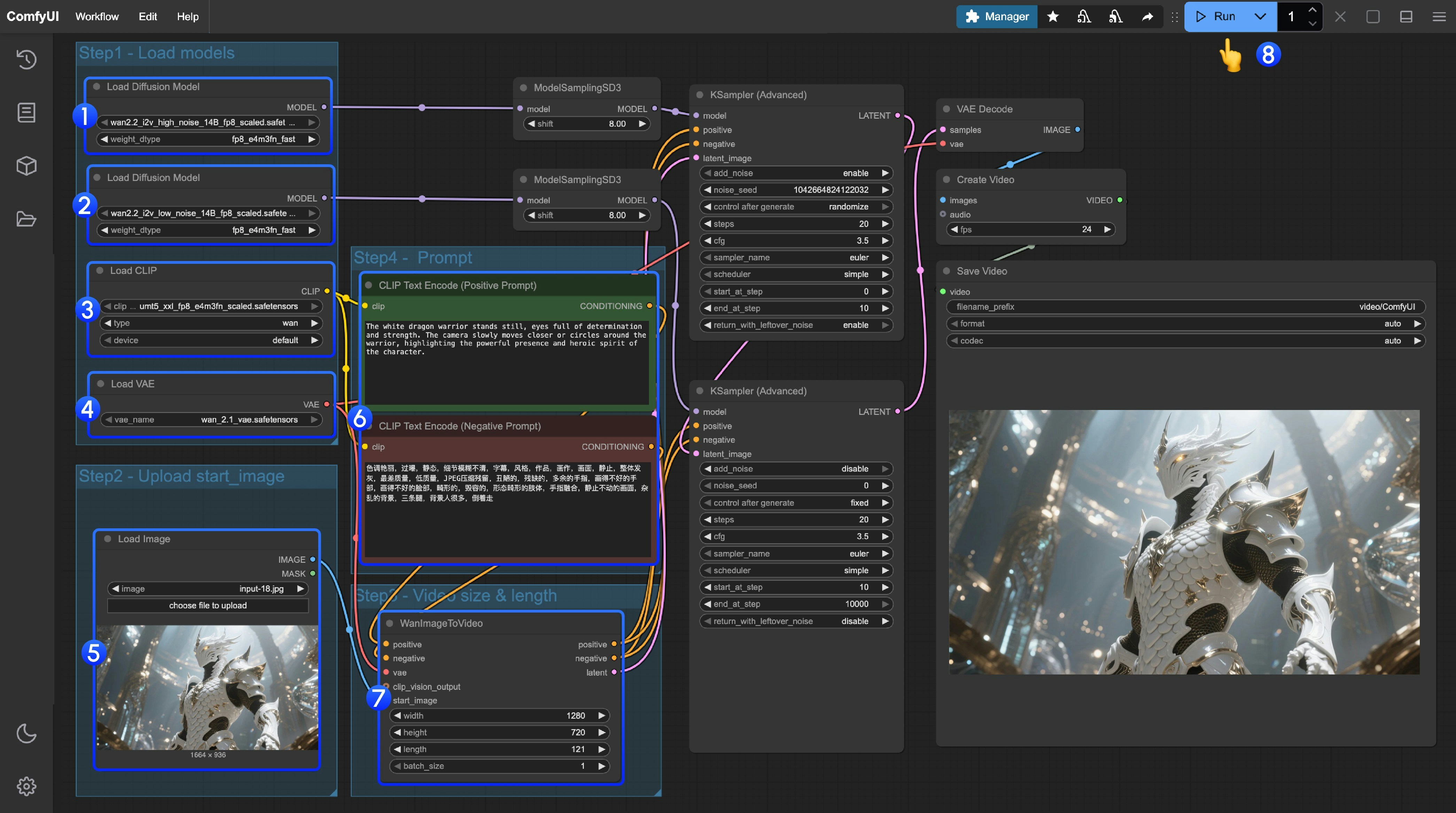 1. Make sure the first `Load Diffusion Model` node loads the `wan2.2_t2v_high_noise_14B_fp8_scaled.safetensors` model.
2. Make sure the second `Load Diffusion Model` node loads the `wan2.2_t2v_low_noise_14B_fp8_scaled.safetensors` model.
3. Make sure the `Load CLIP` node loads the `umt5_xxl_fp8_e4m3fn_scaled.safetensors` model.
4. Make sure the `Load VAE` node loads the `wan_2.1_vae.safetensors` model.
5. In the `Load Image` node, upload the image to be used as the initial frame.
6. If you need to modify the prompts (positive and negative), do so in the `CLIP Text Encoder` node at step 6.
7. (Optional) In `EmptyHunyuanLatentVideo`, you can adjust the size settings and the total number of video frames (`length`).
8. Click the `Run` button, or use the shortcut `Ctrl(cmd) + Enter` to execute video generation.
## Wan2.2 14B FLF2V Workflow Example
The first and last frame workflow uses the same model locations as the I2V section.
### 1. Workflow and Input Material Preparation
Download the video or the JSON workflow below and open it in ComfyUI.
1. Make sure the first `Load Diffusion Model` node loads the `wan2.2_t2v_high_noise_14B_fp8_scaled.safetensors` model.
2. Make sure the second `Load Diffusion Model` node loads the `wan2.2_t2v_low_noise_14B_fp8_scaled.safetensors` model.
3. Make sure the `Load CLIP` node loads the `umt5_xxl_fp8_e4m3fn_scaled.safetensors` model.
4. Make sure the `Load VAE` node loads the `wan_2.1_vae.safetensors` model.
5. In the `Load Image` node, upload the image to be used as the initial frame.
6. If you need to modify the prompts (positive and negative), do so in the `CLIP Text Encoder` node at step 6.
7. (Optional) In `EmptyHunyuanLatentVideo`, you can adjust the size settings and the total number of video frames (`length`).
8. Click the `Run` button, or use the shortcut `Ctrl(cmd) + Enter` to execute video generation.
## Wan2.2 14B FLF2V Workflow Example
The first and last frame workflow uses the same model locations as the I2V section.
### 1. Workflow and Input Material Preparation
Download the video or the JSON workflow below and open it in ComfyUI.
Download JSON Workflow
Run on Comfy Cloud
Download the following images as input materials:   ### 2. Follow the Steps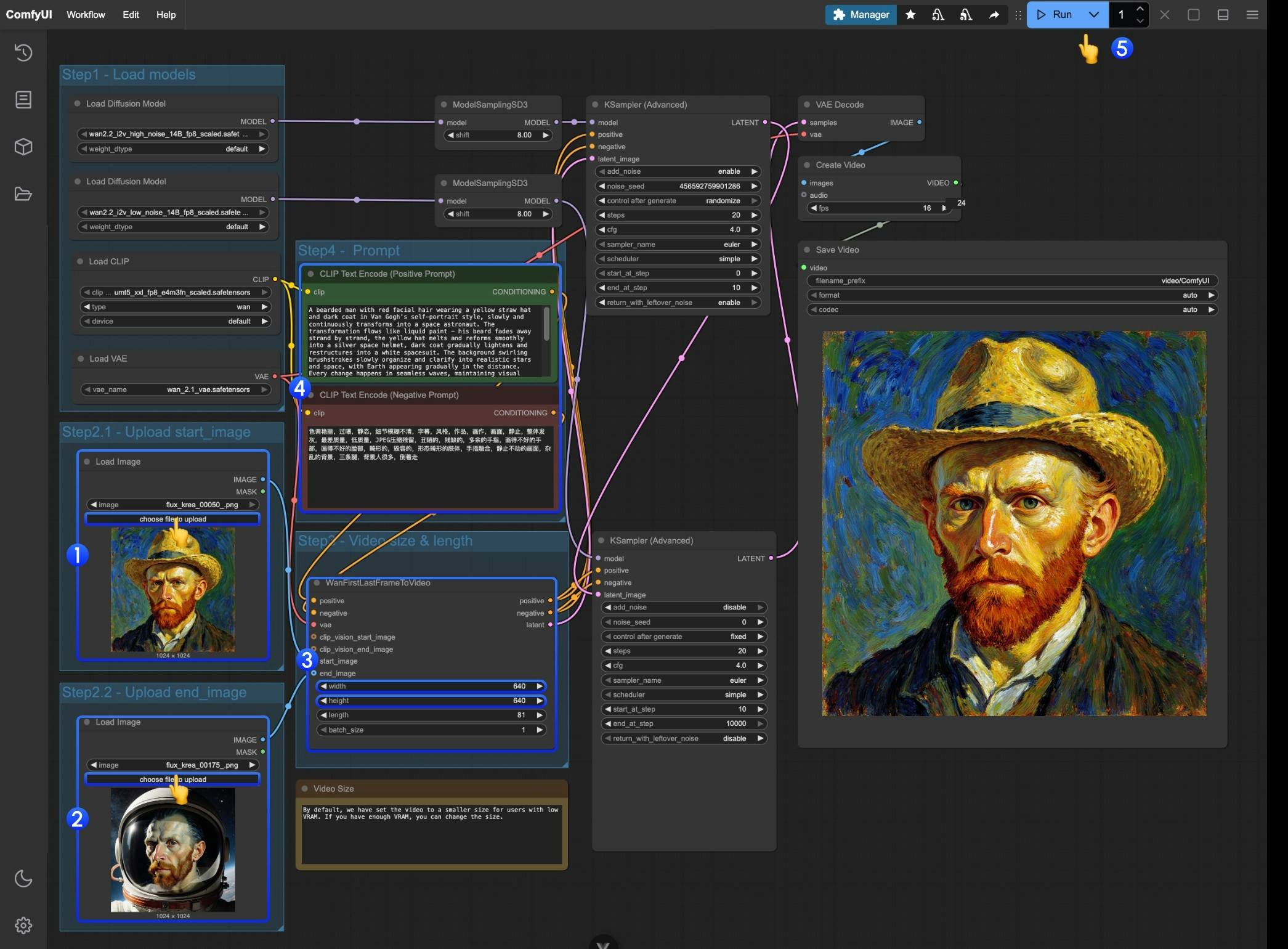 1. Upload the image to be used as the starting frame in the first `Load Image` node.
2. Upload the image to be used as the ending frame in the second `Load Image` node.
3. Adjust the size settings in the `WanFirstLastFrameToVideo` node.
* By default, a relatively small size is set to prevent low VRAM users from consuming too many resources.
* If you have enough VRAM, you can try a resolution around 720P.
4. Write appropriate prompts according to your first and last frames.
5. Click the `Run` button, or use the shortcut `Ctrl(cmd) + Enter` to execute video generation.
## Community Resources
### GGUF Versions
* [bullerwins/Wan2.2-I2V-A14B-GGUF/](https://huggingface.co/bullerwins/Wan2.2-I2V-A14B-GGUF/)
* [bullerwins/Wan2.2-T2V-A14B-GGUF](https://huggingface.co/bullerwins/Wan2.2-T2V-A14B-GGUF)
* [QuantStack/Wan2.2 GGUFs](https://huggingface.co/collections/QuantStack/wan22-ggufs-6887ec891bdea453a35b95f3)
**Custom Node**
[City96/ComfyUI-GGUF](https://github.com/city96/ComfyUI-GGUF)
### WanVideoWrapper
[Kijai/ComfyUI-WanVideoWrapper](https://github.com/kijai/ComfyUI-WanVideoWrapper)
**Wan2.2 models**
[Kijai/WanVideo\_comfy\_fp8\_scaled](https://hf-mirror.com/Kijai/WanVideo_comfy_fp8_scaled)
**Wan2.1 models**
[Kijai/WanVideo\_comfy/Lightx2v](https://huggingface.co/Kijai/WanVideo_comfy/tree/main/Lightx2v)
**Lightx2v 4steps LoRA**
* [Wan2.2-T2V-A14B-4steps-lora-rank64-V1](https://huggingface.co/lightx2v/Wan2.2-Lightning/tree/main/Wan2.2-T2V-A14B-4steps-lora-rank64-V1)
1. Upload the image to be used as the starting frame in the first `Load Image` node.
2. Upload the image to be used as the ending frame in the second `Load Image` node.
3. Adjust the size settings in the `WanFirstLastFrameToVideo` node.
* By default, a relatively small size is set to prevent low VRAM users from consuming too many resources.
* If you have enough VRAM, you can try a resolution around 720P.
4. Write appropriate prompts according to your first and last frames.
5. Click the `Run` button, or use the shortcut `Ctrl(cmd) + Enter` to execute video generation.
## Community Resources
### GGUF Versions
* [bullerwins/Wan2.2-I2V-A14B-GGUF/](https://huggingface.co/bullerwins/Wan2.2-I2V-A14B-GGUF/)
* [bullerwins/Wan2.2-T2V-A14B-GGUF](https://huggingface.co/bullerwins/Wan2.2-T2V-A14B-GGUF)
* [QuantStack/Wan2.2 GGUFs](https://huggingface.co/collections/QuantStack/wan22-ggufs-6887ec891bdea453a35b95f3)
**Custom Node**
[City96/ComfyUI-GGUF](https://github.com/city96/ComfyUI-GGUF)
### WanVideoWrapper
[Kijai/ComfyUI-WanVideoWrapper](https://github.com/kijai/ComfyUI-WanVideoWrapper)
**Wan2.2 models**
[Kijai/WanVideo\_comfy\_fp8\_scaled](https://hf-mirror.com/Kijai/WanVideo_comfy_fp8_scaled)
**Wan2.1 models**
[Kijai/WanVideo\_comfy/Lightx2v](https://huggingface.co/Kijai/WanVideo_comfy/tree/main/Lightx2v)
**Lightx2v 4steps LoRA**
* [Wan2.2-T2V-A14B-4steps-lora-rank64-V1](https://huggingface.co/lightx2v/Wan2.2-Lightning/tree/main/Wan2.2-T2V-A14B-4steps-lora-rank64-V1)