> ## Documentation Index
> Fetch the complete documentation index at: https://docs.comfy.org/llms.txt
> Use this file to discover all available pages before exploring further.
# 画布控件 - 小地图、缩放与专注模式
> 使用 ComfyUI 画布控件与 View 菜单管理小地图、连线可见性、画布信息、缩放、适应视图、Select/Hand 模式与专注模式。
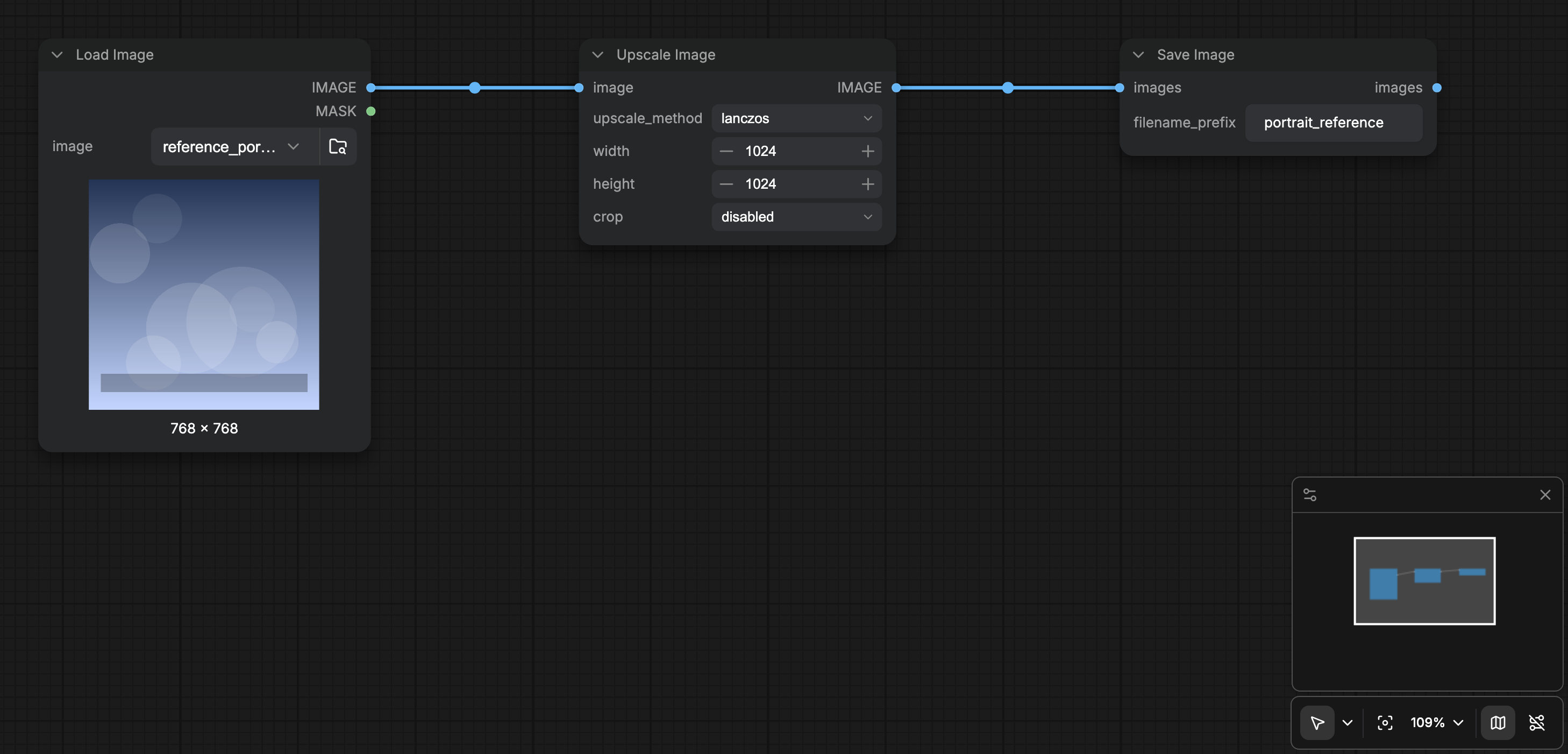
画布右下角工具栏与 **View** 菜单控制你如何在图中移动。核心 View 命令包括切换底部面板、浏览模板、**Focus Mode**、画布性能信息、小地图、连线可见性、放大/缩小与适应视图。
 ## 画布工具栏
当 **Show graph canvas menu**(`Comfy.Graph.CanvasMenu`)开启(默认)时,画布右下角有浮动工具栏:
| 控件 | 作用 |
| - | - |
| **Canvas mode** | 在 **Select**(编辑节点)与 **Hand**(仅平移 / 只读画布)之间切换。默认:`v` 解锁 Select,`h` 锁定 Hand。 |
| **Fit view** | 将图框入视口(`Comfy.Canvas.FitView`,默认 `.`)。 |
| **Zoom** | 打开弹出层:放大、缩小、缩放到适应,以及百分比字段(1-1000%)。默认快捷键含 `Alt` + `=` / `Alt` + `-`。 |
| **Minimap** | 切换概览图(`Comfy.Canvas.ToggleMinimap`,默认 `Alt` + `Shift` + `M`)。持久化为 `Comfy.Minimap.Visible`。 |
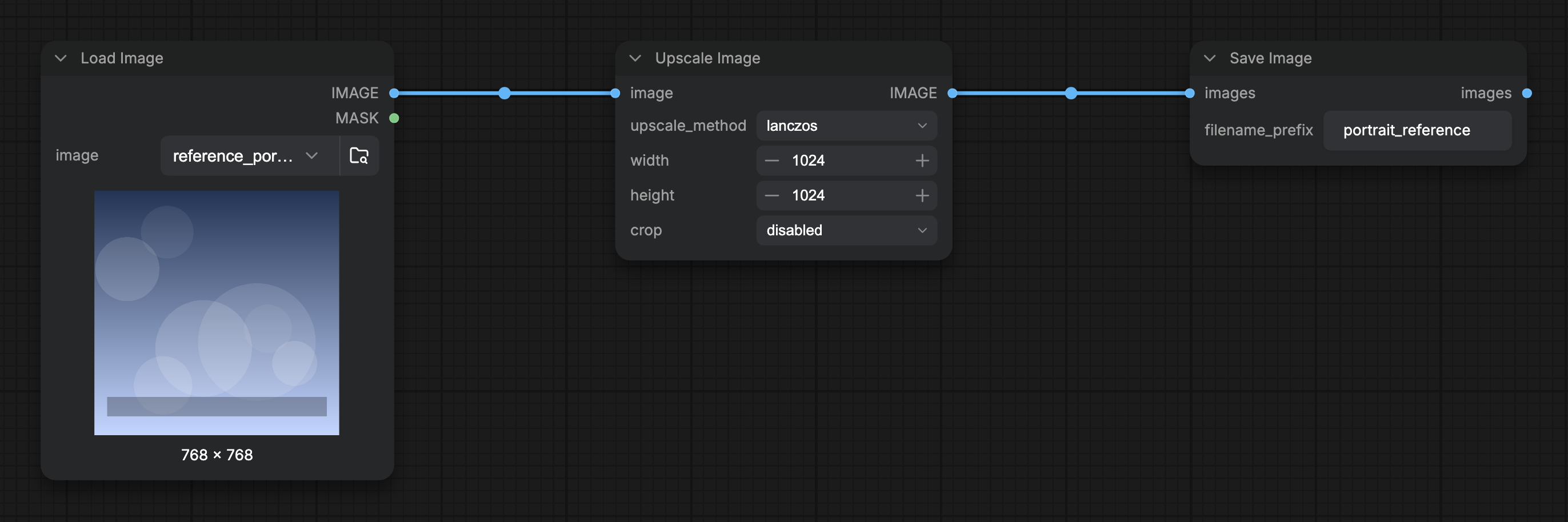
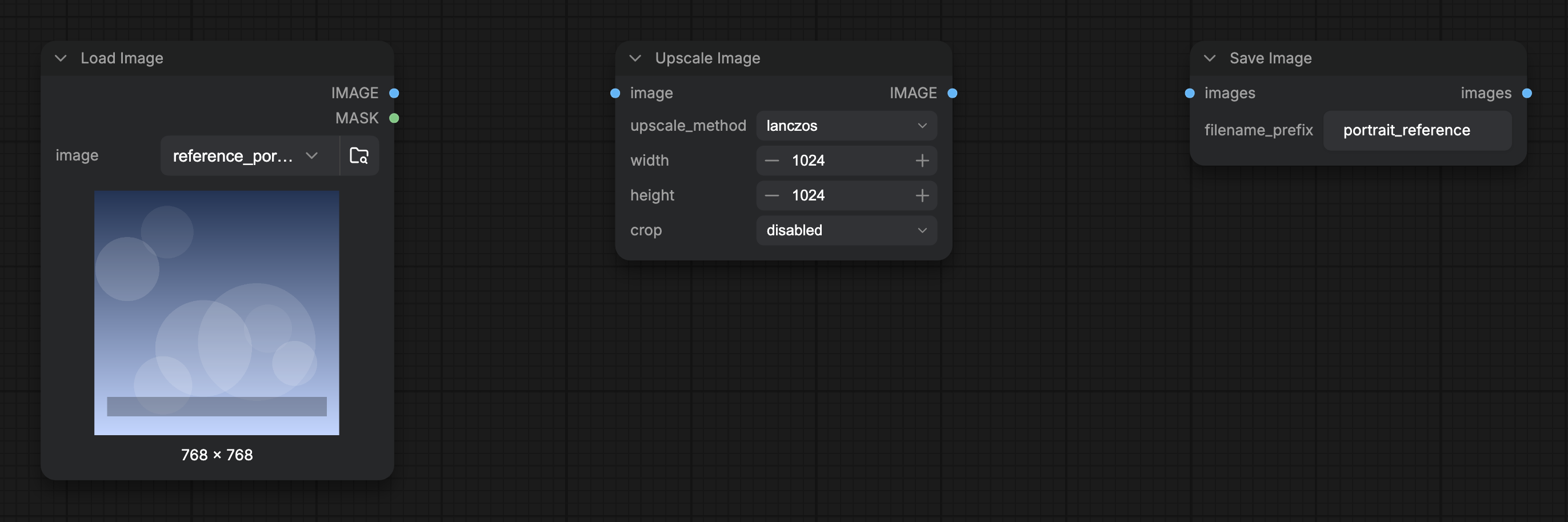
| **Link visibility** | 通过隐藏连线渲染模式显示或隐藏连接线(`Comfy.Canvas.ToggleLinkVisibility`)。 |
可在 Lite Graph / Canvas 设置中用 **Show graph canvas menu** 隐藏整个工具栏。
## View 菜单
**View** 菜单注册相同的导航命令,可从菜单栏或命令面板运行:
* Toggle Bottom Panel
* Browse Templates
* Focus Mode
* Canvas Performance(`Comfy.ToggleCanvasInfo`,切换 `Comfy.Graph.CanvasInfo`)
* Toggle Minimap
* Toggle Link Visibility
* Zoom In / Zoom Out / Fit View
## Focus Mode(专注模式)
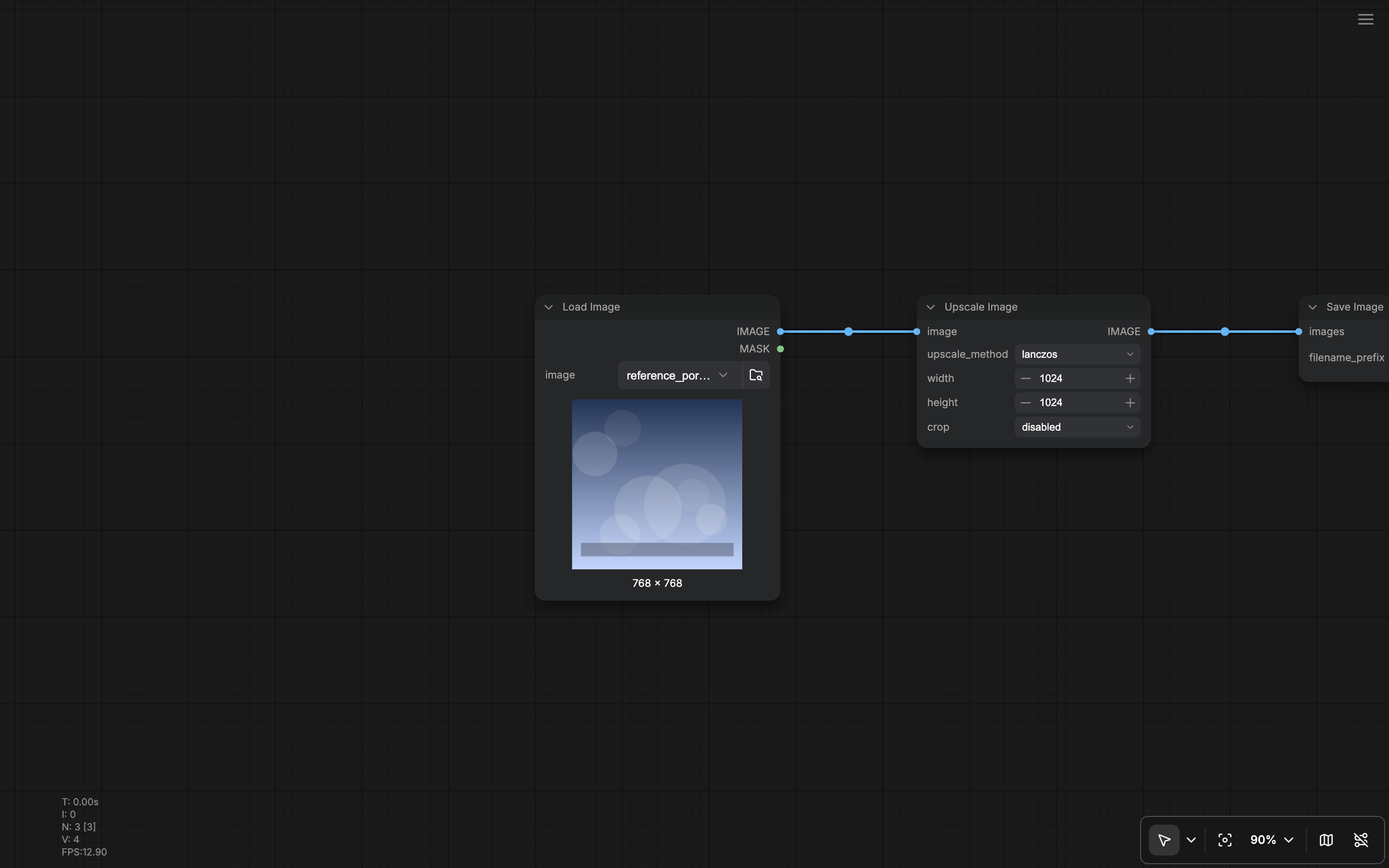
**Focus Mode**(`Workspace.ToggleFocusMode`)隐藏工作区边框控件,便于专注于图。开启时:
* 顶部菜单区域隐藏(新菜单)。
* 左右侧栏面板与底部面板不在分割布局中渲染。
* 出现汉堡控件以便退出 Focus Mode(**Show menu**)。
再次切换 Focus Mode,或使用汉堡控件,即可恢复完整工作区。
## 小地图选项
除显示/隐藏外,设置中的 Minimap 项控制地图绘制内容(节点颜色、连线、分组、bypass 状态、错误状态)。见 [Lite Graph 设置](/zh/interface/settings/lite-graph) 及出现时的相关 Appearance 条目。
## 连线与画布全局选项
连线形状以及是否显示已连接连线,也可在未选中任何内容时,通过 [右侧面板](/zh/interface/right-side-panel) 的 **Global Settings** 快速切换,并在 Lite Graph 设置中完整配置(`Comfy.LinkRenderMode` 及相关选项)。网格间距与吸附位于相同的 Global Settings / Lite Graph 区域。
## 相关页面
* [界面概览](/zh/interface/overview)
* [快捷键](/zh/interface/shortcuts)
* [Lite Graph 设置](/zh/interface/settings/lite-graph)
* [右侧面板](/zh/interface/right-side-panel)(Global Settings 快速开关)
* [底部面板](/zh/interface/bottom-panel)
This documentation is built and hosted on [Mintlify](https://mintlify.com), a developer documentation platform.
## 画布工具栏
当 **Show graph canvas menu**(`Comfy.Graph.CanvasMenu`)开启(默认)时,画布右下角有浮动工具栏:
| 控件 | 作用 |
| - | - |
| **Canvas mode** | 在 **Select**(编辑节点)与 **Hand**(仅平移 / 只读画布)之间切换。默认:`v` 解锁 Select,`h` 锁定 Hand。 |
| **Fit view** | 将图框入视口(`Comfy.Canvas.FitView`,默认 `.`)。 |
| **Zoom** | 打开弹出层:放大、缩小、缩放到适应,以及百分比字段(1-1000%)。默认快捷键含 `Alt` + `=` / `Alt` + `-`。 |
| **Minimap** | 切换概览图(`Comfy.Canvas.ToggleMinimap`,默认 `Alt` + `Shift` + `M`)。持久化为 `Comfy.Minimap.Visible`。 |
| **Link visibility** | 通过隐藏连线渲染模式显示或隐藏连接线(`Comfy.Canvas.ToggleLinkVisibility`)。 |
可在 Lite Graph / Canvas 设置中用 **Show graph canvas menu** 隐藏整个工具栏。
## View 菜单
**View** 菜单注册相同的导航命令,可从菜单栏或命令面板运行:
* Toggle Bottom Panel
* Browse Templates
* Focus Mode
* Canvas Performance(`Comfy.ToggleCanvasInfo`,切换 `Comfy.Graph.CanvasInfo`)
* Toggle Minimap
* Toggle Link Visibility
* Zoom In / Zoom Out / Fit View
## Focus Mode(专注模式)
**Focus Mode**(`Workspace.ToggleFocusMode`)隐藏工作区边框控件,便于专注于图。开启时:
* 顶部菜单区域隐藏(新菜单)。
* 左右侧栏面板与底部面板不在分割布局中渲染。
* 出现汉堡控件以便退出 Focus Mode(**Show menu**)。
再次切换 Focus Mode,或使用汉堡控件,即可恢复完整工作区。
## 小地图选项
除显示/隐藏外,设置中的 Minimap 项控制地图绘制内容(节点颜色、连线、分组、bypass 状态、错误状态)。见 [Lite Graph 设置](/zh/interface/settings/lite-graph) 及出现时的相关 Appearance 条目。
## 连线与画布全局选项
连线形状以及是否显示已连接连线,也可在未选中任何内容时,通过 [右侧面板](/zh/interface/right-side-panel) 的 **Global Settings** 快速切换,并在 Lite Graph 设置中完整配置(`Comfy.LinkRenderMode` 及相关选项)。网格间距与吸附位于相同的 Global Settings / Lite Graph 区域。
## 相关页面
* [界面概览](/zh/interface/overview)
* [快捷键](/zh/interface/shortcuts)
* [Lite Graph 设置](/zh/interface/settings/lite-graph)
* [右侧面板](/zh/interface/right-side-panel)(Global Settings 快速开关)
* [底部面板](/zh/interface/bottom-panel)
This documentation is built and hosted on [Mintlify](https://mintlify.com), a developer documentation platform.