ComfyUI workflows are JSON objects that describe a graph of nodes. When calling ComfyUI programmatically — whether through the Cloud API or running your own server — the workflow must be submitted in API format, a specialized JSON structure that differs from the regular save format used in the browser. This page explains the differences and how to export your workflows correctly.

Save Format vs API Format

The ComfyUI frontend can save workflows in two formats:
Save FormatAPI Format
File menuFile → Save or Ctrl+SFile → Export Workflow (API)
File extension.json.json
Node keysNode titles or labelsNumeric node IDs
Widget valuesIncludedIncluded
Position/layout dataIncluded (x, y, width)Excluded
Colors/groupsIncludedExcluded
UsageRe-opening in the frontendAPI submission
Can be loaded in UIYesYes, but without layout
The key difference: API format omits UI metadata (positions, colors, groups, node sizes) that is only needed for visual editing in the frontend. This keeps the JSON smaller and cleaner for programmatic use.

How to Export

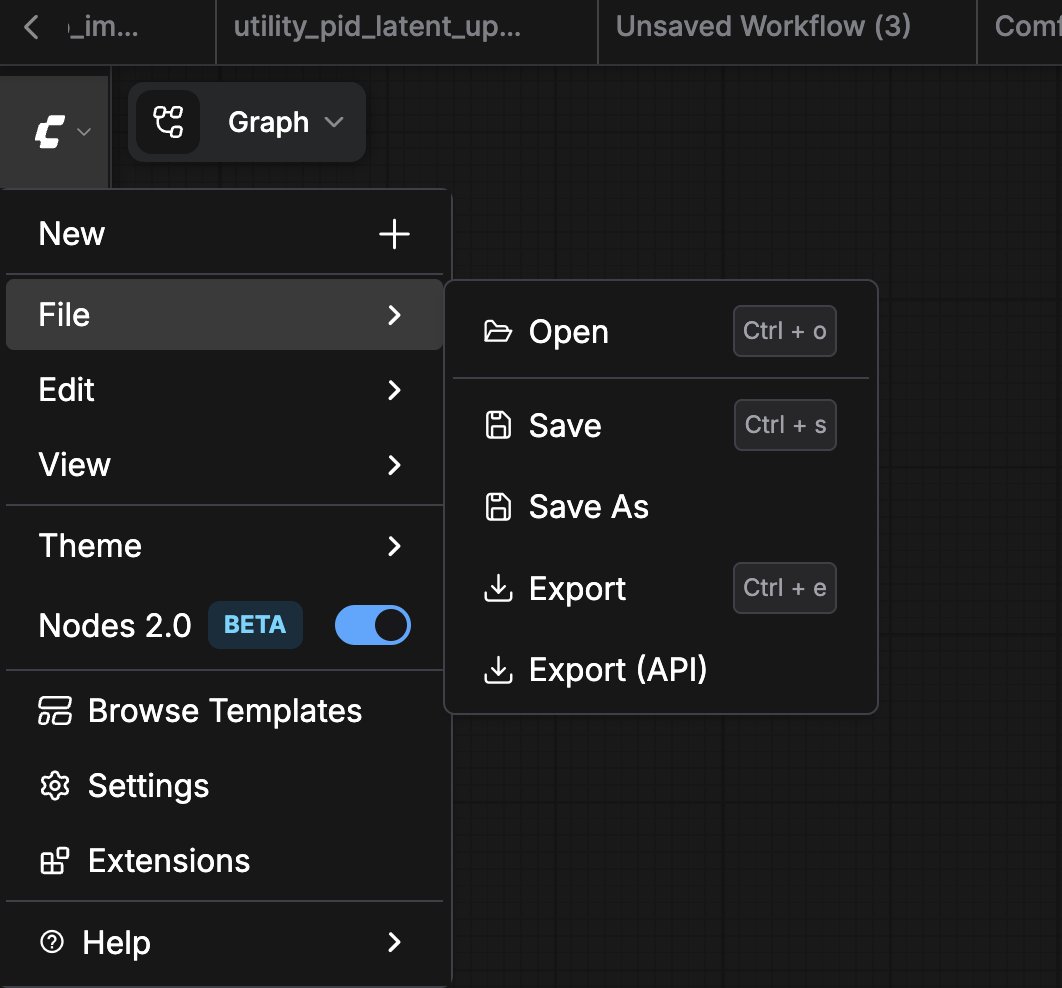
Open your workflow in the ComfyUI frontend, then navigate to File → Export Workflow (API):
Saving a workflow in API format
This will download a .json file containing only the API-relevant data:
{
  "3": {
    "inputs": {
      "seed": 156680208700286,
      "steps": 20,
      "cfg": 8,
      "sampler_name": "euler",
      "scheduler": "normal",
      "denoise": 1,
      "model": [
        "4",
        0
      ],
      "positive": [
        "6",
        0
      ],
      "negative": [
        "7",
        0
      ],
      "latent_image": [
        "5",
        0
      ]
    },
    "class_type": "KSampler",
    "_meta": {
      "title": "KSampler"
    }
  },
  "4": {
    "inputs": {
      "ckpt_name": "v1-5-pruned-emaonly-fp16.safetensors"
    },
    "class_type": "CheckpointLoaderSimple",
    "_meta": {
      "title": "Load Checkpoint"
    }
  },
  "5": {
    "inputs": {
      "width": 512,
      "height": 512,
      "batch_size": 1
    },
    "class_type": "EmptyLatentImage",
    "_meta": {
      "title": "Empty Latent Image"
    }
  },
  "6": {
    "inputs": {
      "text": "beautiful scenery nature glass bottle landscape, , purple galaxy bottle,",
      "clip": [
        "4",
        1
      ]
    },
    "class_type": "CLIPTextEncode",
    "_meta": {
      "title": "CLIP Text Encode (Prompt)"
    }
  },
  "7": {
    "inputs": {
      "text": "text, watermark",
      "clip": [
        "4",
        1
      ]
    },
    "class_type": "CLIPTextEncode",
    "_meta": {
      "title": "CLIP Text Encode (Prompt)"
    }
  },
  "8": {
    "inputs": {
      "samples": [
        "3",
        0
      ],
      "vae": [
        "4",
        2
      ]
    },
    "class_type": "VAEDecode",
    "_meta": {
      "title": "VAE Decode"
    }
  },
  "9": {
    "inputs": {
      "filename_prefix": "ComfyUI",
      "images": [
        "8",
        0
      ]
    },
    "class_type": "SaveImage",
    "_meta": {
      "title": "Save Image"
    }
  }
}

Converting Between Formats

If you have a save-format workflow and need it in API format, the simplest method is:
  1. Open the .json file using File → Load in the frontend
  2. Export it via File → Export Workflow (API)
For automated conversion, you can write a script that strips the x, y, width fields from each node and removes the groups and extra sections from the root JSON.