

Overview
Comfy MCP connects AI agents to ComfyUI over the Model Context Protocol. Once connected, you can generate images, video, audio and 3D, search models, nodes and templates, and run real ComfyUI workflows from a chat with your agent. It comes with two connections: a Comfy Cloud connection and a local ComfyUI connection, with the local one fully open source.Which connection do I want?
For new users, we recommend starting with the cloud connection — it is the simplest setup. If you use claude.ai, ChatGPT, or the Claude Desktop chat app, the cloud connection is also the more compatible choice. If you already run ComfyUI locally or in your own deployed environment, or you work mostly in a coding agent like Claude Code, Cursor, or Codex, start with the local connection.Comfy Cloud MCP Connection
The hosted connection, linking your agent to your Comfy Cloud account. Nothing to install, and workflows run on Comfy Cloud GPUs. To learn more about Comfy Cloud, see Comfy Cloud.Set up the cloud connection
- Claude Desktop
- Claude Code
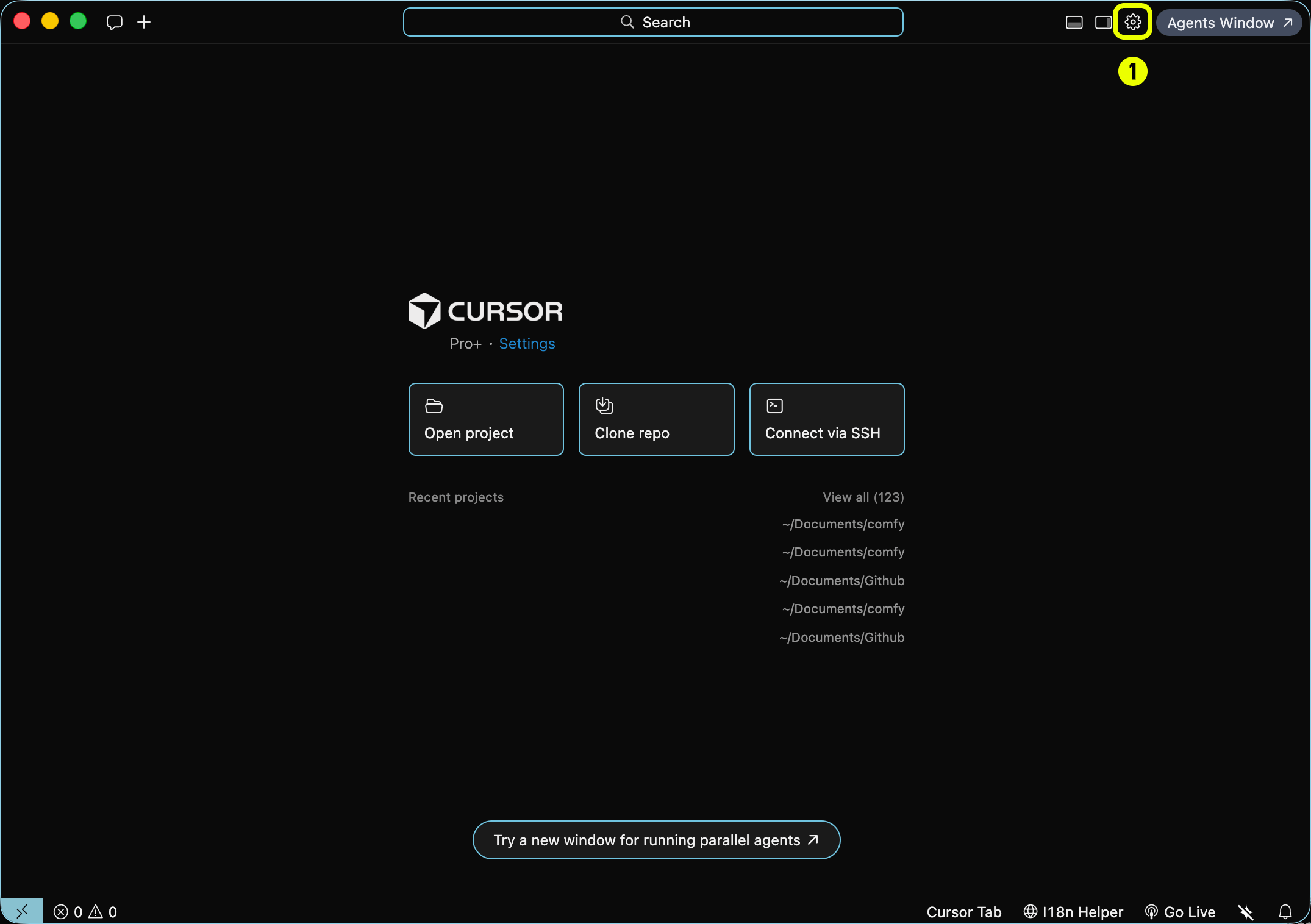
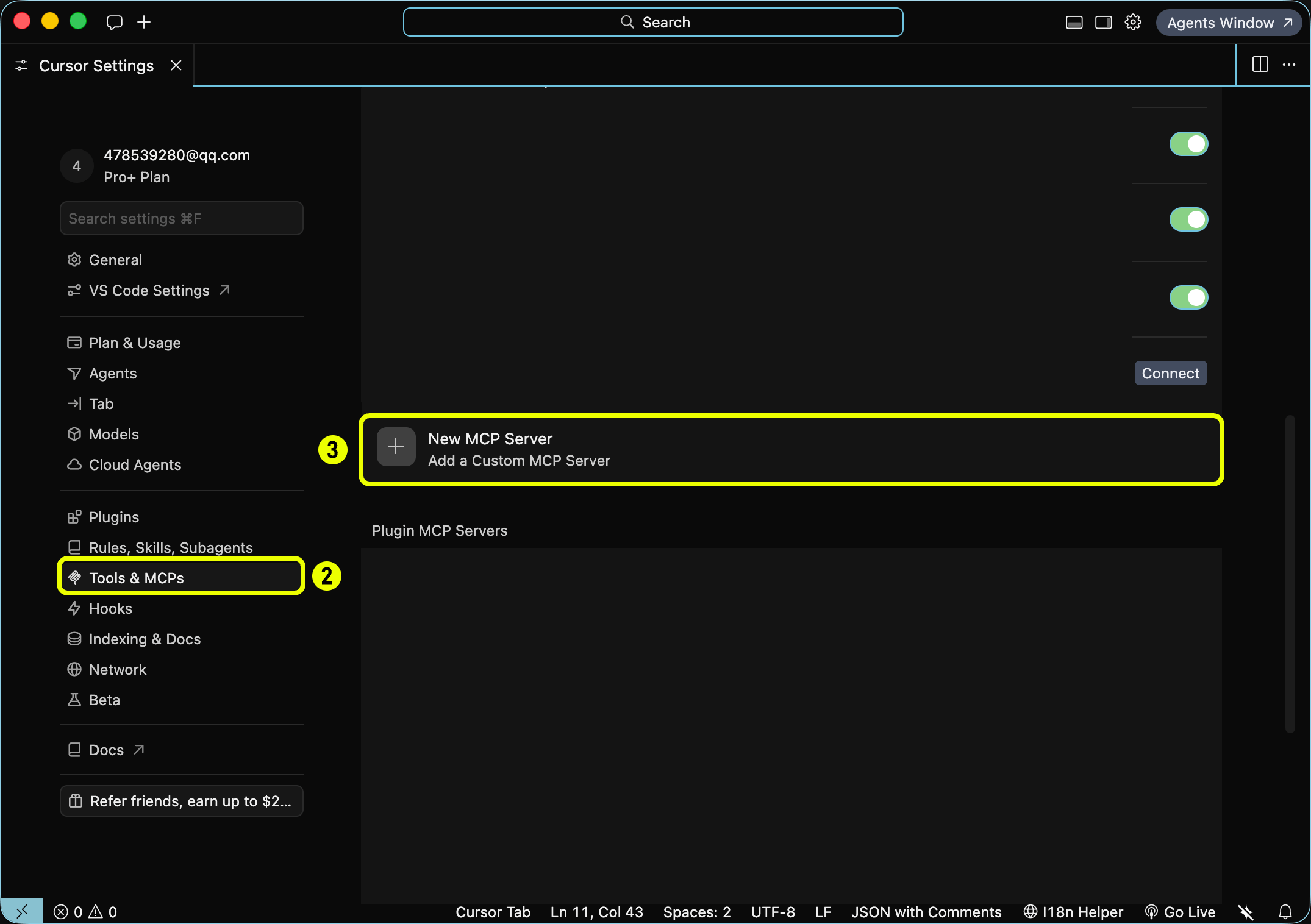
- Cursor
- Codex
- OpenClaw
- Other clients
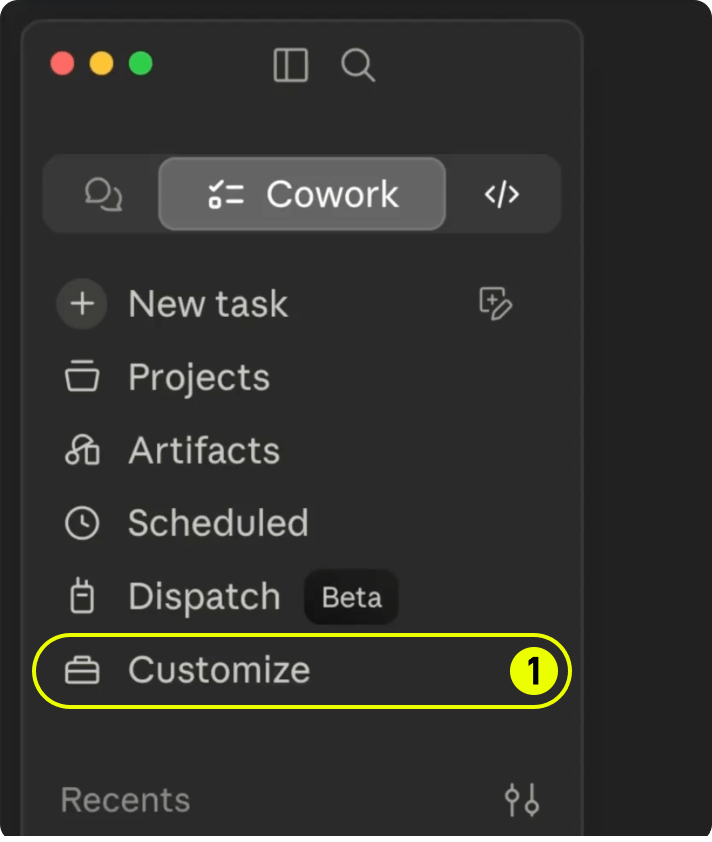
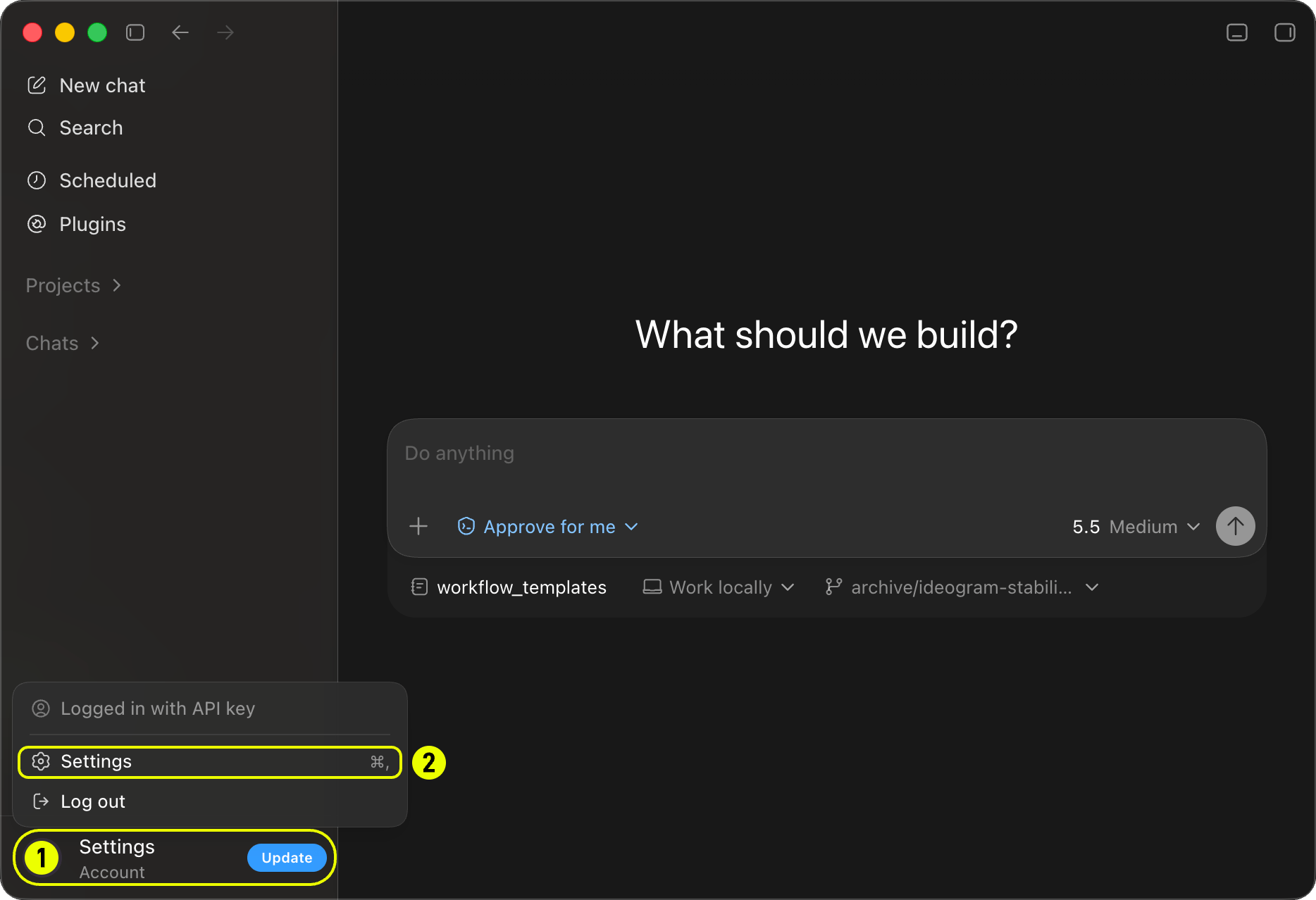
Open Customize
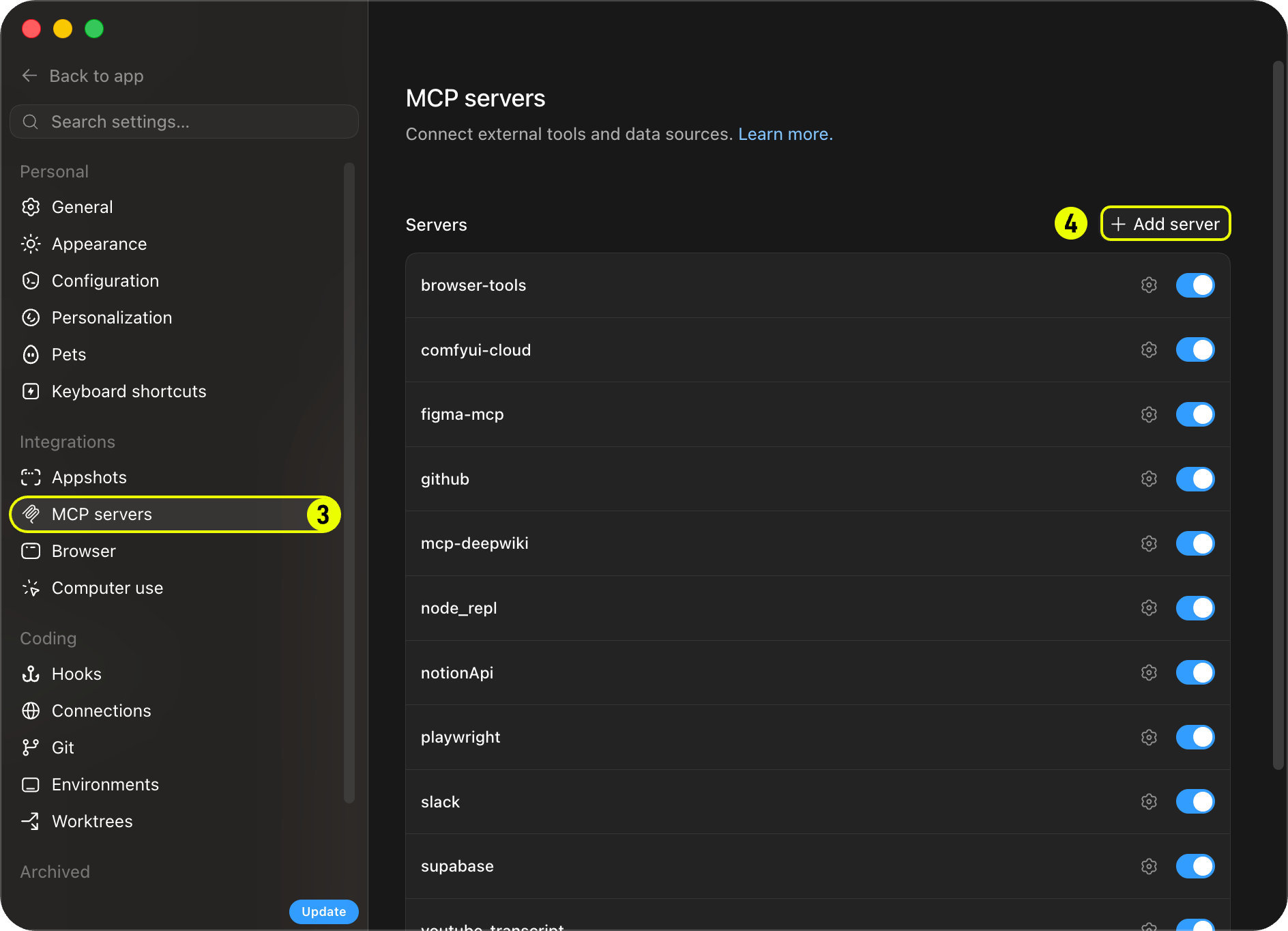
Open Connectors
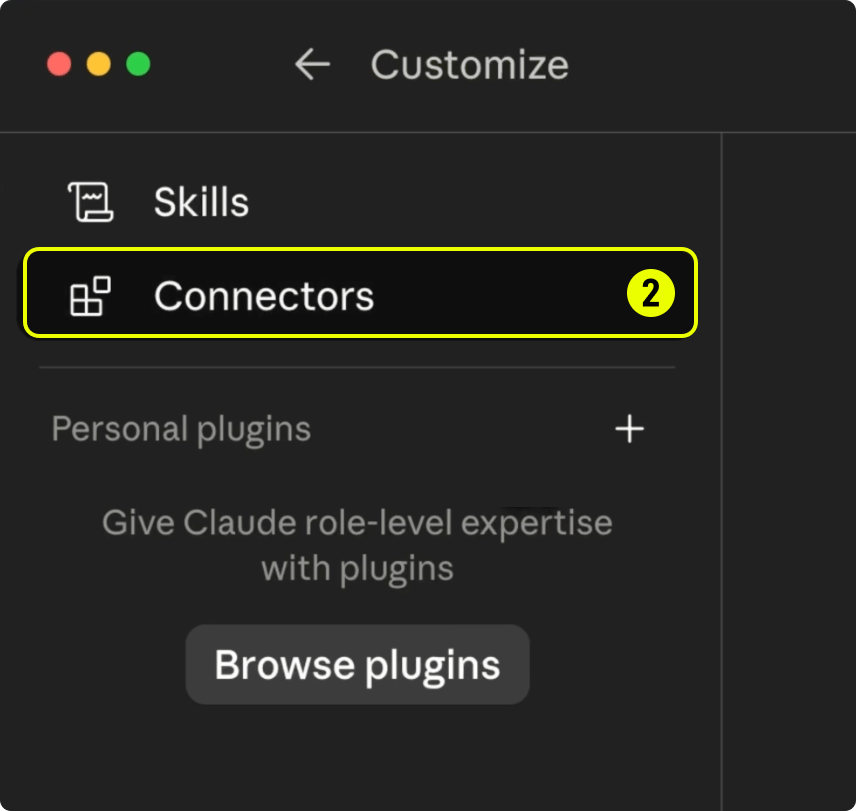
Add a custom connector
- Click the + button (labeled 3) in the Connectors header.
-
Choose Add custom connector (labeled 4).
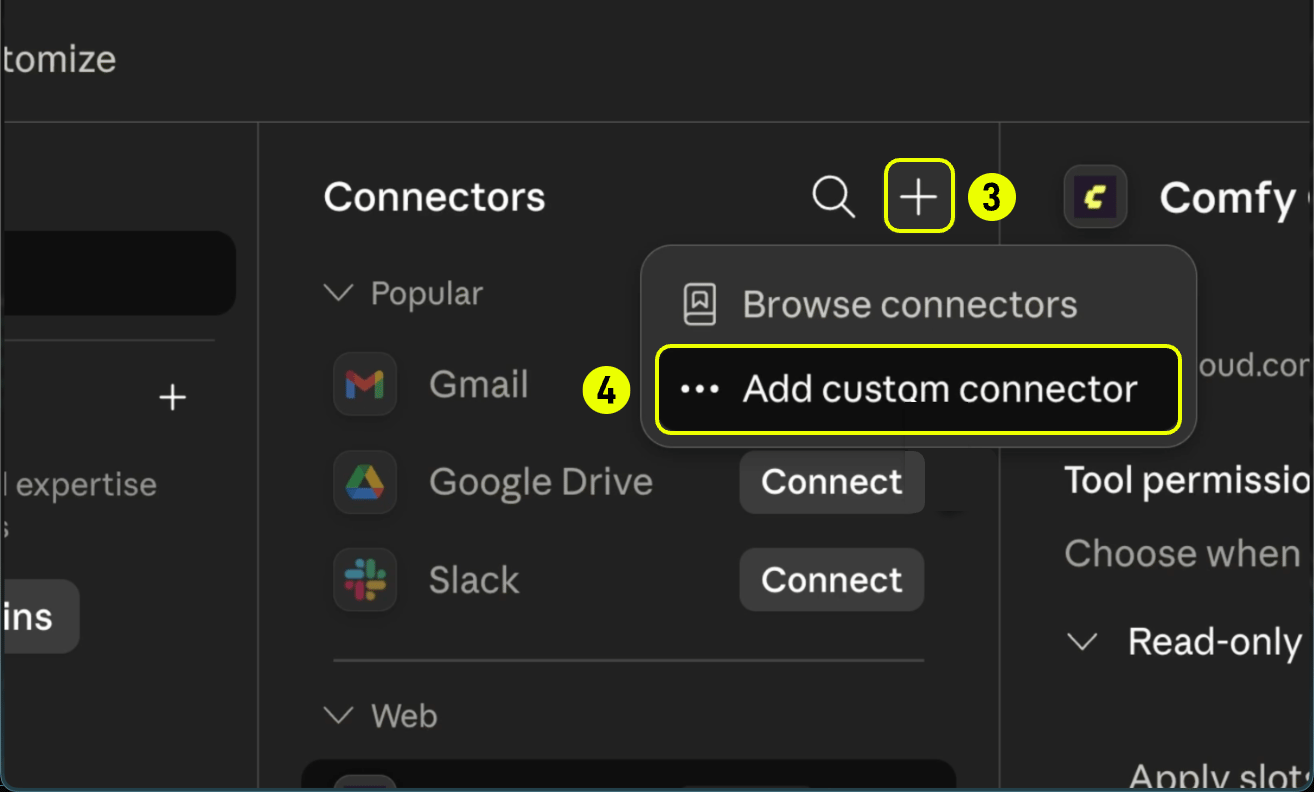
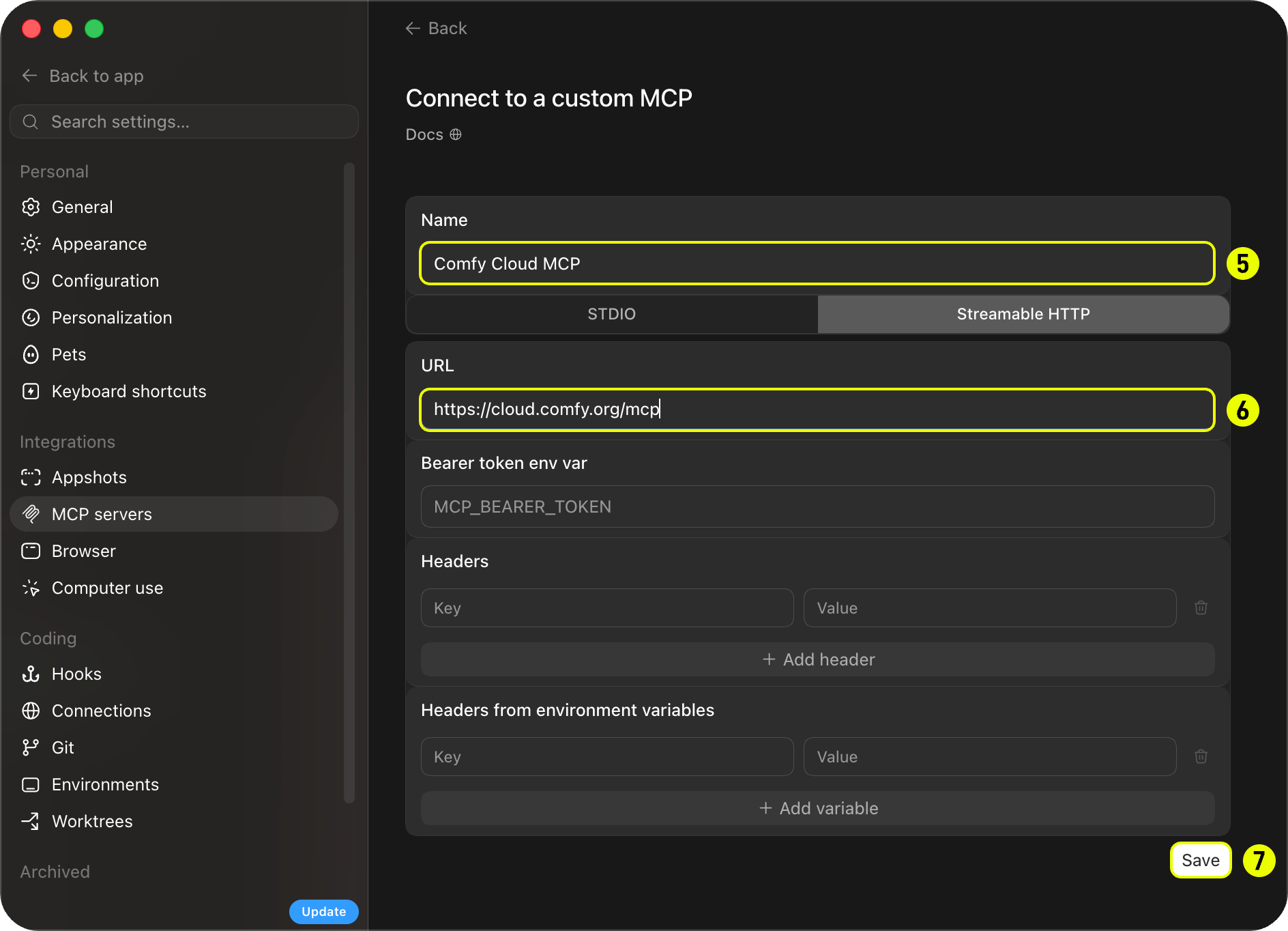
Enter server details
- Enter a name such as Comfy Cloud MCP in the Name field (labeled 5).
-
Set the Remote MCP server URL to
https://cloud.comfy.org/mcp(labeled 6). -
Click Add (labeled 7).
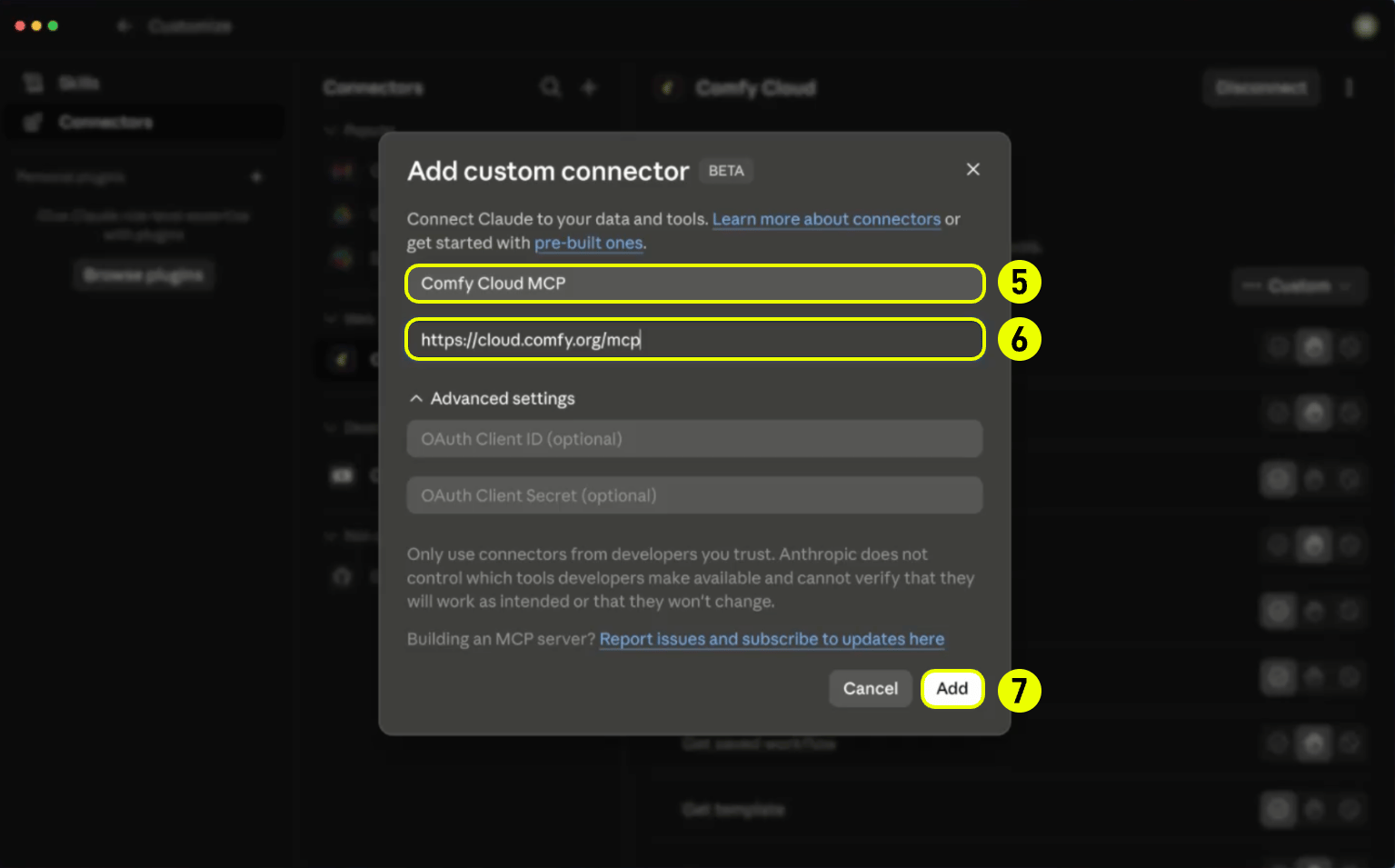
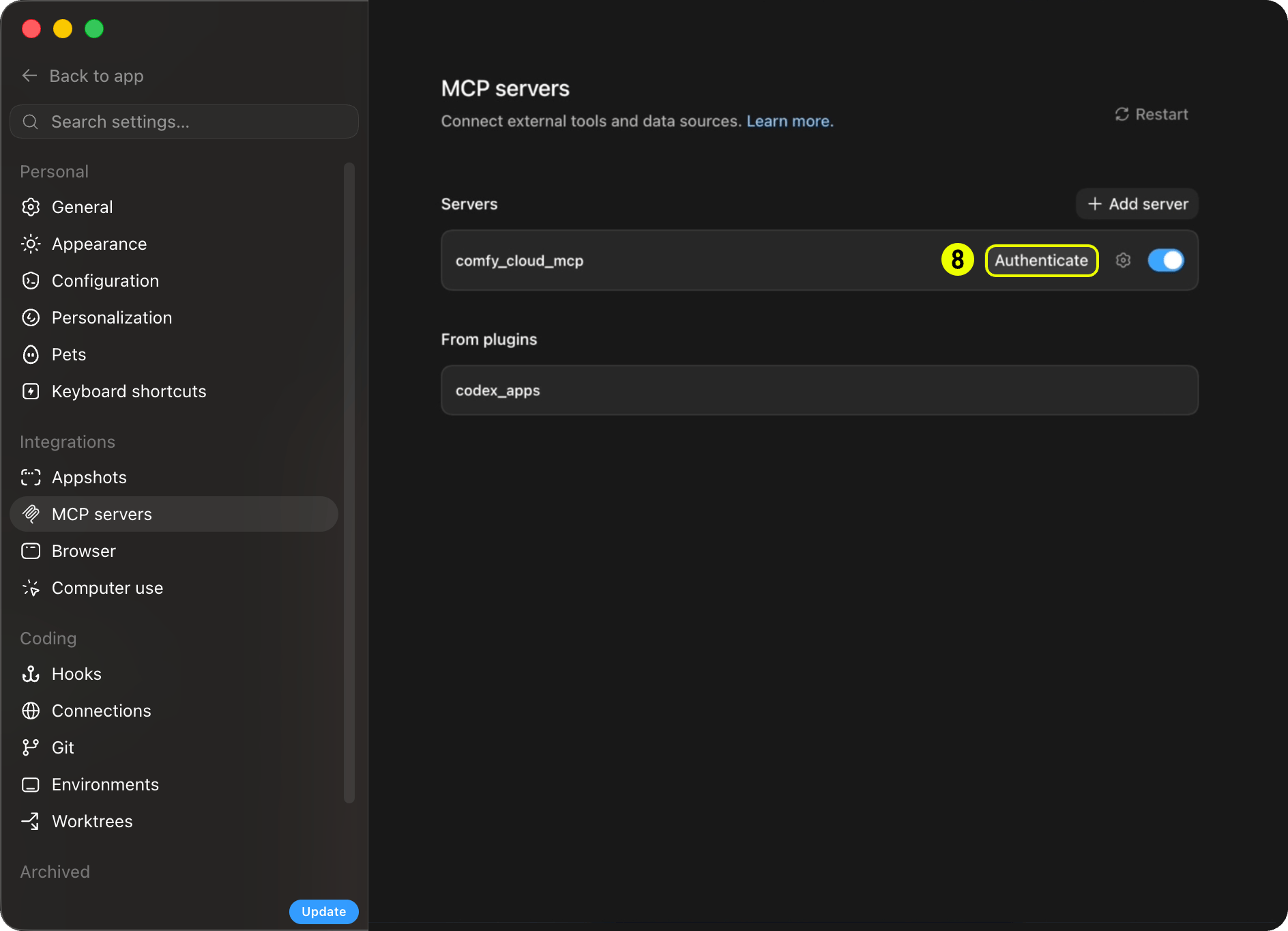
Sign in
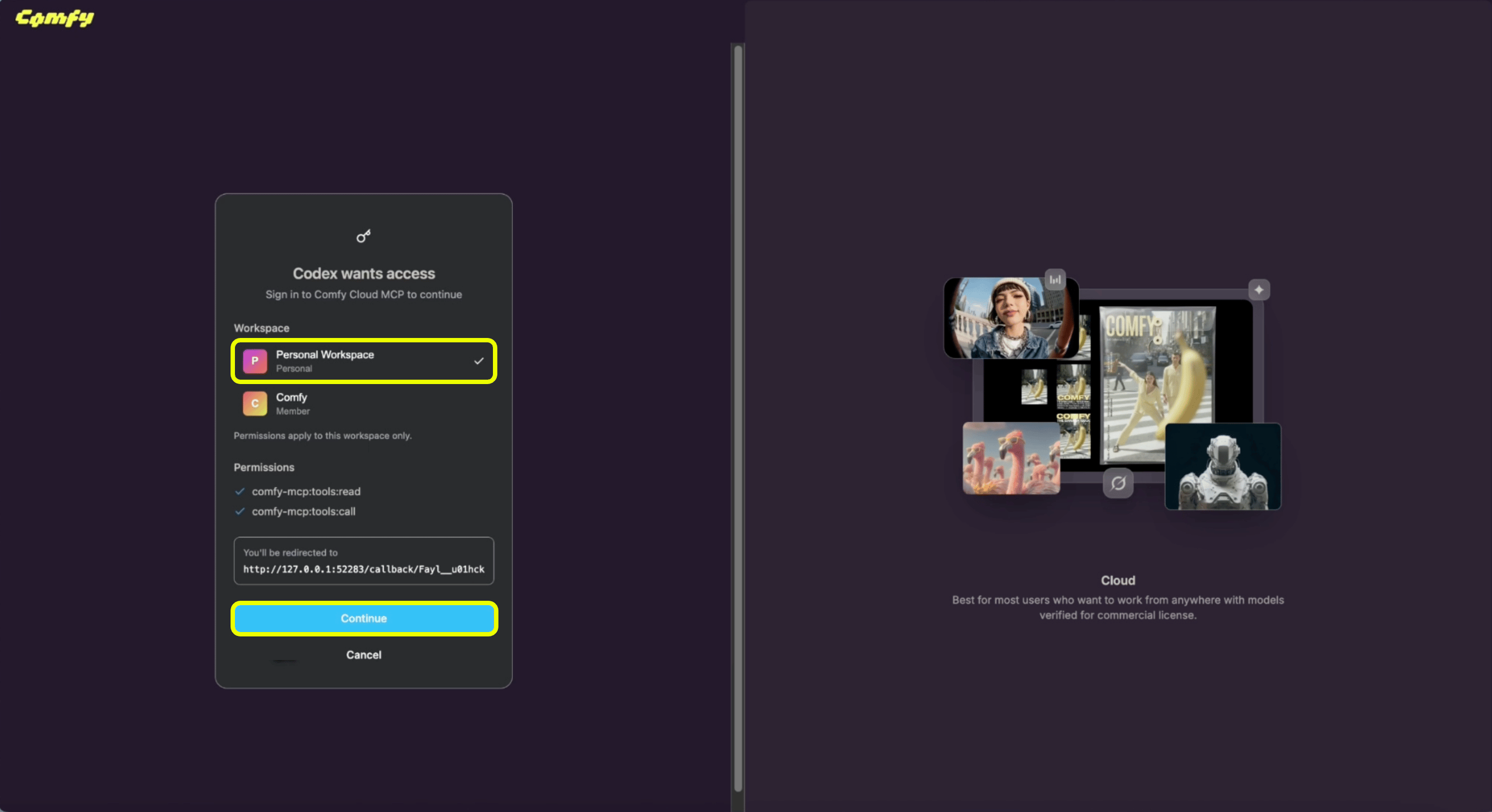
- When the browser opens, choose your workspace (for example Personal Workspace).
-
Click Continue to authorize the connector. You are connected.
What your agent can do
You do not call MCP tools yourself. Your agent picks the right tool based on what you ask for. Slash commands and prompts (below) are shortcuts that steer the agent toward common tasks, but plain language works too (“generate an image of a cat astronaut”, “upscale this photo”, “find a Wan 2.2 video template”). Typical flow:- Discover what is available (
search_templates,search_models,search_nodes, orcqlfor graph-style questions). - Run a generation:
run_templatefor a matching pre-built template,submit_workflowfor a custom workflow (withupload_filewhen an input image is needed), orpartner_generatefor partner models like Flux, Grok, Gemini, OpenAI, Ideogram, and Seedance. - Wait and retrieve outputs (
wait_for_job, thenget_outputreturns a download command your agent runs in your shell).
Cloud MCP tools
These are the tools your agent has access to once connected. Names match what appears in MCP client logs and debugging output. Discoverycomfy.org/workflows/<slug>-<hex> hub URL is the share ID. For example, comfy.org/workflows/topaz-starlight-upscale-1c77e82713b7 has share ID 1c77e82713b7. Pass that token to import_shared_workflow as share_id. The share_url parameter only accepts ?share=<id> query URLs like https://cloud.comfy.org/?share=..., not hub page URLs.
Apps and links
Credits and spending
Discovery is free:search_templates, search_models, and search_nodes work with just a Comfy account. Running generations requires an active Comfy Cloud subscription. A credit or top-up balance alone does not grant access: you need an active subscription to run generations, even if you have unused credits.
Uploads and downloads
The MCP server runs in the cloud and the MCP itself doesn’t write files to your machine. When a generation completes, your agent callsget_output, which returns:
- A temporary signed download URL (valid for a short window).
- A ready-to-run shell command (
curlon macOS and Linux,curl.exeon Windows).
Known limitations
Comfy Cloud MCP is an early release. These limitations are known and being worked on: Workflows- Assets generated via
submit_workflowmay not embed workflow metadata. They might not reopen the originating workflow when opened in ComfyUI. - Workflow building depends on agent accuracy. Complex multi-node workflows may need a retry or refinement.
- Outputs require a shell download step. See Uploads and downloads.
- Upload size limits may apply depending on your MCP client. Some clients impose their own limits on file uploads.
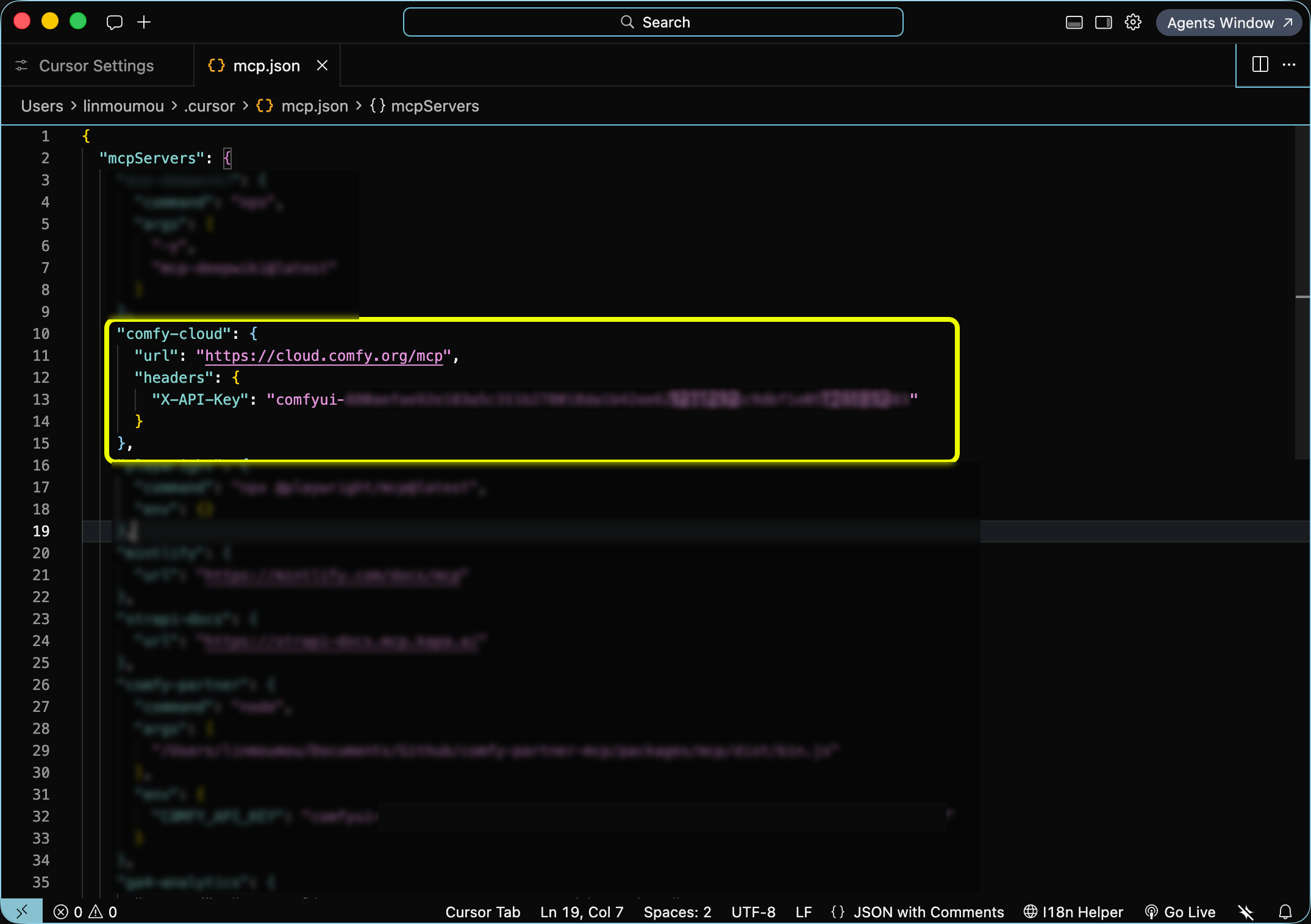
- OAuth or API key. Claude Code and Claude Desktop use a one-time browser OAuth flow. Cursor requires a Comfy Cloud API key in your MCP config (no OAuth). Other headless clients can pass a Comfy Cloud API key via the
X-API-Keyheader instead. A device-code OAuth flow for clients that cannot open a browser is planned.
Local Comfy MCP Connection
The open-source connection: your client launches the server on your machine and it drives the ComfyUI installed there. comfy-mcp is Comfy’s first-party local MCP server — the official way to drive a local ComfyUI install from AI agents (Claude Code, Claude Desktop, Cursor, and other MCP clients). Unlike the cloud and partner servers, it talks to the ComfyUI running on your own machine — so it can run your workflows and inspect the nodes, custom nodes, and models your install actually has.Requirements
- Python 3.10+
- comfy-cli on your
PATH(pip install "comfy-cli>=1.14.0") — the engine every tool wraps - A ComfyUI workspace — create one with
comfy installif you don’t have one (an existing checkout works viacomfy set-default <path>) - A running ComfyUI for execution tools. Start it with
comfy launch, or calllaunch_comfyui. The server does not launch ComfyUI implicitly.
Installation
From PyPI:comfy-mcp console script on your PATH — that command is the MCP server (it speaks MCP over stdio). Point your AI client at it below. (Hacking on the server itself? pip install -e . from a checkout of the repository instead.)
COMFY_BIN (optional). MCP clients launch the server with their own environment, which often does not include your shell’s PATH. If comfy lives in a virtualenv or a non-standard location, set COMFY_BIN to its absolute path (for example /path/to/venv/bin/comfy). Every client example below shows where it goes; drop it if comfy is already on the environment your client launches the server with.Manual configuration
All clients speak the same MCP stdio contract: run thecomfy-mcp command as a server. Pick your client:
- Claude Desktop
- Claude Code
- Cursor
claude_desktop_config.json (Settings → Developer → Edit Config; on macOS it lives at ~/Library/Application Support/Claude/claude_desktop_config.json), add the server, then restart Claude Desktop:Quickstart
Zero to a generated image:Install the pieces
Launch ComfyUI and leave it running
Add the server to your client
Ask your agent to run a workflow
“Confirm my local ComfyUI is running, then run the workflow at ~/workflows/txt2img.json and show me the image.”
Under the hood the agent calls server_info to confirm ComfyUI is up, run_workflow to execute the workflow JSON, and fetch_outputs to collect the result.Tools
Each tool maps onto acomfy-cli command, run with --where local. Highlights:
Related resources
Related: Comfy Agent
Want the agent experience inside ComfyUI, not an external MCP client?Comfy Agent
Feedback
Try Comfy MCP and tell us what works and what doesn’t:- Feedback survey: report bugs, request features, or share general impressions.
- Discord: #comfy-mcp-and-cli on the Comfy Discord for questions and discussion.
FAQ
Getting started
Which clients are supported?
Which clients are supported?
What's the server URL?
What's the server URL?
https://cloud.comfy.org/mcp.The local connection has no URL. Your client launches the comfy-mcp command directly and talks to it over stdio.Can I use it with my local ComfyUI?
Can I use it with my local ComfyUI?
Can I connect both the cloud and local connections at once?
Can I connect both the cloud and local connections at once?
How do I know if my machine can run the local connection?
How do I know if my machine can run the local connection?
Is it generally available?
Is it generally available?
Cost and access
Does it cost anything?
Does it cost anything?
Do I need an API key?
Do I need an API key?
Using it
What can my agent do once connected?
What can my agent do once connected?
search_templates, search_models, search_nodes), runs a generation, then waits and retrieves the output. See What your agent can do.Where do my outputs go?
Where do my outputs go?
get_output returns a temporary signed URL and a ready-to-run download command for your agent to execute in your shell. See Uploads and downloads.On the local connection, ComfyUI writes into your workspace’s output/ directory, and fetch_outputs(prompt_id, out_dir) copies a finished job’s files anywhere you name.I started on one connection and now I need the other. What do I do?
I started on one connection and now I need the other. What do I do?
https://cloud.comfy.org/mcp to your client.Going cloud → local (you want your own models and custom nodes): install ComfyUI and the local server, then point your client at it. Your agent can do most of this for you.How do I switch between the local and cloud connections?
How do I switch between the local and cloud connections?
How do I update Comfy MCP?
How do I update Comfy MCP?
Troubleshooting
Do slash commands work in Claude Desktop?
Do slash commands work in Claude Desktop?
I typed /comfy or /cloud and nothing came up.
I typed /comfy or /cloud and nothing came up.
/comfy or /cloud command. Commands appear under one of two prefixes depending on how you connected:- Plugin (recommended):
/comfy-cloud:generate-image,/comfy-cloud:generate-video, … — type/comfy-cloud:to see them all. - Direct connection (no plugin):
/mcp__comfy-cloud__generate-image, … — type/mcp__to see them.
The sign-in did not open a browser.
The sign-in did not open a browser.
/mcp, select comfy-cloud, and choose Authenticate. In Claude Desktop, reopen the connector from Customize → Connectors and trigger sign-in.