

scale_factor, so a smaller source or a lower factor is how you stay inside the limit.
Available workflows
Image Upscale
Upscale a single image and compare the result against the original. The template loads a source image, upscales it at 2x, and shows anImageCompare view of the input and the output.
Run on Comfy Cloud
Open in Comfy Cloud
Download Workflow
Download JSON or search “Clarity AI: Crystal Upscaler” in Template Library
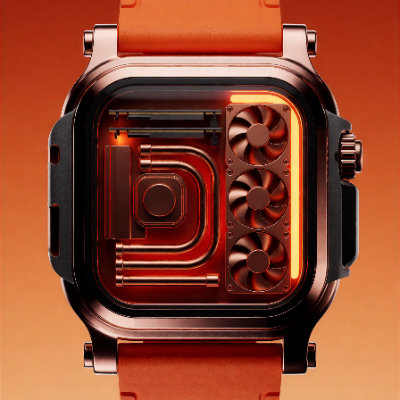
watch_spa_black.png
Load into the
LoadImage node that feeds the Clarity AI Crystal Upscale nodeWorkflow overview
The template uses four nodes:- LoadImage: provides the source image
- ClarityCrystalUpscaleNode: the core node, configured with the
crystal-upscalermodel - SaveImageAdvanced: saves the upscaled output as PNG
- ImageCompare: shows the upscaled result next to the original
Steps to run
- Load an image: upload or select your source image in the LoadImage node
- Select the model: keep
crystal-upscaleron the Clarity AI Crystal Upscale node - Set the scale factor: choose how much to enlarge the image, from 1x to 200x
- Set creativity:
0stays closest to the original; higher values let the model reconstruct more detail - Click Queue or press
Ctrl+Enterto generate
Node controls
Tips
- Start at 2x and raise the factor only if you need it. The factor multiplies both sides of the image, so a large factor can push the output past 100 megapixels or 65535 pixels per side and fail the run.
- Set
creativityto 0 for product and archival shots. It stays closest to the source; raise it only when you want the model to rebuild texture the source no longer contains. - Small inputs ignore
creativity. Images whose shorter side is 256 pixels or less use the same result regardless of the setting. - Check the comparison view. The template pairs the output with the input, so you can judge whether the added detail is faithful before committing to a large render.
Get started
- Update ComfyUI to the latest version
- Go to Template Library, search for
Clarity AI: Crystal Upscaler