

What Krea 3 is good at
- Instruction-driven edits: write the change in plain language (“replace the green car with an orange one”) and Krea 3 returns the whole image, keeping what you did not ask to change
- Text to image from the same node: leave the image inputs empty and the node generates from the prompt alone
- Up to 8 reference images: connect them in the order you want to address them, then mention them in the prompt as
@Image1,@Image2, and so on - Three thinking modes:
fastis the default and the recommended setting,highplans complex edits in more detail and takes longer, andultragenerates several candidates and returns the best one - Precise edits: turn on
precise_editto keep everything outside the edited area unchanged - Resolution control: 1K or 2K output, with
autoaspect ratio following the first reference image
Krea 3 text to image workflow
Generate an image from a prompt alone. The Krea 3 Image node has no image connected, so it uses the prompt and the aspect ratio setting.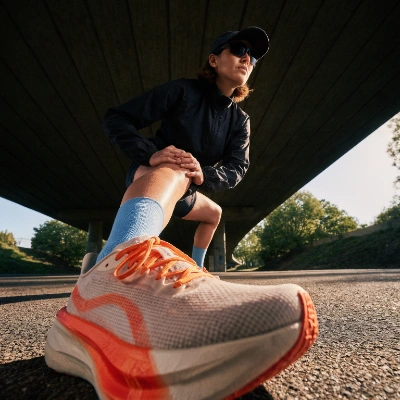
Run on Comfy Cloud
Open in Comfy Cloud
Download Workflow
Download JSON or search “Krea 3” in Template Library
- Write your prompt in the Krea 3 Image node. The shipped example is a single detailed sentence describing the subject, the lighting, and the framing
- Set
aspect_ratio. Keep it onautoto follow the prompt, or pick one of the ten supported ratios - Pick
resolution: the template ships with1K, and2Kgives a larger canvas at a higher cost - Leave
thinking_modeonfast, or switch tohighwhen the prompt describes a complex scene - Click Queue. The image is saved by the
SaveImageAdvancednode toComfyUI/output/
Krea 3 image edit workflow
Edit an existing image from an instruction prompt. The reference image is connected to the Krea 3 Image node, and the prompt describes the result you want.
Run on Comfy Cloud
Open in Comfy Cloud
Download Workflow
Download JSON or search “Krea 3” in Template Library
LoadImage node, or use your own image:
wide_format_digital_render.png
LoadImage node · wide_format_digital_render.png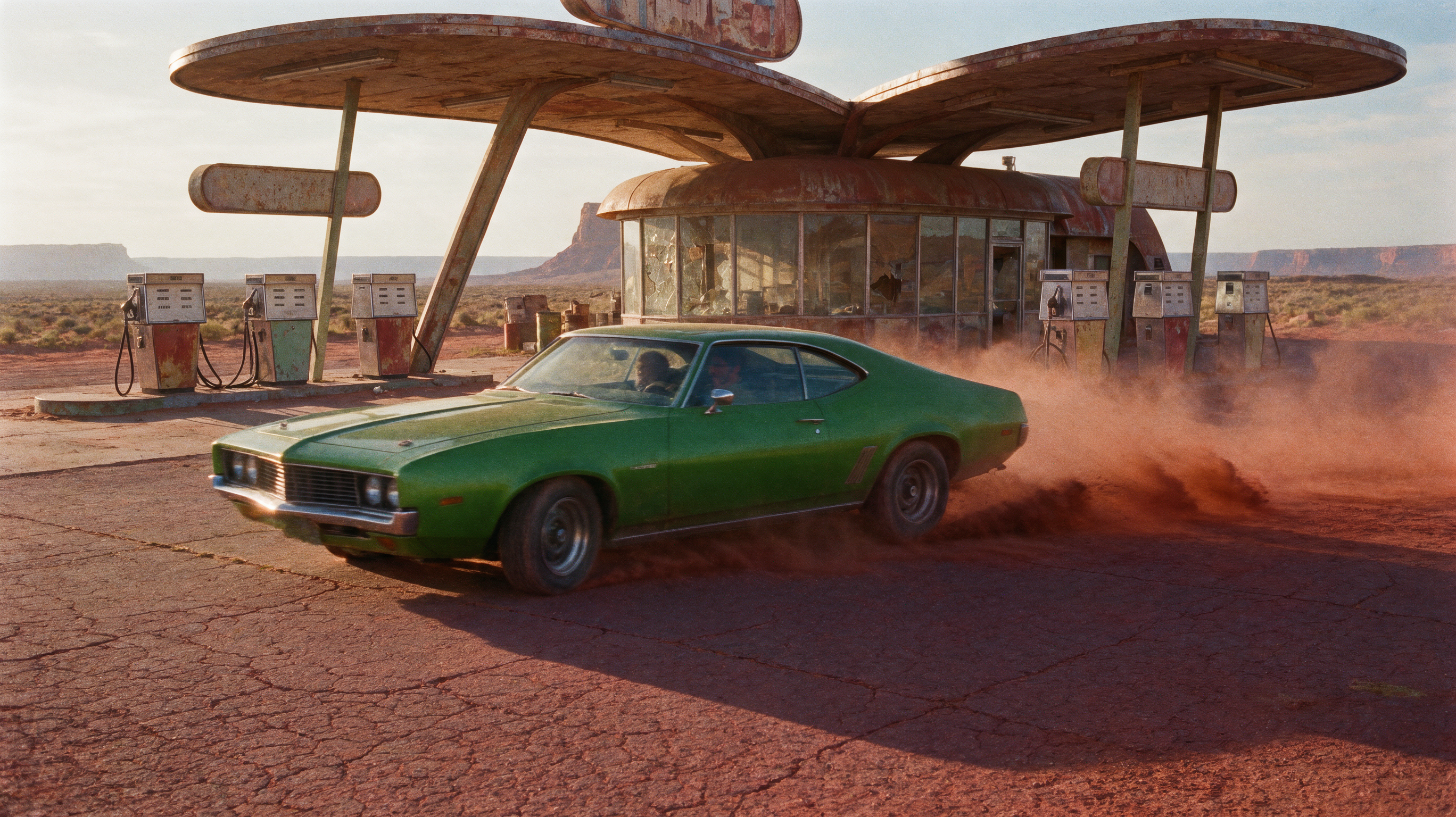
- Load the image you want to edit in the
LoadImagenode and connect it to the Krea 3 Image node - Write the edit as an instruction. The shipped example replaces the green car in the scene with an orange one and lists what must stay unchanged: composition, background, building, dust, lighting, and perspective
- Turn on
precise_editif everything outside the edited area must be preserved. It needs at least one reference image - Adjust
aspect_ratioandresolutionfor the output canvas - Click Queue and compare the input with the result
@Image1, @Image2, and so on.
For a hard edit, set thinking_mode to ultra. It generates several candidates and returns the best one, always outputs 2K, needs at least one reference image, and cannot be combined with precise_edit.
Krea 3 node parameters
The Krea 3 Image node (Krea3ImageNode) exposes the following settings:
image_1…image_8: up to 8 reference images, numbered in connection order. Leave them empty for text to imageprompt: the instruction or the scene description. Refer to references as@Image1,@Image2, and so onaspect_ratio:auto, or one of1:1,4:5,3:4,2:3,9:16,5:4,4:3,3:2,16:9,21:9.autofollows the first reference image, or the prompt when no image is connectedresolution:1Kor2Koutputthinking_mode:fastis recommended,highplans complex edits in more detail and takes longer,ultragenerates several candidates and returns the best one.ultraneeds at least one reference image, always outputs 2K, and cannot be combined withprecise_editprecise_edit: keeps everything outside the edited area unchanged. It needs at least one reference imageseed: seed for the request. Krea rewrites the prompt before generating, so the same seed does not reproduce the same image
Notes and limits
- Prompt rewriting: Krea rewrites your prompt before it generates, which is why a repeated seed does not repeat an image
- Reference size: each reference is scaled to the output pixel budget before it is uploaded, so the 2K setting keeps more reference detail than 1K
- Billing: Krea 3 is a Partner Node, so every run is billed to your Comfy account. See Partner Nodes pricing for rates and Concurrency limits for how many requests you can have in flight
- Version: the Krea 3 Image node ships with ComfyUI PR #17067, and the two templates are part of the template library from
workflow_templates0.11.84