

What Meta Muse Image is good at
- Agentic rendering: The model plans before it draws, using built-in web search, image search, and code execution (all three toggles are on by default in the node’s advanced options)
- Precise quantities and layouts: Text-heavy posters, charts, diagrams, and layouts benefit from the code-execution path; turning it off falls back to approximation
- Multi-reference editing: The Edit node accepts 1 to 10 reference images. Refer to them in the prompt as
@Image1,@Image2, and so on, numbered in input order - Flexible framing: 14 aspect ratios from 1:1 up to 21:9 and 9:21, plus
auto, which lets the model choose from the prompt (generation) or keeps the input’s ratio (edit) - Reasoning control: Choose
highorlowreasoning strength depending on how much planning the image needs
Example outputs
Text-to-image generation from a single prompt: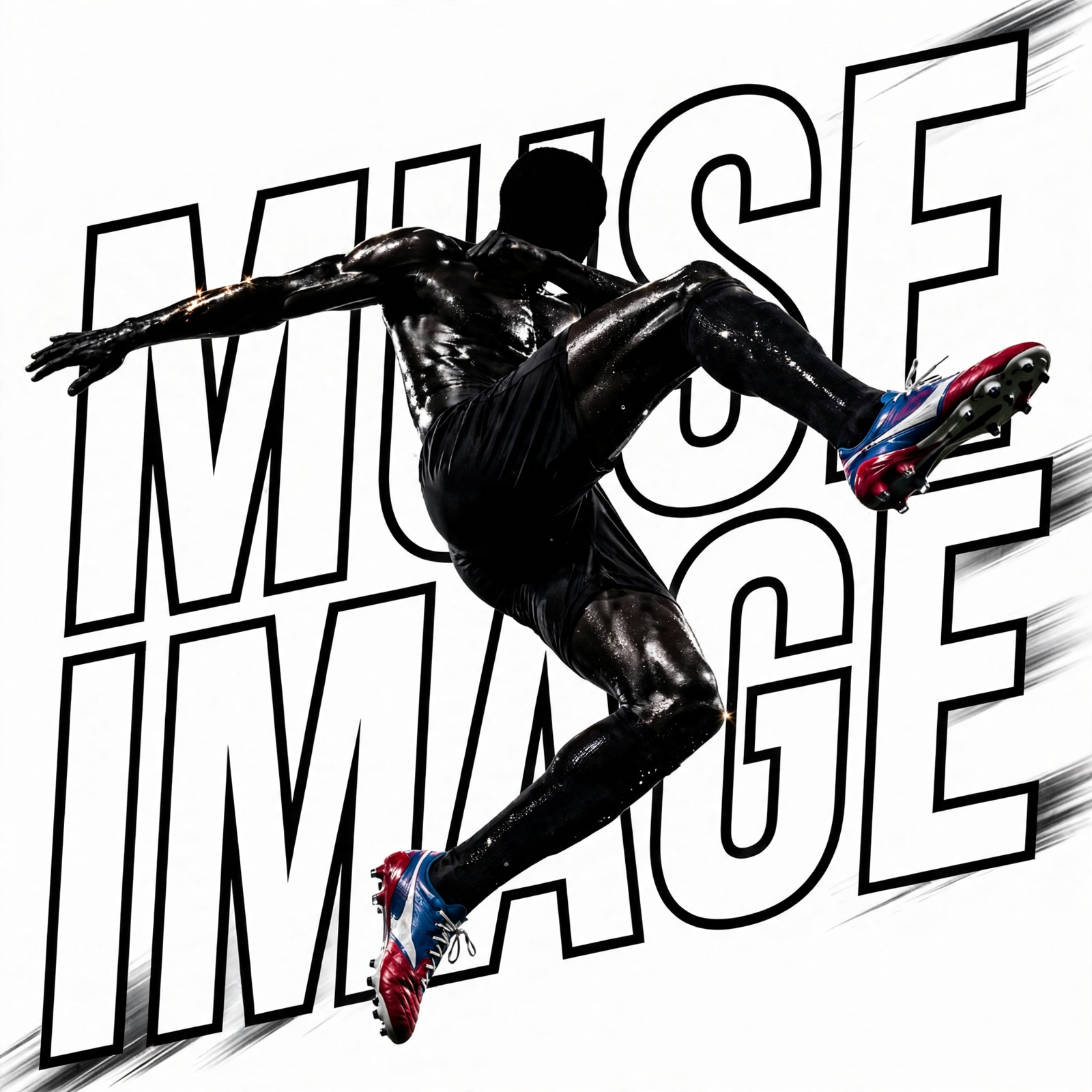
Meta Muse Image Text to Image workflow
Generate an image from a text description using Meta’s Muse Image 1.0 model. One text prompt is accepted and one image is output.
Run on Comfy Cloud
Open in Comfy Cloud
Download Workflow
Download JSON or search “Muse Image” in Template Library
Meta Muse Image Edit workflow
Edit or combine up to 10 reference images guided by a text prompt. Reference images are connected to theimage_1 to image_10 inputs, and the prompt addresses each one as @Image1, @Image2, and so on, numbered in input order. A batched input counts once per image.
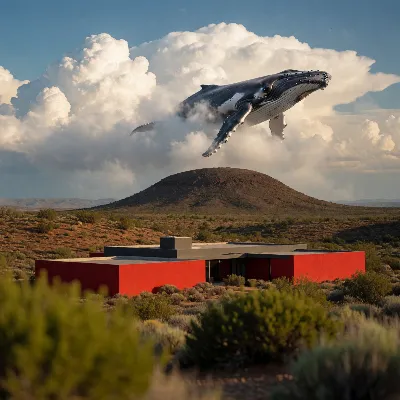
Run on Comfy Cloud
Open in Comfy Cloud
Download Workflow
Download JSON or search “Muse Image” in Template Library
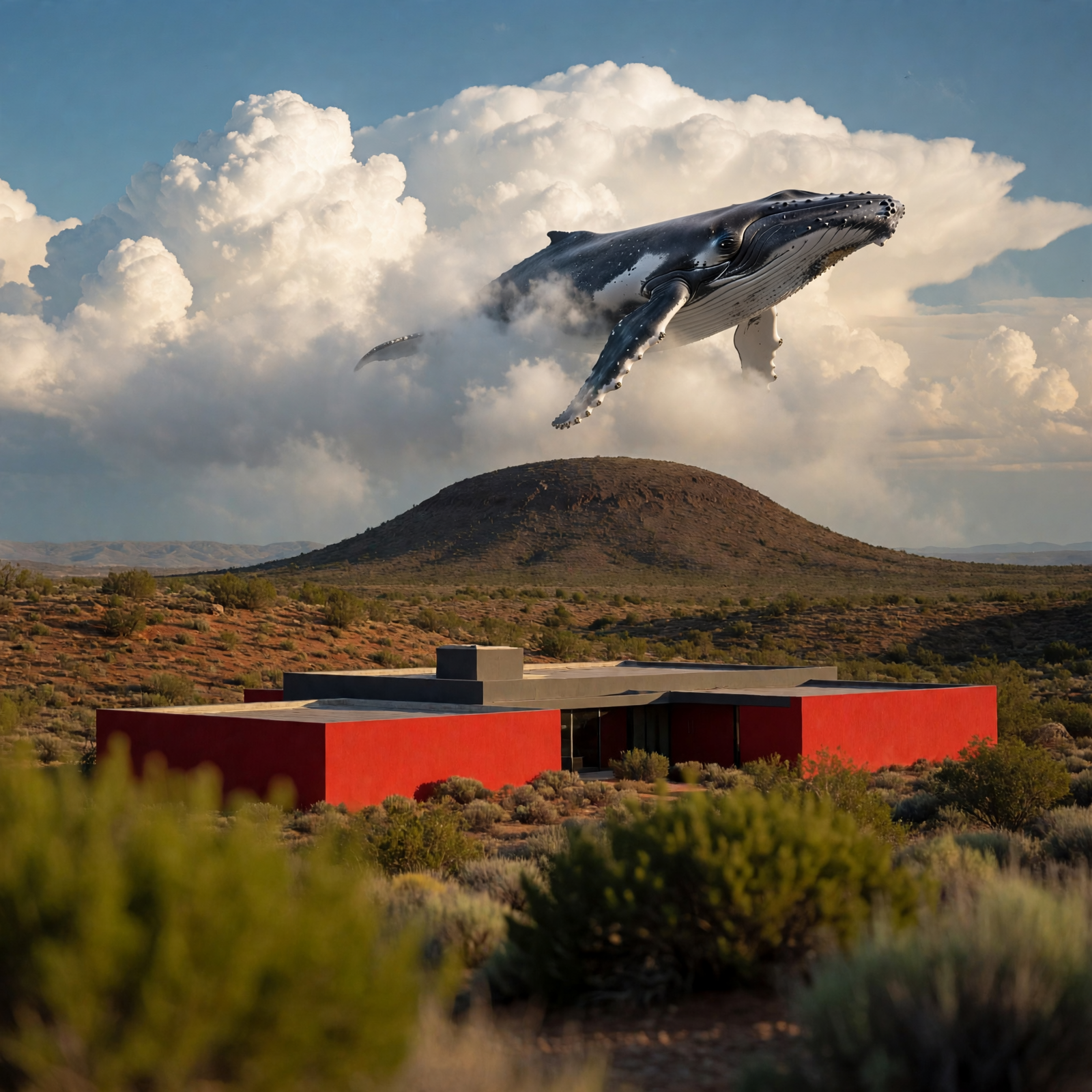
Input files
Whale figure
deep_blue_whale_swim_scene.png
Modern house
desert_red_modern_house.png
Get started
- Update ComfyUI to the latest version
- Go to Template Library, search for
Muse Image
Prompting tips
- Be explicit about what must stay accurate: Muse Image follows instructions closely, so state counts, positions, and labels directly in the prompt
- For posters and diagrams, keep the code execution toggle on (advanced options) so quantities and alignment are computed rather than approximated
- In the Edit workflow, name every reference you connect. An
@Imagetag with no connected input fails the run - Use
autoaspect ratio when you want the model to decide the framing from the prompt; use a fixed ratio for consistent series output