

Available workflows
Material Extract: photo to tiling material
Point the node at a photo that already contains the material and the prompt says which surface to pull out and what structure to keep. The texture comes back seamless, so it repeats across a large surface without a visible border.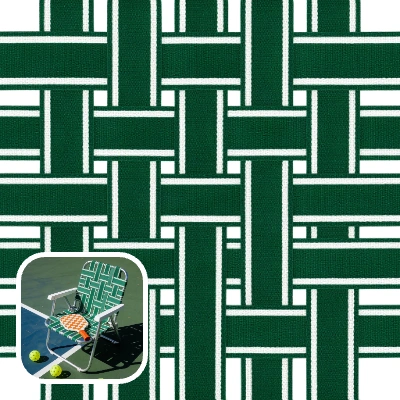
Run in Comfy Cloud
Open in Comfy Cloud
Download Workflow
Download JSON or search “Patina: Material Extract” in Template Library
patina_chair_webbing.png
Load into the
LoadImage node. A photo that already contains the materialstrength (advanced, 0.6 in the template) sets how far the extracted texture may drift from the photo.
Material: text to material
Describe the surface and get a complete material back, with no source image at all. The prompt carries the whole result, so name the pattern and the finish rather than the object it belongs to.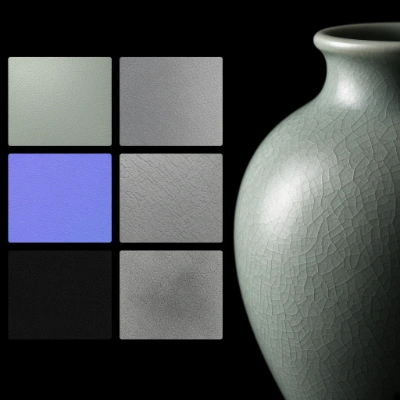
Run in Comfy Cloud
Open in Comfy Cloud
Download Workflow
Download JSON or search “Patina: Text to Material” in Template Library
Material: image to material
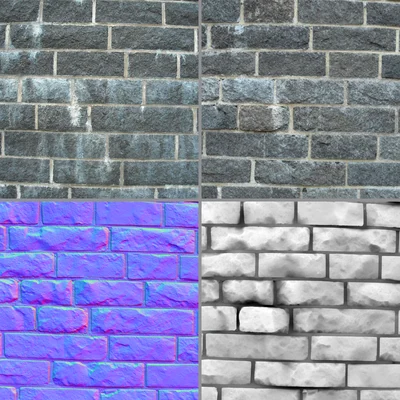
Connect a surface photo and Patina redraws it as a tiling material, keeping the pattern from the image.strength decides how far it moves away from the photo: low keeps the original texture, high rewrites more of it.
Run in Comfy Cloud
Open in Comfy Cloud
Download Workflow
Download JSON or search “Patina: Image to Material” in Template Library
patina_brick_wall.jpg
Load into the
LoadImage node. A surface photo with a regular structuremask input limits the redraw to a region, with white for regenerate and black for keep. A mask without an image raises an error.
PBR Maps: image to map set
Derive the maps from an image that is already the material. Nothing is regenerated here: the maps describe exactly what the picture contains, so seams, perspective and lighting in the source stay in the result.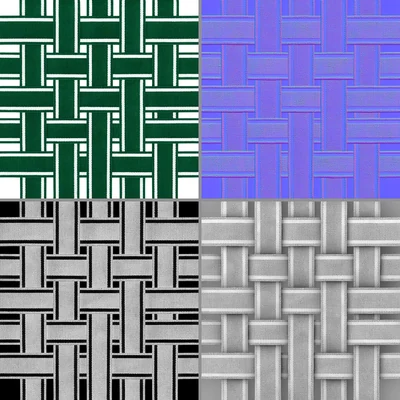
Run in Comfy Cloud
Open in Comfy Cloud
Download Workflow
Download JSON or search “Patina: PBR Maps” in Template Library
patina_pbr_webbing_basecolor.png
Load into the
LoadImage node. A flat, evenly lit surface or an existing basecolor mapauto_downscale.
Node controls
Outputs follow a fixed slot order. Material and Material Extract return
texture, basecolor, normal, roughness, metalness, height and expanded_prompt. PBR Maps returns the five maps without a separate base texture. A map you switch off still outputs a black 1×1 placeholder in its slot.
Tips
- Name the surface, not the scene. On a photo of a chair, “chair webbing fabric” extracts the woven straps and ignores the frame, the floor and the paddle in shot.
- Add structure when the pattern drifts. On Extract, a clause like “keep the weave and the strap edges” stops the pattern from wandering between runs.
- Pick the material that repeats inside a few hundred pixels. Webbing, brick, pavers, planks and plaster tile well. A rock cliff, an aerial terrain or a single object come back as a repaint that will not tile.
- Turn maps off before you run. Three maps are usually enough for a game or a product material, and the price follows the number of maps. Disconnect or bypass that map’s SaveImage node, or the placeholder is saved as a map.
- Chain Extract into PBR Maps for a full set from one photo. Extract makes the basecolor tile, then PBR Maps derives the remaining maps from it.
- Generate the map, then check the metalness on metals. Prompt expansion is the usual reason a metal surface comes back flat.
Get started
- Update ComfyUI to the latest version
- Go to Template Library, search for
Patina - Pick the workflow that matches your input: Extract for a photo of a surface, Text to Material for a prompt only, Image to Material for a photo to redraw, PBR Maps for an existing basecolor
- Switch off the maps you do not need, then run the workflow