

Opening the panel
You can open the bottom panel in several ways:- Shortcuts: click the keyboard icon near the bottom of the left sidebar (
Workspace.ToggleBottomPanel.Shortcuts, defaultCtrl+Shift+K). That toggles the shortcuts panel specifically. - Console / terminal panel (non-Cloud): click the terminal icon near the bottom of the left sidebar. That runs Toggle Bottom Panel, which prefers the terminal panel when Logs/Terminal tabs are loaded, otherwise falls back to Shortcuts.
- View menu: Bottom Panel (
Workspace.ToggleBottomPanel). - Logs shortcut (non-Cloud): default
Ctrl+`toggles the Logs tab (Workspace.ToggleBottomPanelTab.logs-terminal).
Shortcuts tabs
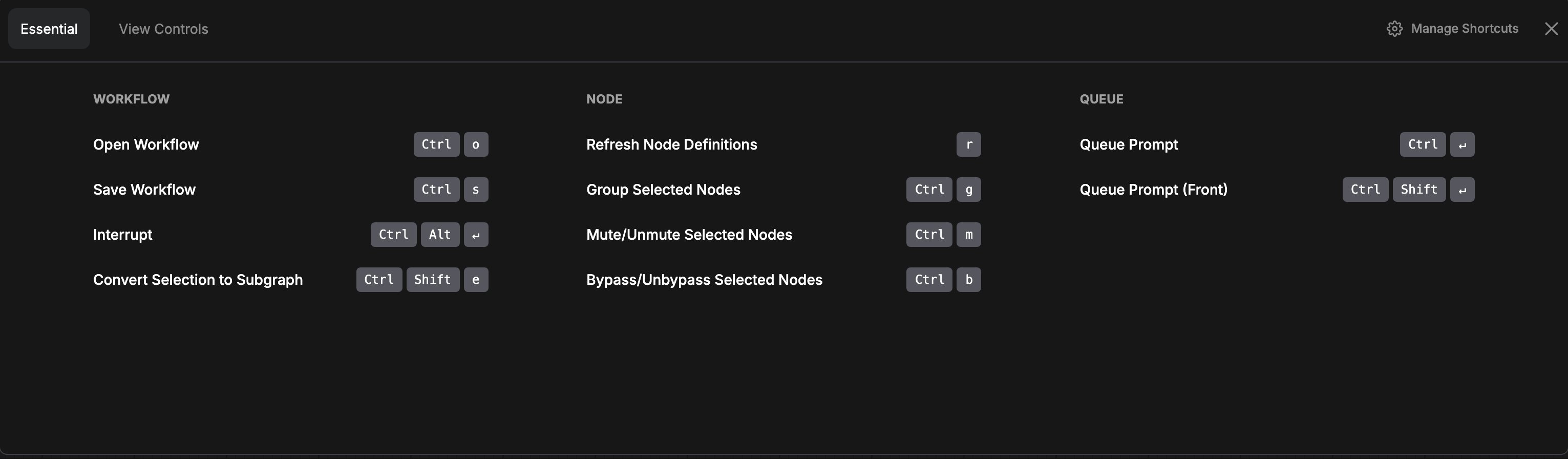
Shortcuts register two tabs on the shortcuts panel:- Essentials: common editing and queue shortcuts.
- View Controls: navigation and view-related shortcuts.
Logs (self-hosted and Desktop)
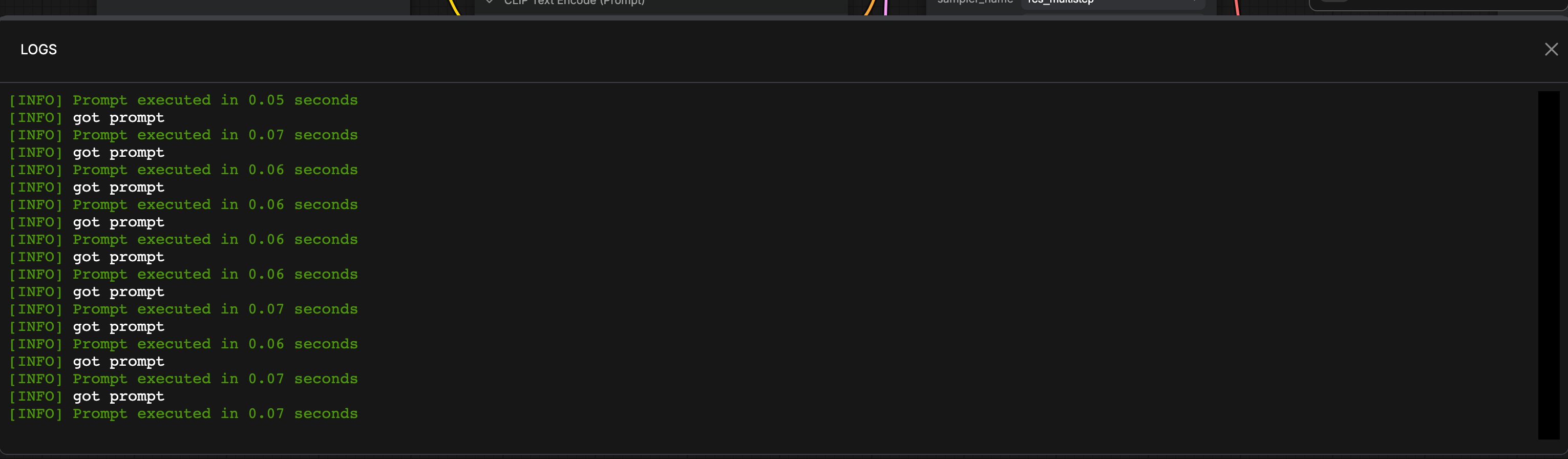
On non-Cloud builds, a Logs tab streams runtime log output from the ComfyUI process. Use it when debugging custom nodes, server errors, or backend messages without switching to an external terminal. Default shortcut:Ctrl + `.
Terminal (Desktop only)
On the Desktop app, a Terminal (command terminal) tab is registered next to Logs. It provides an in-app shell for Desktop users. It is not registered on pure browser self-hosted sessions or on Comfy Cloud.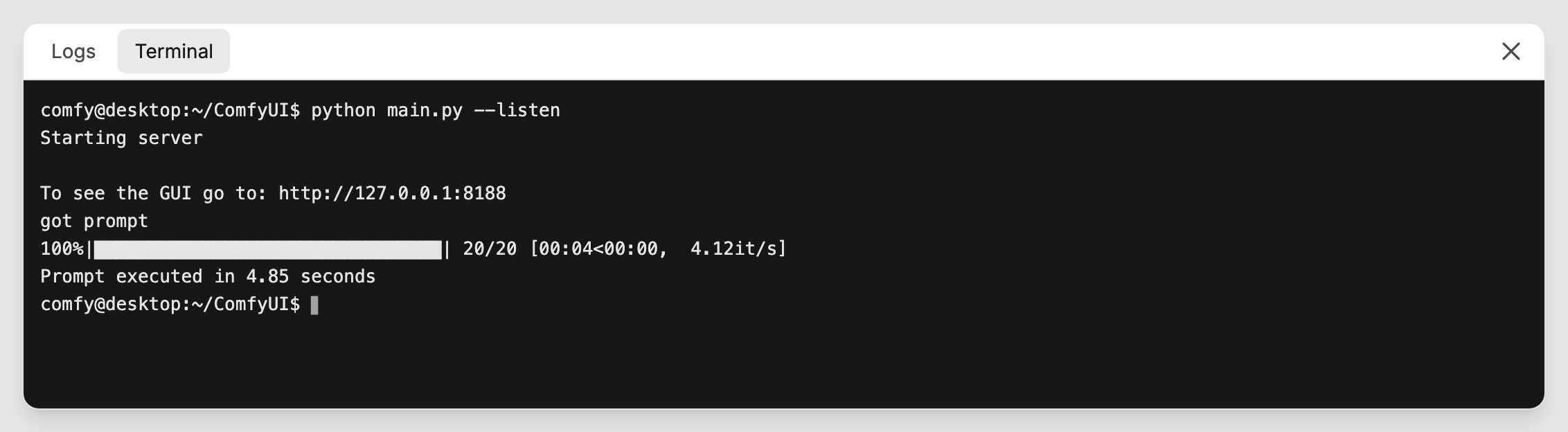
Related pages
- Shortcuts
- Canvas Controls (Focus Mode hides this panel)
- Help Center
- Interface Overview