

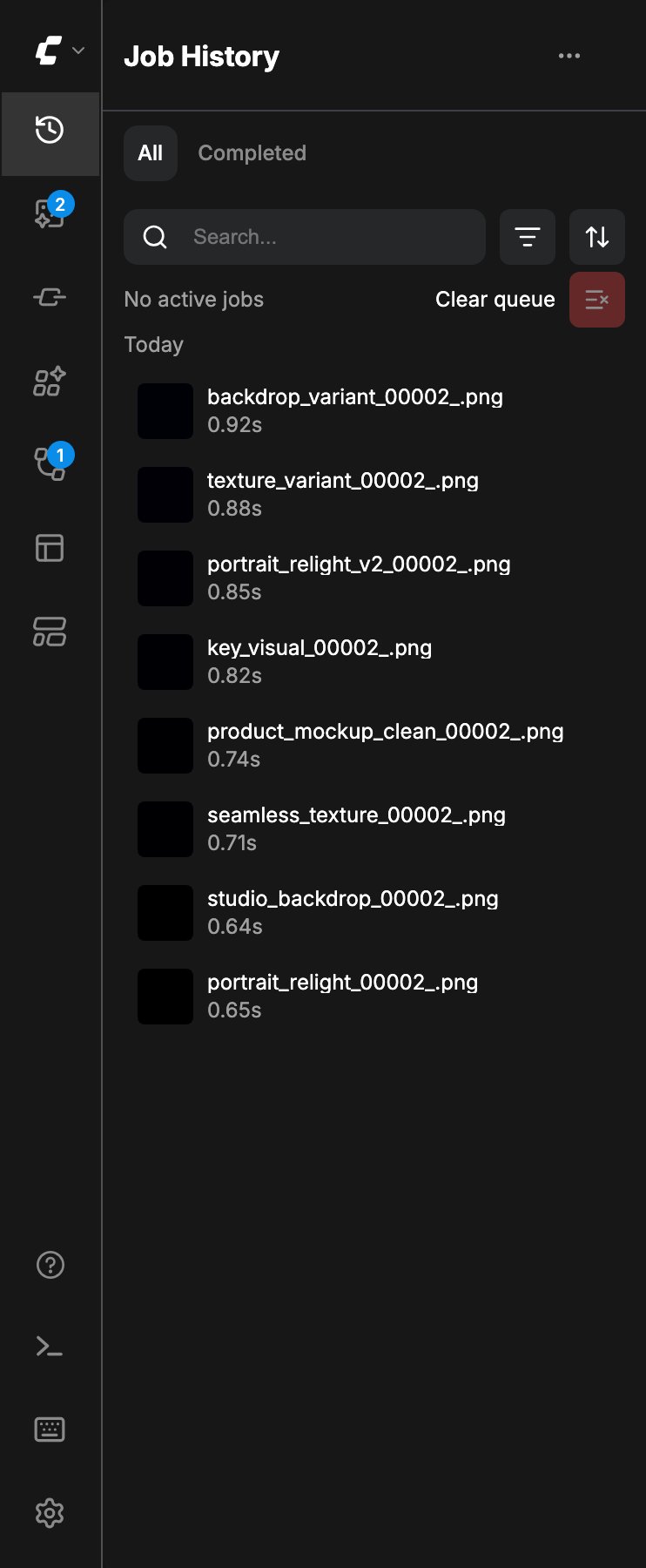
Comfy.Queue.QPOV2) is enabled. The frontend registers it at the top of the sidebar (prepend) so you can watch active jobs and browse past runs without using the floating queue overlay.
When the setting is off, the tab is removed and the floating job-history overlay remains available instead (Comfy.Queue.ToggleOverlay). Run / queue controls in the top header still start jobs either way. This page is about the sidebar Job History surface.
Turn Job History on
- Open Settings.
- Under
Comfy→Queue→Layout, enable Docked job history/queue panel (Comfy.Queue.QPOV2). - The Job History icon appears at the top of the left sidebar.
Opening the panel
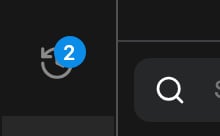
Click the Job History icon. While jobs are running or queued and this tab is not active, the icon shows a numeric badge with the active job count. Opening the tab clears the badge display for that view.Tabs: All, Completed, Failed
The panel header has status tabs:- All: every job in history for the current filters.
- Completed: finished runs.
- Failed: only appears when at least one failed job exists in the list.
Search, filter, and sort
Use the header tools to narrow the list:- Search: filter jobs by text.
- Filter: All workflows or Current workflow.
- Sort: Most recent or Total generation time.
Job list and actions
Jobs are listed with status, progress when running, and preview thumbnails when outputs exist. From a job row or its context menu you can: Running or queued- Open as workflow in a new tab
- Copy job ID
- Cancel job
- Inspect asset (when a preview exists)
- Add the output to the current workflow as a loader node
- Download the preview asset
- Open as workflow in a new tab
- Export workflow
- Copy job ID
- Open workflow in a new tab
- Copy job ID
- Copy error message
- Report error
- Remove job from the history list