

.app.json. The tab title includes a Beta badge.
This sidebar catalog is not the same as App Mode. App Mode is the linear, simplified run UI for a workflow. The Apps sidebar is where you find and open packaged apps, create a blank workflow to start a new one, and manage those .app.json files the same way you manage ordinary workflows.
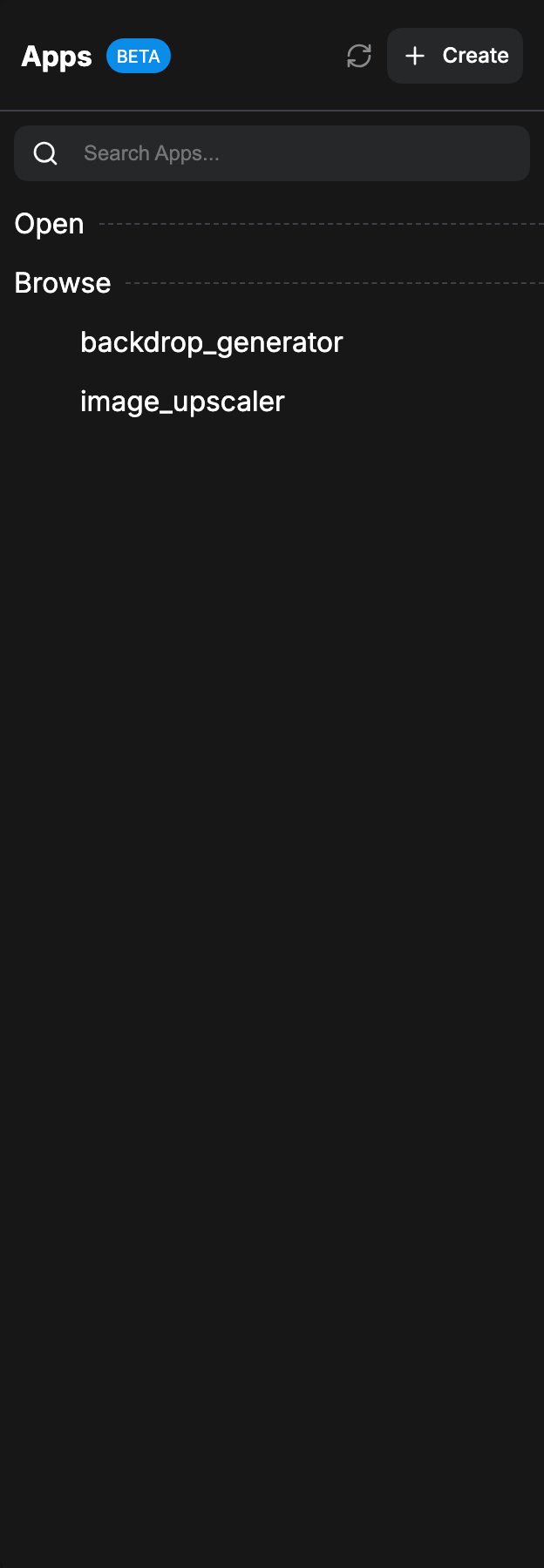
Opening the Apps panel
Click the Apps icon in the left sidebar. The panel reuses the same layout as Workflows: search, optional Open section (when opened workflows are set to Sidebar), Bookmarks, and Browse, but every list is filtered to.app.json files only.
Empty state and Create
When no apps are saved yet, the Browse area shows an empty state with a short message and a Create app button. When the Browse list has results, a Create button also appears in the panel header. Both actions run New Blank Workflow (Comfy.NewBlankWorkflow), which opens a blank graph you can configure for App Mode and save as an app.
Working with apps
Actions match the Workflows panel for the filtered list:- Click an app to open it.
- Bookmark, rename, delete, duplicate, and drag leaves the same way as ordinary workflows.
- In the context menu, Duplicate is always available. Insert is available outside App Mode.