

APP mode is officially supported from ComfyUI front-end version 1.41.13. Earlier versions are in early test phase.
Enter APP mode
There are two ways to enter APP mode: click the top-left icon (1) and select Enter app mode from the dropdown, or use the breadcrumb navigation dropdown (2) at the top of the interface.
- Click the top-left icon (marked 1) to open the dropdown menu and select Enter app mode.
- Alternatively, use the breadcrumb navigation dropdown (marked 2) at the top to enter APP mode.
Build an APP mode workflow
If the workflow has never been configured for APP mode, entering APP mode will automatically open the APP mode builder.

- If the workflow has no existing APP mode configuration, the APP mode builder opens by default.
- Click Build app to enter the APP builder and start configuring.
Step 1: Select inputs
The builder interface displays four guided steps (marked 1, 2, 3, 4) at the top. The bottom bar lets you exit the builder or navigate between steps.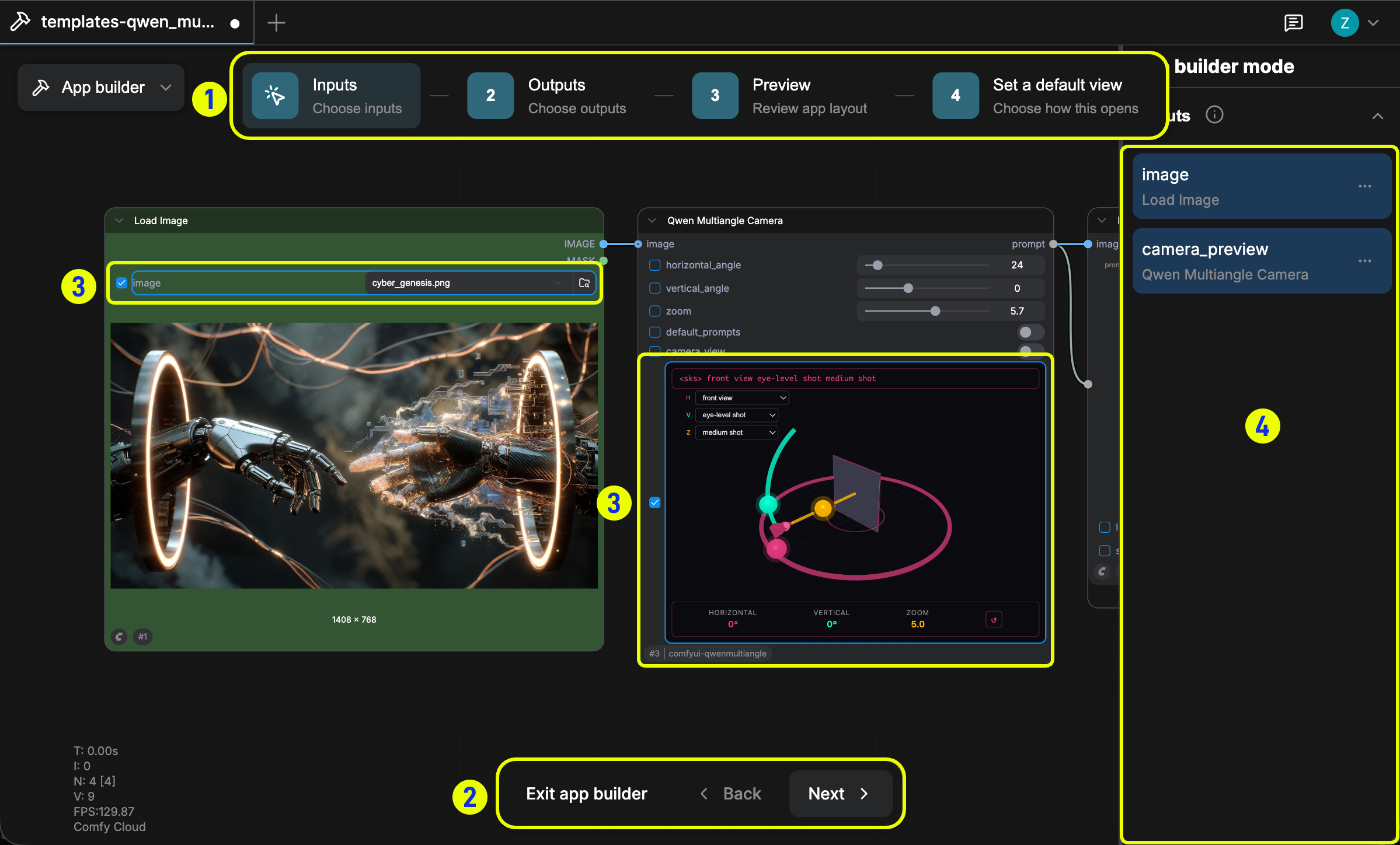
- The numbers 1 2 3 4 at the top correspond to the four build steps: selecting inputs, selecting outputs, previewing, and setting the default view.
- The buttons at the bottom let you exit the builder or move between steps.
- Areas marked in the canvas are selectable input/output parameters.
- The right panel shows a live preview of the current configuration.
Step 2: Select outputs
Click the Outputs step. Choose which output nodes to display in the APP, such as a Preview node or Save Image node.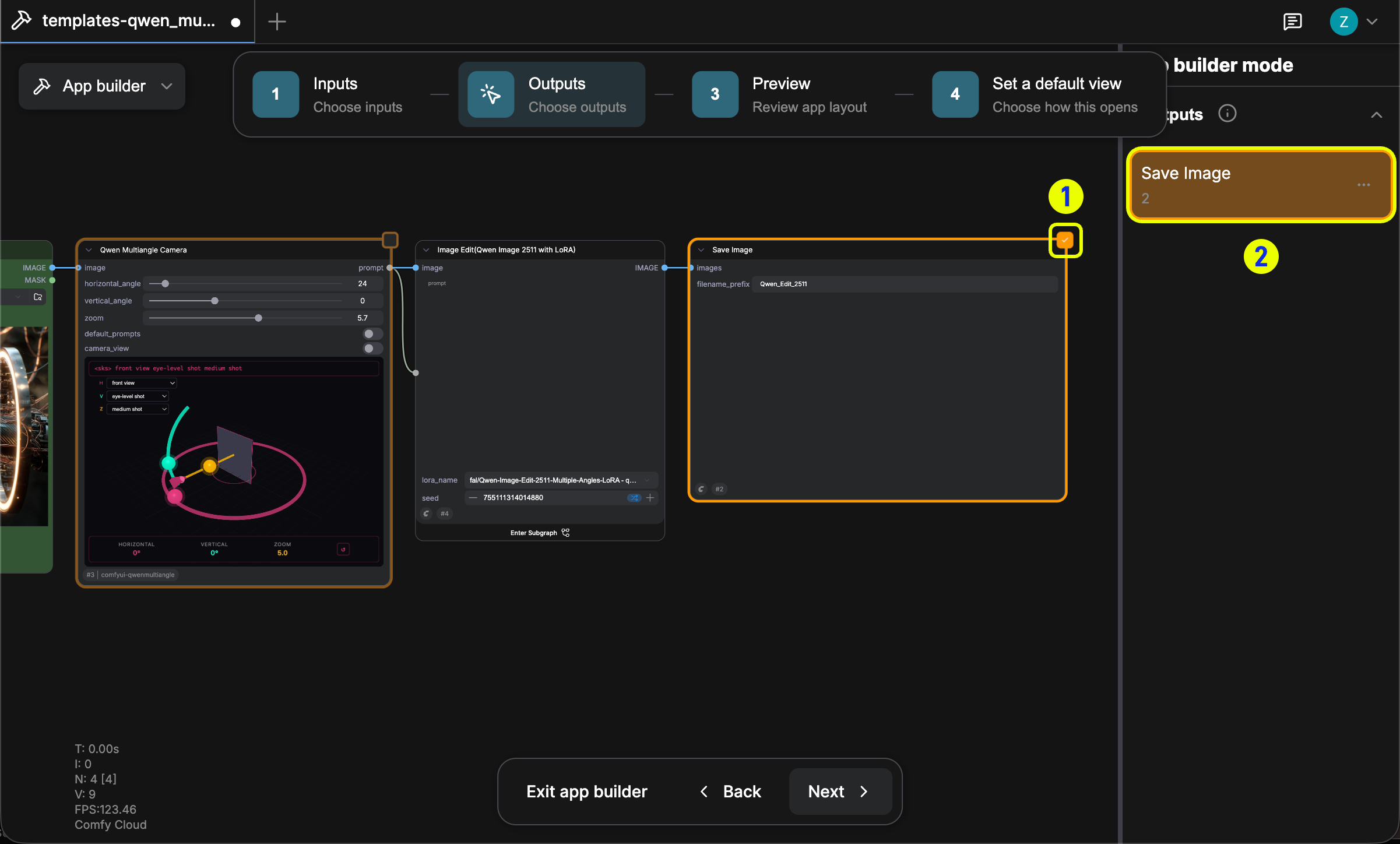
- Select the output nodes to display in the APP.
- Similar to inputs, the right sidebar displays a live preview of the selected output nodes.
Step 3: Preview
Click the Preview step to review the final APP layout. The selected inputs appear on the right panel, and the output area is shown in the canvas.
- This is the preview mode — check that all input and output configurations appear as expected.
- If any adjustments are needed, click Back to return to the previous step.
Step 4: Set a default view
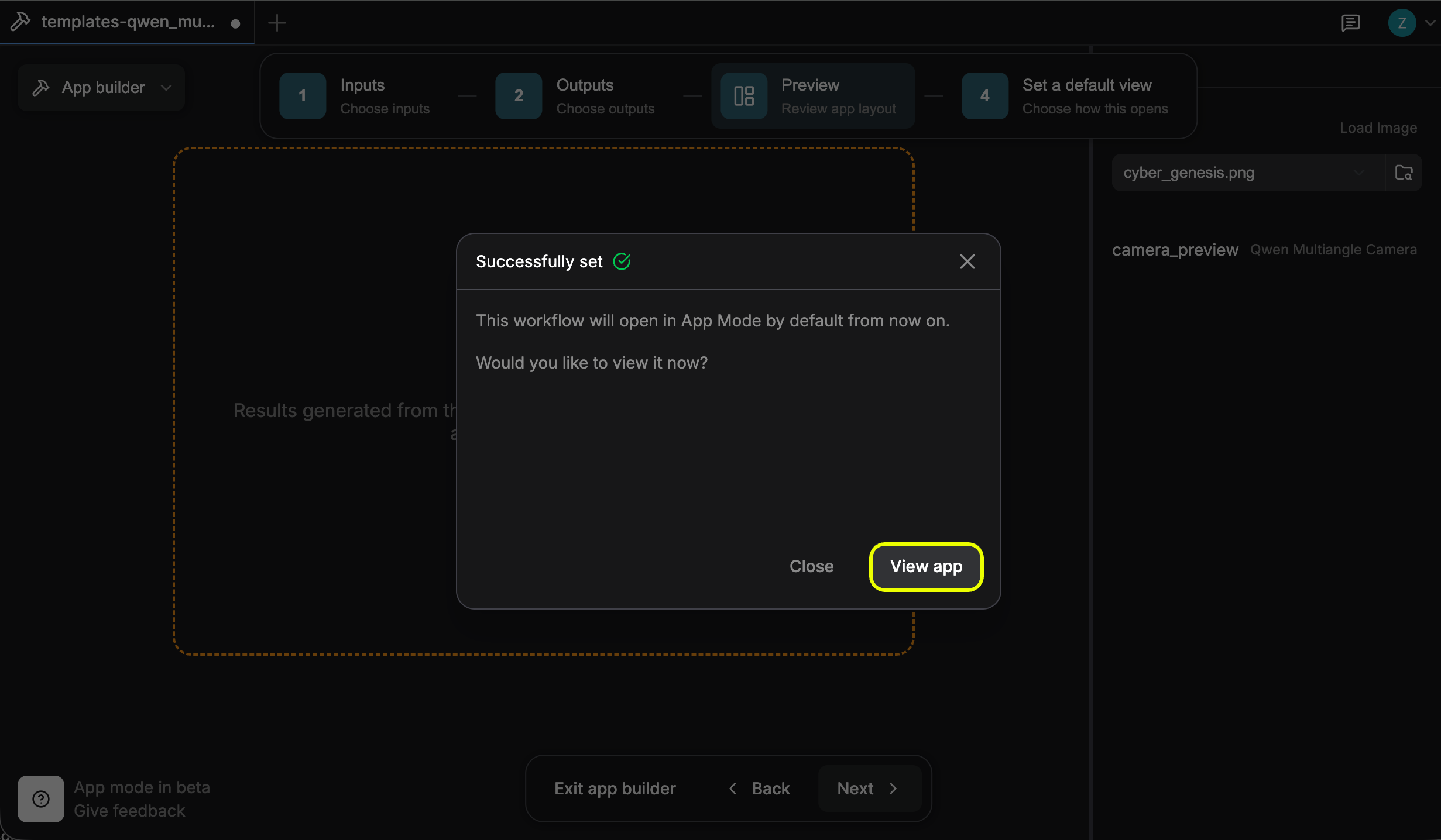
Click the Set a default view step. Choose whether the workflow should open in App mode or Node Graph mode by default. Click Apply to confirm.
- Choose whether the workflow defaults to App mode or Node Graph mode when opened.
- Select App and click Apply to confirm. The workflow will then open in APP mode by default.
Use APP mode
In APP mode, the right panel shows all configured input options. Adjust the inputs as needed, then click Run to execute the workflow.
- The right Input panel lets you adjust input parameters before running.
- Click Run to execute the workflow.
- The left sidebar provides additional controls, such as rebuilding the APP, viewing assets, and opening the workflow panel.
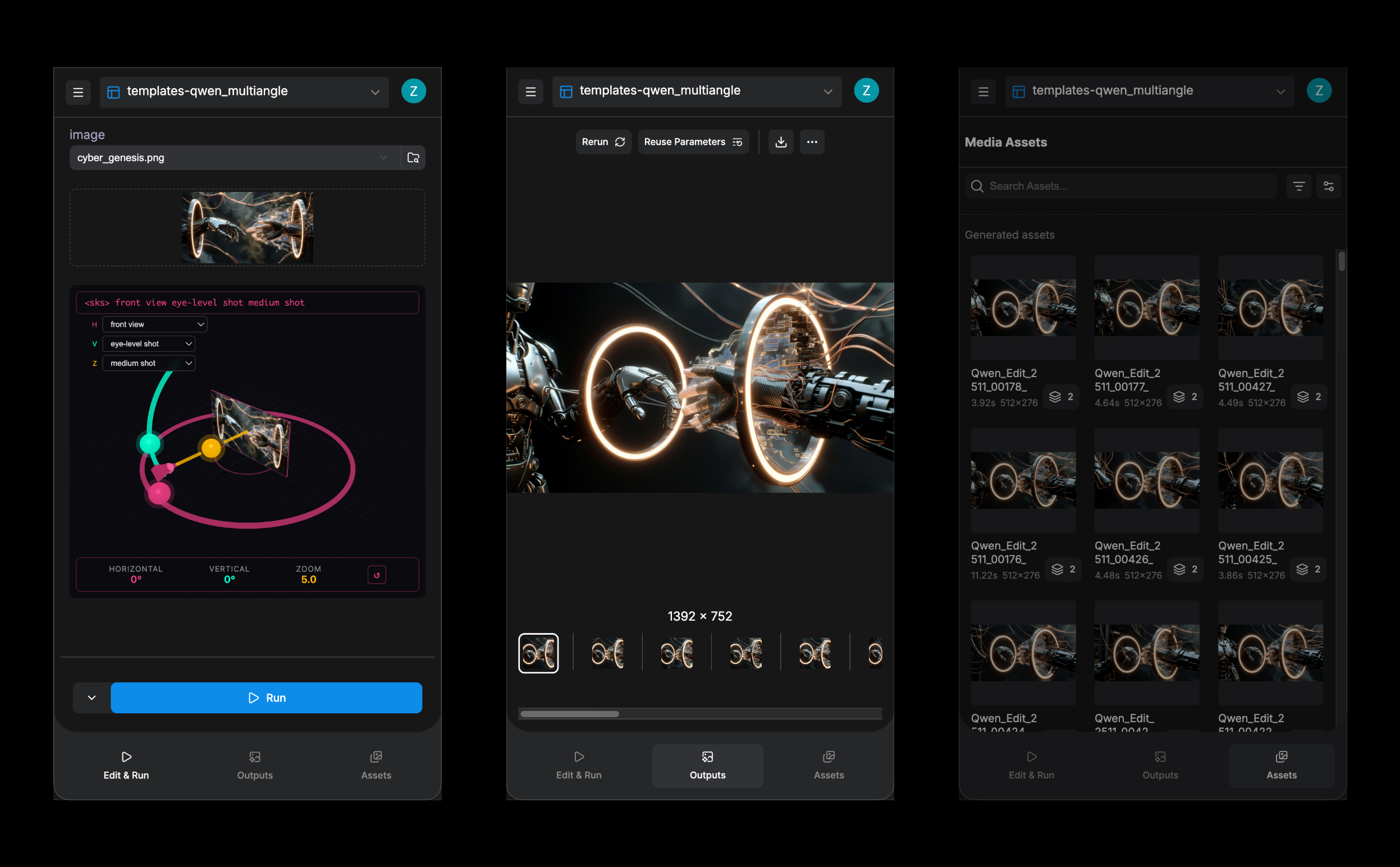

- Click Cancel this run at the top to stop the current run.
- Switch between the queue view and the results view in the bottom panel.
- Click the relevant area to open the assets panel.
Save and share the workflow
Save workflow
UseCtrl + S (or Cmd + S on Mac) to save the workflow for future use.
Click the left sidebar button to open the saved workflows panel.
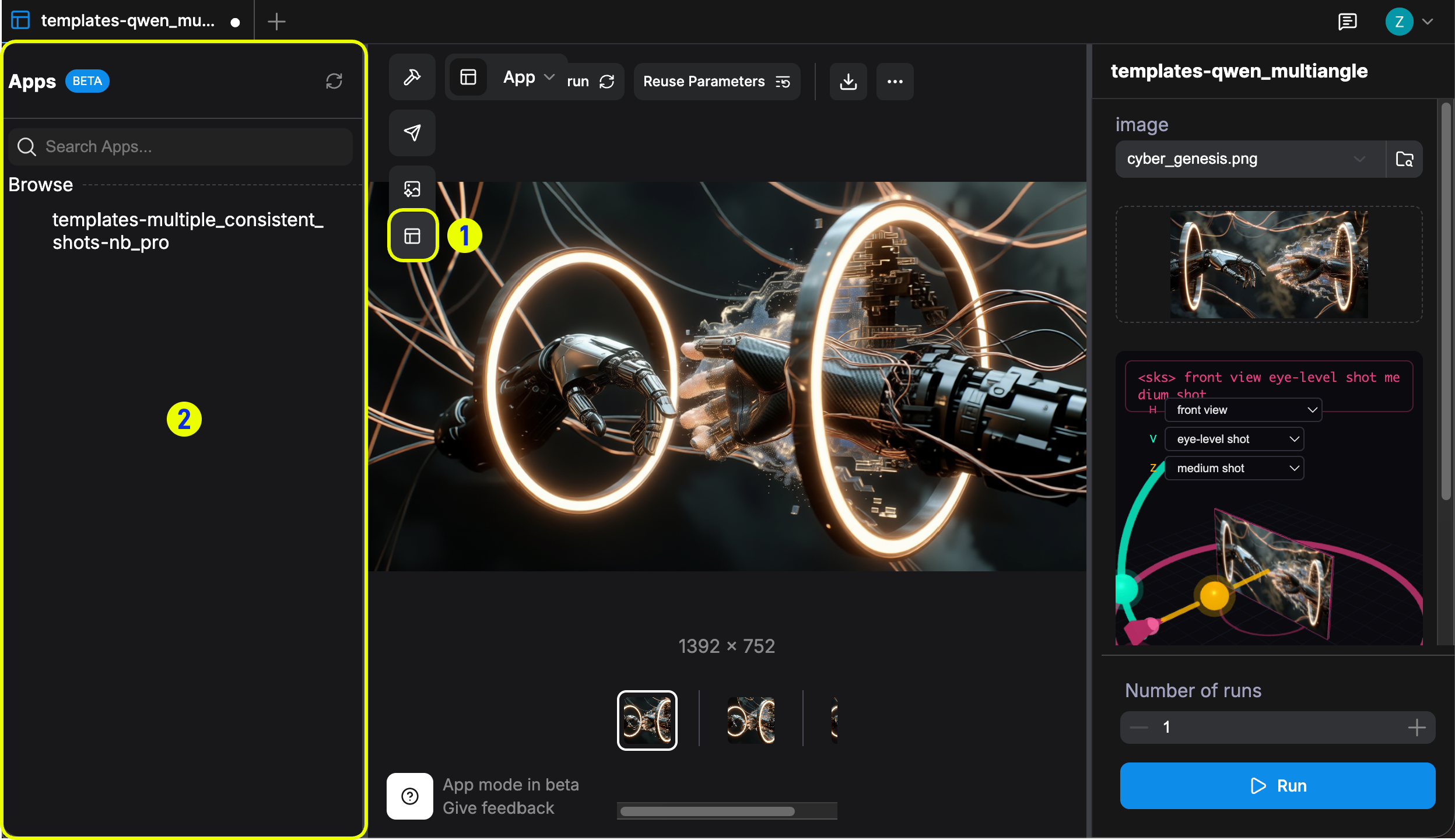
- Click the left sidebar button to open the panel, which displays all saved APP workflows.
- Switch between saved APP workflows from this panel.
Share workflow
In APP mode, click the Share button in the left sidebar. If the workflow has not been saved yet, a dialog will prompt you to save it first before a link can be created.

- Click the Share button in the left sidebar to open the Share dialog.
- If the workflow is unsaved, enter a workflow name and click Save workflow to continue.
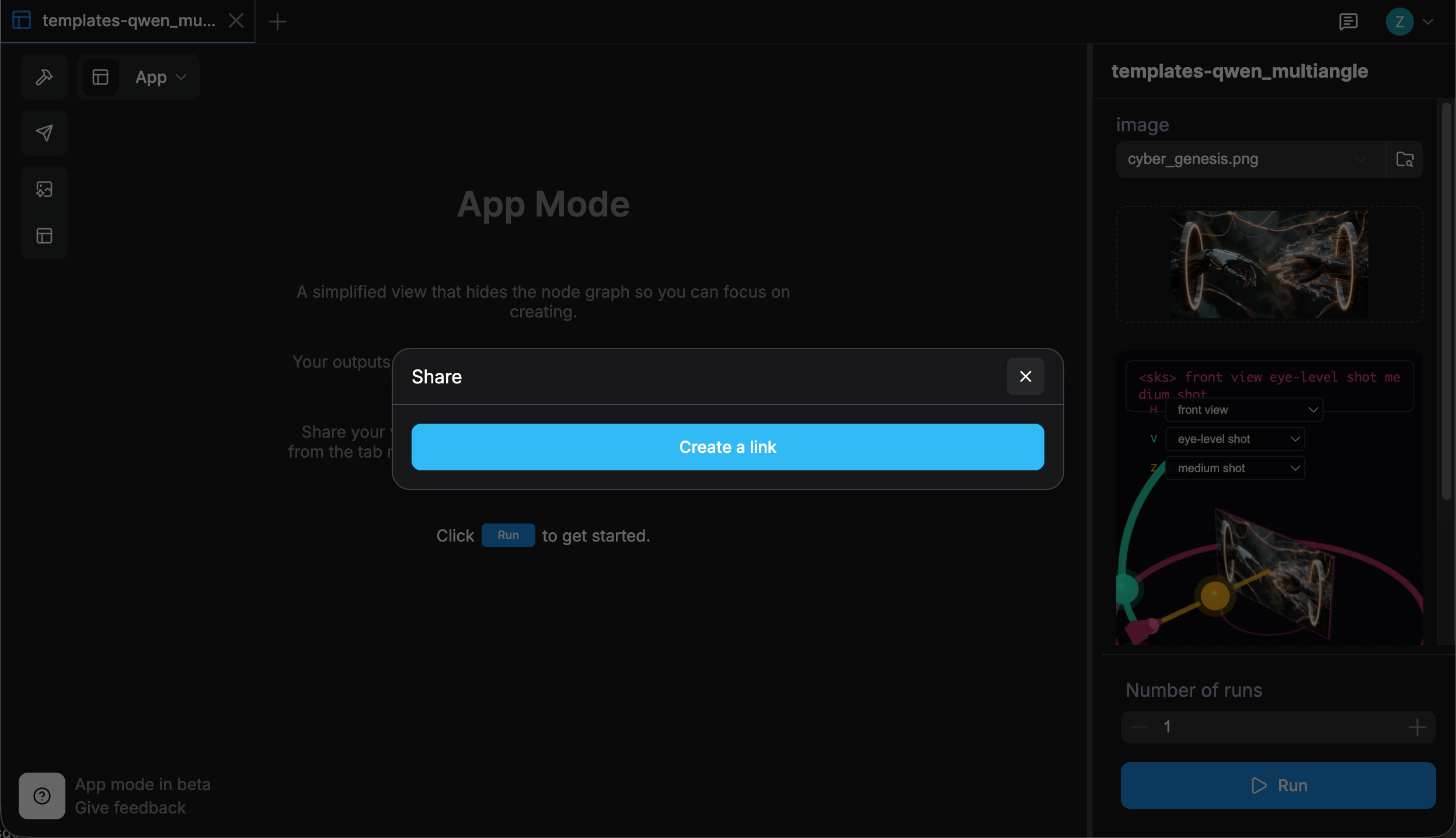
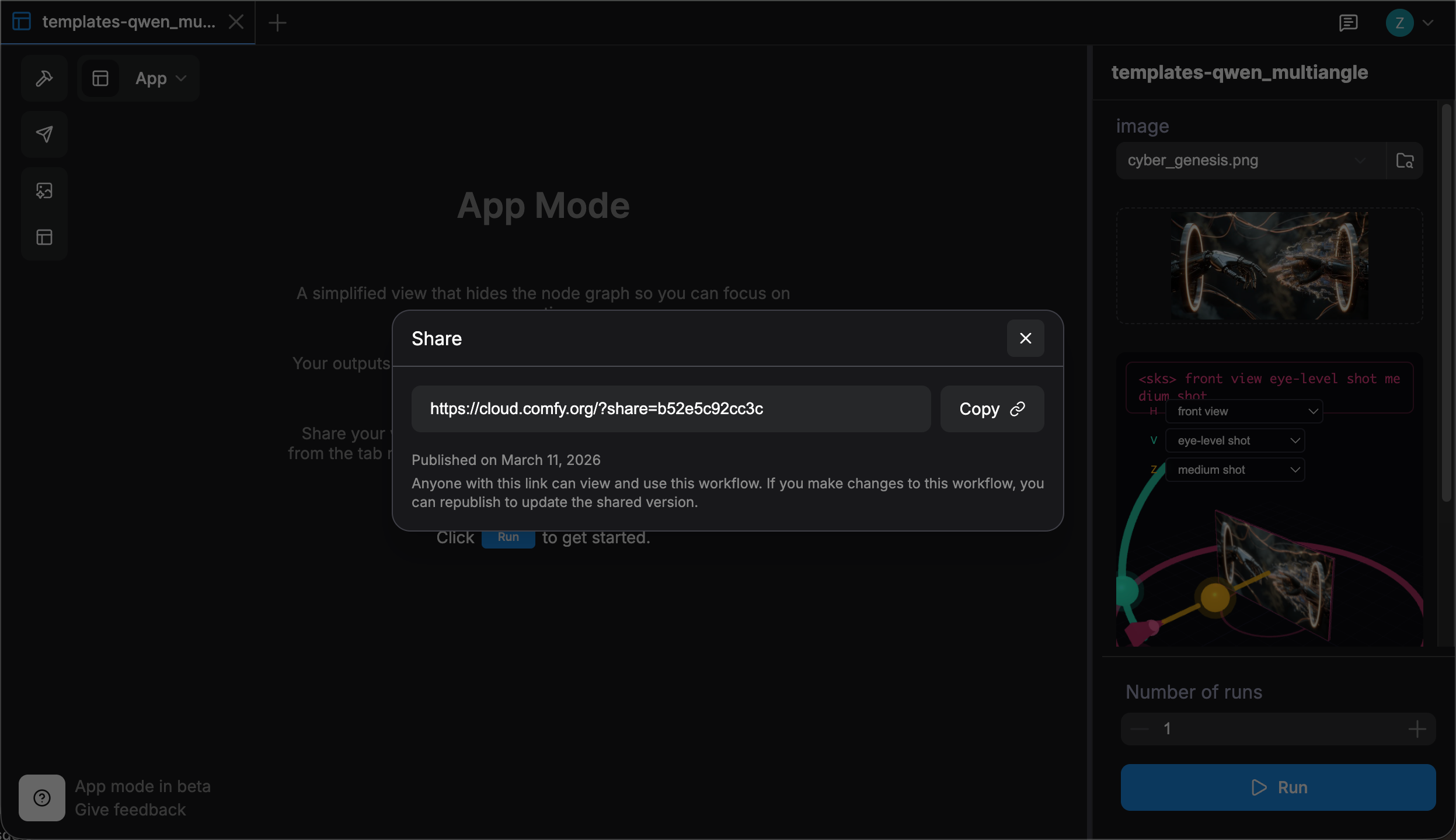
Share links are only supported on Comfy Cloud.