

- Kontext Pro는 편집, 구성, 리믹스에 이상적입니다.
- Kontext Max는 타이포그래피, 프롬프트 정밀도, 속도의 한계를 끌어올립니다.
FLUX.1 Kontext가 뛰어난 점
- 복잡한 설명 없이 다재다능한 편집: 객체 수정, 스타일 변환, 배경 교체, 캐릭터 일관성 편집, 텍스트 편집
- 맥락 이해: 이미지의 맥락을 지능적으로 이해하여 정밀하고 목표 지향적인 편집이 가능합니다
- 캐릭터 일관성: 여러 차례 편집을 반복한 이후에도 캐릭터의 특징과 구성 레이아웃이 안정적으로 유지됩니다
- 다중 이미지 입력:
Image Stitch노드는 여러 이미지를 하나의 이미지로 이어 붙여 FLUX.1 Kontext로 편집할 수 있게 합니다 - 두 가지 모델 등급: Kontext Pro는 편집, 구성, 리믹스에 적합하고, Kontext Max는 타이포그래피, 프롬프트 정밀도, 속도에 적합합니다
예시 출력
이어 붙인 다중 이미지 입력(소녀, 개, 소파를 하나의 장면으로 결합)을 편집하는 예시: 편집, 합성, 리믹스에 이상적인 Kontext Pro를 사용한 이미지 편집:
 타이포그래피, 프롬프트 정밀도, 속도의 한계를 뛰어넘는 Kontext Max를 사용한 이미지 편집:

사용하기
코드에서 호출하기
Comfy Router를 통해 HTTP로 Kontext Pro 또는 Max를 호출하세요. 복사해서 붙여넣을 수 있는 Python, TypeScript, Swift, cURL 스니펫을 제공합니다
FLUX.1 Kontext 다중 이미지 입력 워크플로
최근 다중 이미지 입력 워크플로를 지원하도록 업데이트되었습니다. 새로운Image Stitch 노드를 사용하면 여러 이미지를 하나의 이미지로 이어 붙이고, 이를 FLUX.1 Kontext로 편집할 수 있습니다.
1. 워크플로 파일 다운로드
아래 이미지의metadata에는 워크플로 정보가 포함되어 있습니다. 다운로드하여 ComfyUI로 드래그하면 해당 워크플로를 로드할 수 있습니다.
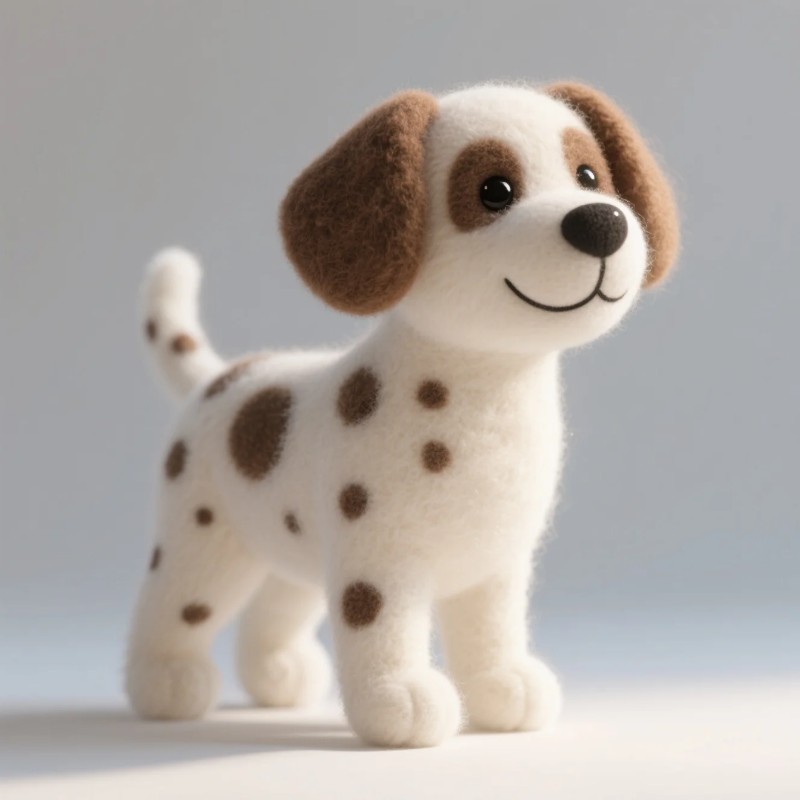
입력용으로 다음 이미지를 다운로드하거나 직접 준비한 이미지를 사용하세요:


2. 워크플로 단계별 완료하기
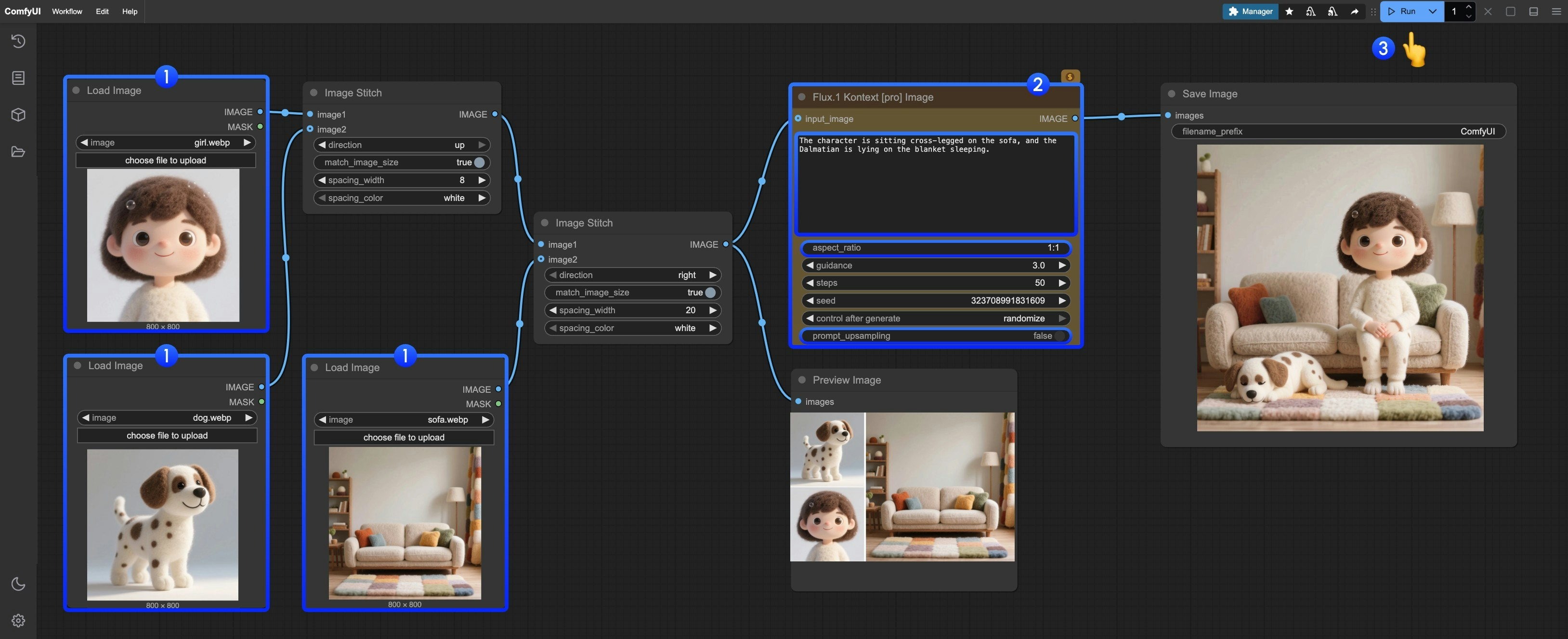
Load image노드에서 제공된 이미지를 업로드하세요Flux.1 Kontext Pro Image에서 필요한 파라미터를 수정하세요:prompt편집하려는 이미지에 대한 프롬프트를 입력하세요aspect_ratio원본 이미지의 비율을 설정하세요. 1:4에서 4:1 사이여야 합니다prompt_upsampling프롬프트 업샘플링 사용 여부를 설정하세요. 활성화하면 프롬프트가 자동으로 수정되어 더 풍부한 결과를 얻을 수 있지만, 결과를 재현할 수 없습니다
Run버튼을 클릭하거나 단축키Ctrl(cmd) + Enter를 사용해 이미지 편집을 실행하세요- API가 결과를 반환할 때까지 기다린 후,
Save Image노드에서 편집된 이미지를 확인할 수 있으며, 해당 이미지는ComfyUI/output/디렉토리에도 저장됩니다
FLUX.1 Kontext Pro Image 파트너 노드 워크플로
1. 워크플로 파일 다운로드
아래 이미지의metadata에는 워크플로 정보가 포함되어 있습니다. 다운로드하여 ComfyUI로 드래그하면 해당 워크플로가 로드됩니다.
입력용으로 아래 이미지를 다운로드하거나 직접 준비한 이미지를 사용하세요:

2. 워크플로 단계별 완료하기
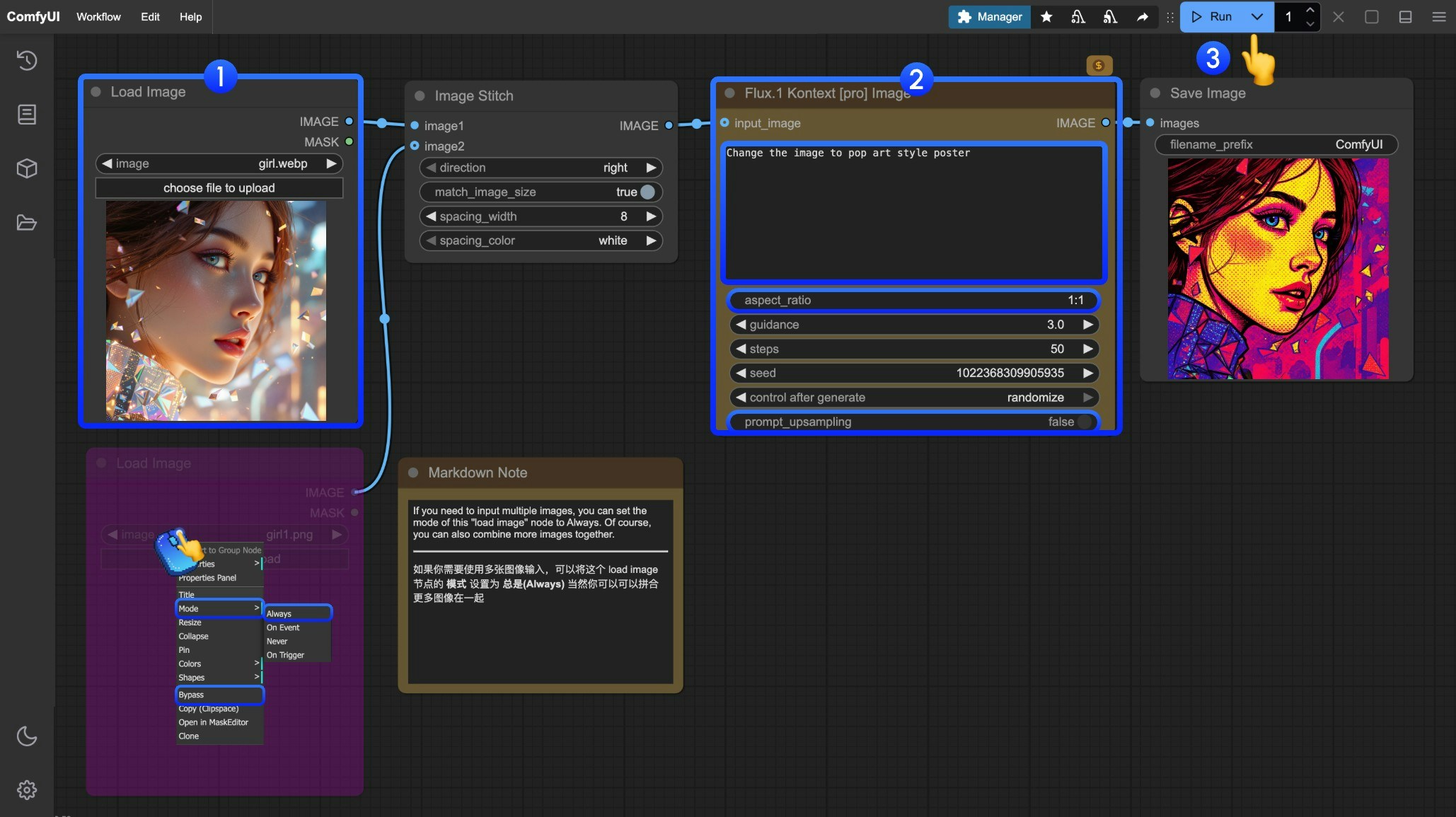
Load Image노드에서 편집하려는 이미지를 로드하세요- (선택사항)
Flux.1 Kontext Pro Image에서 필요한 파라미터를 수정하세요 Run버튼을 클릭하거나 단축키Ctrl(cmd) + Enter를 사용해 이미지 편집을 실행하세요- API가 결과를 반환할 때까지 기다리면
Save Image노드에서 편집된 이미지를 확인할 수 있으며, 해당 이미지는ComfyUI/output/디렉토리에도 저장됩니다
FLUX.1 Kontext Max Image 파트너 노드 워크플로
1. 워크플로 파일 다운로드
아래 이미지의metadata에는 워크플로 정보가 포함되어 있습니다. 이미지를 다운로드한 뒤 ComfyUI로 드래그하면 해당 워크플로가 로드됩니다.
입력용으로 아래 이미지를 다운로드하거나, 시연을 위해 직접 준비한 이미지를 사용하세요:

2. 워크플로를 단계별로 완료하기
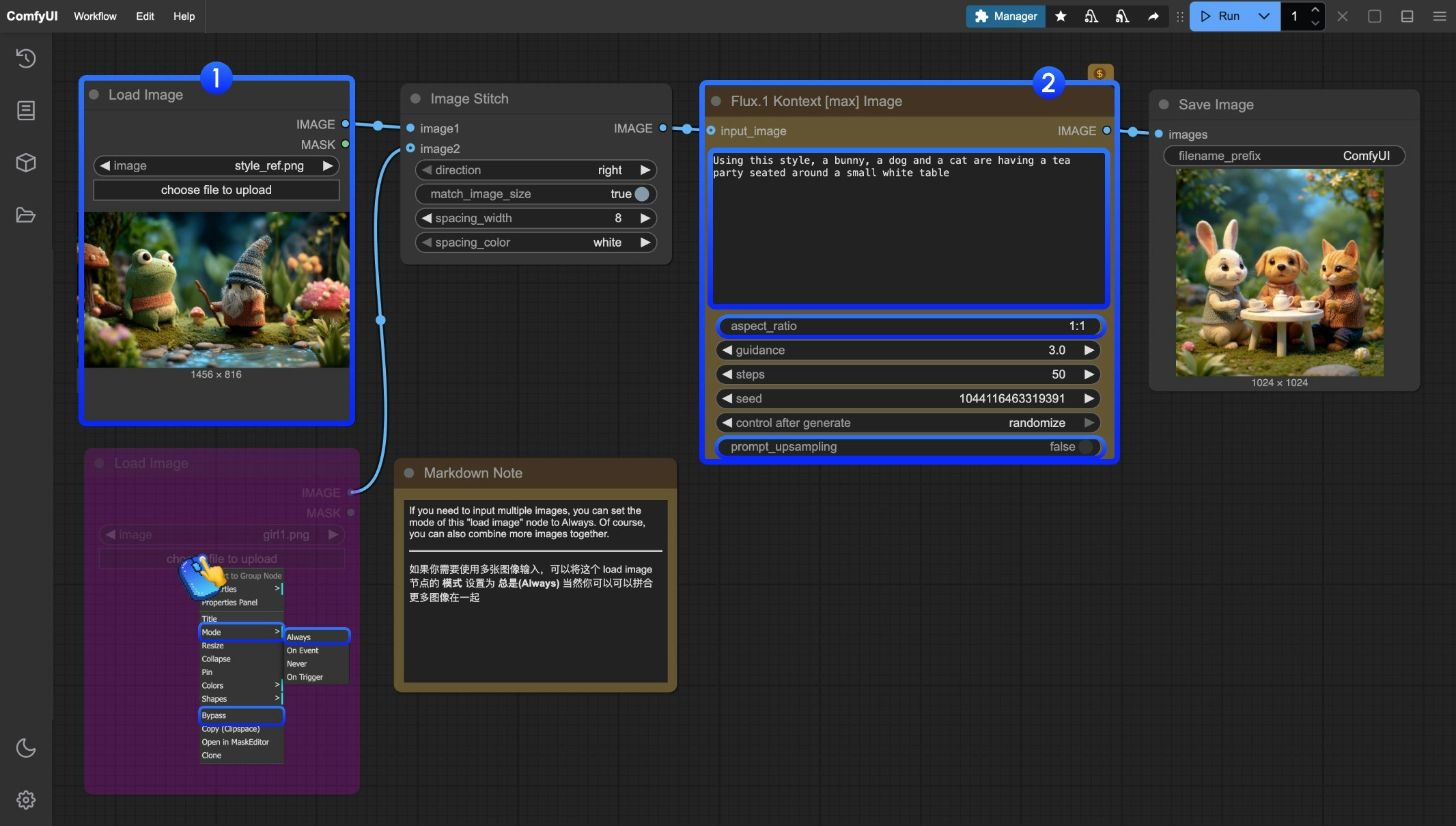
Load Image노드에서 편집하려는 이미지를 로드합니다- (선택 사항)
Flux.1 Kontext Max Image에서 필요한 파라미터를 수정합니다 Run버튼을 클릭하거나 단축키Ctrl(cmd) + Enter를 사용하여 이미지 편집을 실행합니다- API가 결과를 반환할 때까지 기다린 후
Save Image노드에서 편집된 이미지를 확인할 수 있으며, 해당 이미지는ComfyUI/output/디렉터리에도 저장됩니다
플럭스 컨텍스트 프롬프트 기법
1. 기본 수정
- 간단하고 명확하게:
"자동차 색상을 빨간색으로 변경해줘" - 스타일 유지하기:
"낮 시간대로 변경하면서 그림의 동일한 스타일을 유지해줘"
2. 스타일 전환
원칙:- 명확히 스타일 명명하기:
"바우하우스 예술 스타일로 변환해줘" - 특징 설명하기:
"유화로 변환하고 붓터치가 보이고, 물감 질감이 두꺼워지도록 해줘" - 구도 보존하기:
"바우하우스 스타일로 변경하면서 원래의 구도를 유지해줘"
3. 캐릭터 일관성
프레임워크:- 구체적인 묘사:
"검은 단발머리를 가진 여성"대신 “그녀” - 특징 유지하기:
"얼굴 특징, 헤어스타일, 표정을 그대로 유지하면서" - 단계별 수정: 배경부터 바꾼 후 행동을 변경해줘
4. 텍스트 편집
- 따옴표 사용하기:
"기쁨을 'BFL'로 교체해줘" - 형식 유지하기:
"텍스트를 교체하면서 같은 폰트 스타일을 유지해줘"
일반적인 문제 해결 방법
캐릭터가 너무 많이 변경됨
❌ 잘못된 예:"사람을 바이킹으로 변형해줘"
✅ 올바른 예: "옷만 바이킹 전사로 바꾸면서 얼굴 특징은 그대로 유지해줘"
구도 위치 변경
❌ 잘못된 예:"그를 해변에 놓아줘"
✅ 올바른 예: "배경을 해변으로 바꾸면서 사람의 위치, 스케일, 포즈는 그대로 유지해줘"
스타일 적용 부정확성
❌ 잘못된 예:"스케치로 만들어줘"
✅ 올바른 예: "자연스러운 흑연 선과 크로스해칭, 종이의 눈에 보이는 질감을 살려 연필 스케치로 변환해줘"
핵심 원칙
- 구체적이고 명확하게 - 정확한 묘사를 사용하고 모호한 표현은 피하세요
- 단계별 편집 - 복잡한 수정을 여러 단순한 단계로 나눠서 진행하세요
- 명시적 보존 - 변하지 않아야 할 부분을 명확히 밝혀주세요
- 동사 선택 - “변경하다”, “교체하다”를 사용하고 “변형하다”는 피하세요
최상의 실천 템플릿
오브젝트 수정:"[오브젝트]를 [새 상태]로 변경해, [보존할 내용]은 그대로 유지해"
스타일 전환:
"[특정 스타일]로 변환해, [구도/캐릭터/기타]는 그대로 유지해"
배경 교체:
"[새 배경]으로 배경을 변경해, 피사체의 위치와 자세는 그대로 유지해"
텍스트 편집:
"[원본 텍스트]를 '[새 텍스트]'로 교체해, 같은 폰트 스타일을 유지해"
참고: 구체적일수록 더 좋습니다. 컨텍스트는 상세한 지침을 이해하고 일관성을 유지하는 데 뛰어납니다.