메인 콘텐츠로 건너뛰기
ComfyUI 포터블은 독립적인 Python (python_embeded) 환경을 통합한, ComfyUI를 실행하는 데 필요한 완전한 ComfyUI Windows 버전의 독립형 패키지입니다. 압축을 풀기만 하면 바로 사용할 수 있습니다. 이 가이드 섹션에서는 ComfyUI 포터블 설치 과정을 안내합니다.

ComfyUI 포터블 다운로드하기

GPU 유형에 맞는 다운로드 패키지를 선택하세요. ComfyUI 포터블은 서로 다른 GPU 하드웨어용으로 별도의 패키지를 제공합니다.

Nvidia GPU용 표준 포터블

Nvidia GPU (CUDA 13.0, Python 3.13)

최신 Nvidia GPU용 (RTX 시리즈)

Nvidia GPU (CUDA 12.6, Python 3.12)

Nvidia 10 시리즈 이하 GPU용
파일을 다운로드한 후 7-ZIP로 압축을 풉니다. 추출된 폴더 구조:
ComfyUI_windows_portable
├── 📂ComfyUI                   // ComfyUI 메인 프로그램
├── 📂python_embeded            // 독립적인 Python 환경
├── 📂update                    // 포터블 버전 업그레이드용 배치 스크립트
├── README_VERY_IMPORTANT.txt   // ComfyUI 포터블 사용 설명서 (영어)
├── run_cpu.bat                 // 더블클릭하여 ComfyUI 시작 (CPU 전용)
└── run_nvidia_gpu.bat          // 더블클릭하여 ComfyUI 시작 (Nvidia GPU)
run_nvidia_gpu.bat를 더블클릭해 ComfyUI를 실행하세요.
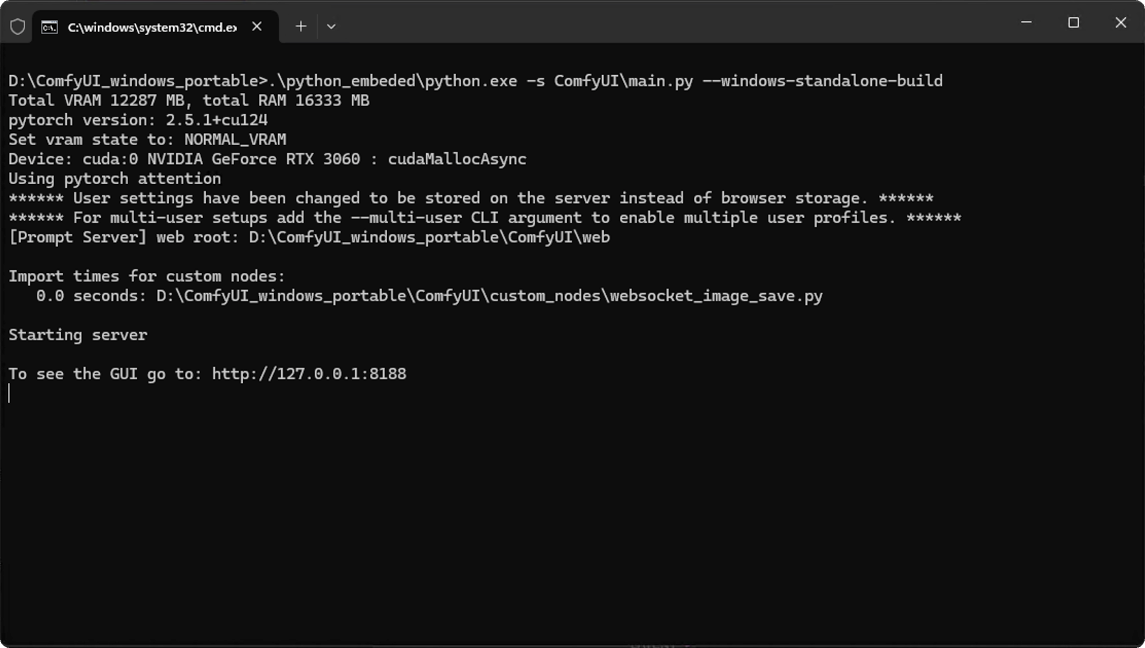
다운로드하고 압축을 푼 후, 아래 이미지와 같이 명령어가 실행되는 것을 확인할 수 있습니다. ComfyUI 포터블 명령 프롬프트 이미지와 비슷한 내용이 보이면:
GUI 보기: http://127.0.0.1:8188
이때 ComfyUI 서비스가 시작된 것입니다. 일반적으로 ComfyUI는 기본 브라우저를 자동으로 열어 http://127.0.0.1:8188로 이동합니다. 자동으로 열리지 않는 경우, 수동으로 브라우저를 열어 이 주소를 방문해주세요.
사용 중에는 해당 명령줄 창을 닫지 마세요. 그렇지 않으면 ComfyUI가 정상적으로 작동하지 않을 수 있습니다.

Adding Extra Model Paths

If you want to manage your model files outside of ComfyUI/models, you may have the following reasons:
  • You have multiple ComfyUI instances and want them to share model files to save disk space
  • You have different types of GUI programs (such as WebUI) and want them to use the same model files
  • Model files cannot be recognized or found
We provide a way to add extra model search paths via the extra_model_paths.yaml configuration file

Open Config File

For the ComfyUI version such as portable and manual, you can find an example file named extra_model_paths.yaml.example in the root directory of ComfyUI:
ComfyUI/extra_model_paths.yaml.example
Copy and rename it to extra_model_paths.yaml for use. Keep it in ComfyUI’s root directory at ComfyUI/extra_model_paths.yaml. You can also find the config example file here
If the file does not exist, you can create it yourself with any text editor.

Example Structure

Suppose you want to add the following model paths to ComfyUI:
📁 YOUR_PATH/
  ├── 📁models/
  |   ├── 📁 loras/
  |   │   └── xxxxx.safetensors
  |   ├── 📁 checkpoints/
  |   │   └── xxxxx.safetensors
  |   ├── 📁 vae/
  |   │   └── xxxxx.safetensors
  |   └── 📁 controlnet/
  |       └── xxxxx.safetensors
Then you can configure the extra_model_paths.yaml file like below to let ComfyUI recognize the model paths on your device:
my_custom_config:
    base_path: YOUR_PATH
    loras: models/loras/
    checkpoints: models/checkpoints/
    vae: models/vae/
    controlnet: models/controlnet/
or
my_custom_config:
    base_path: YOUR_PATH/models/
    loras: loras
    checkpoints: checkpoints
    vae: vae
    controlnet: controlnet
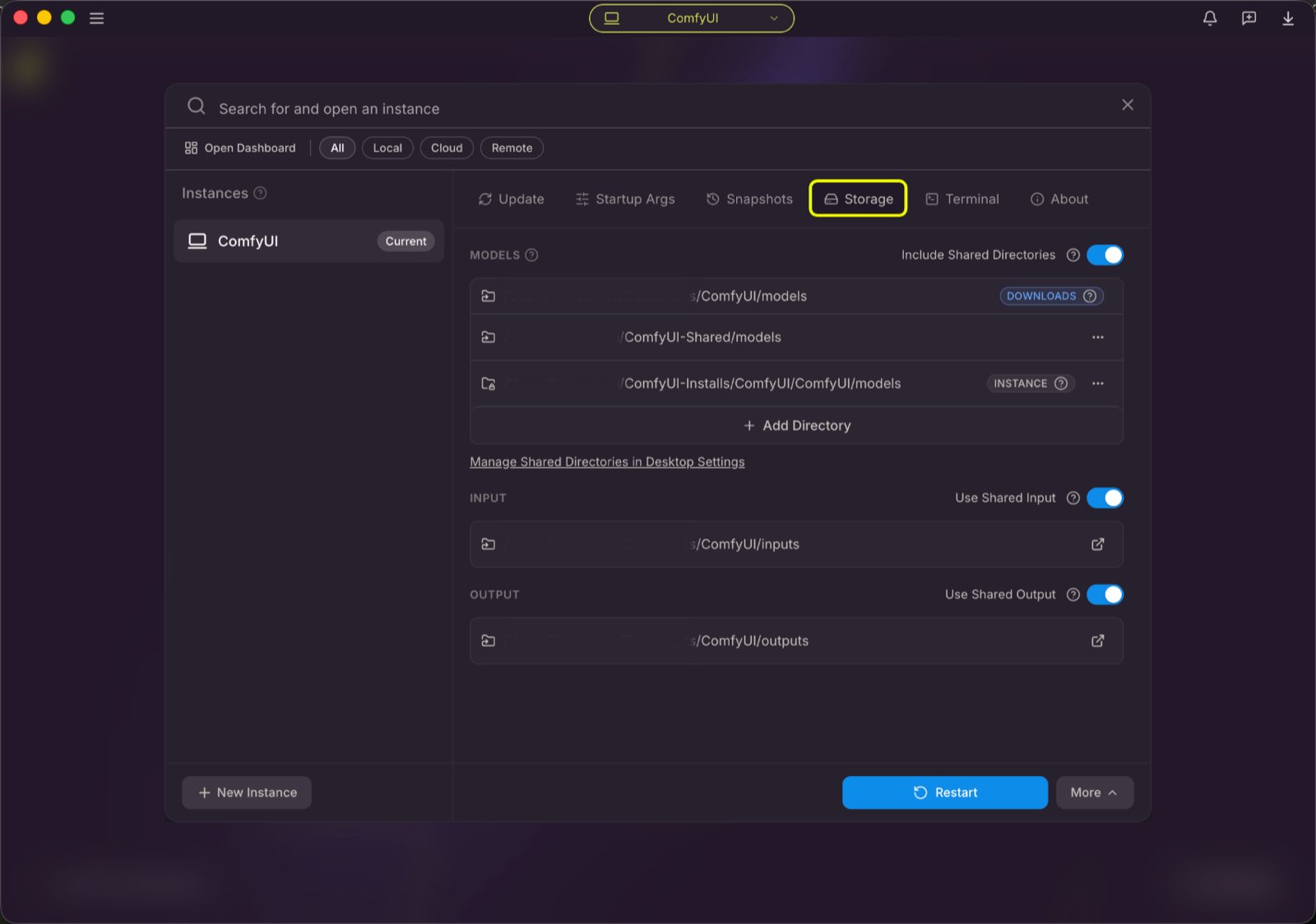
For the desktop version, please add the configuration to the existing configuration path without overwriting the path configuration generated during installation. Please back up the corresponding file before modification, so that you can restore it when you make a mistake.
Or you can refer to the default extra_model_paths.yaml.example for more configuration options. After saving, you need to restart ComfyUI for the changes to take effect. Below is the original config example:
#Rename this to extra_model_paths.yaml and ComfyUI will load it


#config for a1111 ui
#all you have to do is change the base_path to where yours is installed
a111:
    base_path: path/to/stable-diffusion-webui/

    checkpoints: models/Stable-diffusion
    configs: models/Stable-diffusion
    vae: models/VAE
    loras: |
         models/Lora
         models/LyCORIS
    upscale_models: |
                  models/ESRGAN
                  models/RealESRGAN
                  models/SwinIR
    embeddings: embeddings
    hypernetworks: models/hypernetworks
    controlnet: models/ControlNet

#config for comfyui
#your base path should be either an existing comfy install or a central folder where you store all of your models, loras, etc.

#comfyui:
#     base_path: path/to/comfyui/
#     # You can use is_default to mark that these folders should be listed first, and used as the default dirs for eg downloads
#     #is_default: true
#     checkpoints: models/checkpoints/
#     clip: models/clip/
#     clip_vision: models/clip_vision/
#     configs: models/configs/
#     controlnet: models/controlnet/
#     diffusion_models: |
#                  models/diffusion_models
#                  models/unet
#     embeddings: models/embeddings/
#     loras: models/loras/
#     upscale_models: models/upscale_models/
#     vae: models/vae/

#other_ui:
#    base_path: path/to/ui
#    checkpoints: models/checkpoints
#    gligen: models/gligen
#    custom_nodes: path/custom_nodes

For example, if your WebUI is located at D:\stable-diffusion-webui\, you can modify the corresponding configuration to
a111:
    base_path: D:\stable-diffusion-webui\
    checkpoints: models/Stable-diffusion
    configs: models/Stable-diffusion
    vae: models/VAE
    loras: |
         models/Lora
         models/LyCORIS
    upscale_models: |
                  models/ESRGAN
                  models/RealESRGAN
                  models/SwinIR
    embeddings: embeddings
    hypernetworks: models/hypernetworks
    controlnet: models/ControlNet

Add Extra Custom Nodes Path

Besides adding external models, you can also add custom nodes paths that are not in the default path of ComfyUI
Please note that this will not change the default installation path of custom nodes, but will add an extra path search when starting ComfyUI. You still need to complete the installation of custom node dependencies in the corresponding environment to ensure the integrity of the running environment.
Below is a simple configuration example (MacOS), please modify it according to your actual situation and add it to the corresponding configuration file, save it and restart ComfyUI for the changes to take effect:
my_custom_nodes:
  custom_nodes: /Users/your_username/Documents/extra_custom_nodes

First Image Generation

After successful installation, you can refer to the section below to start your ComfyUI journey~

First Image Generation

This tutorial will guide you through your first model installation and text-to-image generation

추가 ComfyUI 포터블 지침

1. ComfyUI 포터블 업그레이드하기

update 폴더의 배치 명령어를 사용해 ComfyUI 포터블 버전을 업그레이드할 수 있습니다.
ComfyUI_windows_portable
└─ 📂update
   ├── update.py
   ├── update_comfyui.bat                          // ComfyUI 최신 커밋 버전으로 업데이트
   ├── update_comfyui_and_python_dependencies.bat  // 런타임 환경에 문제가 있을 때만 사용
   └── update_comfyui_stable.bat                   // ComfyUI 최신 안정 버전으로 업데이트

2. ComfyUI 포터블의 LAN 접근 설정하기

ComfyUI가 로컬 네트워크에서 실행되고 다른 기기에서도 접근하고자 한다면, 해당 .bat 파일(예: run_nvidia_gpu.bat, run_amd_gpu.bat, 또는 run_cpu.bat)을 메모장으로 수정해 설정을 완료할 수 있습니다. 주로 --listen 옵션을 추가해 리스닝 주소를 지정합니다. 아래는 run_nvidia_gpu.bat 파일에 --listen 파라미터를 추가한 예시입니다.
.\python_embeded\python.exe -s ComfyUI\main.py --listen --windows-standalone-build
pause
ComfyUI를 활성화한 후, 최종 실행 주소가 다음과 같이 변경되는 것을 확인할 수 있습니다.
서버 시작 중

GUI 보기: http://0.0.0.0:8188
GUI 보기: http://[::]:8188
WIN + R을 누르고 cmd를 입력해 명령 프롬프트를 열고 ipconfig를 입력해 로컬 IP 주소를 확인할 수 있습니다. 이후 다른 기기에서는 브라우저에 http://your-local-IP:8188를 입력해 ComfyUI에 접속할 수 있습니다.