메인 콘텐츠로 건너뛰기
ComfyUI를 설치하려면 주로 다음 몇 가지 단계로 나뉩니다:
  1. 가상 환경 생성하기(시스템 레벨 파이썬 환경 오염 피하기)
  2. ComfyUI 코드 저장소 복제하기
  3. 의존성 설치하기
  4. ComfyUI 시작하기
ComfyUI CLI를 참고해 ComfyUI를 설치할 수도 있습니다. 이는 명령줄 도구로, ComfyUI를 쉽게 설치하고 의존성을 관리할 수 있습니다.

가상 환경 생성하기

독립적인 가상 환경은 ComfyUI의 의존성이 시스템의 다른 의존성과 충돌할 수 있기 때문에 반드시 필요하며, 시스템 레벨 파이썬 환경을 오염시키는 것도 피할 수 있습니다.
Miniconda 설치. 이는 ComfyUI에서 필요한 Python 및 기타 라이브러리의 올바른 버전을 설치하는 데 도움이 됩니다. Conda를 사용해 환경을 생성하세요.
conda create -n comfyenv
conda activate comfyenv

ComfyUI 코드 저장소 복제하기

시스템에 Git가 설치되어 있는지 확인해야 합니다. 먼저 터미널(명령줄)을 열고 코드 저장소를 복제하세요.
Microsoft Visual C++ 재배포 가능 패키지를 설치하지 않았다면 여기에서 설치해주세요.
git clone https://github.com/Comfy-Org/ComfyUI.git

GPU 및 ComfyUI 의존성 설치하기

1

GPU 의존성 설치하기

GPU 종속성 설치
pip install torch torchvision torchaudio --extra-index-url https://download.pytorch.org/whl/cu130
Alternatively, you can install the nightly version of PyTorch.
Install Nightly version (might be more risky)
pip install --pre torch torchvision torchaudio --index-url https://download.pytorch.org/whl/nightly/cu132
pip3 install torch torchvision torchaudio --index-url https://download.pytorch.org/whl/rocm7.2
Alternatively, you can install the nightly version of PyTorch (ROCm 7.2).
Install Nightly version (might be more risky)
pip3 install --pre torch torchvision torchaudio --index-url https://download.pytorch.org/whl/nightly/rocm7.2
conda install pytorch-nightly::pytorch torchvision torchaudio -c pytorch-nightly
2

ComfyUI 의존성 설치하기

cd ComfyUI
pip install -r requirements.txt
3

ComfyUI 시작하기

애플리케이션을 시작하세요
cd ComfyUI
python main.py
고급 서버 구성(사용자 지정 포트, LAN 액세스, VRAM 모드 등)에 대한 자세한 내용은 시작 플래그 참조를 참조하세요.

ComfyUI 업데이트 방법

1

최신 코드 가져오기

명령줄을 사용해 ComfyUI의 설치 경로로 이동한 후 최신 코드를 가져옵니다.
cd <설치>/ComfyUI
git pull
2

의존성 설치하기

명령줄을 사용해 ComfyUI의 설치 경로로 이동한 후 의존성을 설치합니다.
현재 파이썬 환경이 ComfyUI 가상 환경인지 확인해야 합니다. 그렇지 않으면 의존성이 시스템 레벨 파이썬 환경에 설치되어 시스템 레벨 파이썬 환경을 오염시킬 수 있습니다.
    pip install -r requirements.txt

추가 모델 경로 추가하기

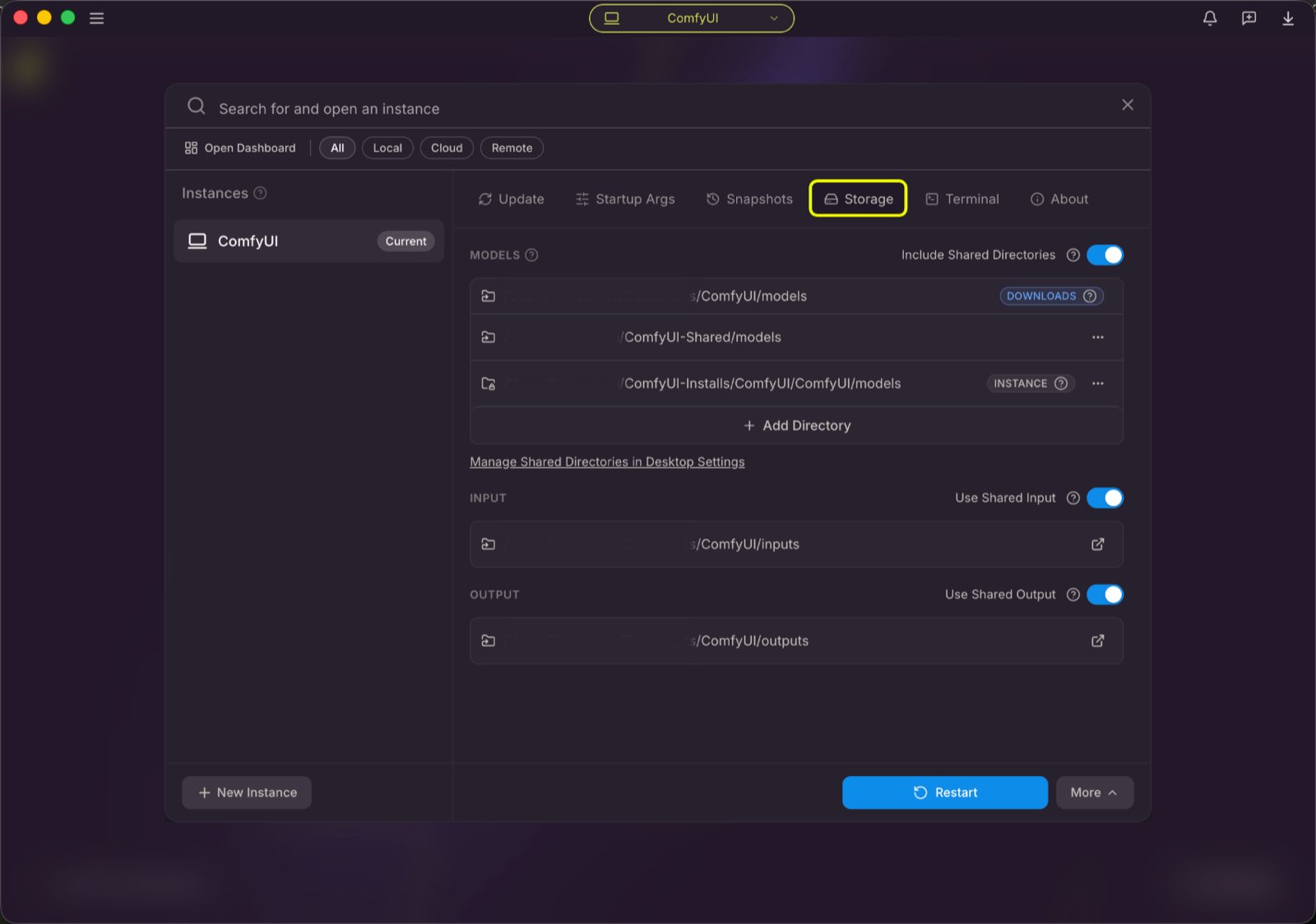
ComfyUI/models 외부에서 모델 파일을 관리하고 싶다면 다음과 같은 이유가 있을 수 있습니다:
  • 여러 개의 ComfyUI 인스턴스를 사용하고 있으며 디스크 공간을 절약하기 위해 모델 파일을 공유하고 싶습니다.
  • 서로 다른 유형의 GUI 프로그램(예: WebUI)을 사용하고 있으며 동일한 모델 파일을 사용하고 싶습니다.
  • 모델 파일이 인식되지 않거나 찾을 수 없습니다.
우리는 extra_model_paths.yaml 구성 파일을 통해 추가 모델 검색 경로를 추가할 수 있는 방법을 제공합니다.

구성 파일 열기

휴대용수동 버전의 ComfyUI에서는 ComfyUI 루트 디렉터리에 extra_model_paths.yaml.example라는 예제 파일을 찾을 수 있습니다:
ComfyUI/extra_model_paths.yaml.example
이를 복사하여 extra_model_paths.yaml로 이름을 변경해 사용하세요. 이 파일은 ComfyUI의 루트 디렉터리인 ComfyUI/extra_model_paths.yaml에 유지하십시오. 또한, 구성 예제 파일은 여기에서도 확인할 수 있습니다.
파일이 존재하지 않는 경우, 아무 텍스트 편집기로 직접 생성할 수 있습니다.

예제 구조

다음과 같은 모델 경로를 ComfyUI에 추가하고 싶다고 가정해 보겠습니다:
📁 YOUR_PATH/
  ├── 📁models/
  |   ├── 📁 loras/
  |   │   └── xxxxx.safetensors
  |   ├── 📁 checkpoints/
  |   │   └── xxxxx.safetensors
  |   ├── 📁 vae/
  |   │   └── xxxxx.safetensors
  |   └── 📁 controlnet/
  |       └── xxxxx.safetensors
그러면 extra_model_paths.yaml 파일을 아래와 같이 설정하여 ComfyUI가 기기의 모델 경로를 인식하도록 할 수 있습니다:
my_custom_config:
    base_path: YOUR_PATH
    loras: models/loras/
    checkpoints: models/checkpoints/
    vae: models/vae/
    controlnet: models/controlnet/
또는
my_custom_config:
    base_path: YOUR_PATH/models/
    loras: loras
    checkpoints: checkpoints
    vae: vae
    controlnet: controlnet
데스크톱 버전의 경우, 설치 시 생성된 경로 설정을 덮어쓰지 않고 기존 구성 경로에 설정을 추가하십시오. 수정 전에 해당 파일을 백업해 두어 실수했을 때 복구할 수 있도록 하십시오.
또는 기본 제공되는 extra_model_paths.yaml.example를 참고해 더 많은 구성 옵션을 확인할 수 있습니다. 저장 후에는 ComfyUI를 다시 시작해야 변경 사항이 적용됩니다. 아래는 원본 구성 예제입니다:
#이름을 extra_model_paths.yaml로 변경하면 ComfyUI가 로드합니다


#a1111 ui용 구성
#base_path만 귀하의 설치 경로로 변경하면 됩니다
a111:
    base_path: path/to/stable-diffusion-webui/

    checkpoints: models/Stable-diffusion
    configs: models/Stable-diffusion
    vae: models/VAE
    loras: |
         models/Lora
         models/LyCORIS
    upscale_models: |
                  models/ESRGAN
                  models/RealESRGAN
                  models/SwinIR
    embeddings: embeddings
    hypernetworks: models/hypernetworks
    controlnet: models/ControlNet

#comfyui용 구성
#귀하의 base_path는 기존 ComfyUI 설치 경로이거나 모든 모델, Lora 등을 저장하는 중앙 폴더여야 합니다.

#comfyui:
#     base_path: path/to/comfyui/
#     # is_default를 사용해 해당 폴더를 먼저 나열하고 다운로드 등 기본 디렉터리로 지정할 수 있습니다
#     #is_default: true
#     checkpoints: models/checkpoints/
#     clip: models/clip/
#     clip_vision: models/clip_vision/
#     configs: models/configs/
#     controlnet: models/controlnet/
#     diffusion_models: |
#                  models/diffusion_models
#                  models/unet
#     embeddings: models/embeddings/
#     loras: models/loras/
#     upscale_models: models/upscale_models/
#     vae: models/vae/

#other_ui:
#    base_path: path/to/ui
#    checkpoints: models/checkpoints
#    gligen: models/gligen
#    custom_nodes: path/custom_nodes

예를 들어, 귀하의 WebUI가 D:\stable-diffusion-webui\에 위치한다면, 해당 구성은 아래와 같이 수정할 수 있습니다:
a111:
    base_path: D:\stable-diffusion-webui\
    checkpoints: models/Stable-diffusion
    configs: models/Stable-diffusion
    vae: models/VAE
    loras: |
         models/Lora
         models/LyCORIS
    upscale_models: |
                  models/ESRGAN
                  models/RealESRGAN
                  models/SwinIR
    embeddings: embeddings
    hypernetworks: models/hypernetworks
    controlnet: models/ControlNet

추가 커스텀 노드 경로 추가하기

외부 모델을 추가하는 것 외에도, ComfyUI의 기본 경로에 없는 커스텀 노드 경로를 추가할 수도 있습니다.
이렇게 하면 커스텀 노드의 기본 설치 경로는 변경되지 않으며, ComfyUI를 시작할 때 추가 경로 검색이 이루어집니다. 여전히 해당 환경에서 커스텀 노드 종속성을 설치해 실행 환경의 무결성을 보장해야 합니다.
아래는 간단한 구성 예제입니다(맥OS), 실제 상황에 맞게 수정해 해당 구성 파일에 추가하고 저장한 후 ComfyUI를 다시 시작해 변경 사항이 적용되도록 하십시오:
my_custom_nodes:
  custom_nodes: /Users/your_username/Documents/extra_custom_nodes