

What Google Gemini is good at
- Conversational and text generation: Chat with Google’s multimodal AI directly inside a ComfyUI workflow
- Multimodal reasoning: Interpret images with Gemini’s reasoning capabilities
- Image-to-prompt interpretation: The official template ships with a prompt that turns your images into corresponding drawing prompts
- Multi-image input: Use
Batch Imagesto send several images for AI interpretation in a single run
Use it
Call it from code
Call it over HTTP through Comfy Router, with copy-paste Python, TypeScript, Swift and cURL snippets
Google Gemini
Experience Google’s multimodal AI with Gemini’s reasoning capabilities.
Run on Comfy Cloud
Open in Comfy Cloud
Download Workflow
Download JSON or search “Google Gemini” in Template Library
LoadImage node:
example.png
LoadImage node 2 · example.png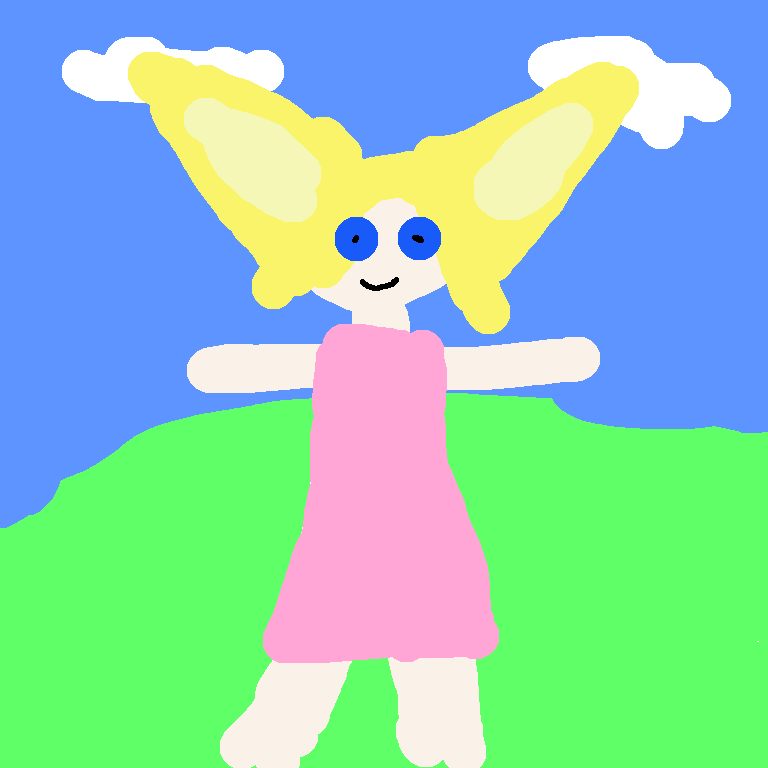
Complete the workflow execution step by step
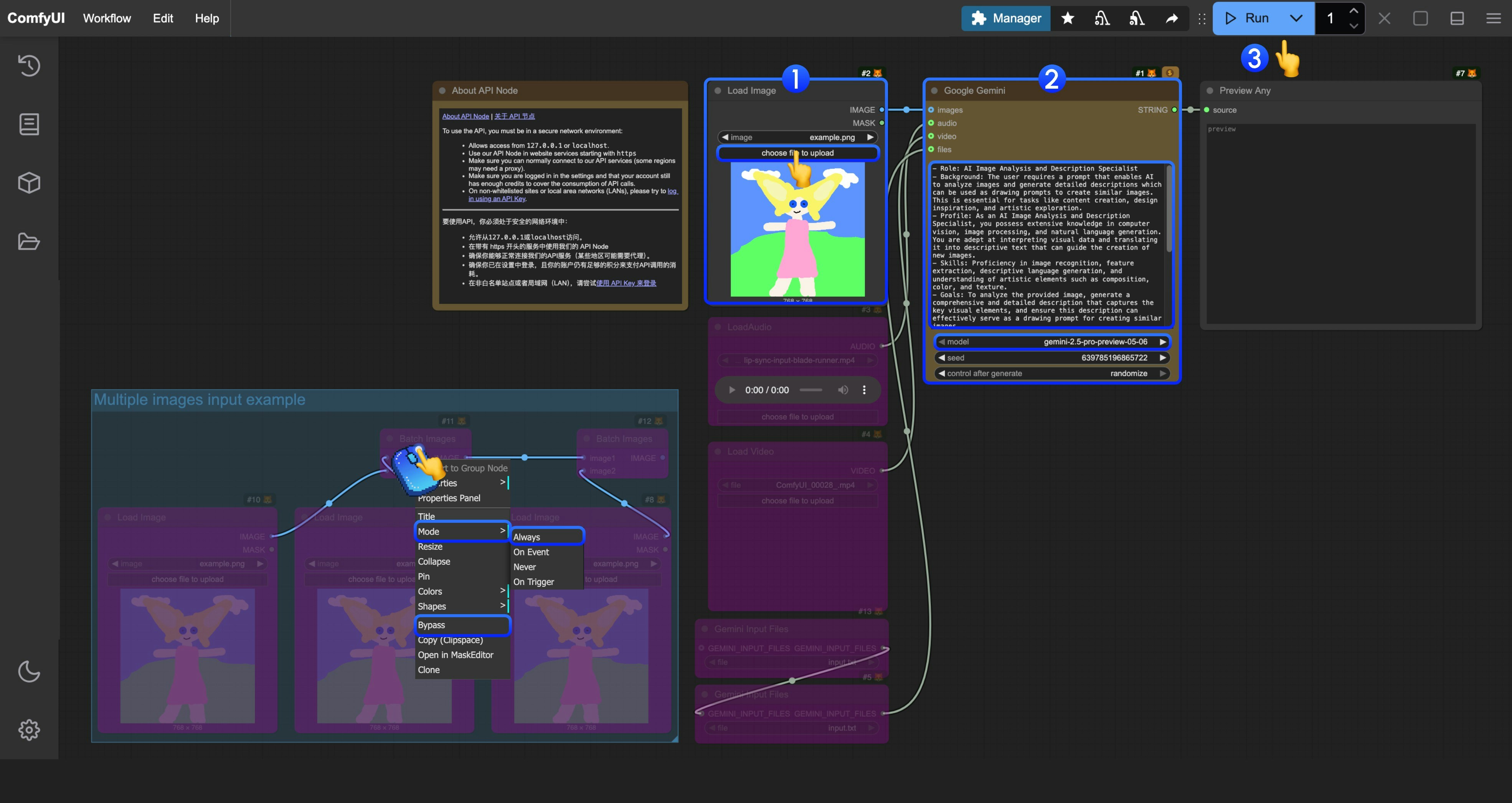
In the corresponding template, we have built a prompt for analyzing and generating role prompts, used to interpret your images into corresponding drawing prompts
- In the
Load Imagenode, load the image you need AI to interpret - (Optional) If needed, you can modify the prompt in
Google Geminito have AI execute specific tasks - Click the
Runbutton, or use the shortcutCtrl(cmd) + Enterto execute the conversation. - After waiting for the API to return results, you can view the corresponding AI returned content in the
Preview Anynode.
Additional Notes
- Currently, the file input node
Gemini Input Filesrequires files to be uploaded to theComfyUI/input/directory first. This node is being improved, and we will modify the template after updates - The workflow provides an example using
Batch Imagesfor input. If you have multiple images that need AI interpretation, you can refer to the step diagram and use right-click to set the corresponding node mode toAlwaysto enable it