

- Flare (
gpt-image-2.6-flare): returns a draft in seconds and holds the layout together on dense posters and product shots. Use it for concept passes, mood boards and typography-heavy drafts - Sunburst (
gpt-image-2.6-sunburst): spends its render budget on fine texture, small type and materials, and keeps subjects and lighting consistent across passes. Use it for finished visuals and dense layouts where detail has to hold up
low to max, and a complexity control that sets how much the model plans the image before rendering. The node also still offers GPT Image 2.5, GPT Image 2 and GPT Image 1.5.
Getting started
- Update ComfyUI to 0.44.1 or later
- In the Node Library, search for OpenAI GPT Image 2.6 and add the node
- Set
modeltogpt-image-2.6-flareorgpt-image-2.6-sunburst - Connect the node’s image output to a Save Image node, or open one of the four templates below
Node settings
- model:
gpt-image-2.6-flarefor fast iteration,gpt-image-2.6-sunburstfor detail-first renders - prompt: what to generate, or the edit instruction when reference images are connected
- size:
auto, a preset such as1024x1024or3840x2160, orCustom - custom_width / custom_height: used only when
sizeisCustom, from 480 to 3840 in steps of 16 - background:
auto,opaque, ortransparent - quality:
low,medium,high,xhigh, ormax. Affects cost and generation time - complexity:
low,medium, orhigh(default). How much the model plans the image before rendering - images: optional reference images for editing, up to 16
- mask: optional mask for inpainting, white areas are replaced. Requires exactly one reference image
- n: how many images to generate, 1 to 8
- seed: kept for API compatibility, the backend does not use it yet
low or medium quality until the composition holds, then re-run the winning prompt on Sunburst for the final image.
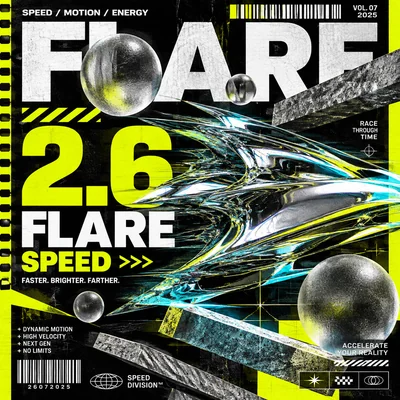
GPT Image 2.6 Flare: Text to Image
Generate a poster from a text prompt. The template asks for rendered text and a dense layout, which is where Flare’s speed matters: you can iterate on the wording without paying for final quality each time.Download Workflow
Download JSON or search “GPT Image 2.6 Flare” in Template Library
GPT Image 2.6 Flare: Image Edit
Change one detail of a photo and leave the rest alone: keep the face, pose, framing and lighting, then change the outfit, the hair or a single object.Download Workflow
Download JSON or search “GPT Image 2.6 Flare” in Template Library
 Upload this file to the
Load Image node:
Input image: young_man_windblown.png
The example input image, or use your own
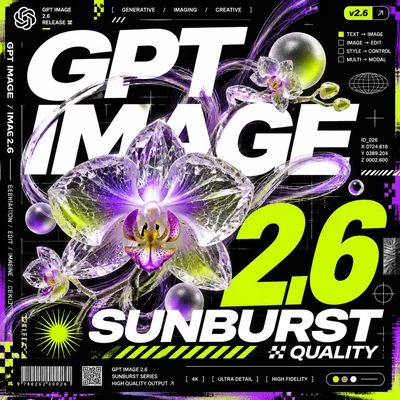
GPT Image 2.6 Sunburst: Text to Image
Generate a finished poster with rendered type and fine texture. The template prompt describes one layer at a time: scene, subject, typography, small graphic elements, then the palette and render style.Download Workflow
Download JSON or search “GPT Image 2.6 Sunburst” in Template Library
GPT Image 2.6 Sunburst: Image Edit
Edit a photo while the camera angle, framing, subject position and light stay identical. Sunburst renders fine texture and small type, so posters and dense scenes hold up on the second or third pass.Download Workflow
Download JSON or search “GPT Image 2.6 Sunburst” in Template Library
 Upload this file to the
Load Image node:
Input image: api_openai_gpt_image_26_sunburst_image_edit_input.png
The example input image, or use your own