

What Topaz Image Enhance Bloom 2 is good at
- Creative upscaling: Adds new detail, texture, and visual elements to your images
- Adjustable creativity: A control from 1 for restrained enhancement to 9 for pronounced reinterpretation
- Automatic prompting: If the prompt is empty, the model creates one automatically
- Flexible output: Preserves the input aspect ratio and supports upscale factors from 1x to 6x
Example outputs
Creative upscaling of an AI-generated image, with new detail and texture added: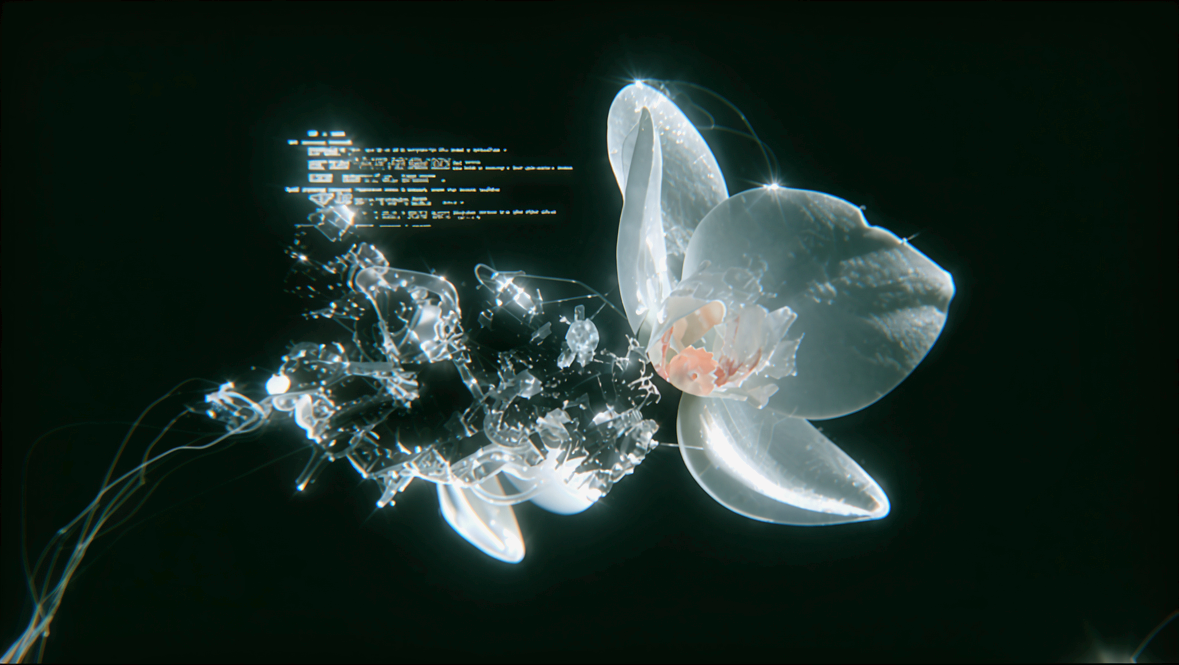
Topaz Image Enhance Bloom 2
Enhance AI-generated images with Bloom 2’s creative upscaling model, which adds new detail, texture, and visual elements. The Creativity control ranges from 1 for restrained enhancement to 9 for pronounced reinterpretation. If the prompt is empty, the model creates one automatically.
Run on Comfy Cloud
Open in Comfy Cloud
Download Workflow
Download JSON or search “Topaz Image Enhance Bloom 2” in Template Library
Workflow overview
This workflow uses four nodes:- LoadImage: provides the source image
- TopazImageEnhanceV2: the core node, configured with the
Bloom 2enhancement model - SaveImageAdvanced: saves the enhanced output as PNG
- ImageCompare: shows the enhanced result next to the original for comparison
Steps to run
- Load an image: upload or select your input image in the LoadImage node
- Select the model: keep
Bloom 2on the TopazImageEnhanceV2 node - Set creativity: from 1 for restrained enhancement to 9 for pronounced reinterpretation
- Optional prompt: leave empty to let the model create one automatically
- Click Queue: press
Ctrl+Enterto generate
Get started
- Update ComfyUI to the latest version
- Go to Template Library, search for
Topaz Image Enhance Bloom 2