

Available workflows
Fabric 1.0: Talking Photo
Make a still image speak. The face in the photo is lip-synced to the audio you connect, and the clip keeps the image’s aspect ratio, so a portrait stays a portrait. It works on photos, illustrations, and mascots, which makes it a way to put a voice on artwork or on a character that was never filmed.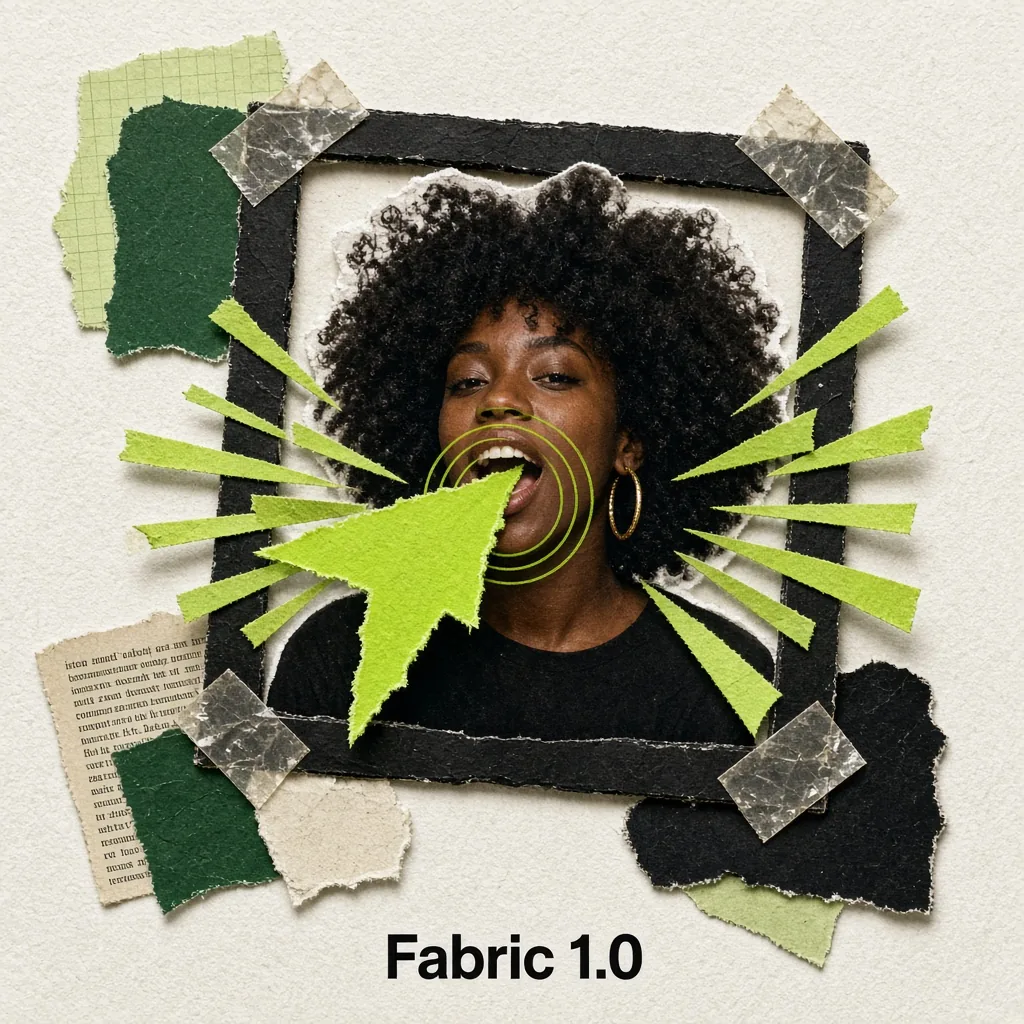
Run on Comfy Cloud
Open in Comfy Cloud
Download Workflow
Download JSON or search “VEED Fabric 1.0: Talking Photo” in Template Library
black_fashion_portrait.png
Load into the
LoadImage node. One clear, front-facing faceaudio_see_beyond_the_light.mp3
Load into the
LoadAudio node. The speech sets the lip movement and the clip lengthLipsync 2.0
Keep footage you already shot and replace what the speaker says. The mouth is re-synced to the new audio while the rest of the frame stays as recorded, which is how a line gets rewritten or a clip gets dubbed without another shoot.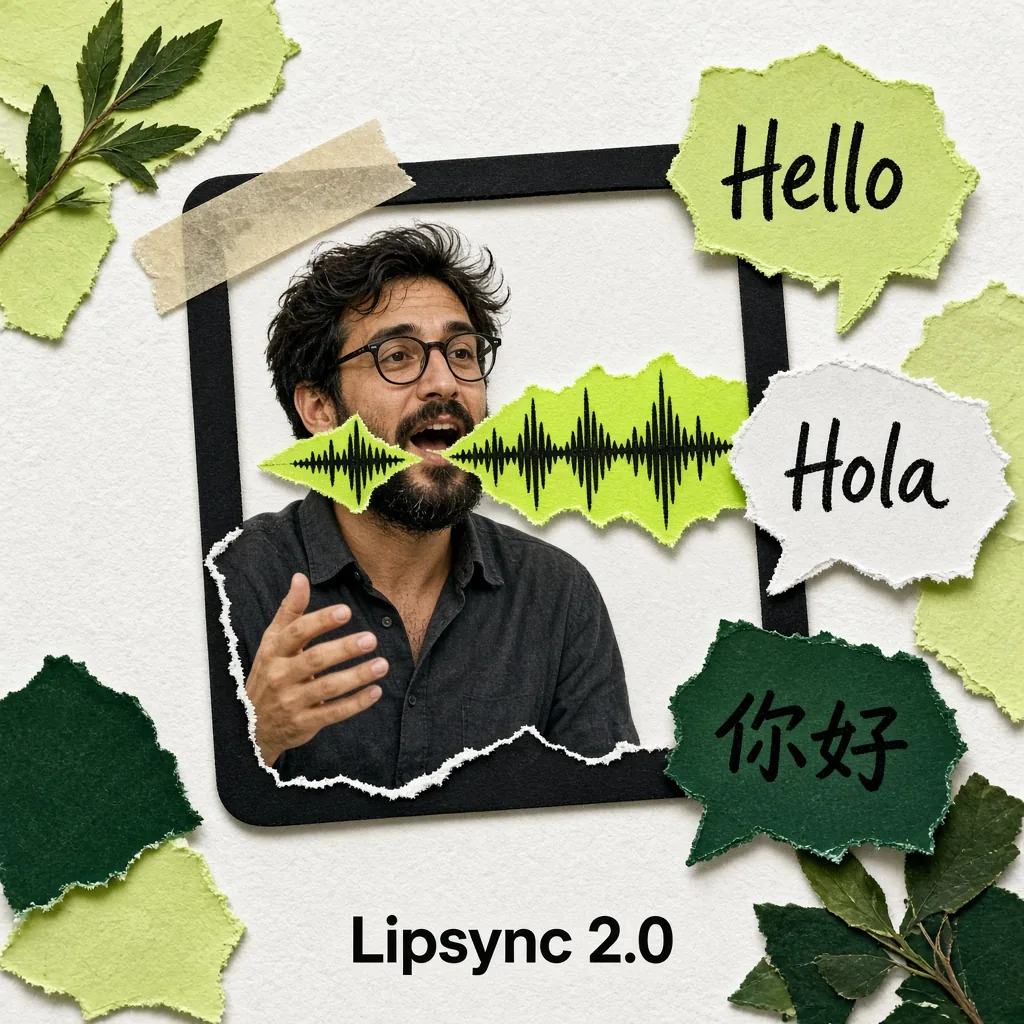
Run on Comfy Cloud
Open in Comfy Cloud
Download Workflow
Download JSON or search “VEED Lipsync 2.0: Lip Sync” in Template Library
rainbow_face_portrait_prism_video.mp4
Load into the
LoadVideo node. One front-facing speakerveed_lipsync_rainbow_night_speech.wav
Load into the
LoadAudio node. The new speech to sync toRemove Video Background
Cut the subject out of a clip. Instead of a flattened video, the node returns the frames plus a mask that marks what was background, so the subject composites over a new scene or exports as a transparent sequence.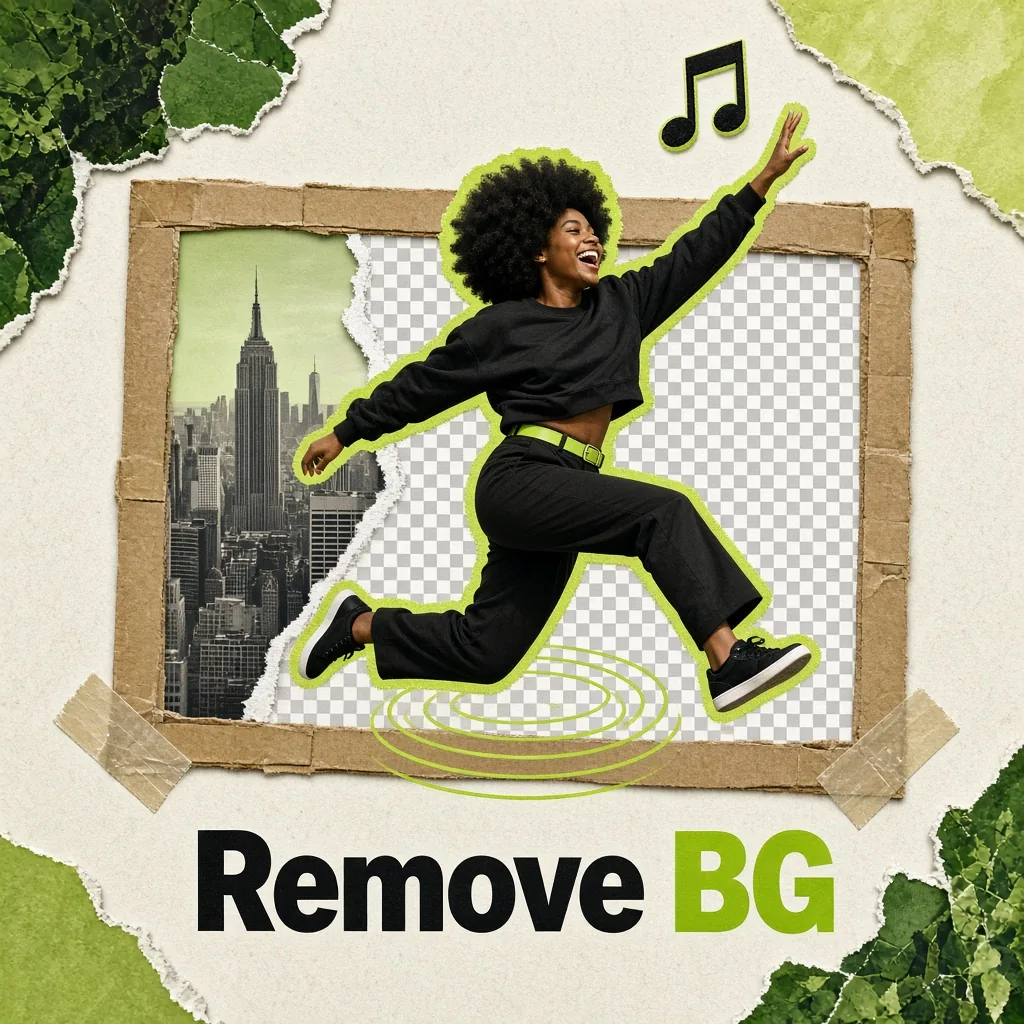
Run on Comfy Cloud
Open in Comfy Cloud
Download Workflow
Download JSON or search “VEED Remove Video Background: Matte Export” in Template Library
swimcap_glass_pop_video.mp4
Load into the
LoadVideo node. Clips run up to 60 secondsInvert Mask before Image Composite Masked when you want the subject as the compositing mask, or Join Image with Alpha followed by Save WEBM for a transparent video. Set the WEBM codec to vp9: it is the only option that writes the alpha channel, and av1 drops it.
Node controls
Output resolution on background removal has no control: standard and green screen return up to 3840x2160, fast returns up to 1920x1080, and larger input is downscaled.
Tips
- Send clean, front-facing footage. Fabric wants one visible face, and Lipsync wants one speaker looking at the camera. Profiles and crowded frames are where either node gives up detail.
- Let the audio define the length. Both talking nodes produce exactly as long a clip as the speech you connect, so cut the audio before the run rather than trimming video afterwards.
- Feed generated speech straight in. Connect a text-to-speech node to
audioand the portrait or the dubbed clip follows it without an export step. - Only pay for edge refinement when you need it. Turning
refine_foreground_edgesoff on background removal lowers the per-frame rate, which is worth it on hard-edged subjects. - Use green screen only on real green screen plates. The green screen mode keys a backdrop and has no edge refinement or person detection, so a natural background belongs on standard or fast.
Get started
- Update ComfyUI to the latest version
- Go to Template Library, search for
VEED