


mot backbone, so the same model reads a prompt or a source image and returns the result. It targets work where accuracy and appearance both matter, including portraits, posters, illustrations and infographics.
It also runs an autonomous self-correction pass. After a result comes back, the model compares its own output with the prompt and regenerates when something does not match, up to 5 passes.
Highlights:
- One backbone, two directions: the same 8B
motmodel handles interpretation and rendering, for text-to-image and for edits driven by a source image. - Autonomous self-correction: the model compares its own output with the prompt and regenerates, up to 5 passes.
- Two sampling modes: Turbo with the 8-step LoRA at 8 steps and CFG 1.0, or Quality without the LoRA at 50 steps and CFG 4.0.
- Refined aesthetics, richer expression: 10% improvement in overall aesthetic quality over U1.5 in subjective user evaluations, with aesthetic reward models tuned separately for portraits and photoreal scenes, for artistic work, and for infographics.
- Autonomous reflection: on dense infographic tasks in UltraTextBench, the self-correction loop delivers an average relative improvement of 7% over single-pass generation.
- Optional PE prompt rewriter: a Qwen Image 2.1 PE text encoder expands a short prompt into a full visual description and fills in the exact on-image copy.
- Hugging Face: Comfy-Org/SenseNova-U1 (checkpoint and 8-step LoRA)
- GitHub: OpenSenseNova/SenseNova-U1
- Hugging Face: sensenova/SenseNova-U1.6-8B-MoT (official model weights)
- Hugging Face: sensenova/SenseNova-U1.6-8B-MoT-LoRAs (official 8-step LoRA)
Showcase
Six official examples from SenseNova, covering the creative directions the model targets — they are published by the SenseNova team, not produced by these workflows. The team frames the model around two goals at once — creative visual expression and native self-correction — so accuracy and beauty are meant to travel together.Photography, illustration and posters
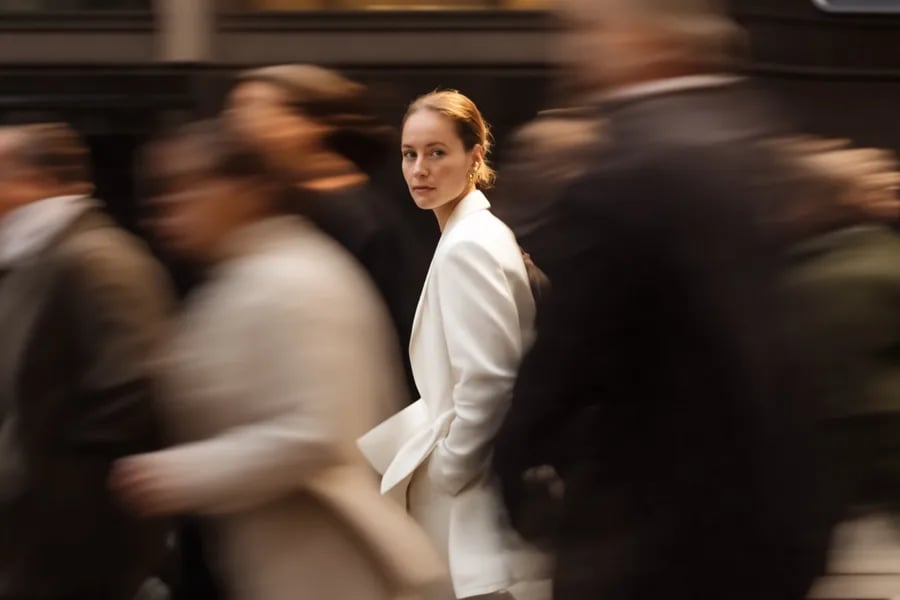
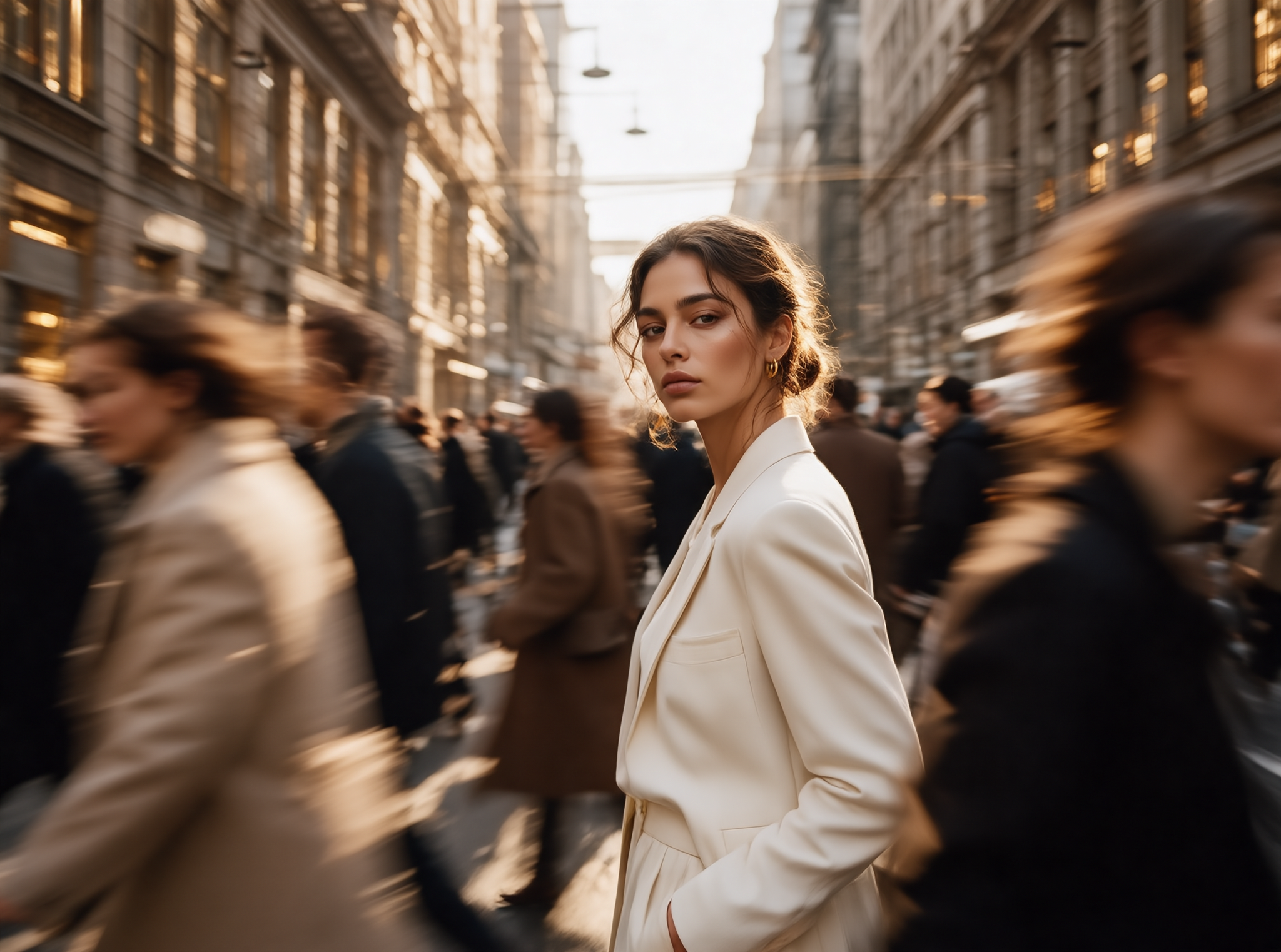
Slow shutter: the subject stays sharp while the crowd smears past.
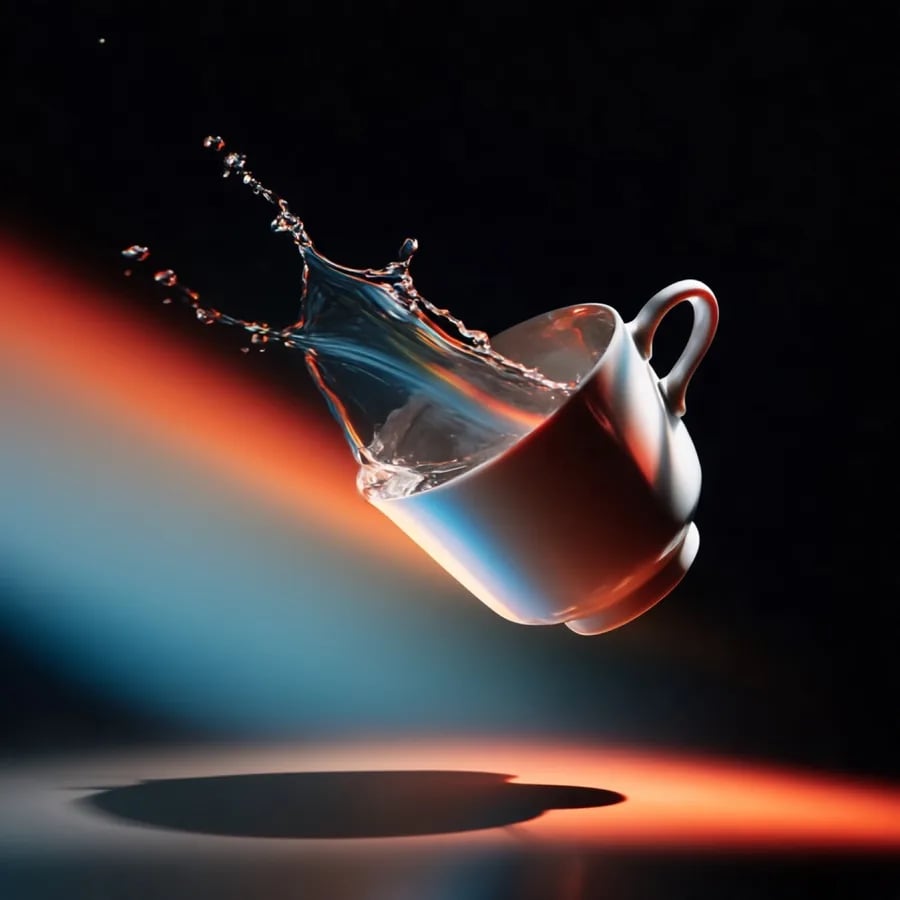
High-speed product shot: a glass mug frozen mid-air with its splash.
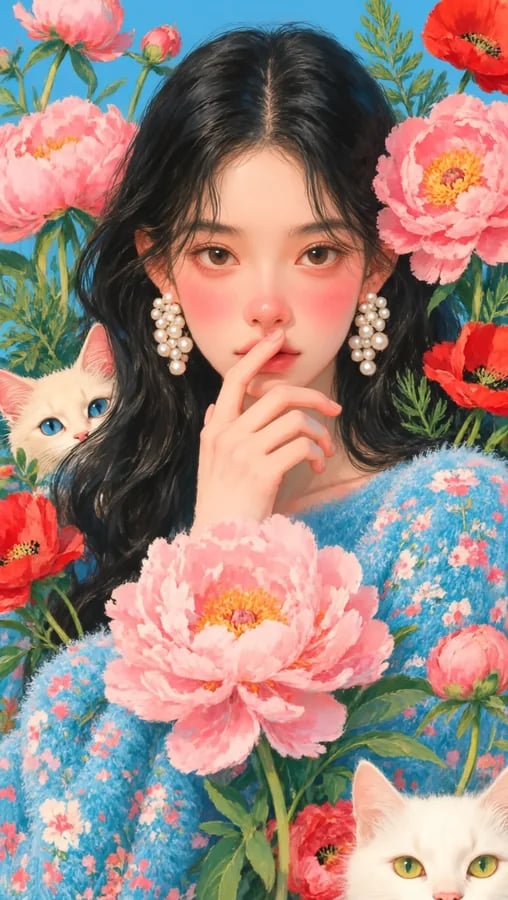
Illustration: a girl in blue among flowers and cats.
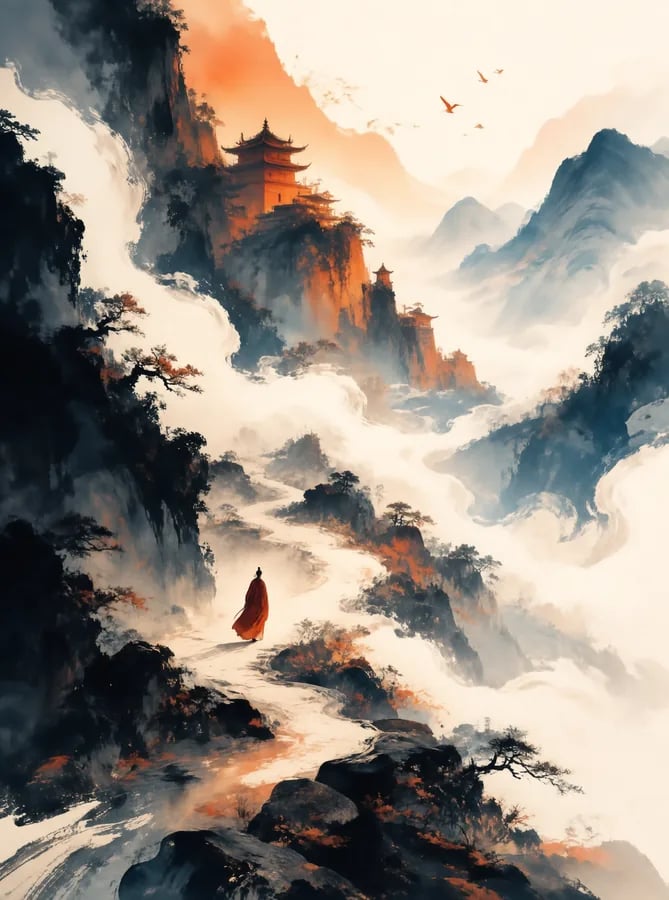
Illustration: misty mountains under orange light.
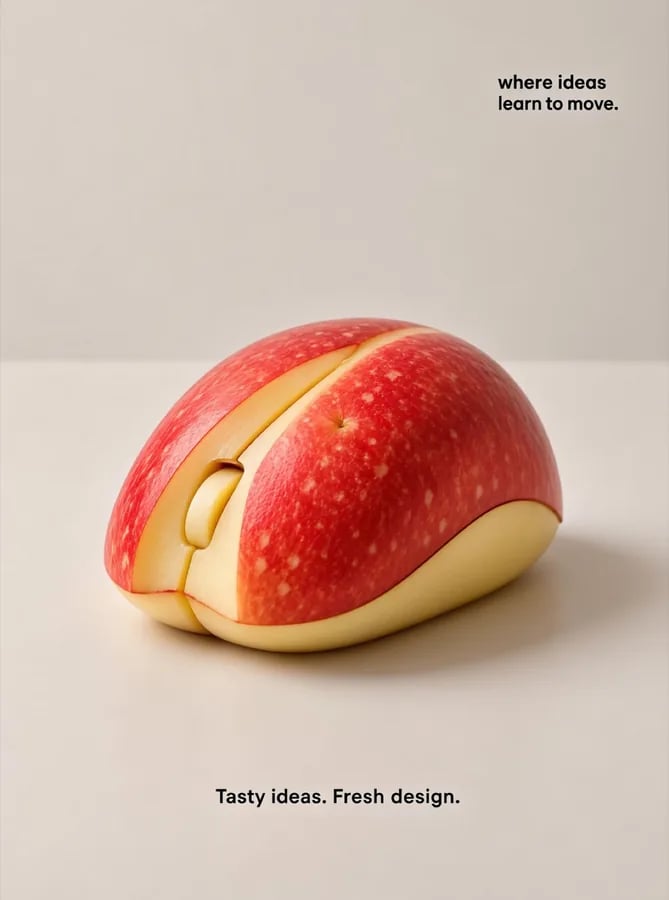
Poster with headline typography: “Tasty ideas. Fresh design.”
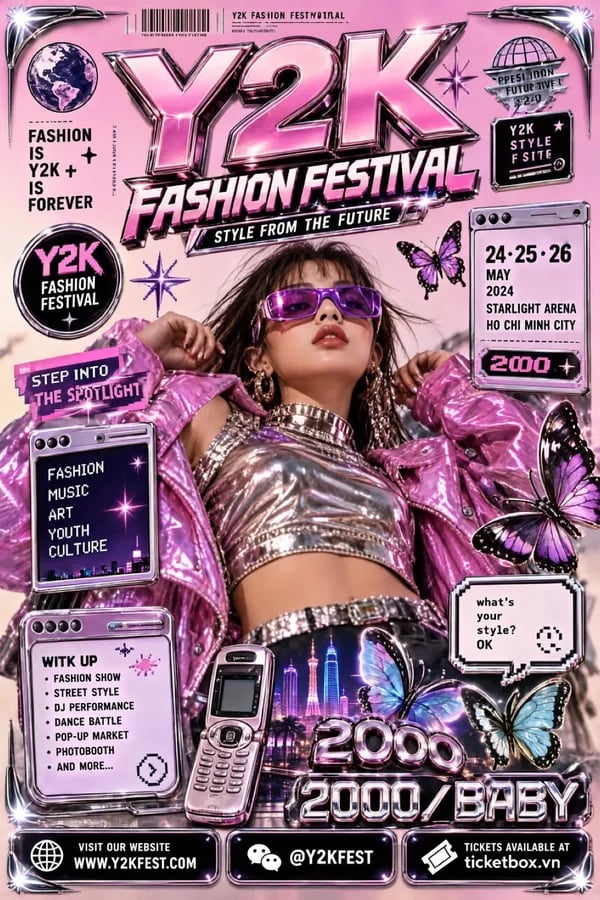
Poster: Y2K fashion festival, pixel-block type over a flat studio scene.
Self-correction in practice
Each pair below is the same prompt and seed: one single pass, then the generate / review / refine loop. The third image is a detail crop of the text the loop repaired.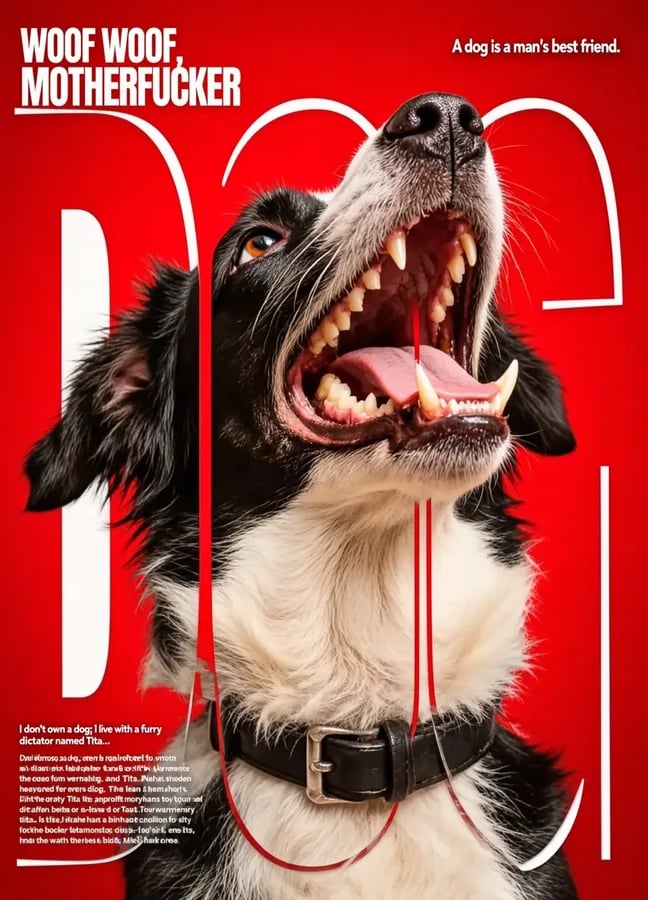
Red pet poster · Before
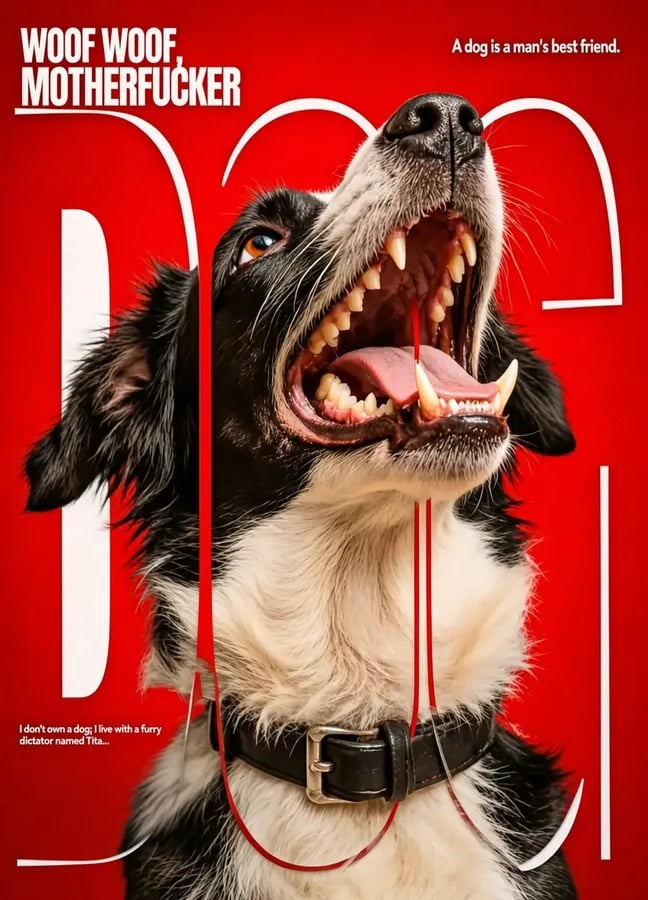
Red pet poster · After
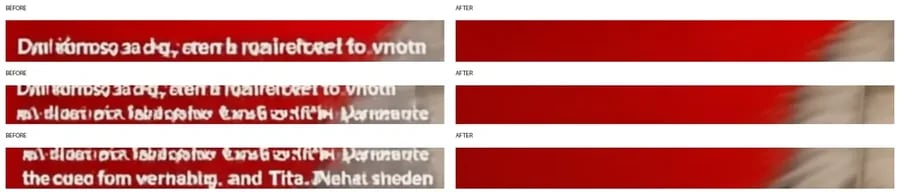
Red pet poster · Detail comparison
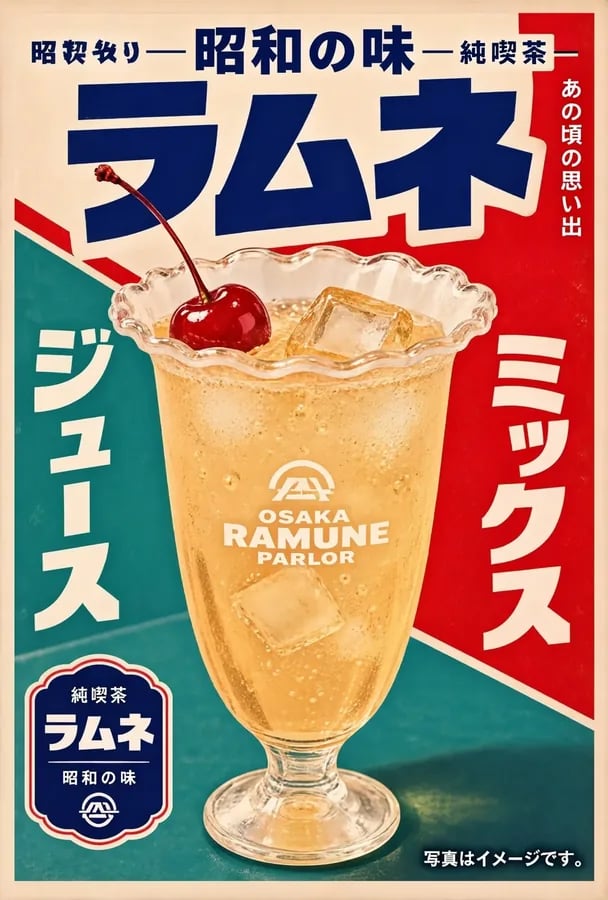
Showa-era beverage poster · Before
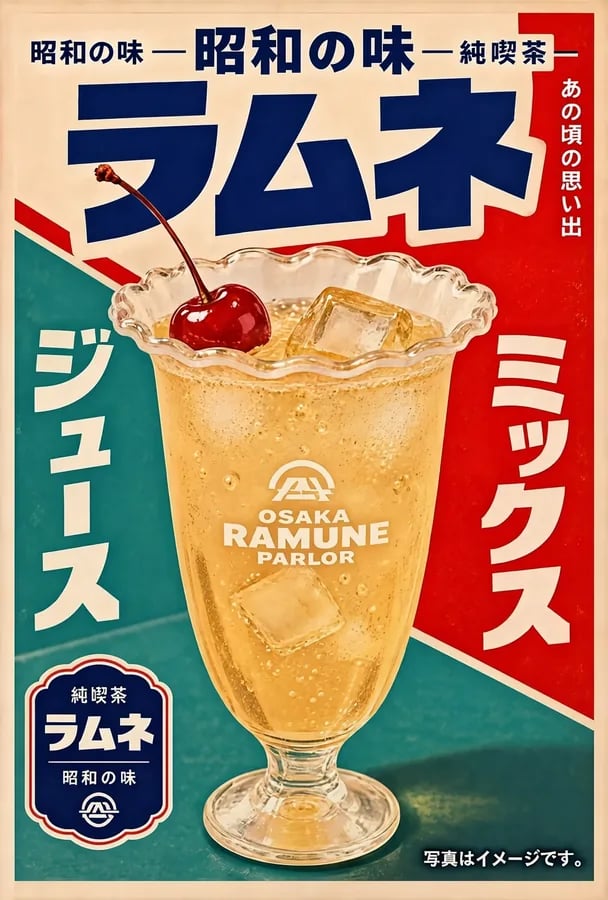
Showa-era beverage poster · After

Showa-era beverage poster · Detail comparison
Text to image workflow
SenseNova U1.6: Text to Image
Turn a written scene into a finished image. The model reads the prompt, fills in the visual detail and returns a 4-megapixel image at the aspect ratio you pick.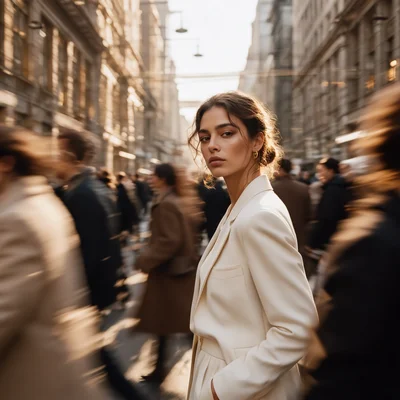
Run on Comfy Cloud
Open in Comfy Cloud
Download Workflow
Download JSON or search “SenseNova U1.6: Text to Image” in Template Library
Workflow file
After updating ComfyUI, find the template in the Template Library, or drag the preview above into ComfyUI to load it. The workflow carries two pipelines:- Base pipeline: a single generation pass, for portraits, photography, posters and general illustration.
- Self-correction pipeline: generate, review and refine, up to 5 passes, then decode. Best for infographics, dense text, charts and step diagrams.
Model download
Checkpoint LoRA (Turbo mode) Text encoder (optional PE) Model Storage LocationSampling settings
- Turbo Mode? loads or skips the 8-step LoRA. Keep it on while you iterate, turn it off for maximum text fidelity and fine detail.
- Self-Correction adds the generate, review and refine loop. Turn it on for text-heavy layouts and off for plain portraits, since every pass is another sampling run.
- Enable PE adds the prompt rewriter described above.
- Resolution sets a total-megapixel budget with presets from 1:1 through 21:9. The default is 4:3 (Standard) at 4 megapixels, which is 2368 × 1760.
Prompting tips
- Quote every word that must appear in the image. Quoted copy is rendered verbatim, and unquoted text is where errors come from.
- With PE off you write the full visual description yourself. A one-line request does not reach the model’s typography and layout strengths.
Image edit workflow
SenseNova U1.6: Image Edit
Edit a photo by attaching it as a reference and describing the change. The same 8B backbone reads the source, reworks it and returns the edit at the source’s own resolution and aspect ratio.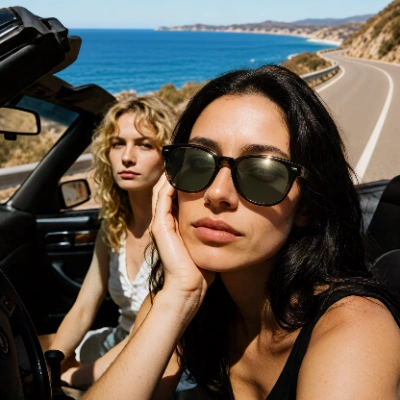
Run on Comfy Cloud
Open in Comfy Cloud
Download Workflow
Download JSON or search “SenseNova U1.6: Image Edit” in Template Library
LoadImage node:
sensenova_u16_edit_women_in_car.png
LoadImage node 79 · sensenova_u16_edit_women_in_car.png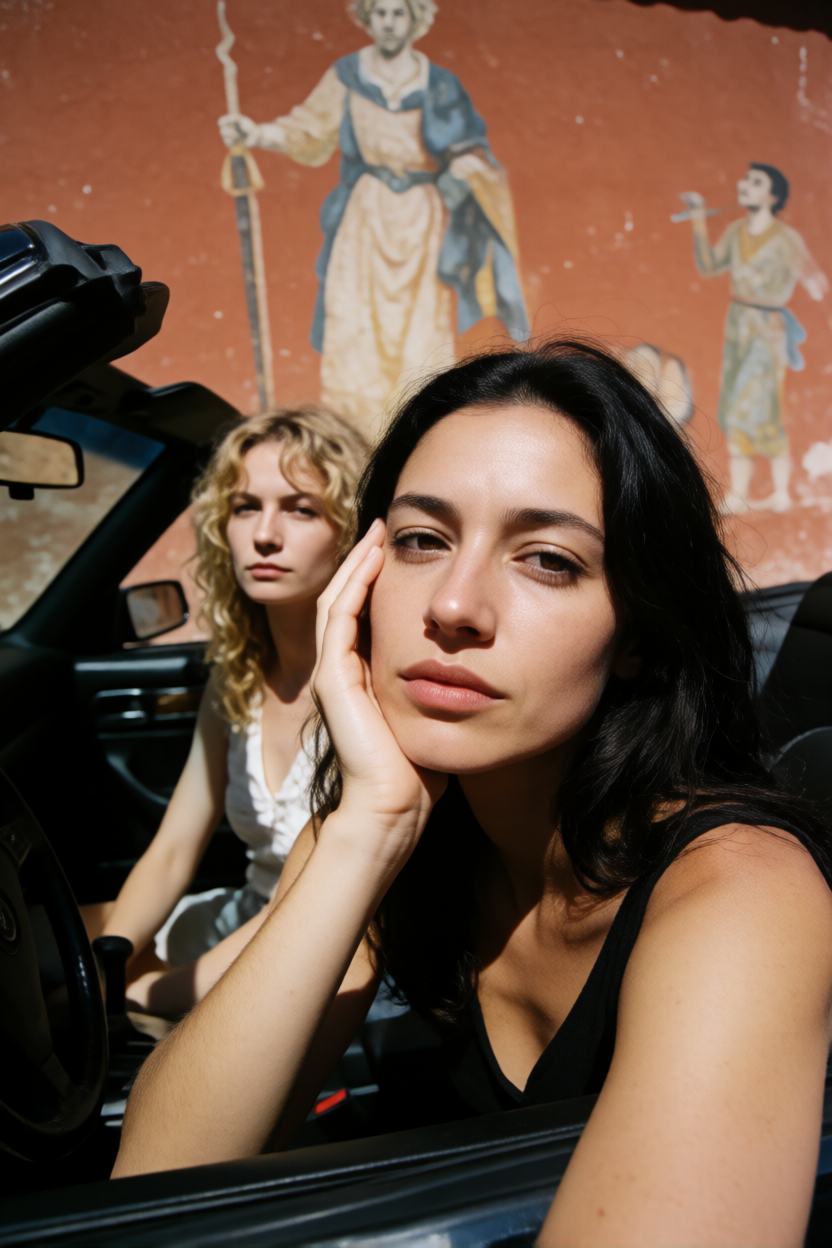
Workflow file
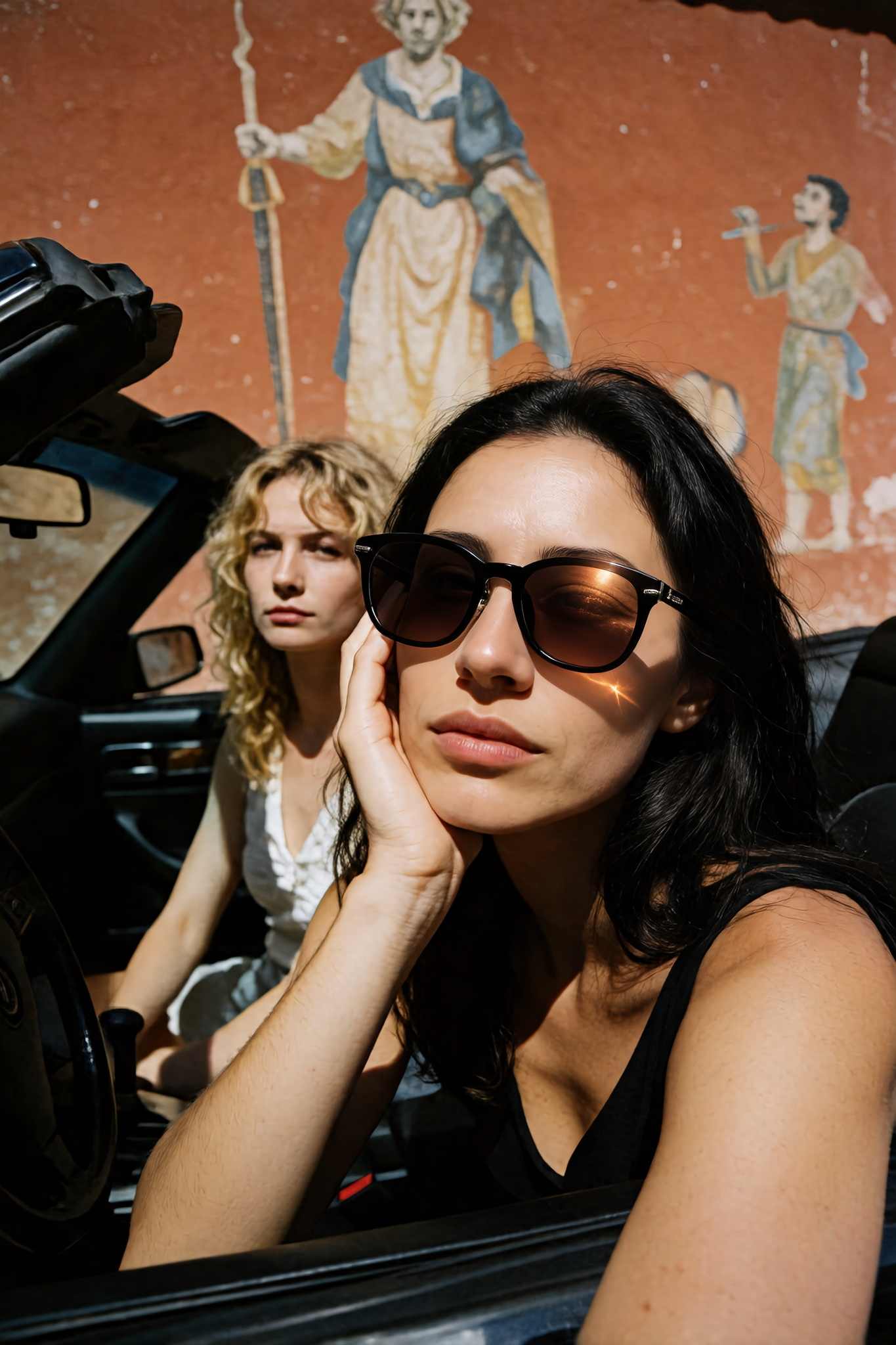
After updating ComfyUI, find the template in the Template Library, or drag the preview above into ComfyUI to load it. The source image is scaled to 4 megapixels, the range the model was trained at, then padded to a multiple of 32. Output follows the source resolution and aspect ratio, so the edit keeps the original framing. The model accepts up to 5 reference images. Passing 1 to 4 references is the useful range, and each one costs vision tokens and memory.ImageCompare shows the source and the result side by side.
Model download
Checkpoint LoRA (Turbo mode) Text encoder (optional PE, image edit) Model Storage LocationSampling settings
- Turbo Mode? loads or skips the 8-step LoRA. Keep it on while you iterate, turn it off for maximum text fidelity and fine detail.
- Self-Correction adds the edit, review and refine loop, which pays off when the layout carries text.
- Enable PE reads the source image together with your instruction and expands it into a full edit prompt.
- Reference images set the framing. The output size follows the source, so crop or resize the reference before queueing if you need a different shape.
Prompting tips
- Say what to change, and list what must stay unchanged. Identity, framing, lighting and background are the details worth naming.
- Quote every word that must appear in the edited image. Quoted copy is rendered verbatim.
- With PE off you write the full edit instruction yourself, including both the change and the preservation list.
Multi-turn editing
This release does not include multi-turn editing. Each pass is a single instruction applied to the reference image you load, and the model does not carry a conversation history between passes. A LoRA or a dedicated branch for multi-turn editing may follow. For now, chain edits yourself: save the result, load it as the next reference, and describe the next change.About the prompt enhancer
SenseNova U1.6 does not ship a dedicated prompt-enhancer model of its own. Both templates optionally load the Qwen Image 2.1 PE text encoder —qwen3.5_9b_qwen_image_2.1_pe_t2i for text to image, ..._pe_i2i for image edit — which rewrites a short prompt into a full visual description and fills in the exact on-image copy. Turn Enable PE off to work from your raw prompt instead.