

gemini-nano-banana-2.1) is available in ComfyUI through Partner Nodes. One node covers both text-to-image generation and image editing: start from a prompt, or connect reference images and describe the change you want.
What Nano Banana 2.1 is good at
- Generation and editing in one node: the same node handles text-to-image and image editing, so you can iterate on a result without rebuilding the workflow
- 1K, 2K and 4K output: choose the resolution that fits the job, from quick drafts to large, detailed images
- Adjustable thinking level:
MINIMAL,MEDIUMandHIGHcontrol how much the model reasons before it draws. Nano Banana 2.1 starts atMEDIUM, while the other two models start atMINIMAL - Up to 14 reference images: connect several images in one call to guide subject, style or layout
- Model switching without rewiring: the model dropdown also runs Nano Banana 2 and Nano Banana 2 Lite in the same node
Example outputs
Text to image, using the workflow’s default prompt: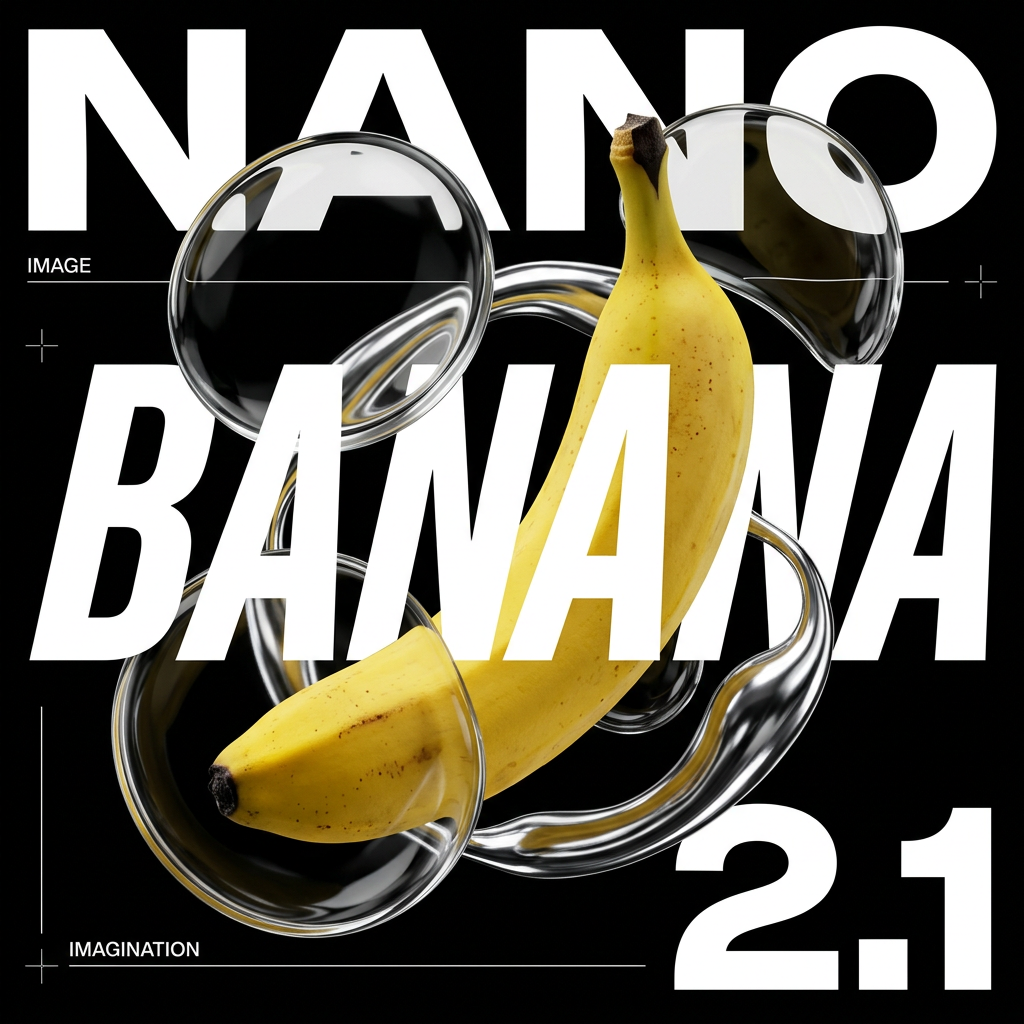 Image edit, from one input image plus the instruction “Change the background to dark, and relight this portrait with dramatic blue light from the front and a warm amber rim light from behind”:


Use it
Call it from code
Call it over HTTP through Comfy Router, with copy-paste Python, TypeScript, Swift and cURL snippets
Workflows
Text to Image
Run on Comfy Cloud
Open in Comfy Cloud
Download Workflow
Download JSON or search “Nano Banana 2.1” in Template Library
aspect_ratio decides the shape (see below), and the result is saved as a PNG.
Image Edit
Run on Comfy Cloud
Open in Comfy Cloud
Download Workflow
Download JSON or search “Nano Banana 2.1” in Template Library
Download Sample Image
Get the example input image for this workflow
Load Image node and describe the edit in the prompt. The workflow wires the image into the model’s reference input and adds an Image Compare node, so you can check the original against the result in the same canvas.
Settings that matter
temperature and top_p are exposed by the node, and Nano Banana 2.1 does not send them. They apply when you switch the model dropdown to Nano Banana 2 or Nano Banana 2 Lite.
Which model should you pick?
Get started
- Update ComfyUI to 0.39.1 or newer: the workflows use the
Nano Banana 2.1node - Double-click the canvas and search for “Nano Banana 2.1”, or open the Template Library and pick Text to Image or Image Edit
- Enter a prompt. For editing, load an image into the
Load Imagenode first - Choose the resolution and thinking level, then run the workflow