

What Grok Imagine Image 2.0 is good at
- Crisp short-text rendering: the Aurora engine renders short text cleanly, making it well suited for posters, covers, and product and brand visuals
- Reference-guided image editing: edits images with precise, natural-language instructions and up to 3 reference images to modify elements, swap backgrounds, or restyle scenes
- Character consistency: keeps a character consistent across multiple outputs in character-driven scenes
- 14 aspect ratios: from
1:1to9:20 - Cost control: 1K or 2K resolution with low or medium quality options to balance cost and fidelity
Example outputs
Poster-style text-to-image generation with crisp text rendering: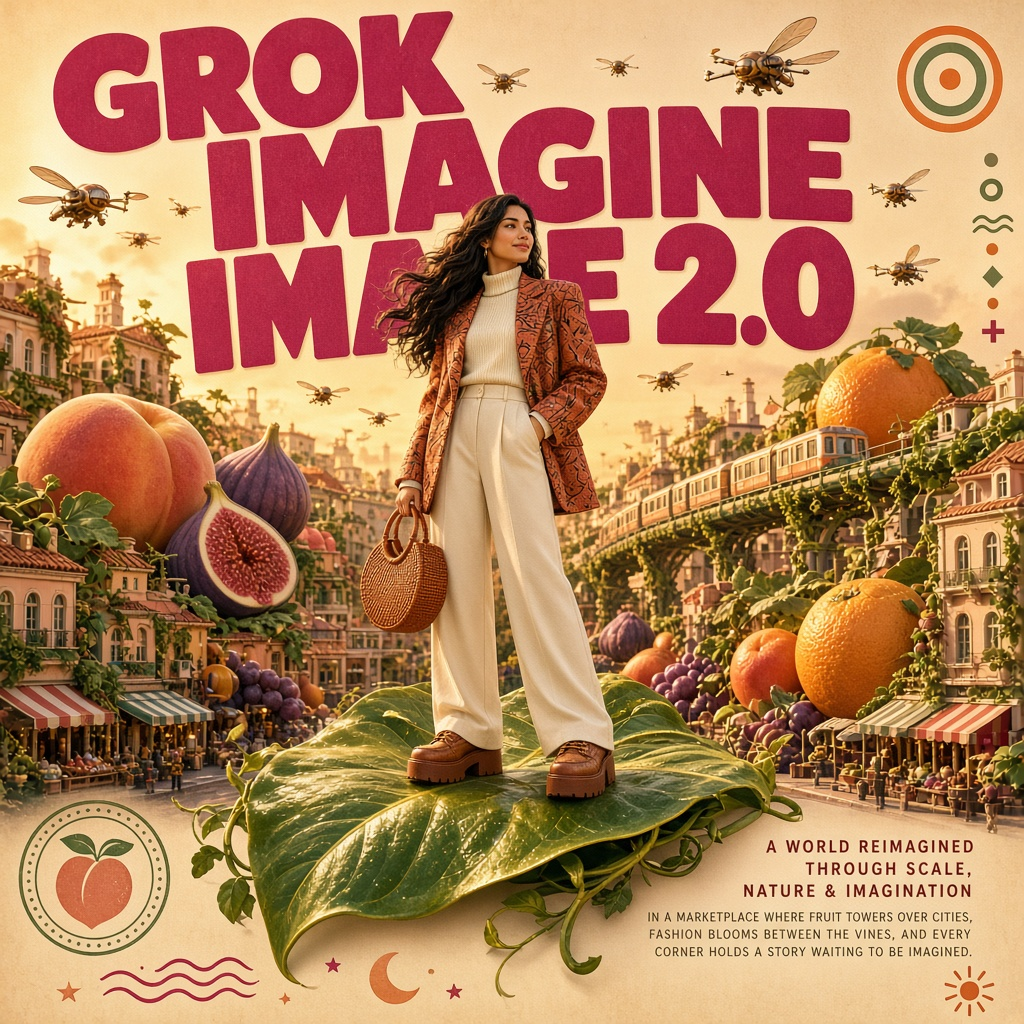 Image editing guided by character and product reference images:
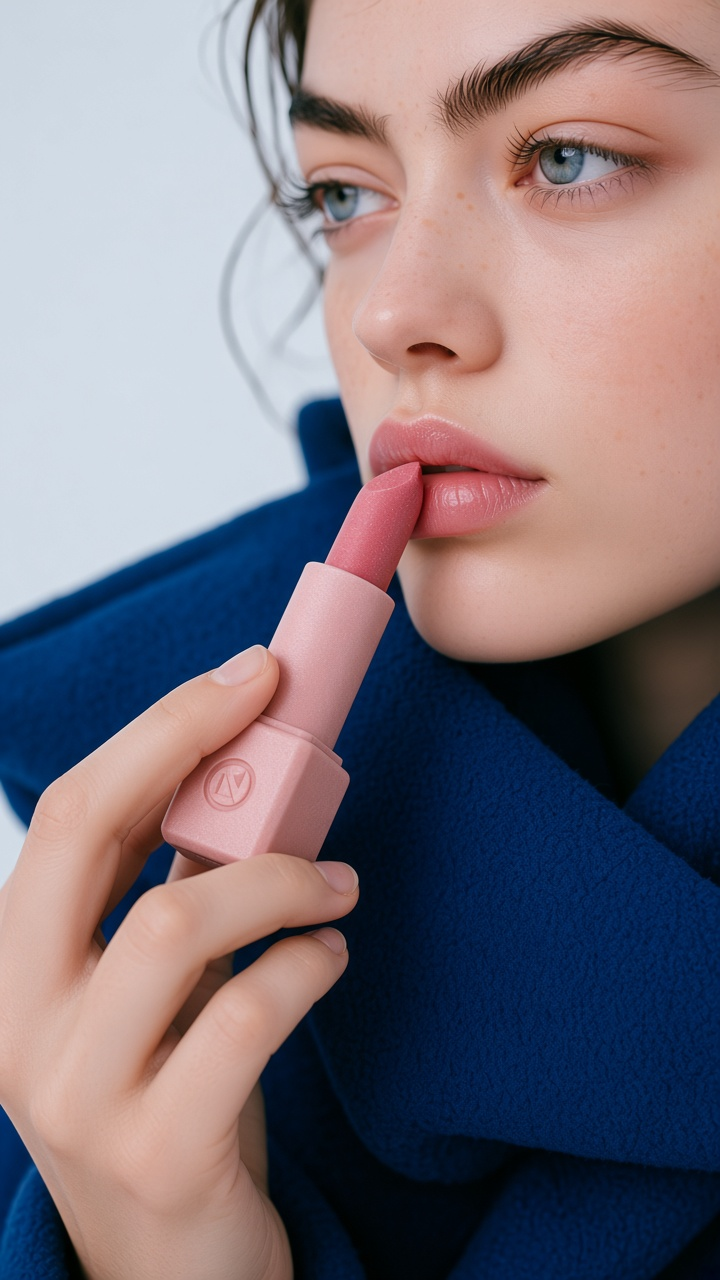
Grok Imagine Image 2.0: Text to Image
Generate a full poster-style image from a single text prompt with the Aurora engine. This workflow excels at crisp short-text rendering, making it well suited for posters, covers, product and brand visuals, and character-driven scenes. It outputs 1K or 2K images across 14 aspect ratios, with low or medium quality options to control cost.
Run on Comfy Cloud
Open in Comfy Cloud
Download Workflow
Download JSON or search “Grok Imagine Image 2.0” in Template Library
Workflow overview
This workflow uses two nodes:- GrokImageNode: the core node, configured with the
grok-imagine-image-2.0model - SaveImageAdvanced: saves the generated image as PNG
Steps to run
- Enter your prompt: describe the scene, style, and any text you want rendered in the GrokImageNode
- Choose aspect ratio: pick from 14 ratios, from
1:1to9:20 - Select resolution:
1Kfor faster results or2Kfor more detail - Set quality:
lowormediumto control cost and fidelity - Set seed: control whether the node re-runs; outputs are not reproducible regardless of seed
- Click Queue: press
Ctrl+Enterto generate
Grok Imagine Image 2.0: Image Edit
Edit images with precise, natural-language instructions and up to 3 reference images. Use this workflow to modify specific elements, swap backgrounds, restyle scenes, or keep a character consistent across multiple outputs. The Aurora engine delivers crisp short-text rendering at 1K or 2K resolution across 14 aspect ratios.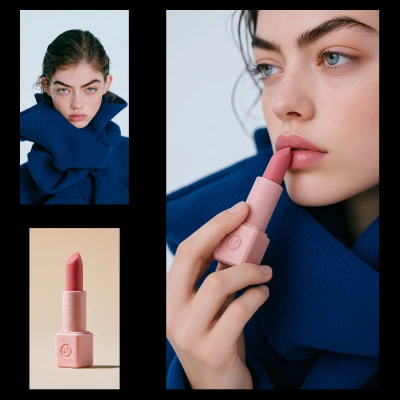
Run on Comfy Cloud
Open in Comfy Cloud
Download Workflow
Download JSON or search “Grok Imagine Image 2.0” in Template Library
Workflow overview
This workflow uses four nodes:- LoadImage x2: provide the character and product reference images (the node accepts up to 3)
- GrokImageEditNodeV2: the core node, configured with the
grok-imagine-image-2.0model - SaveImage: saves the edited image
Steps to run
- Load your references: connect up to 3 reference images to the LoadImage nodes
- Describe the edit: tell the model what to keep, change, or restyle in the GrokImageEditNodeV2 prompt
- Set resolution:
1Kor2K - Click Queue: press
Ctrl+Enterto generate