

Available workflows
Text to SVG
Describe the drawing and the node returns one editable SVG. Reference images are optional, but they are the way to carry a style, a palette, or a layout into the result.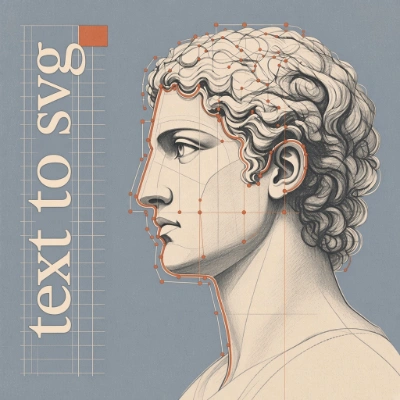
Run on Comfy Cloud
Open in Comfy Cloud
Download Workflow
Download JSON or search “Ideogram Vector 1: Text to SVG” in Template Library
academic-svg.png
Load into the
LoadImage node as a style referenceFlat vector badge of a mountain range inside a circle, three colors, heavy outlines, no gradientsVintage travel poster of a coastal town at golden hour, layered flat shapes with fine hatching, warm cream and terracotta palette, condensed serif lettering 'COSTIERA AMALFITANA' across the bottomMinimal line art icon of a coffee cup with steam, single weight stroke, transparent background
ref_image_1 to ref_image_5 and call them in the prompt as @Image1, @Image2, and so on. Image 1 is the main source, the rest are extra references.
Image to SVG
Trace a bitmap into paths. The node reads what is in the picture, including grain, gradients, and background clutter, so a clean source with large flat areas traces best. A photograph also works, but it turns into thousands of small paths that are hard to edit by hand.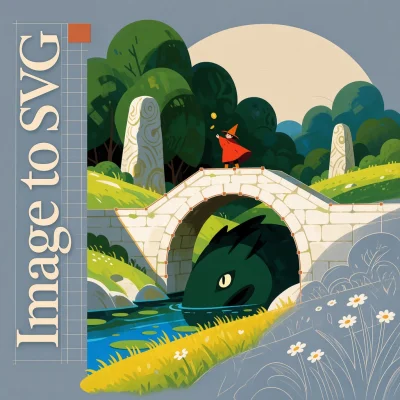
Run on Comfy Cloud
Open in Comfy Cloud
Download Workflow
Download JSON or search “Ideogram Vector 1: Image to SVG” in Template Library
kid_onknight_dragon.png
Load into the
LoadImage nodemode decides how much detail survives. simple traces fewer, larger color blocks and gives a lighter, flatter SVG. default keeps finer detail and more color blocks, so the result stays closer to the source. A batch of images produces one SVG per image.
Node controls
Prompting tips
- Describe the drawing, not a photo. Shapes, palette, and composition carry the result:
flat badge, three colors, heavy outlines. Camera and lens language belongs to image models and only adds noise here. - Put lettering in quotes.
'COSTIERA AMALFITANA'is rendered as text on the artwork, while unquoted words are usually read as part of the subject description. - Name the layers you want. Asking for
layered flat shapes with fine hatchingorsingle weight stroketells the model which vector style to draw. - Use a reference for a house style. A logo or a mockup as
ref_image_1carries palette and line weight better than describing them. The reference input takes an image, so export an earlier SVG to PNG first if you want to reuse it. - Start from a clean source when tracing. Flat colors, sharp edges, and no background clutter give an editable file. Grain and gradients turn into path noise.
- Repeat a good result exactly with the seed. Text to SVG reproduces the same SVG from the same prompt, images, settings, and seed.
Get started
- Update ComfyUI to the latest version
- Go to Template Library, search for
Ideogram Vector