

Text to Image
Generate an image from a text prompt, at a canvas size and quality tier you choose.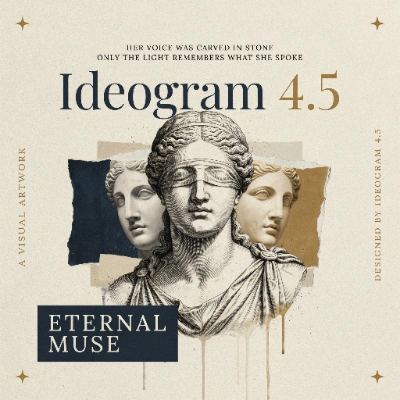
Run on Comfy Cloud
Open in Comfy Cloud
Download Workflow
Download JSON or search “Ideogram 4.5: Text to Image” in Template Library
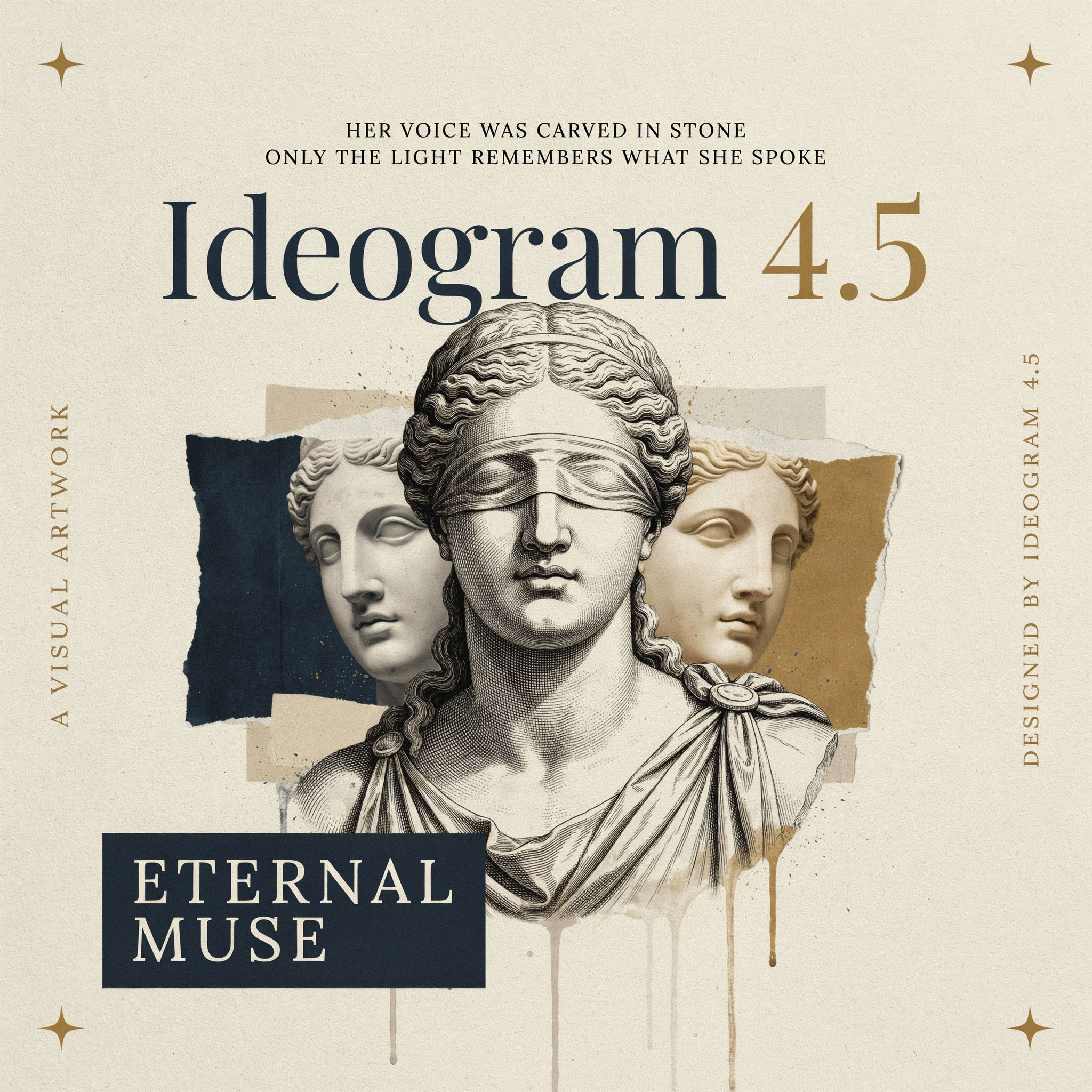 The Ideogram 4.5 Text to Image node takes:
The node also outputs
final_prompt, the structured caption the image was generated from. To reproduce an image, feed that caption back with magic_prompt set to off and the same seed.
Image Edit

Edit or combine up to five images with one instruction.image_1 is the image being edited; images 2 to 5 supply design, material, or color references. Address them in the prompt as @Image1, @Image2, and so on.
Run on Comfy Cloud
Open in Comfy Cloud
Download Workflow
Download JSON or search “Ideogram 4.5: Image Edit” in Template Library
interior_orange_sofa.png
Load into the
image_1 slot on the Ideogram 4.5 Edit node
Up to five images can be connected in total. Inputs above roughly 4 MP are scaled down before they are uploaded, and each image must sit between 1:6 and 6:1.
Edit re-renders the whole image, so it can shift the framing and the untouched areas along with the edit. Use Precise Edit when the rest of the picture has to stay exactly as it is.
Precise Edit
Change only what the prompt asks for. Untouched pixels stay identical and the output keeps the size ofimage_1. Accepts up to four reference images beyond the image being edited.
Run on Comfy Cloud
Open in Comfy Cloud
Download Workflow
Download JSON or search “Ideogram 4.5: Precise Edit” in Template Library

redhair_girl_portrait.png
Load into the
image_1 slot on the Ideogram 4.5 Precise Edit node@Image1 addressing, quality, and seed controls with Edit. It has no size control, because the output always matches the size of image_1. The template draws its instruction with the Build JSON Prompt node as well.
Use it for product recolors, material swaps, and touch-ups that must leave the lighting, background, and framing of the rest of the photo alone.