

How autogrow inputs work
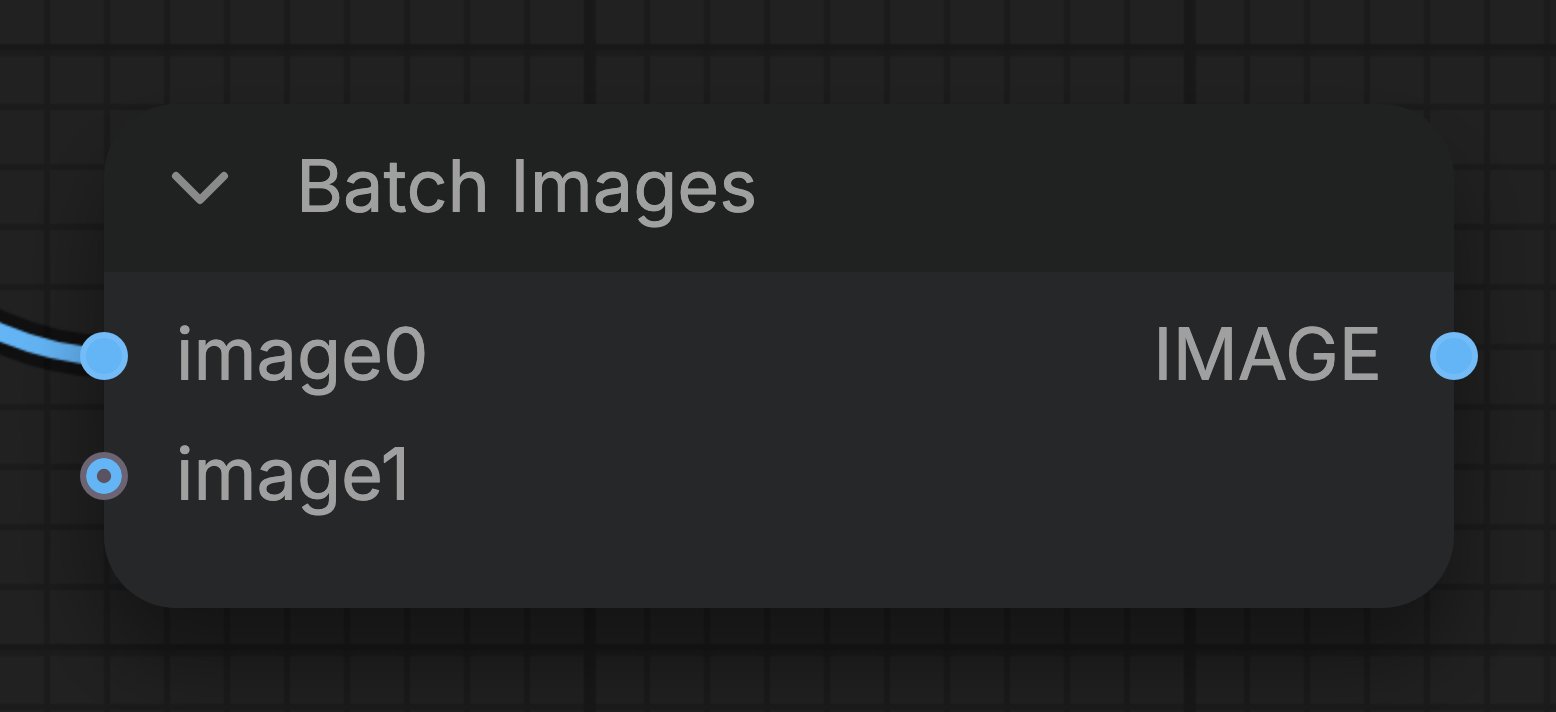
- Connect the last free input. In the example on this page, an image source is linked to
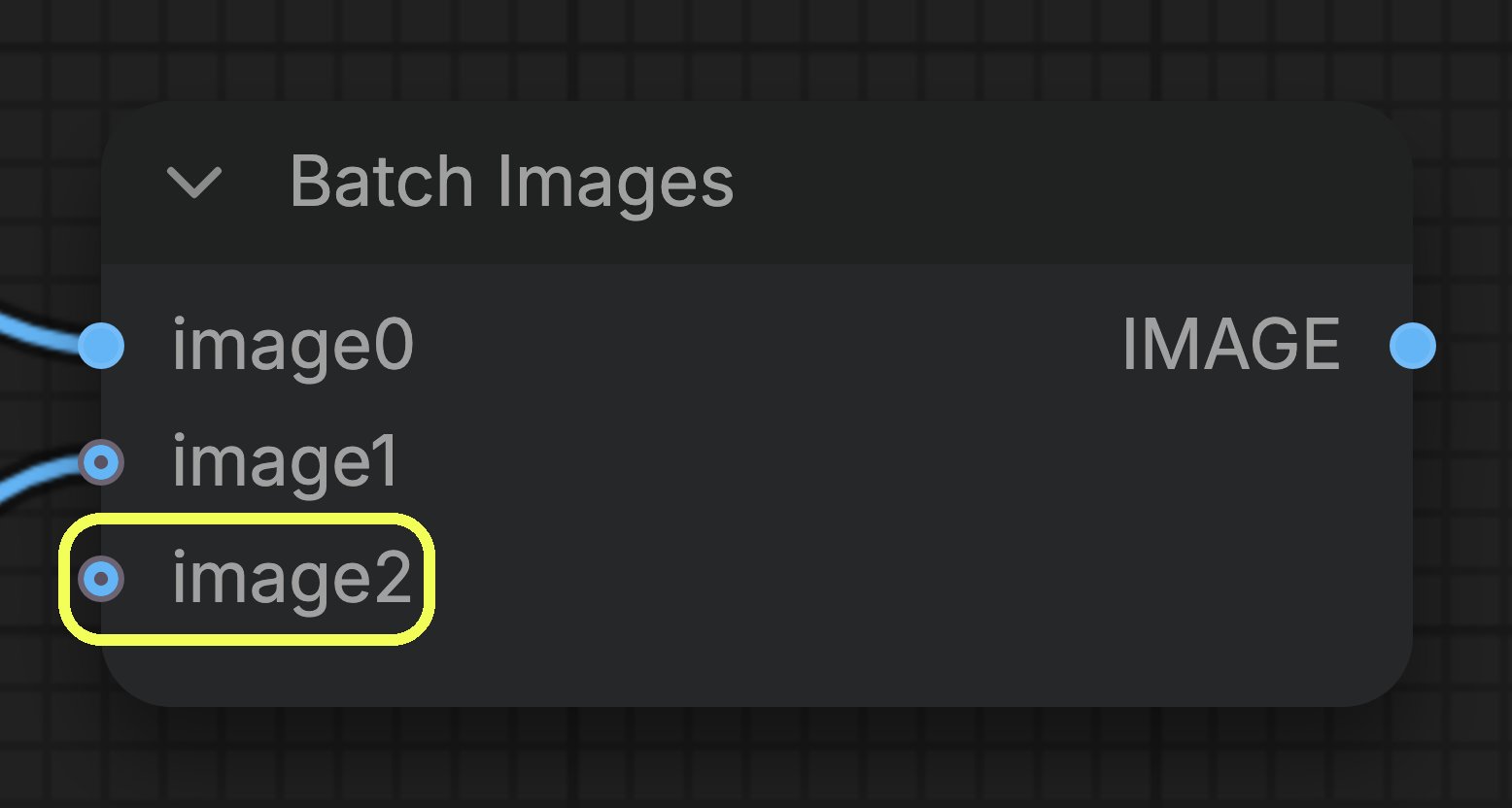
image0on the Batch Images node, whileimage1is still free. - Watch the node grow. As soon as you fill the last free input, the node appends a new empty input below it. In the picture below, the new
image2input appears afterimage1is connected. - Repeat as needed. Every time you fill the last input, the node grows again, until it reaches the maximum number of inputs that node allows.
- Order matters. The inputs are passed to the node in the order they appear, so
image0comes beforeimage1and so on. Keep that in mind when the result depends on the sequence, for example when you batch images that run through a video model. - The free input is a placeholder. It is only part of the node’s data once you connect something to it. A node that allows zero inputs still runs when every slot is empty.
Nodes that use autogrow inputs
Each node decides its own limits. Hover the input in ComfyUI to read its tooltip when you are not sure how many values it accepts.
Batch Images node
Combine several images into one batch, with as many inputs as you need.