메인 콘텐츠로 건너뛰기
Luma 이미지 to 이미지 노드를 사용하면 Luma AI 기술을 활용해 텍스트 프롬프트에 따라 기존 이미지를 수정하면서도 원본 이미지의 특정 특징과 구조는 유지할 수 있습니다. 이 가이드에서는 이 노드를 사용해 이미지 to 이미지 워크플로우를 설정하는 방법을 보여드립니다.
To use the Partner Nodes, you need to ensure that you are logged in properly and using a permitted network environment. Please refer to the Partner Nodes Overview section of the documentation to understand the specific requirements for using the Partner Nodes.
Make sure your ComfyUI is updated.Workflows in this guide can be found in the Workflow Templates. If you can’t find them in the template, your ComfyUI may be outdated. (Desktop version’s update will delay sometime)If nodes are missing when loading a workflow, possible reasons:
  1. You are not using the latest ComfyUI version (Nightly version)
  2. Some nodes failed to import at startup

Luma 이미지 to 이미지 노드 문서

자세한 노드 매개변수 설정은 다음 문서를 확인하세요:

Luma 이미지 to 이미지 노드 문서

Luma 이미지 to 이미지 파트너 노드 문서

Luma 이미지 to 이미지 파트너 노드 워크플로우

이 기능은 객체와 도형을 변경하는 데 효과적입니다. 하지만 색상 변경에는 적합하지 않을 수 있습니다. 0.0~0.1 정도의 낮은 가중치 값을 사용하는 것을 권장합니다.

1. 워크플로우 파일 다운로드

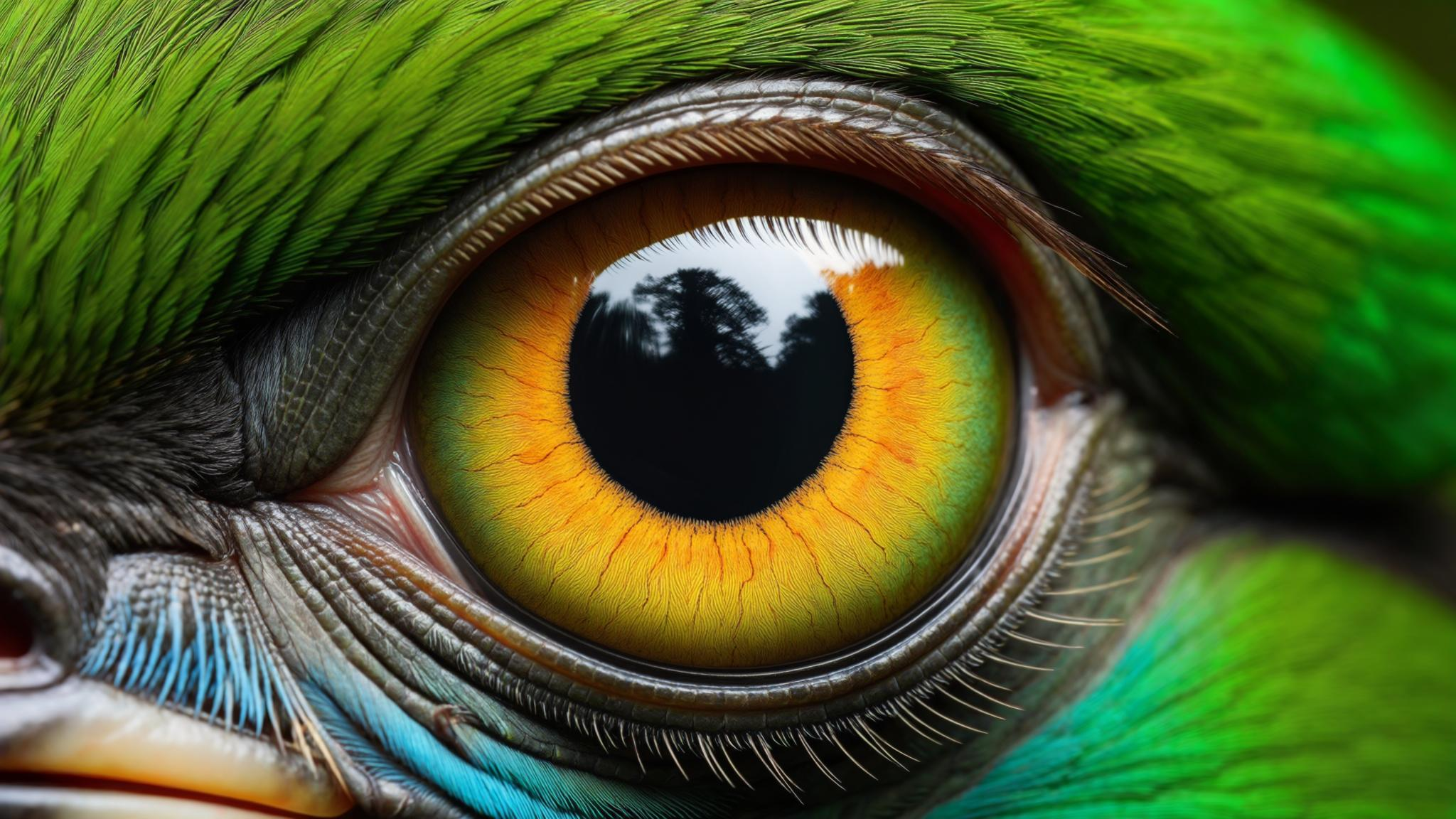
다음 이미지를 ComfyUI로 드래그하여 워크플로우를 로드하세요(워크플로우 정보는 이미지 메타데이터에 포함되어 있습니다): Luma 이미지 to 이미지 워크플로우 입력으로 사용할 다음 이미지를 다운로드하세요: Luma 이미지 to 이미지 워크플로우 입력 이미지

2. 워크플로우 단계 완료하기

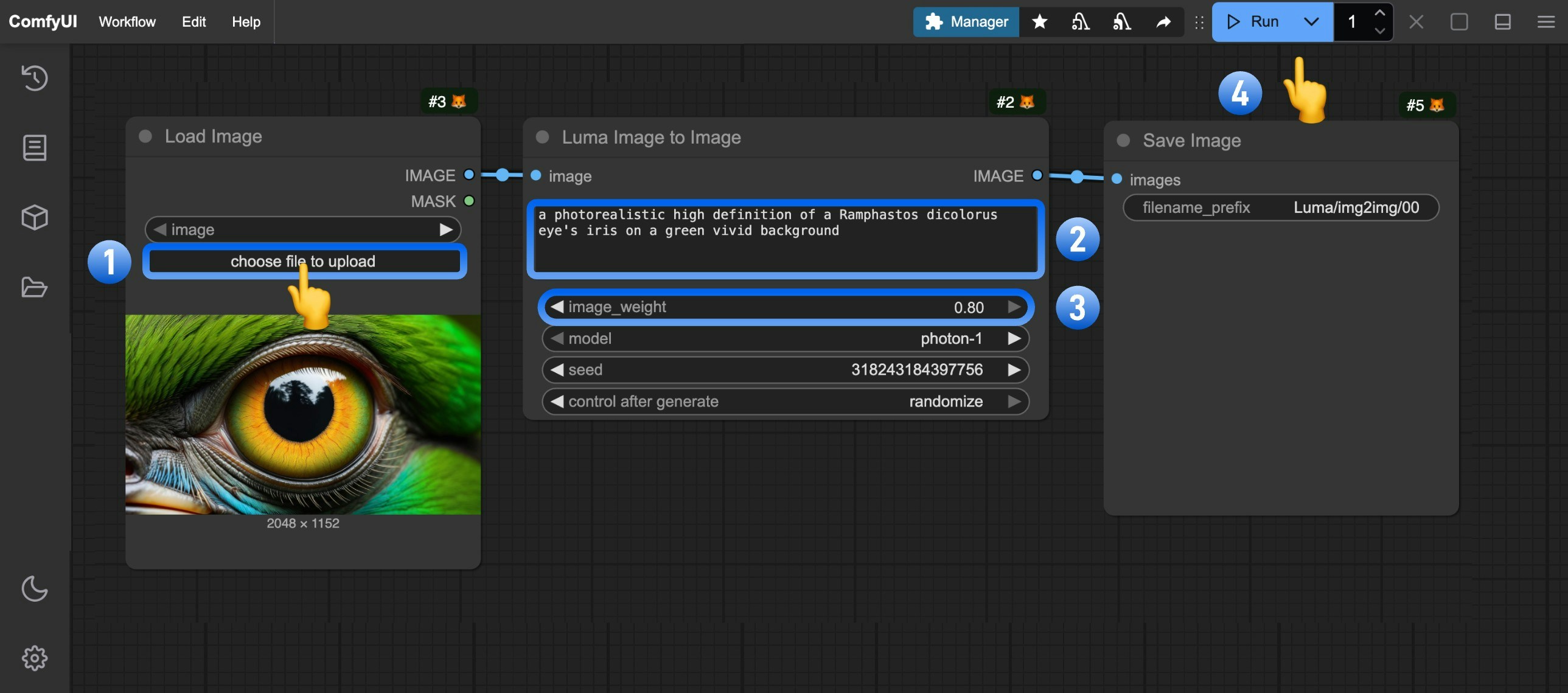
Luma 이미지 to 이미지 워크플로우 단계 다음 번호 순서대로 진행하세요:
  1. Load Image 노드에서 Upload를 클릭해 입력 이미지를 업로드하세요
  2. (선택사항) 워크플로우 프롬프트를 수정하세요
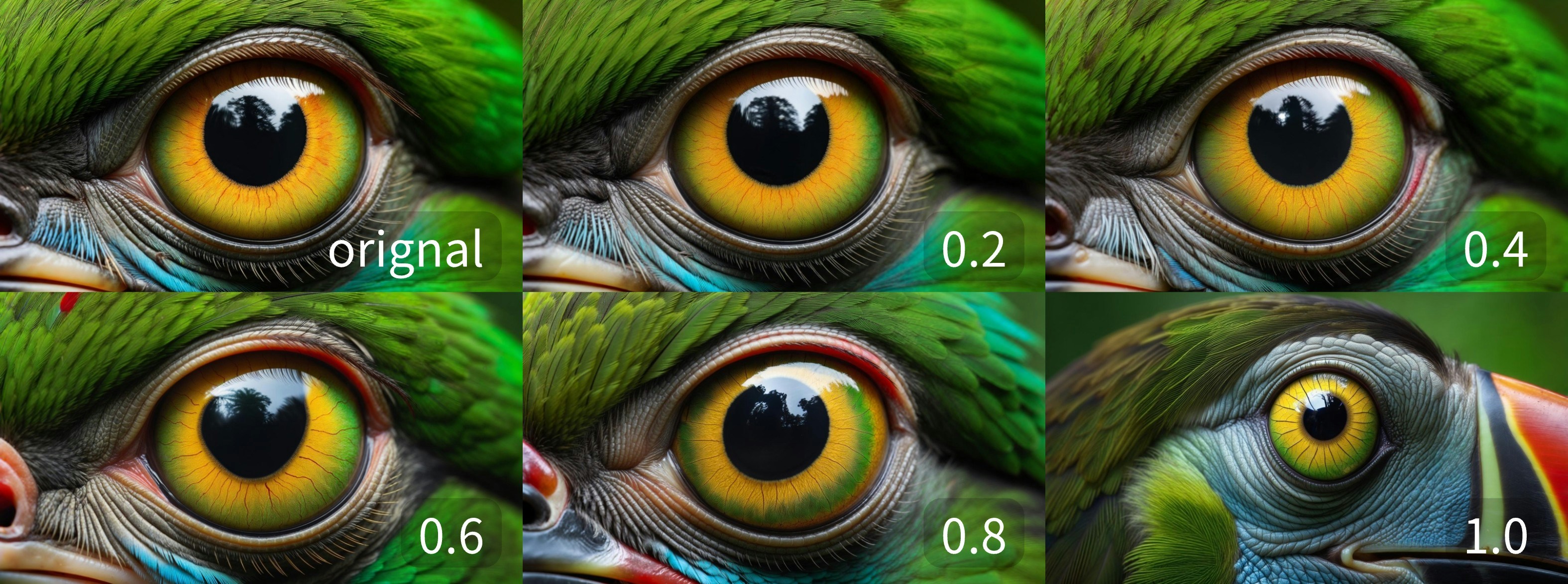
  3. (선택사항) image_weight를 조정해 입력 이미지의 영향력을 변경하세요(낮은 값일수록 원본에 더 가까워집니다)
  4. Run을 클릭하거나 단축키 Ctrl(cmd) + Enter를 사용해 이미지를 생성하세요
  5. API가 결과를 반환한 후, Save Image 노드에서 생성된 이미지를 확인하세요. 이미지는 ComfyUI/output/ 디렉터리에 저장됩니다

3. 서로 다른 image_weight 값으로 얻은 결과

가중치 비교