

- Mitigate Image Drift: Improved stability during editing operations
- Improved Character Consistency: Better preservation of identity and visual characteristics during imaginative edits
- Multi-Person Consistency: High-fidelity fusion of multiple person images into coherent group shots
- Integrated LoRA Capabilities: Popular community LoRAs built directly into the base model
- Enhanced Industrial Design Generation: Better support for batch industrial product design and material replacement
- Strengthened Geometric Reasoning: Direct generation of auxiliary construction lines for design or annotation
Qwen-Image-Edit-2511 ComfyUI Native Workflow Example
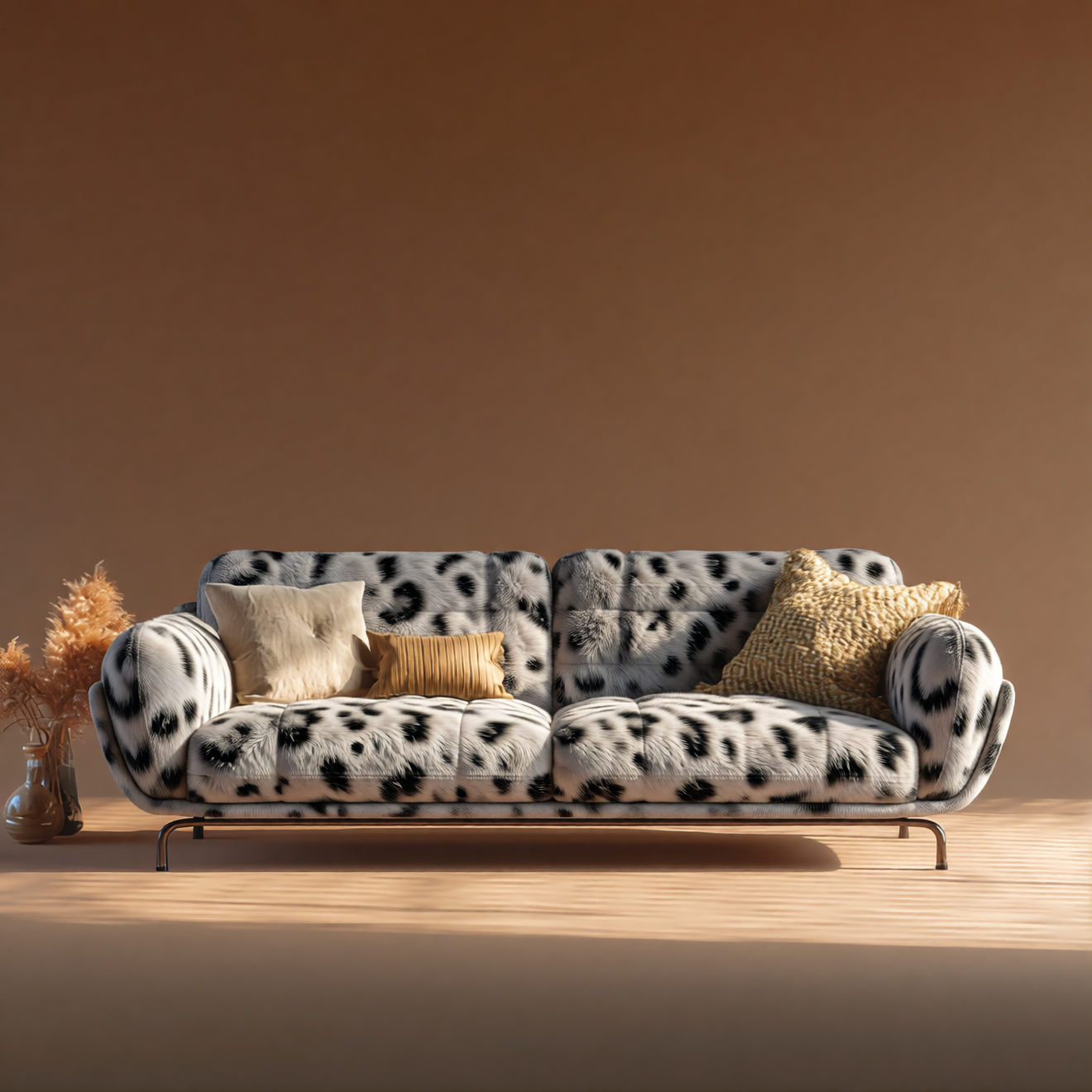
Qwen Image Edit 2511 - Material Replacement
Replace materials in objects (for example, furniture) by combining reference images with Qwen-Image-Edit-2511.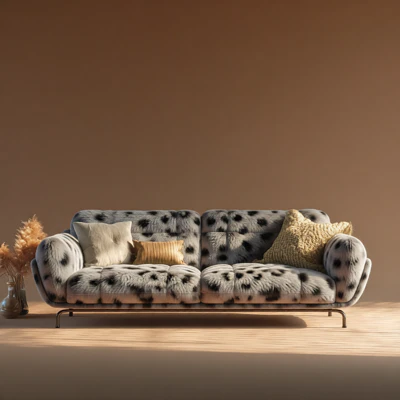
Run on Comfy Cloud
Open in Comfy Cloud
Download Workflow
Download JSON or search “Qwen-Image-Edit-2511” in Template Library
LoadImage nodes:
leather_sofa.png
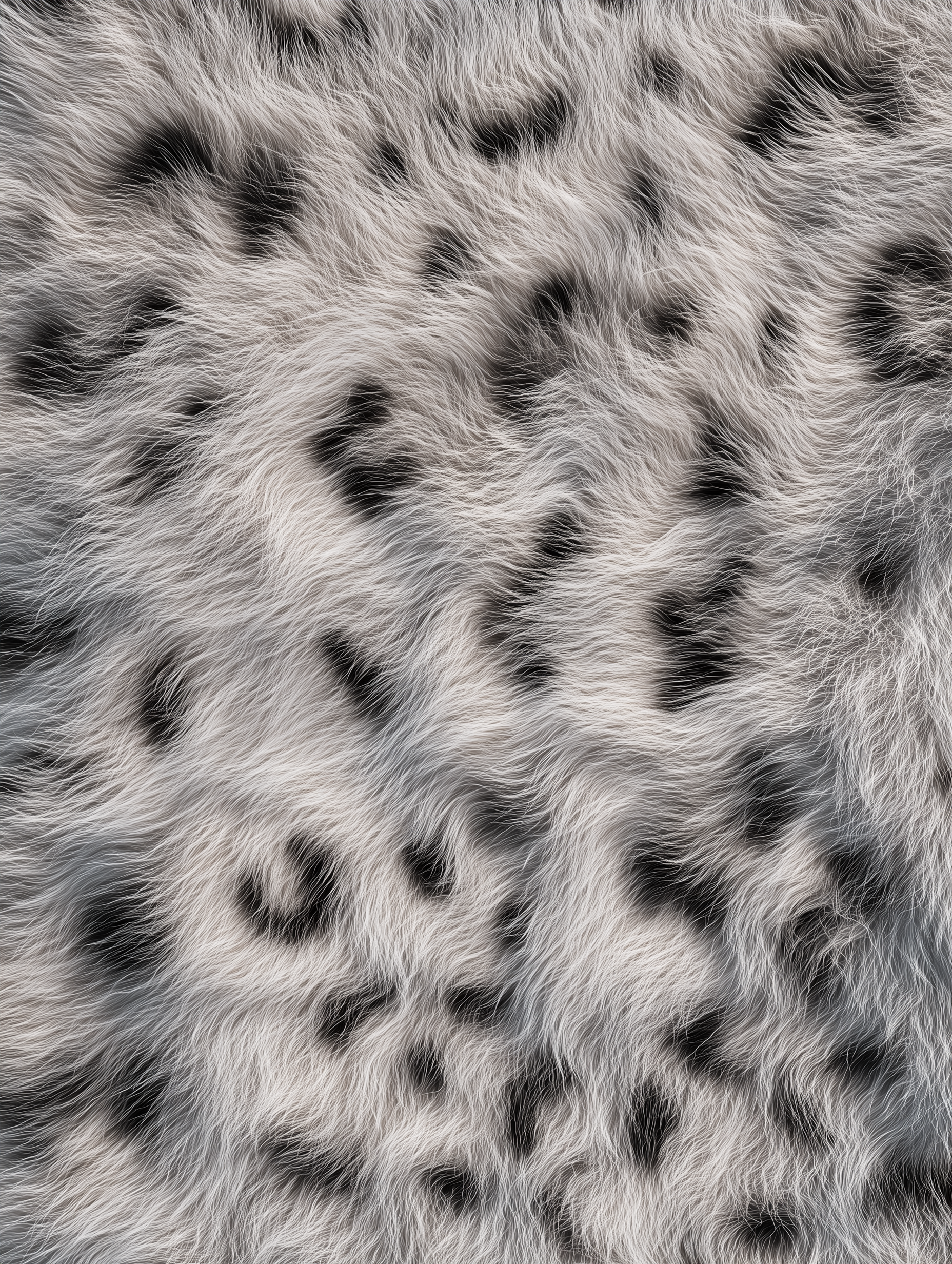
LoadImage node 41 · leather_sofa.pngtexture_fur.png
LoadImage node 83 · texture_fur.png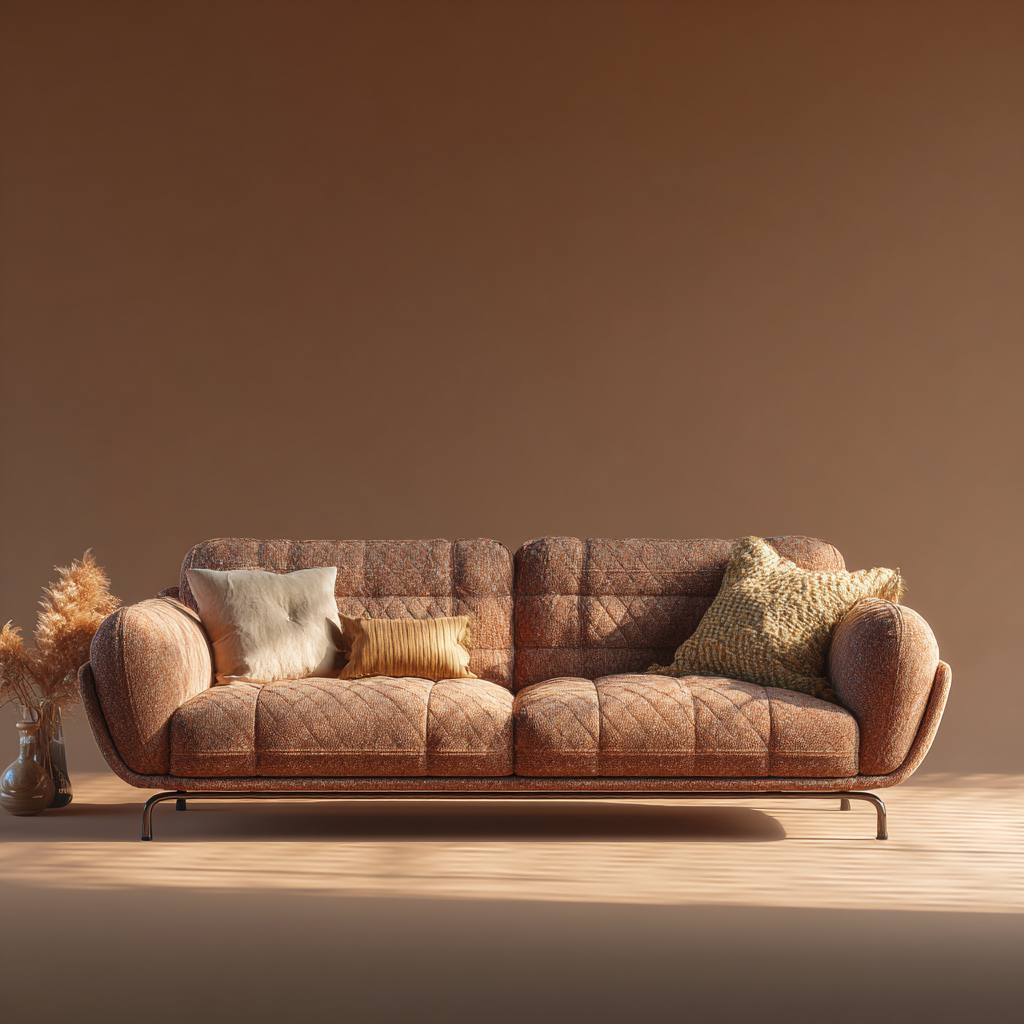
1. Workflow file
After updating ComfyUI, you can find the workflow file from the templates, or drag the workflow preview above into ComfyUI to load it.2. Model download
Text Encoders LoRA (Optional - for 4-step Lightning acceleration) Diffusion Models VAE Model Storage LocationQwen-Image-Edit-2511 Multiple Angles with the 3D Camera Node
Load one photo, orbit a 3D camera around the subject, and Qwen-Image-Edit-2511 renders that same subject from the angle you picked. The template pairs the edit model with the multiple-angles LoRA, so you can re-shoot one input image from any angle you pick.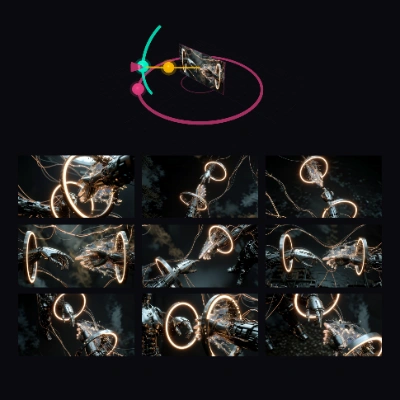
Run on Comfy Cloud
Open in Comfy Cloud
Download Workflow
Download JSON or search “Generate Multiple Angles with 3D Camera Node” in Template Library
LoadImage node:
cyber_genesis.png
LoadImage node 1Camera Angle controls
The Compose Camera Angle Prompt node adds a 3D viewport above its angle fields. Pick a viewpoint in the viewport and the node writes a shot description such asfront view eye-level shot medium shot into the workflow prompt, so you do not type it by hand. The angle fields follow as you move.
- Camera / Object: Camera moves you around the subject, Object looks through the lens and turns the subject instead.
- Horizontal angle, Vertical angle, Shot size: named positions: eight around the subject from
FronttoFront left, four elevations fromLow angletoHigh angle, and three shot sizes fromWide shottoClose-up. Dragging in the 3D viewport sets the same values. - Preview: adds a picture-in-picture window with what the camera frame contains.
enable_turbo_mode, a control on the subgraph node) is on by default: 4 steps, CFG 1 and the 4-step Lightning LoRA. Switch it off for the 40-step, CFG 4 pass without the Lightning LoRA.
Model downloads for this workflow
Diffusion model: qwen_image_edit_2511_int8_convrot
Place in
ComfyUI/models/diffusion_models/Text encoder: qwen_2.5_vl_7b_fp8_scaled
Place in
ComfyUI/models/text_encoders/VAE: qwen_image_vae
Place in
ComfyUI/models/vae/LoRA: multiple-angles
qwen-image-edit-2511-multiple-angles-lora.safetensors goes in
ComfyUI/models/loras/LoRA: Lightning 4-step
Place in
ComfyUI/models/loras/