

model to ideogram-4.6 in any of them, and pick ideogram-4.5 in the same list to use the older model, which has its own page.
Text to Image
Generate an image from a text prompt at a 1K, 2K, or 4K canvas.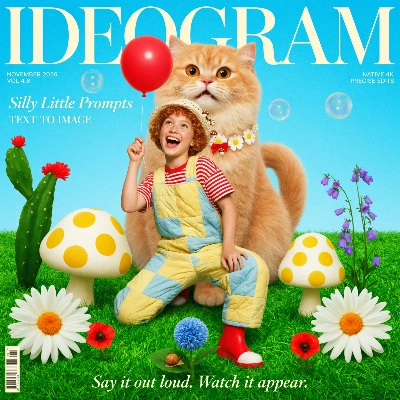
Download Workflow
Download JSON or search “Ideogram 4.6: Text to Image” in Template Library
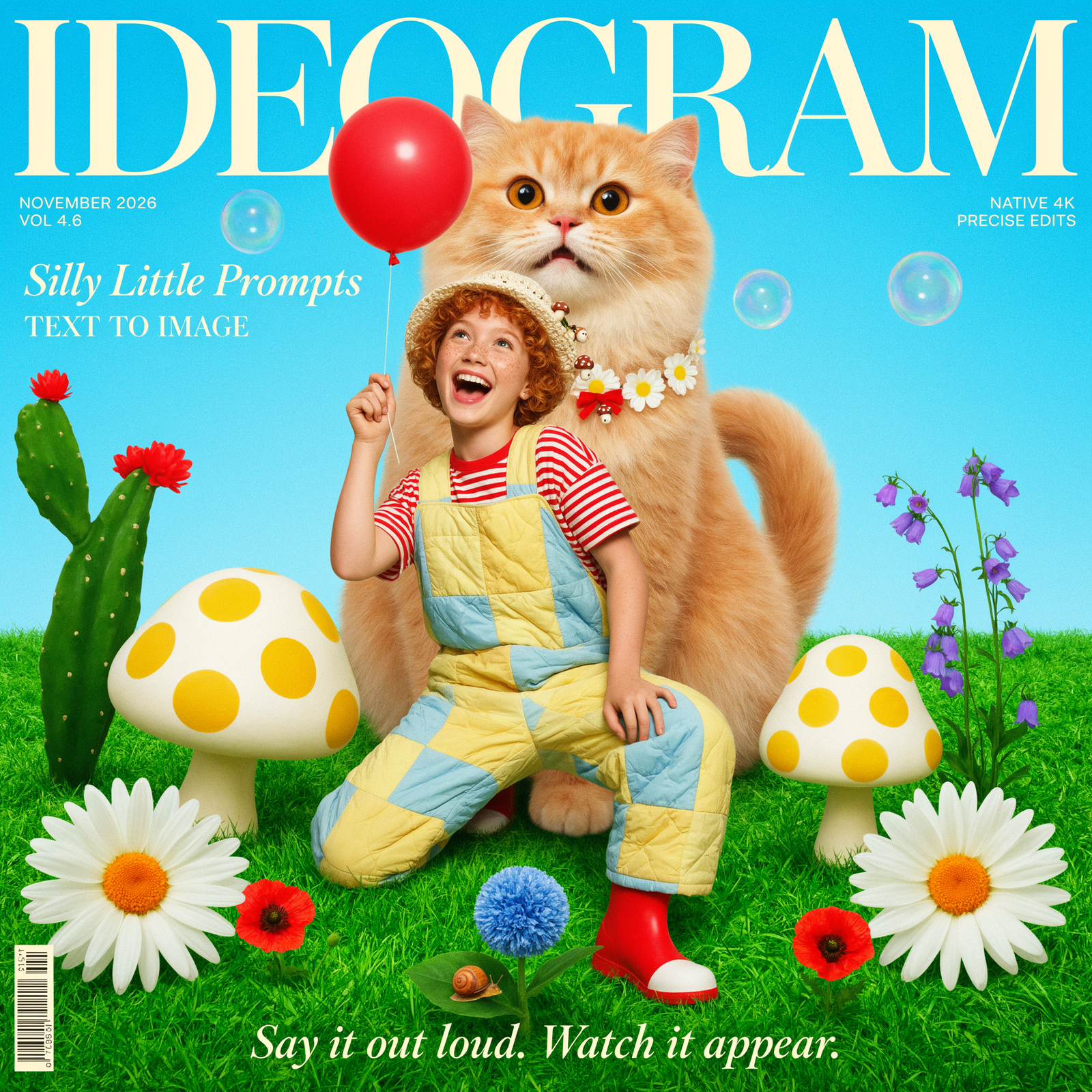 The Ideogram Text to Image node takes:
The node also outputs
final_prompt, the structured caption the image was generated from. To reproduce an image, feed that caption back with magic_prompt set to off and the same seed.
Image Edit
Edit or combine up to five images with one instruction.image_1 is the image being edited; images 2 to 5 supply design, material, or color references. Address them in the prompt as @Image1, @Image2, and so on.
Download Workflow
Download JSON or search “Ideogram 4.6: Image Edit” in Template Library
retro_crt_room.png
Load into the
image_1 slot on the Ideogram Edit nodeideogram-4.6 adds:
Inputs above 16.7 MP or 8192 pixels per side are scaled down before they are uploaded, and each image must sit between 1:6 and 6:1.
Edit re-renders the whole image, so it can shift the framing and the untouched areas along with the edit. Use Precise Edit when the rest of the picture has to stay exactly as it is.
Precise Edit
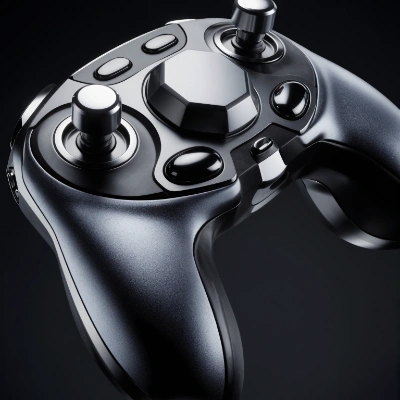
Change only what the prompt asks for. Untouched pixels stay identical, and the output keeps the size ofimage_1 unless the source is above 16.7 MP or 8192 pixels per side and no region is set. Accepts up to four reference images beyond the image being edited, or three with a mask.
Download Workflow
Download JSON or search “Ideogram 4.6 Precise Edit” in Template Library
carbon_fibre_controller.png
Load into the
image_1 slot on the Ideogram Precise Edit node@Image1 addressing, quality, and seed controls with Edit. It has no size control: with a region the output keeps the size of image_1, and without one a source above 16.7 MP or 8192 pixels per side is scaled down first.
Edit a single region
Setcontext_window to edit one region at native resolution:
A region can be up to 8192 pixels per side and about 16.7 MP, and at most 6:1. With a region,
image_1 itself can be up to 8192x8192 pixels at any aspect ratio, and pixels outside the region are copied through unchanged.
Use it for product recolors, material swaps, and touch-ups that must leave the lighting, background, and framing of the rest of the photo alone.
Get started
- Update ComfyUI to the latest version.
- Open Workflow > Browse Templates and search for “Ideogram 4.6”, or download a workflow above and drag it onto the canvas.
- Set
modeltoideogram-4.6in the node if you started from an Ideogram 4.5 workflow.