

FLUX.1 Kontext Dev 소개
FLUX.1 Kontext는 Black Forest Labs의 획기적인 멀티모달 이미지 편집 모델로, 텍스트와 이미지 입력을 동시에 지원하며 이미지 컨텍스트를 지능적으로 이해하고 정밀한 편집을 수행합니다. 개발 버전은 120억 개의 파라미터를 가진 오픈소스 diffusion transformer 모델로, 뛰어난 컨텍스트 이해와 캐릭터 일관성 유지 기능을 갖추고 있어 여러 번의 반복 편집 후에도 캐릭터 특징이나 구도 레이아웃과 같은 핵심 요소가 안정적으로 유지됩니다. FLUX.1 Kontext 제품군과 동일한 핵심 기능을 공유합니다:- 캐릭터 일관성: 참조 캐릭터나 이미지 속 객체와 같이 여러 장면과 환경에서 이미지의 고유한 요소를 보존합니다.
- 편집: 다른 부분에 영향을 주지 않고 이미지의 특정 요소를 대상으로 수정합니다.
- 스타일 참조: 텍스트 프롬프트에 따라 참조 이미지의 고유한 스타일을 유지하면서 새로운 장면을 생성합니다.
- 인터랙티브 속도: 이미지 생성 및 편집의 지연 시간이 최소화됩니다.
버전 정보
- [FLUX.1 Kontext [pro] : 상용 버전, 빠른 반복 편집에 중점
- FLUX.1 Kontext [max] : 더 강력한 프롬프트 준수성을 갖춘 실험 버전
- FLUX.1 Kontext [dev] : 오픈소스 버전 (이 튜토리얼에서 사용), 12B 파라미터, 주로 연구용
모델 다운로드
이 가이드의 워크플로우를 성공적으로 실행하려면 먼저 다음 모델 파일을 다운로드해야 합니다. 해당 워크플로우에서 직접 모델 다운로드 링크를 얻을 수도 있으며, 워크플로우에는 이미 모델 파일 다운로드 정보가 포함되어 있습니다. Diffusion Model VAE Text Encoder 모델 저장 위치FLUX.1 Kontext Dev 워크플로우
FLUX Kontext Dev 이미지 편집
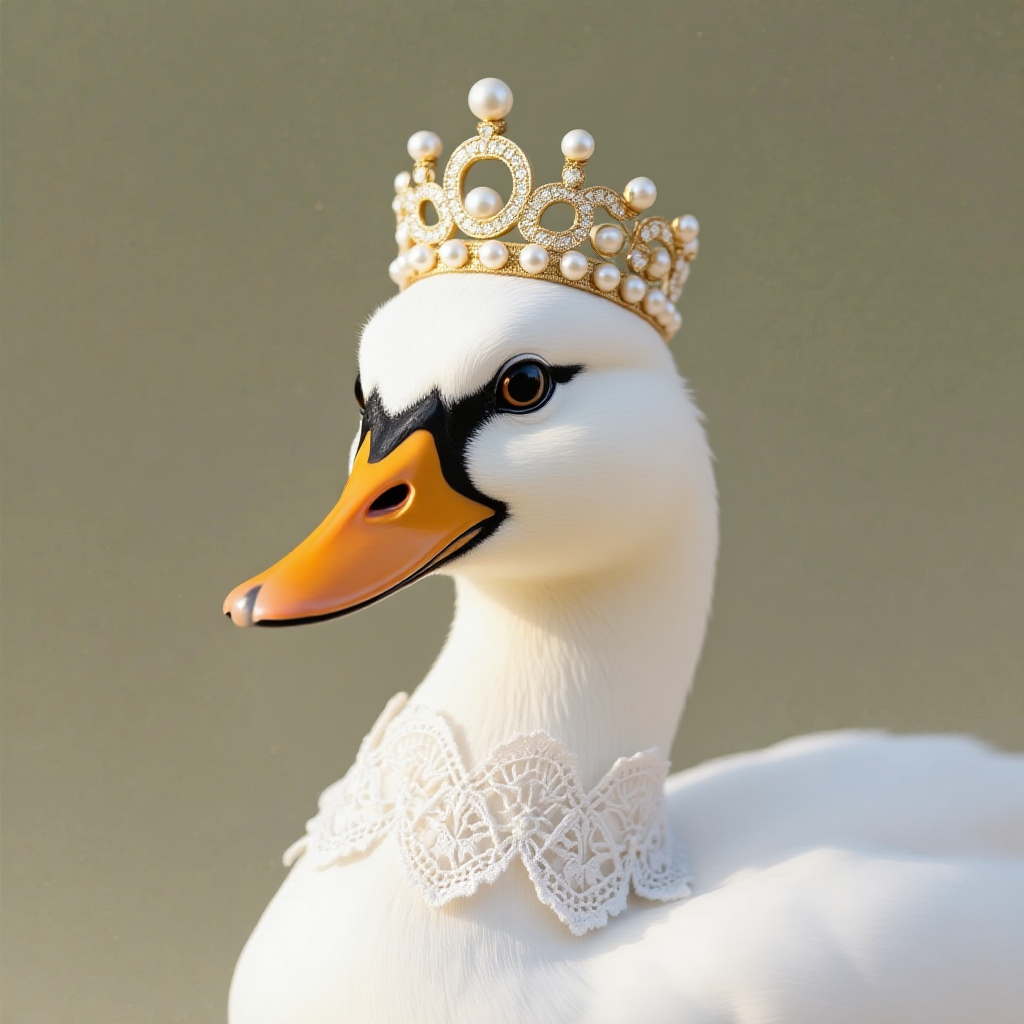
캐릭터 일관성을 유지하고, 다른 부분에 영향을 주지 않으면서 특정 부분을 편집하고, 원본 스타일을 보존하는 스마트 이미지 편집입니다.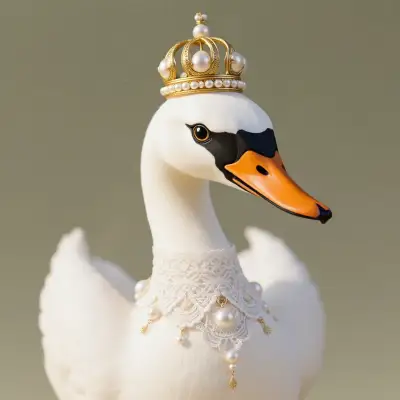
Comfy Cloud에서 실행
Comfy Cloud에서 열기
워크플로우 다운로드
JSON을 다운로드하거나 템플릿 라이브러리에서 “FLUX Kontext Dev” 검색
LoadImage 노드에 업로드하세요:
flux_kontext_dev_basic_input_image.jpg
LoadImage 노드 190 · flux_kontext_dev_basic_input_image.jpg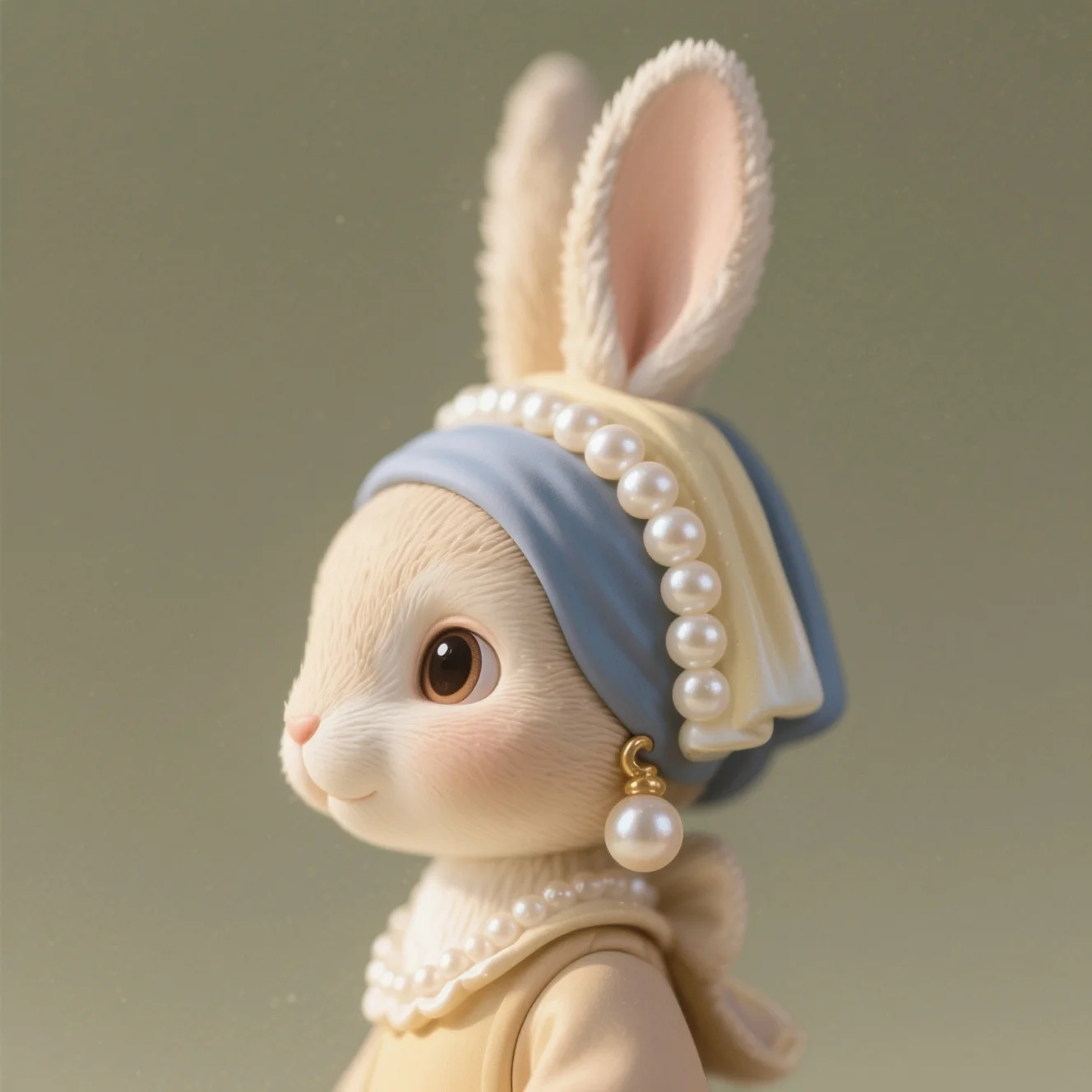
Load Image(from output) 노드를 사용하여 편집할 이미지를 로드하므로, 여러 번의 편집을 위해 편집된 이미지를 더 편리하게 활용할 수 있습니다.
1. 워크플로우 및 입력 이미지 다운로드
2. 워크플로우 단계별 완료
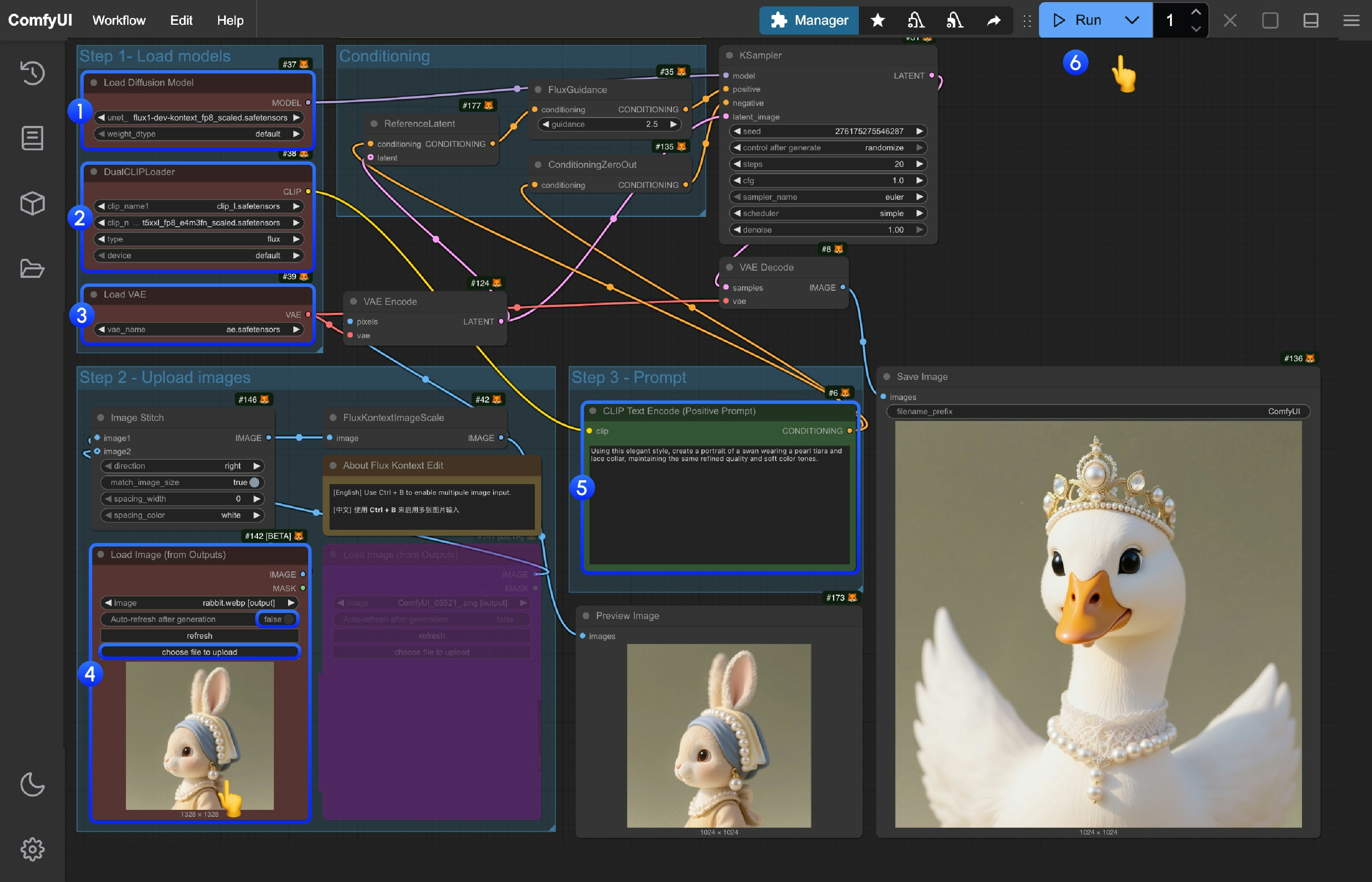
Load Diffusion Model노드에서flux1-dev-kontext_fp8_scaled.safetensors모델을 로드합니다DualCLIP Load노드에서clip_l.safetensors와t5xxl_fp16.safetensors또는t5xxl_fp8_e4m3fn_scaled.safetensors가 로드되어 있는지 확인합니다Load VAE노드에서ae.safetensors모델이 로드되어 있는지 확인합니다Load Image(from output)노드에서 제공된 입력 이미지를 로드합니다CLIP Text Encode노드에서 프롬프트를 수정합니다. 영어만 지원됩니다Queue버튼을 클릭하거나 단축키Ctrl(cmd) + Enter로 워크플로우를 실행합니다
플럭스 컨텍스트 프롬프트 기법
1. 기본 수정
- 간단하고 명확하게:
"자동차 색상을 빨간색으로 변경해줘" - 스타일 유지하기:
"낮 시간대로 변경하면서 그림의 동일한 스타일을 유지해줘"
2. 스타일 전환
원칙:- 명확히 스타일 명명하기:
"바우하우스 예술 스타일로 변환해줘" - 특징 설명하기:
"유화로 변환하고 붓터치가 보이고, 물감 질감이 두꺼워지도록 해줘" - 구도 보존하기:
"바우하우스 스타일로 변경하면서 원래의 구도를 유지해줘"
3. 캐릭터 일관성
프레임워크:- 구체적인 묘사:
"검은 단발머리를 가진 여성"대신 “그녀” - 특징 유지하기:
"얼굴 특징, 헤어스타일, 표정을 그대로 유지하면서" - 단계별 수정: 배경부터 바꾼 후 행동을 변경해줘
4. 텍스트 편집
- 따옴표 사용하기:
"기쁨을 'BFL'로 교체해줘" - 형식 유지하기:
"텍스트를 교체하면서 같은 폰트 스타일을 유지해줘"
일반적인 문제 해결 방법
캐릭터가 너무 많이 변경됨
❌ 잘못된 예:"사람을 바이킹으로 변형해줘"
✅ 올바른 예: "옷만 바이킹 전사로 바꾸면서 얼굴 특징은 그대로 유지해줘"
구도 위치 변경
❌ 잘못된 예:"그를 해변에 놓아줘"
✅ 올바른 예: "배경을 해변으로 바꾸면서 사람의 위치, 스케일, 포즈는 그대로 유지해줘"
스타일 적용 부정확성
❌ 잘못된 예:"스케치로 만들어줘"
✅ 올바른 예: "자연스러운 흑연 선과 크로스해칭, 종이의 눈에 보이는 질감을 살려 연필 스케치로 변환해줘"
핵심 원칙
- 구체적이고 명확하게 - 정확한 묘사를 사용하고 모호한 표현은 피하세요
- 단계별 편집 - 복잡한 수정을 여러 단순한 단계로 나눠서 진행하세요
- 명시적 보존 - 변하지 않아야 할 부분을 명확히 밝혀주세요
- 동사 선택 - “변경하다”, “교체하다”를 사용하고 “변형하다”는 피하세요
최상의 실천 템플릿
오브젝트 수정:"[오브젝트]를 [새 상태]로 변경해, [보존할 내용]은 그대로 유지해"
스타일 전환:
"[특정 스타일]로 변환해, [구도/캐릭터/기타]는 그대로 유지해"
배경 교체:
"[새 배경]으로 배경을 변경해, 피사체의 위치와 자세는 그대로 유지해"
텍스트 편집:
"[원본 텍스트]를 '[새 텍스트]'로 교체해, 같은 폰트 스타일을 유지해"
참고: 구체적일수록 더 좋습니다. 컨텍스트는 상세한 지침을 이해하고 일관성을 유지하는 데 뛰어납니다.