

- 14B(140亿参数)
- 1.3B(13亿参数) 覆盖文生视频(T2V)、图生视频(I2V)等多项任务。 该模型不仅在性能上超越现有开源模型,更重要的是其轻量级版本仅需 8GB 显存即可运行,大大降低了使用门槛。
Wan2.1 ComfyUI 原生(native)工作流示例
模型安装
本指南中提到的所有模型都可以在这里找到。以下是本指南中的示例所需的常见模型,你可以提前下载: 从文本编码器中选择一个版本下载:umt5_xxl_fp16.safetensors
FP16 精度文本编码器。放置于
ComfyUI/models/text_encoders/umt5_xxl_fp8_e4m3fn_scaled.safetensors
FP8 缩放文本编码器。放置于
ComfyUI/models/text_encoders/wan_2.1_vae.safetensors
Wan2.1 VAE 模型。放置于
ComfyUI/models/vae/clip_vision_h.safetensors
用于图像条件的 CLIP Vision 模型。放置于
ComfyUI/models/clip_vision/对于 diffusion 模型,本指南将使用 fp16 精度模型,因为我们发现它们比 bf16 版本表现更好。如果你需要其他精度的版本,请访问这里下载。
Wan2.1 文生视频工作流 (1.3B)
Wan 2.1 文生视频
使用 Wan 2.1 根据文本提示生成视频。
在 Comfy Cloud 上运行
在 Comfy Cloud 中打开
下载工作流
下载 JSON,或在模板库中搜索 “Wan 2.1 Text to Video”
模型下载
wan2.1_t2v_1.3B_fp16.safetensors
Wan2.1 文生视频扩散模型。放置于
ComfyUI/models/diffusion_models/如果你需要其他 t2v 精度版本,请前往这里下载。
运行步骤
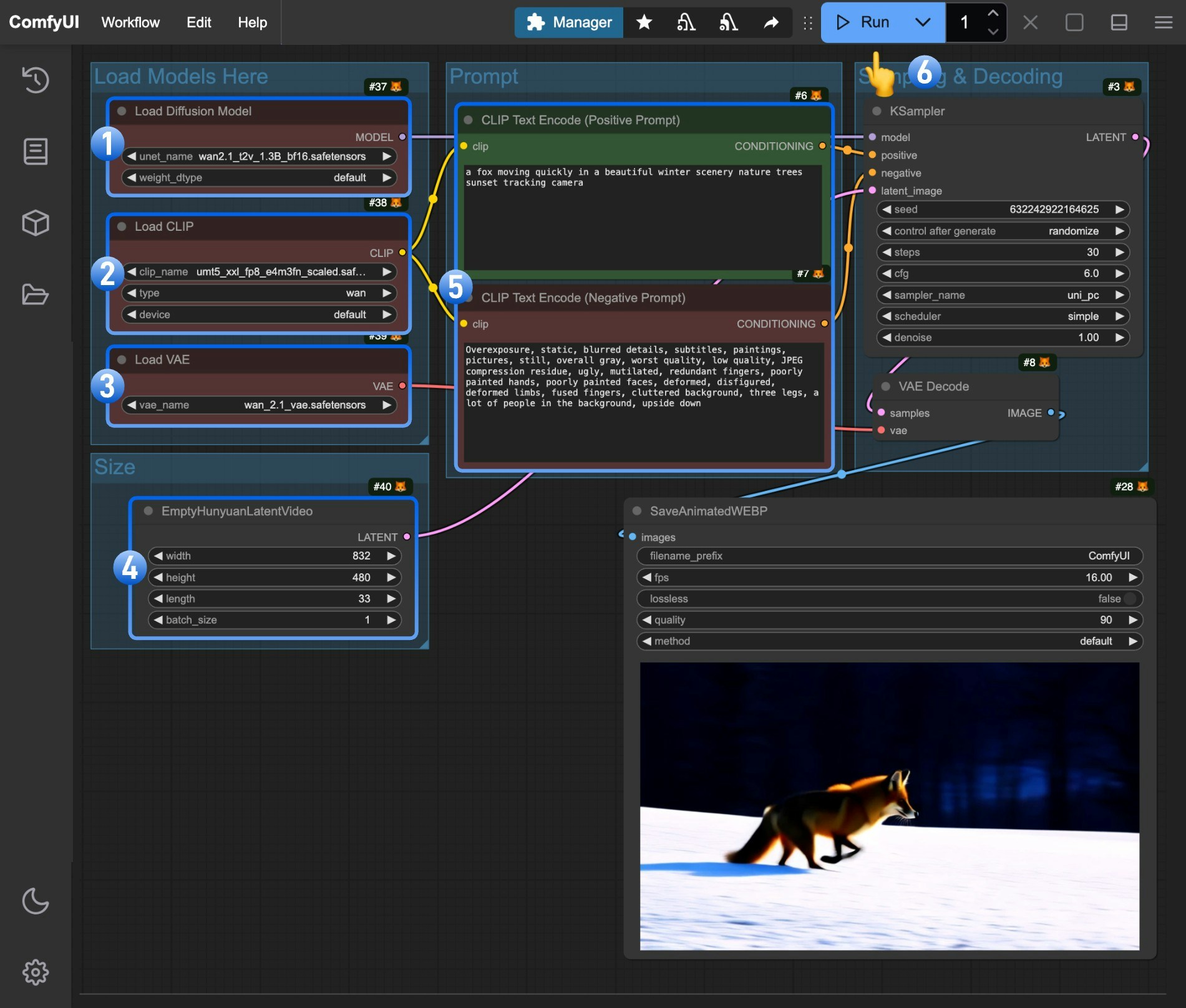
- 确保
Load Diffusion Model节点已加载wan2.1_t2v_1.3B_fp16.safetensors模型 - 确保
Load CLIP节点已加载umt5_xxl_fp8_e4m3fn_scaled.safetensors模型 - 确保
Load VAE节点已加载wan_2.1_vae.safetensors模型 - (可选)如有需要,你可以在
EmptyHunyuanLatentVideo节点中修改视频尺寸 - (可选)如果你需要修改提示词(正向和负向),请在编号
5的CLIP Text Encoder节点中进行修改 - 点击
Run按钮,或使用快捷键Ctrl(cmd) + Enter执行视频生成
Wan2.1 图生视频工作流 (14B)
由于 Wan Video 将 480P 和 720P 模型分开,本指南需要为两种分辨率都提供示例。除了使用不同的模型外,它们的参数也略有不同。480P 版本
Wan 2.1 图生视频
使用 Wan 2.1 根据图像生成视频。
在 Comfy Cloud 上运行
在 Comfy Cloud 中打开
下载工作流
下载 JSON,或在模板库中搜索 “Wan 2.1 Image to Video”
LoadImage 节点:
image_to_video_wan_start_image.png
LoadImage 节点 52 · image_to_video_wan_start_image.png
模型下载
wan2.1_i2v_480p_14B_fp16.safetensors
Wan2.1 I2V 480P 扩散模型。放置于
ComfyUI/models/diffusion_models/运行步骤
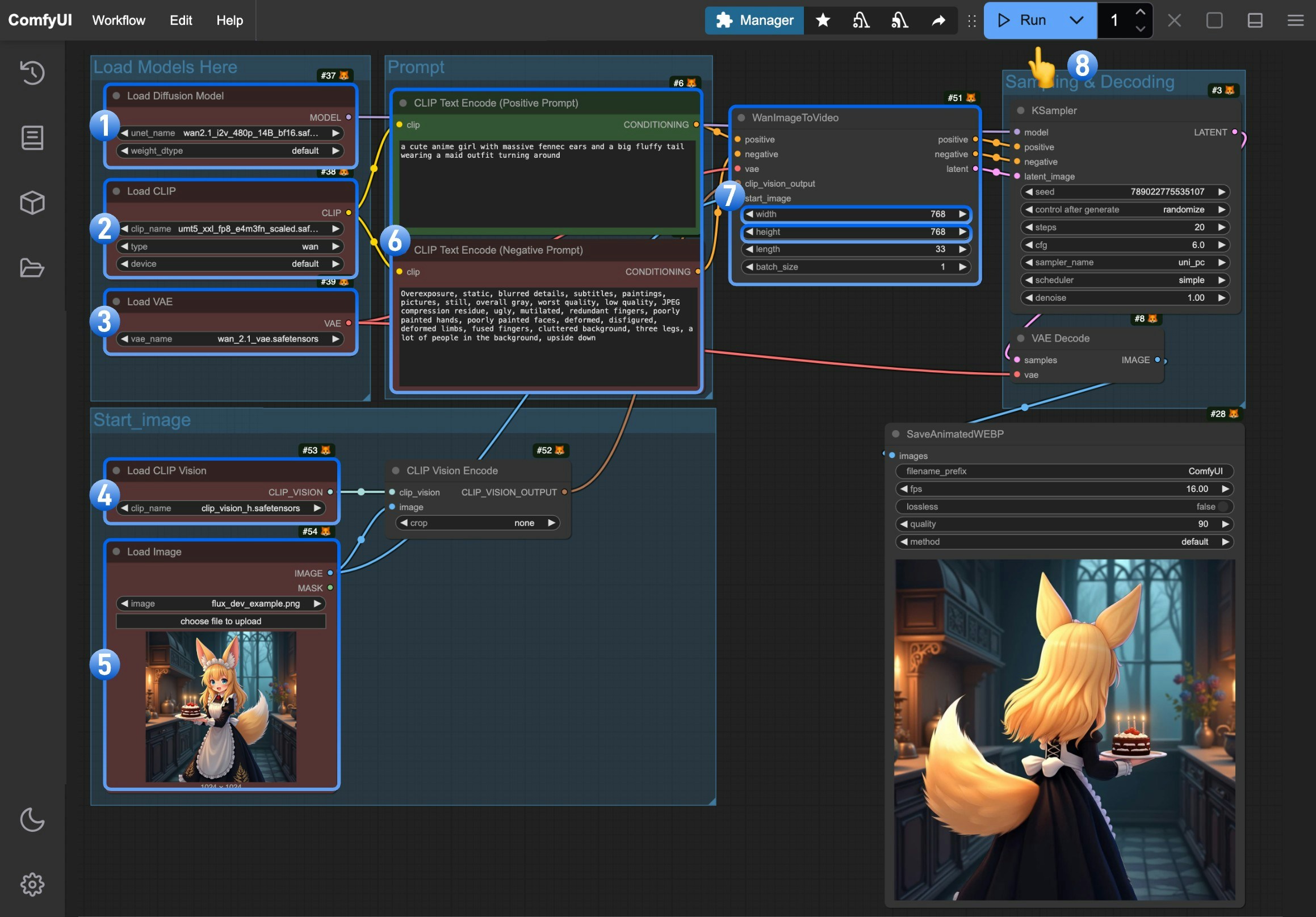
- 确保
Load Diffusion Model节点已加载wan2.1_i2v_480p_14B_fp16.safetensors模型 - 确保
Load CLIP节点已加载umt5_xxl_fp8_e4m3fn_scaled.safetensors模型 - 确保
Load VAE节点已加载wan_2.1_vae.safetensors模型 - 确保
Load CLIP Vision节点已加载clip_vision_h.safetensors模型 - 在
Load Image节点中上传提供的输入图像 - (可选)在
CLIP Text Encoder节点中输入你想要生成的视频描述内容 - (可选)如有需要,你可以在
WanImageToVideo节点中修改视频尺寸 - 点击
Run按钮,或使用快捷键Ctrl(cmd) + Enter执行视频生成
720P 版本

在 Comfy Cloud 上运行
在 Comfy Cloud 中打开
下载工作流
下载工作流图片并将其拖入 ComfyUI 即可加载工作流
输入图像
下载默认输入图像,或使用你自己的图像。
模型下载
wan2.1_i2v_720p_14B_fp16.safetensors
Wan2.1 I2V 720P 扩散模型。放置于
ComfyUI/models/diffusion_models/运行步骤
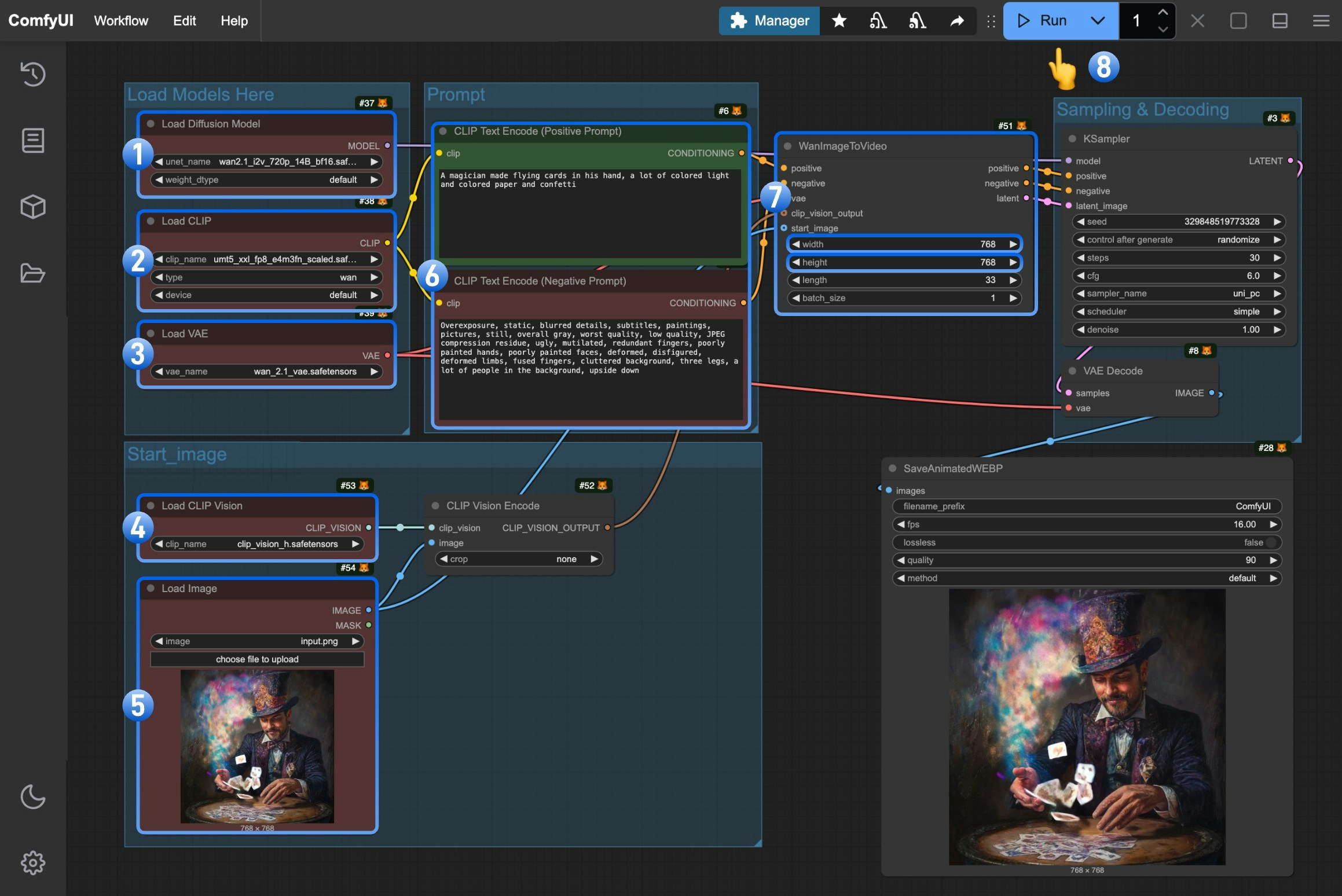
- 确保
Load Diffusion Model节点已加载wan2.1_i2v_720p_14B_fp16.safetensors模型 - 确保
Load CLIP节点已加载umt5_xxl_fp8_e4m3fn_scaled.safetensors模型 - 确保
Load VAE节点已加载wan_2.1_vae.safetensors模型 - 确保
Load CLIP Vision节点已加载clip_vision_h.safetensors模型 - 在
Load Image节点中上传提供的输入图像 - (可选)在
CLIP Text Encoder节点中输入你想要生成的视频描述内容 - (可选)如有需要,你可以在
WanImageToVideo节点中修改视频尺寸 - 点击
Run按钮,或使用快捷键Ctrl(cmd) + Enter执行视频生成