

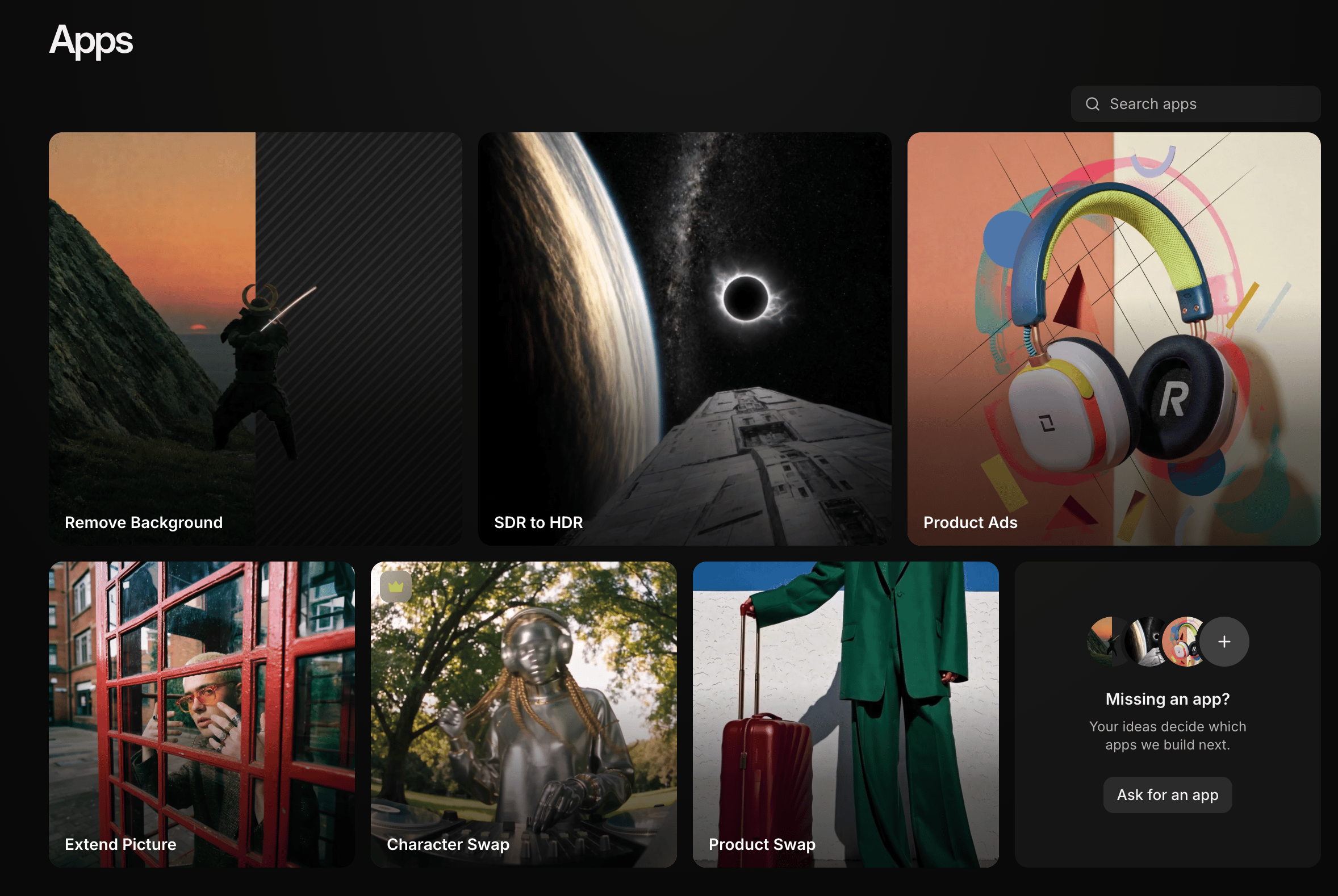
Desktop Apps aren’t the Apps tab inside ComfyUI, which lists your own saved app Workflows, or App Mode. See the ComfyUI Apps tab.
Find an app
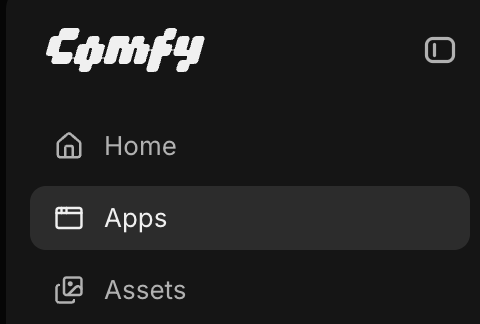
Open the Apps page in one of these ways:- In the sidebar, click Apps.
- On Home, click See all apps below the row of apps.
Run an app
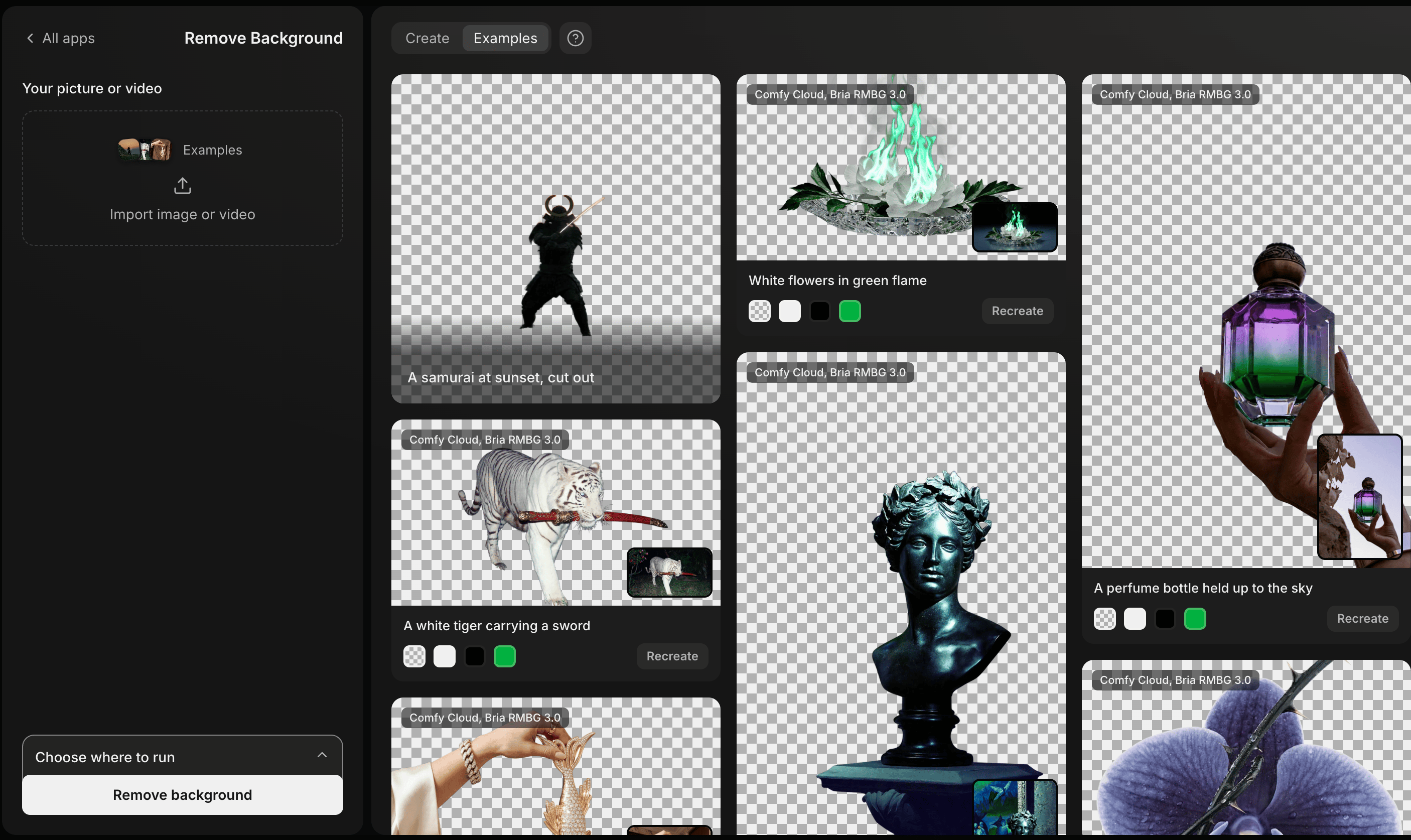
- Click an app’s card. The app opens in the Comfy Desktop window, next to the sidebar.
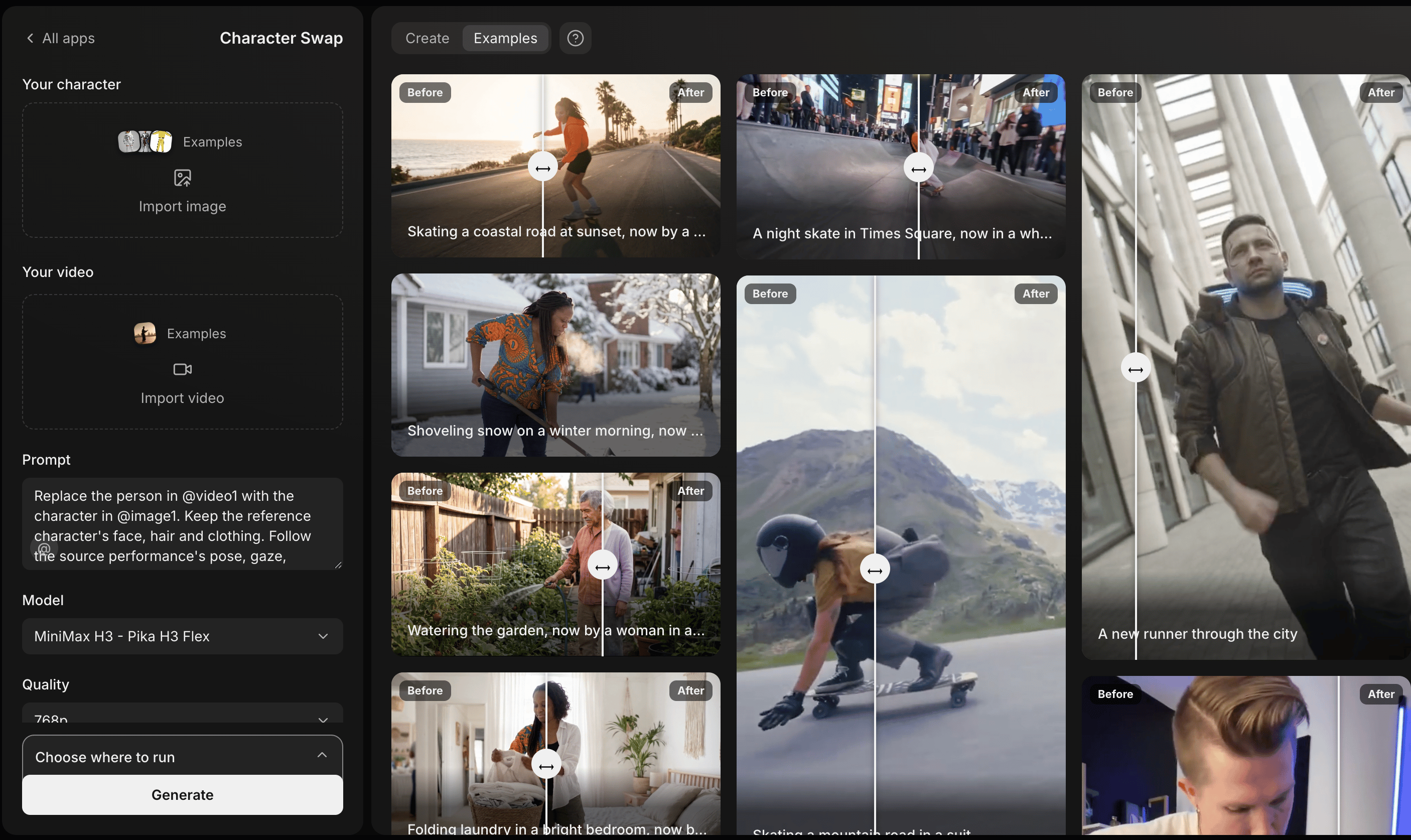
- In the panel on the left, add your input. Click Examples to start from a sample, or import your own image or video. Some apps also ask for a prompt or a model.
- Click Choose where to run, and then select Comfy Cloud or This computer. See Where apps run.
- Click the button at the bottom of the panel. Its name follows the app, such as Generate or Remove background.
Switch or leave an app
- Click All apps at the top left of the app, or Apps in the sidebar, to go back to the list.
- While an app is open, its name appears under Apps in the sidebar. Click the name to return to the app where you left it.
Where apps run
Choose where to run offers two places: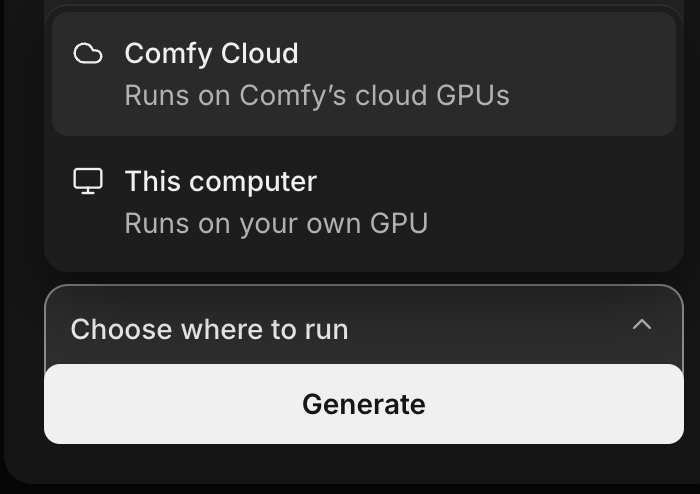
- Comfy Cloud: the app runs on Comfy’s cloud GPUs. It needs your Comfy account, and the app asks you to log in if you haven’t. See Log in and open Comfy Cloud.
- This computer: the app runs on your own GPU, using one of your local builds. Comfy Desktop picks the build the app asks for, else a running build, else the build you used last, and it skips builds older than the ComfyUI version the app needs. It starts that build in the background without a ComfyUI window. A build that started only for an app stops after 10 minutes with nothing to do.
Credits
Browsing and opening apps is free. What a run costs depends on the models the app uses and where it runs:- An app built on open models is free to run on your own GPU.
- An app that uses partner models spends Comfy Credits, wherever it runs.
- A run on Comfy Cloud spends Comfy Credits, the same as any Comfy Cloud run.
Open an app’s Workflow in ComfyUI
An app can open the Workflow behind it in ComfyUI, so you can change it yourself. Use the app’s own control for this. Comfy Desktop starts the build if it isn’t running, opens its ComfyUI window, and loads the Workflow there. The Workflow opens on Comfy Cloud or on a local build, depending on where the app ran.Save and view results
When an app shows a result, Comfy Desktop opens it in a viewer:- Download saves a copy when the file isn’t on this computer yet.
- Show in Finder, Show in Explorer, or Show in folder opens the file’s folder when it’s on this computer.
- Open workflow opens the Workflow that made the file.
- View in Assets opens a Comfy Cloud result on the Assets page.
.safetensors models from Hugging Face for apps.
Ask for an app
The last card on the Apps page reads Missing an app?- Click Ask for an app.
- In What app do you want?, describe the app in up to 500 characters.
- Click Send.
Troubleshoot
Apps didn't load
Apps didn't load
The Apps page reads Apps didn’t load, or Home reads Apps couldn’t be loaded. Check your connection and try again. Check your internet connection, and then click Try again.
An app didn't load
An app didn't load
The app reads didn’t load and Check your internet connection, then try again. Click Try again, or click All apps to go back to the list.
An app can't run on this computer
An app can't run on this computer
The app shows one of these messages:
- Add a local build in Comfy Desktop to run apps on this computer. Install a build, or run the app on Comfy Cloud.
- This app needs ComfyUI or newer. Update a local build in Comfy Desktop. Update ComfyUI in a build.
- is still installing. Try again once it finishes. Wait for the install on Home, and then run the app again.
- Comfy Desktop could not start . See Fix a build that fails.
Search finds nothing
Search finds nothing
The page reads Nothing matches. Try another word, or click Clear search. To ask for an app that doesn’t exist yet, click Ask for an app.