

This page covers migration from Legacy Desktop (the previous single-install desktop app). If you’re a first-time user, you can skip this.
Looking for a different installation?
If you already have a ComfyUI installation (portable, manual git clone, etc.) and want to add it to Comfy Desktop, see Tracking an existing installation in Instance Management.
What Gets Migrated
Legacy Desktop was a single-install app. Comfy Desktop is a multi-installation manager. When you migrate:- Workflows and settings: reused in place, so the new instance keeps the same user data.
- Custom nodes — scanned and re-installed in the new environment
- Models: your existing model folder is added as a shared directory, so the files stay where they are.
- Input files and outputs: reused in place from the existing folders.
- Python environment: your existing environment is validated and reused, with the packages ComfyUI needs installed into it.
- ComfyUI version: the ComfyUI source is staged into a new managed directory, so Comfy Desktop manages updates from then on.
What Changes After Migration
Once migration completes, your new Standalone installation works like any other Comfy Desktop installation:- Startup — click the play button on the new installation card in the Chooser view to launch ComfyUI.
- Port — Legacy Desktop used port
8000by default. The new installation carries over this port setting (and any other custom startup arguments you had). - Manage — use the Manage panel to update, snapshot, and configure the installation.
- Updates — Standalone installations can be updated independently via the Manage panel. Unlike Legacy Desktop, you no longer need to download a new build for each update.
- Multiple instances — you can have multiple Standalone installations side by side, each with its own ComfyUI version and configuration.
- Shared storage — models are shared across all Standalone installations by default. Input and output directories are pinned to the adopted legacy workspace so your existing files stay where they are.
Does My Old Link Still Work?
Legacy Desktop ran on port8000 by default. The new installation carries over the port from your legacy config, so http://localhost:8000 should still work. If you had custom CLI arguments configured (e.g. --port 8188), those are carried over too.
If you use a URL shortener, bookmark, or external integration that references the Legacy Desktop app by a different address, you may need to check the new installation’s Startup Args tab and update accordingly.
Step-by-Step Migration
1
Install Comfy Desktop
Download and install Comfy Desktop from the official download page.
2
Start Comfy Desktop
When you first open Comfy Desktop, the first-run setup detects any Legacy Desktop installation on your system. Choose Local, and the setup shows Migrate existing instance, already selected, so your existing setup is brought over when you continue.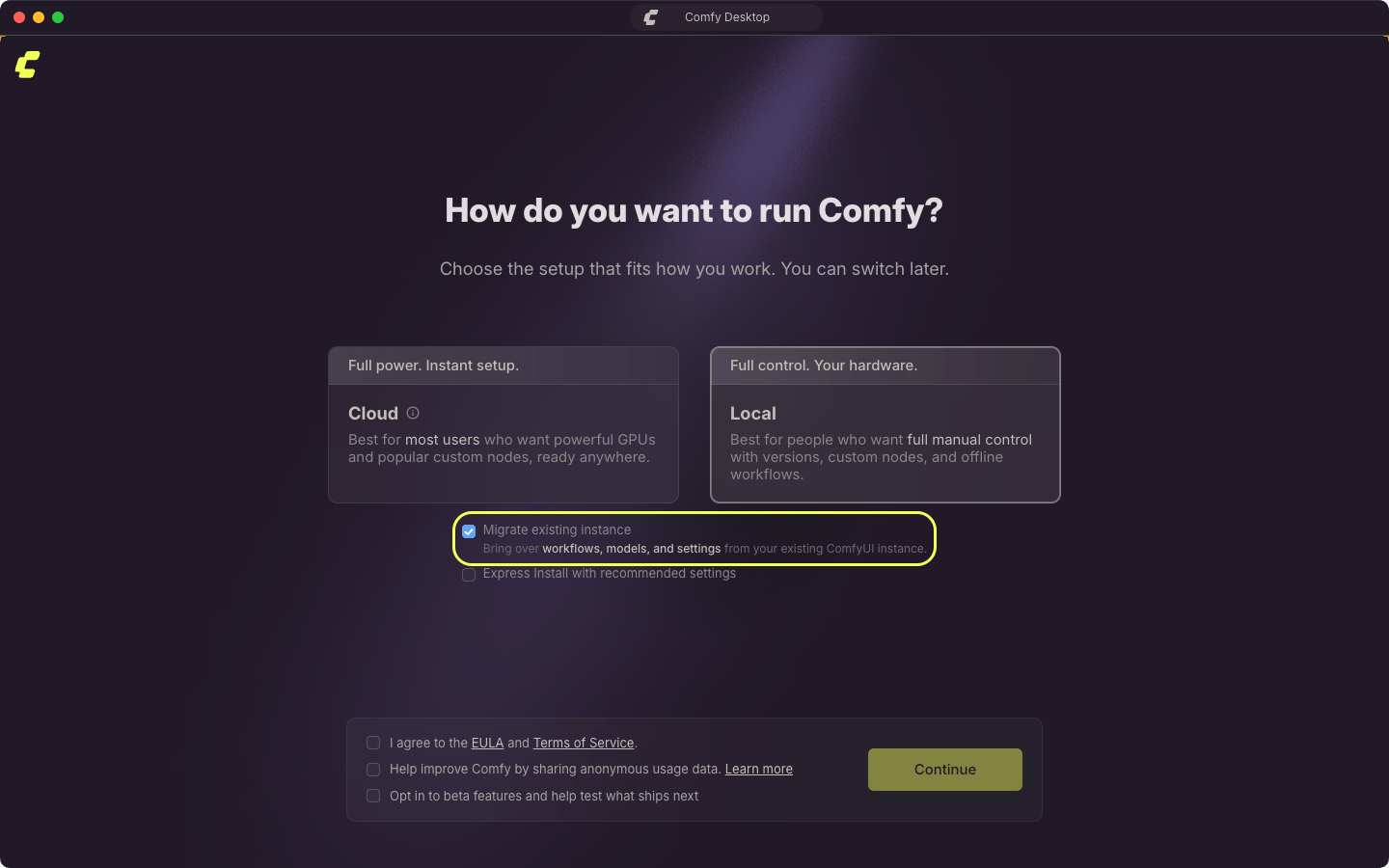
3
Confirm Migration
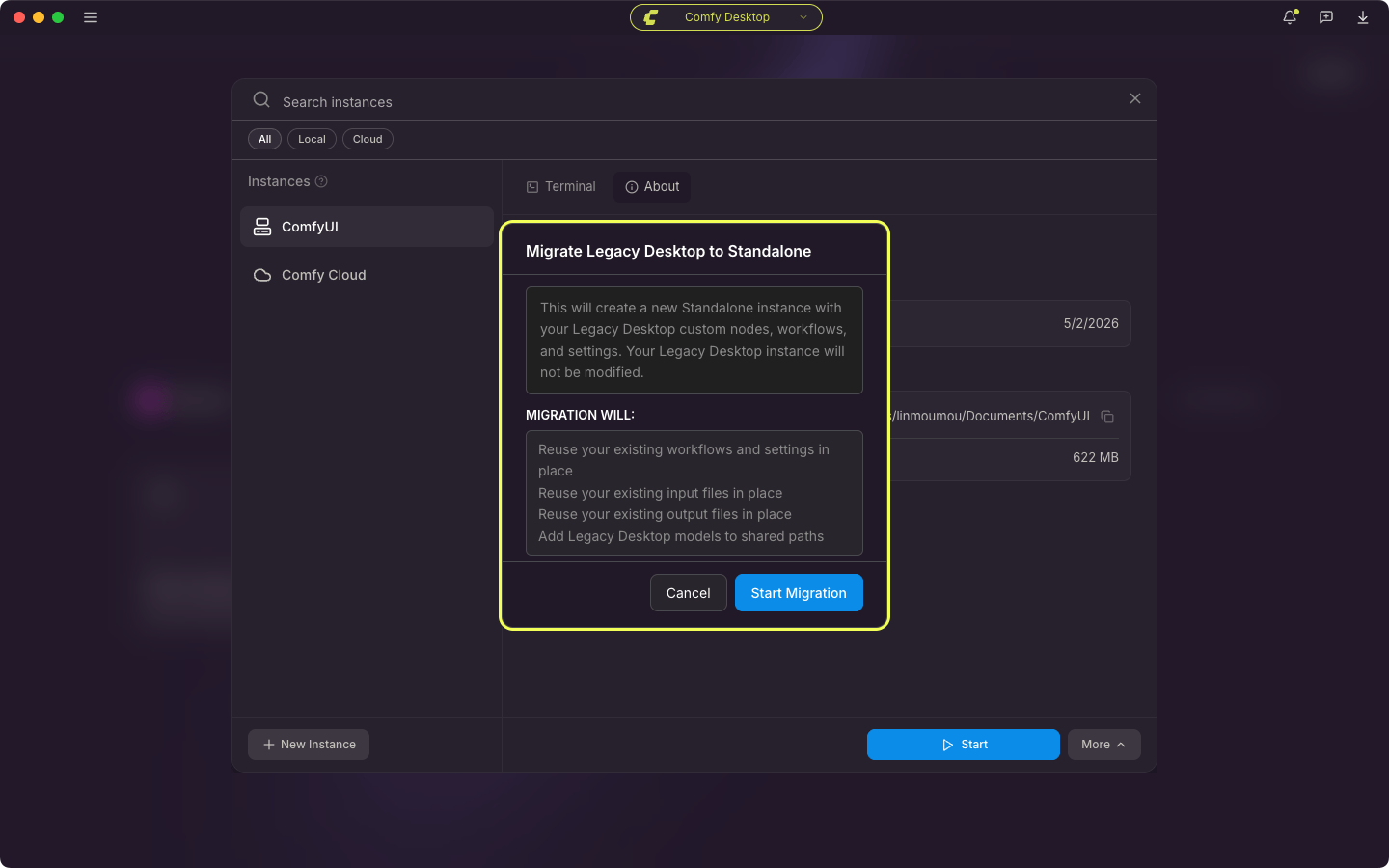
Select Continue, then confirm Migrate Legacy Desktop to Standalone with Start Migration. Comfy Desktop will:
- Scan your existing installation (custom nodes, models, workflows)
- Reuse your existing data folder and Python environment in place, and stage the ComfyUI source into a new managed directory so updates work normally
- Reuse your workflows, settings, and other user data in place
- Reuse your input files and outputs in place
- Add your model folder as a shared directory
- Install custom nodes in the new environment
4
Verify
Launch your new installation and confirm:
- Your workflows are available
- Custom nodes are installed
- Models are accessible
- Your server is running on the carried-over URL (default
http://localhost:8000)
Migrate from the Chooser
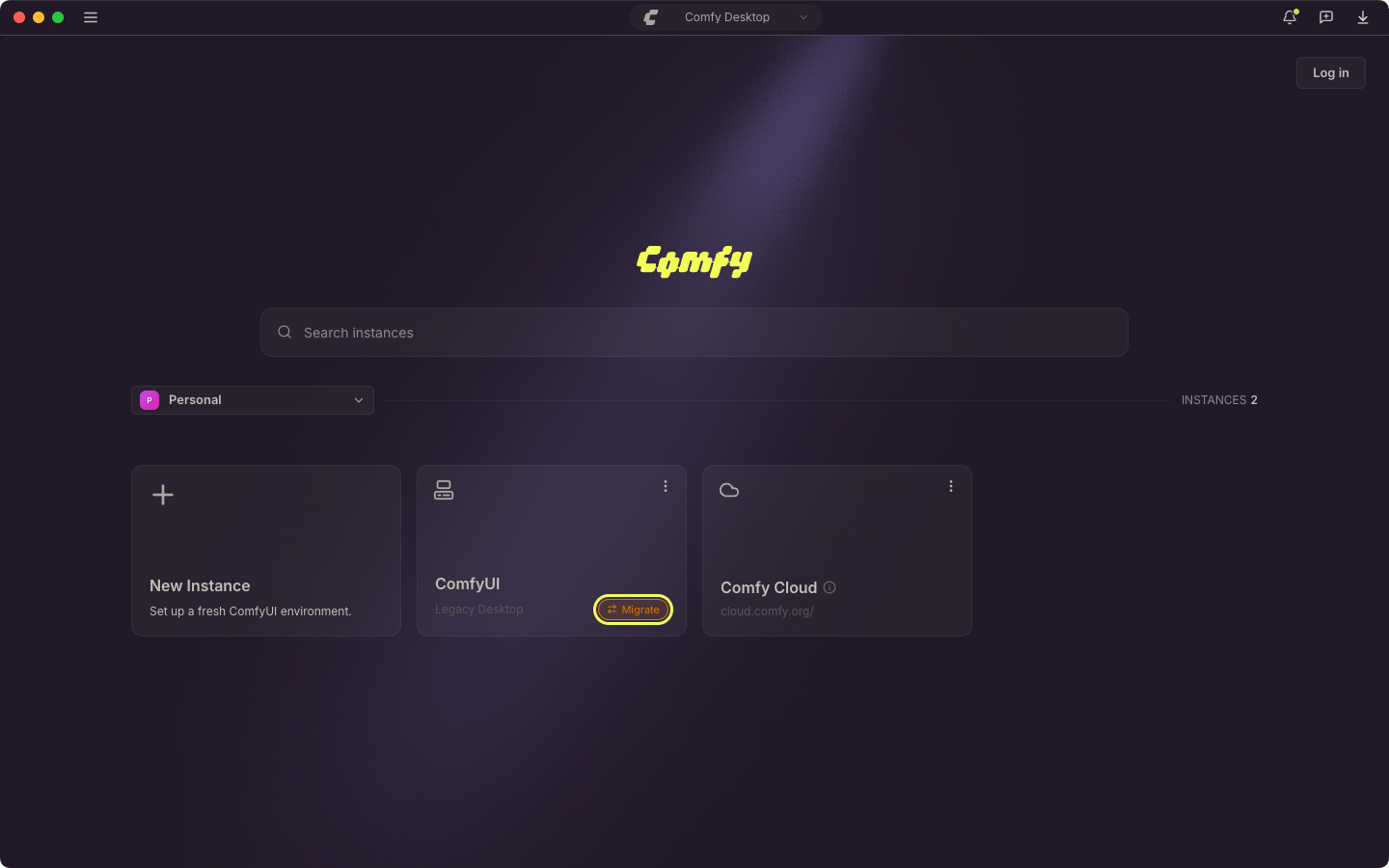
If you have already finished the first-run setup, or the Legacy Desktop installation is already listed in the Chooser, start the migration from the instance card:-
Find the Legacy Desktop instance card. It carries a Migrate pill.
-
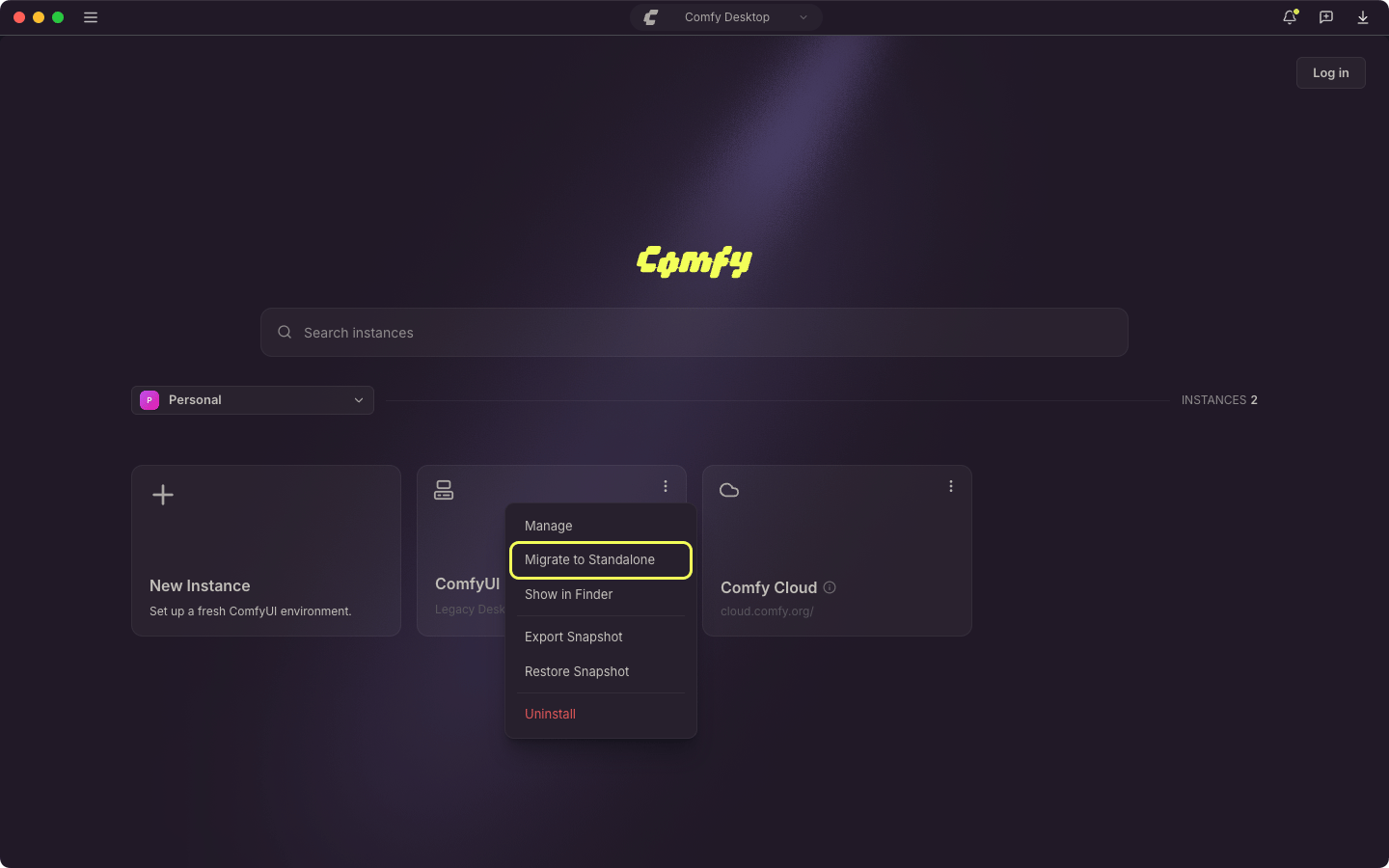
Click the pill, or open the card’s ⋮ menu and select Migrate to Standalone.
-
Review the confirmation, then select Start Migration.
Troubleshooting
Legacy Desktop not detected automatically
The Legacy Desktop source is migration-only and is not listed in the New Instance picker, so it cannot be added by hand. If Comfy Desktop did not detect your Legacy Desktop installation:- Add the installation as a tracked instance. See Tracking an existing installation.
- Once it appears in the Chooser, migrate it with its Migrate pill, or with Migrate to Standalone in the ⋮ menu.
Migration fails
- Check logs in the Manage panel’s Terminal tab for error details
- Ensure your Legacy installation is intact: migration reads from your existing install
- Try again: network issues may resolve on a second attempt
Models missing after migration
Models are added as a shared directory path (not copied). If models don’t appear:- Open the migrated installation’s Manage panel
- Go to the Storage tab and open Model Directories
- Check if your old model folder is listed. If not, add it manually.