

The Manage Panel
The Manage panel content varies by instance type. The screenshots on this page show a local standalone installation. Cloud and remote instances have fewer tabs and settings. To open it, go to the Chooser view (the home screen that lists your instances), click the ⋮ icon on an instance card, then select Manage.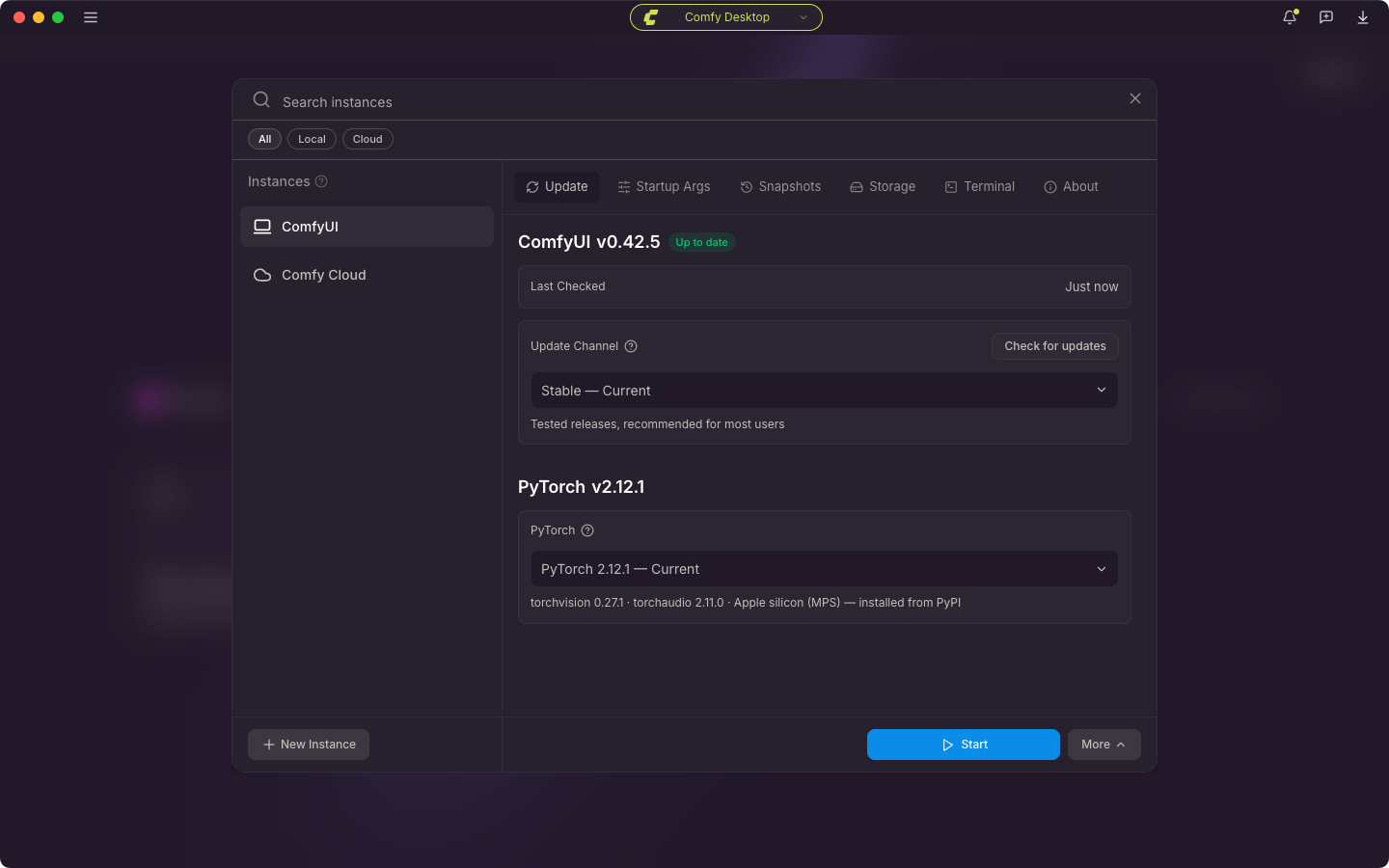
Update Tab
ComfyUI
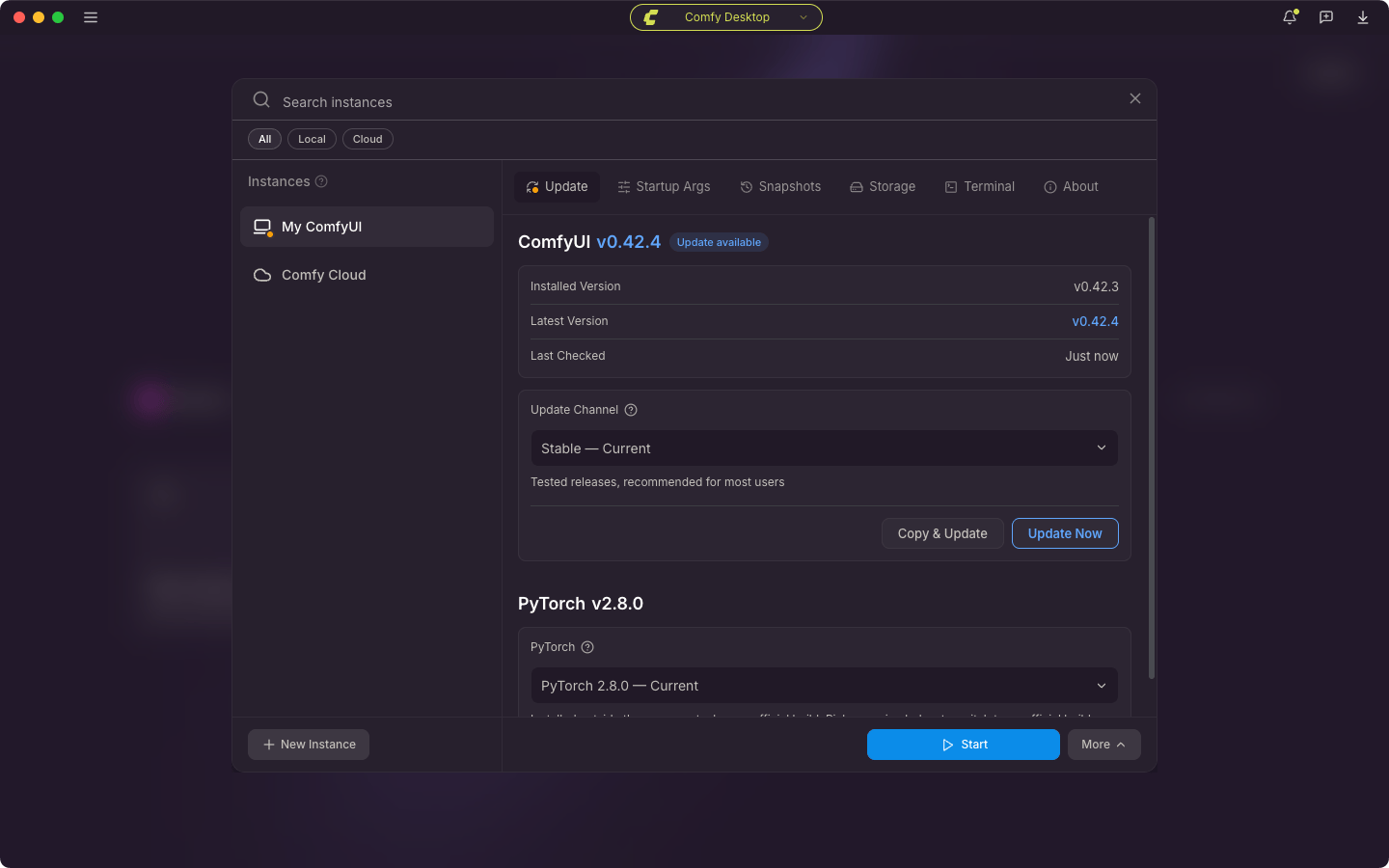
The headline is the ComfyUI version, with an Up to date badge while the selected channel has nothing newer. Once a newer release exists, the headline shows that release with an Update available badge, and the card adds an Installed Version row and a Latest Version row. Last checked shows how long ago Comfy Desktop looked; hover it for the exact time.- Update Channel: Stable (tested releases, the default) or Latest on GitHub (newest commits from the master branch). The dropdown marks the channel the instance is on with Current.
- Check for updates: appears while the selected channel has nothing newer, and re-checks immediately. Comfy Desktop also runs this check on its own, see the FAQ.
- Update Now: appears while the selected channel has something newer. The confirmation shows the versions it moves between, or the channel it switches to, includes any release notes the channel publishes, and points at the Snapshots tab, because Comfy Desktop saves a snapshot before it updates. If the new version breaks a custom node, restore the previous state from there.
- Copy & Update: copies the instance, updates the copy, and leaves the original untouched. Use it to try a new version against the node set you already have.
- Switch Channel: appears when you select a channel that has nothing newer to install, and moves the instance to that channel without updating it.
PyTorch
The card shows the installed torch build and lists the official stacks Comfy Desktop can install for this instance. When the catalog spans several backends, a second dropdown picks the backend first (CUDA 13.0, CUDA 12.8, and so on, plus ROCm, Intel XPU, and CPU). Each option lists its torchvision and torchaudio versions and, when the stack ships as a bundle, its download size. It also warns when the stack lacks torchaudio, because switching removes it and custom nodes that need it stop working.- Change PyTorch switches this instance to the selected stack. The confirmation shows the download, and Comfy Desktop backs up the current environment during the change and restores it if anything fails.
- Copy & Change PyTorch makes the same switch on a new copy of the instance and leaves the original alone.
Startup Args Tab
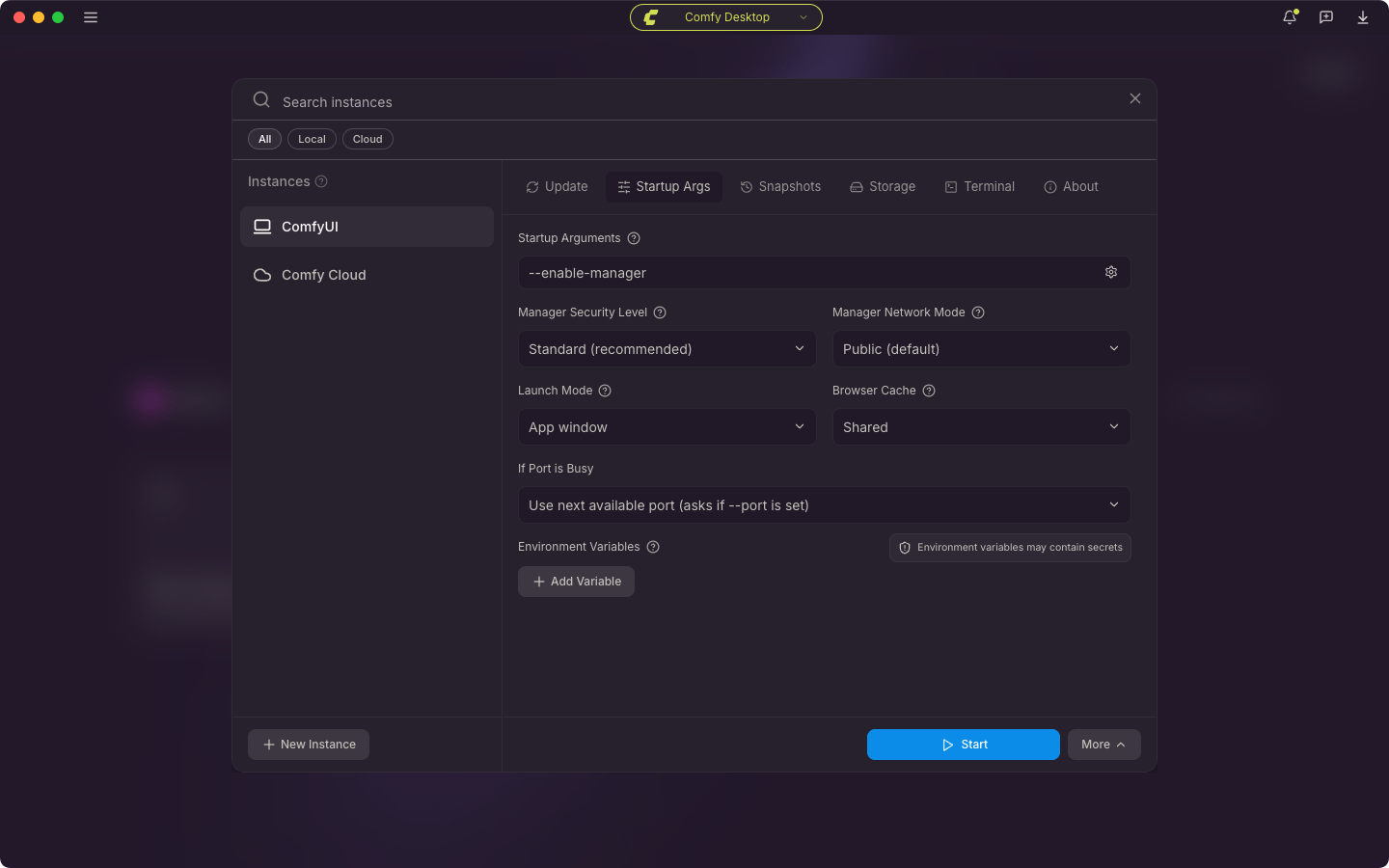
- Startup Arguments: Custom CLI arguments for ComfyUI (e.g.
--listen). Click the gear icon for categorized flags. When beta features are enabled, a +N beta pill next to the field lists the beta arguments Comfy Desktop added for the running session, or the ones the next launch is eligible for. - Manager Security Level: Controls which node packs ComfyUI-Manager can install for this instance. Applies the next time you launch.
- Strict: Blocks all node pack installs, updates, and uninstalls. Manager is read-only.
- Standard (recommended): Allows registered node packs. Blocks installs from unregistered sources (for example arbitrary git URLs).
- Relaxed: Like Standard, but also allows unregistered-source installs while ComfyUI is only reachable from this machine.
--listenblocks them again. - Permissive: Allows every risk tier. If ComfyUI is exposed with
--listen, installs still require Personal cloud network mode.
- Manager Network Mode: How Manager talks to the node registry.
- Public (default): Uses the public registry.
--listenblocks node pack installs at every security level. - Private: Uses a private node database you configure yourself.
- Offline: No external network. Downloads are unavailable.
- Personal cloud: Treats this machine as a trusted remote box and lifts the
--listeninstall block. The chosen security level still applies. Only use this on a machine you control.
- Public (default): Uses the public registry.
- Launch Mode: App window (embedded) or Console only (no app window; ComfyUI runs as a console process).
- Browser Cache: Unique to this instance or Shared.
- If Port is Busy: Ask what to do, or Use next available port (asks if —port is set).
- Environment Variables: Add custom environment variables with the + Add Variable button.
Startup Flags Reference
See the full list of ComfyUI startup flags available for Startup Arguments.
Snapshots Tab
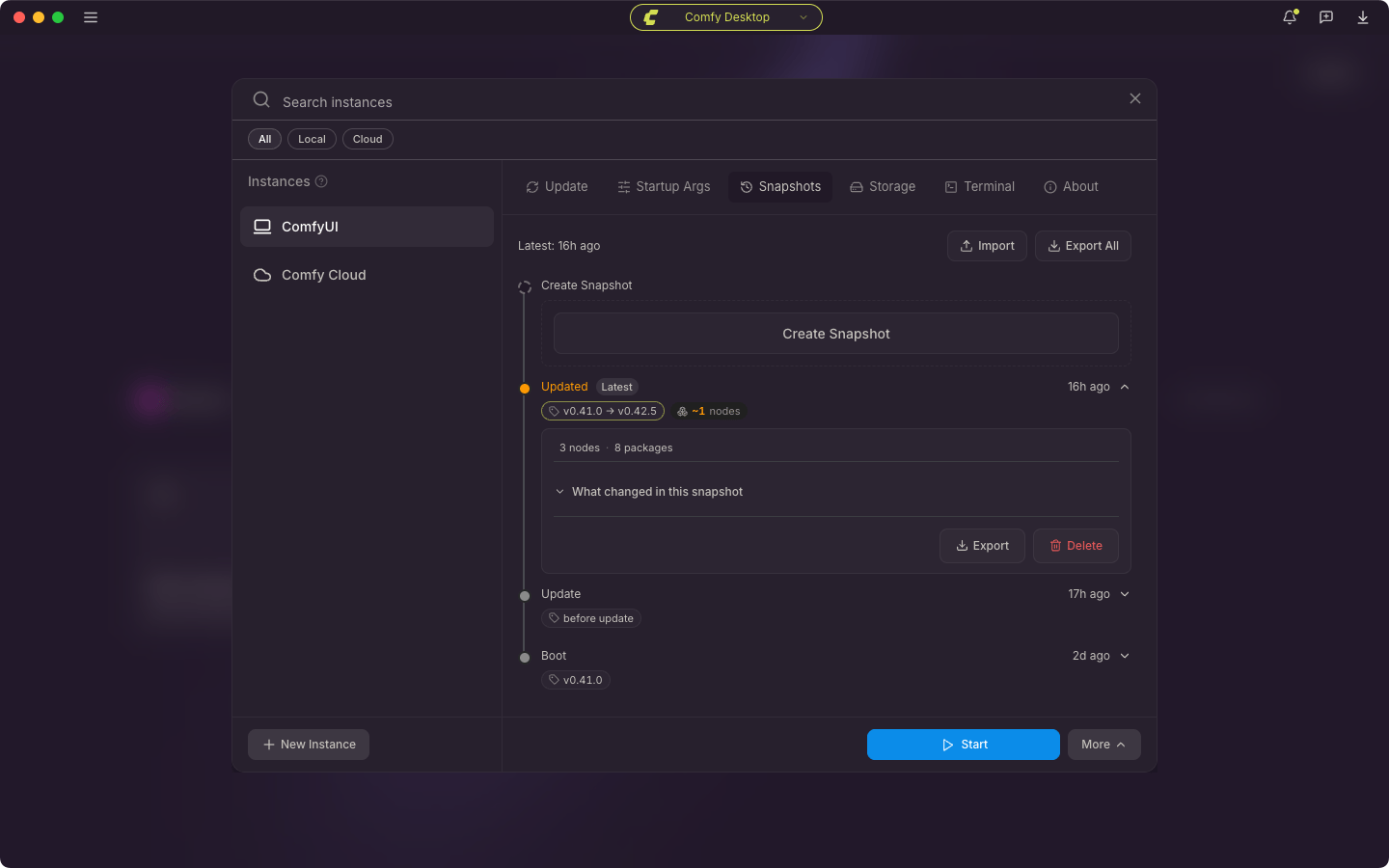
- Timeline: Lists all snapshots chronologically with version changes and stats.
- Latest: Shows when the most recent snapshot was taken.
- Import: Import a snapshot from a file.
- Export All: Export all snapshots as a backup.
- Create Snapshot: Manually create a new snapshot at any time.
- Each snapshot entry shows:
- Version change (e.g.
v0.20.1 → v0.24.1) - Package changes
- Node and package counts
- Export and Delete buttons
- Version change (e.g.
Complete Snapshot Management
Learn about automatic snapshots, comparison, and full snapshot management.
Storage Tab
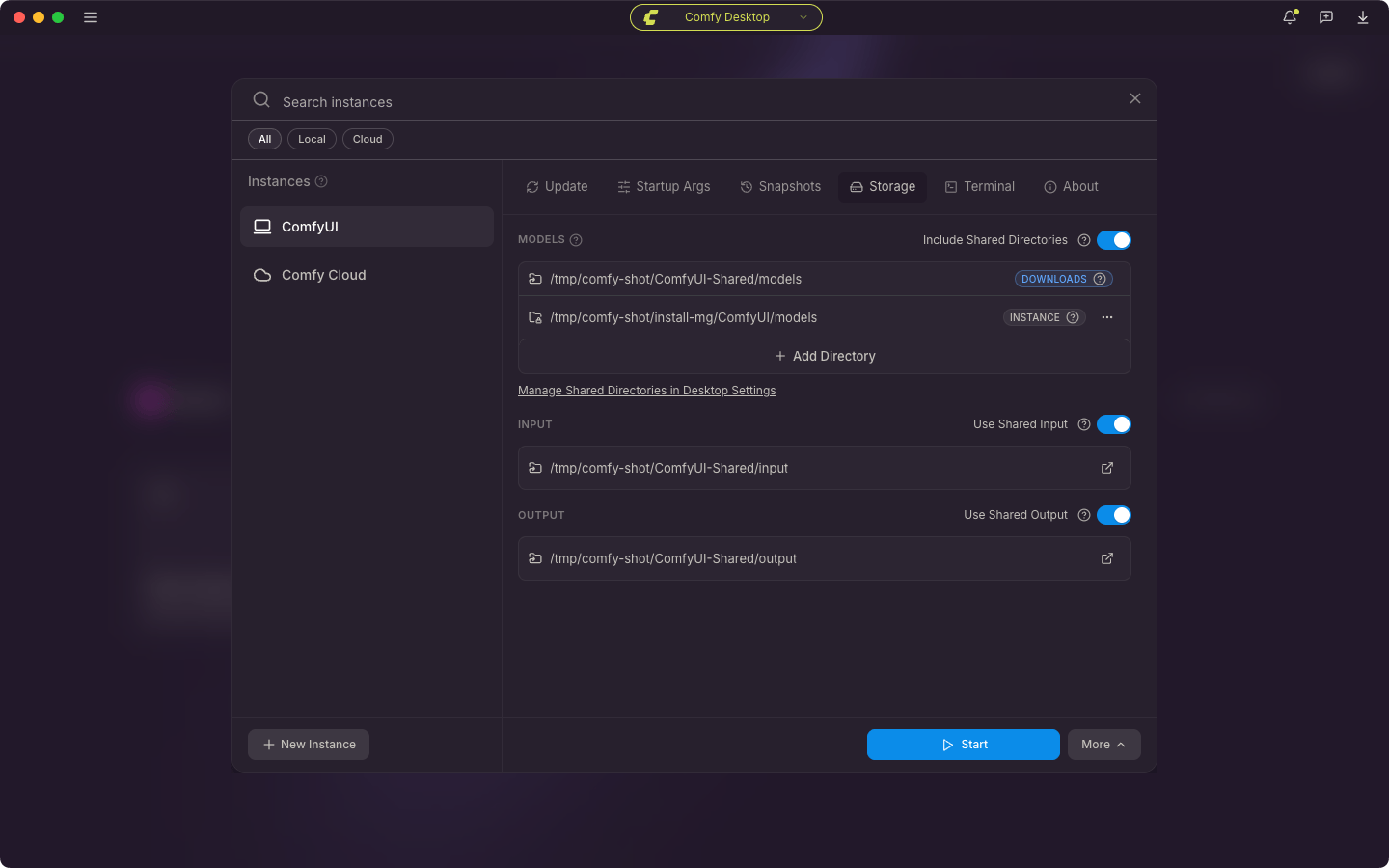
- Include Shared Directories: Toggle whether this instance scans the global shared model directories from Desktop Settings → Storage.
- Use Shared Input Folder: When enabled, this instance reads input files from the global shared input folder. Disable to use this instance’s own input folder.
- Use Shared Output Folder: When enabled, this instance writes generated outputs to the global shared output folder. Disable to use this instance’s own output folder.
- Model Directories: Extra model directories for this instance only, searched in addition to the shared model directories.
- Input Directory / Output Directory: This instance’s own folders when the shared toggles above are off.
Terminal Tab
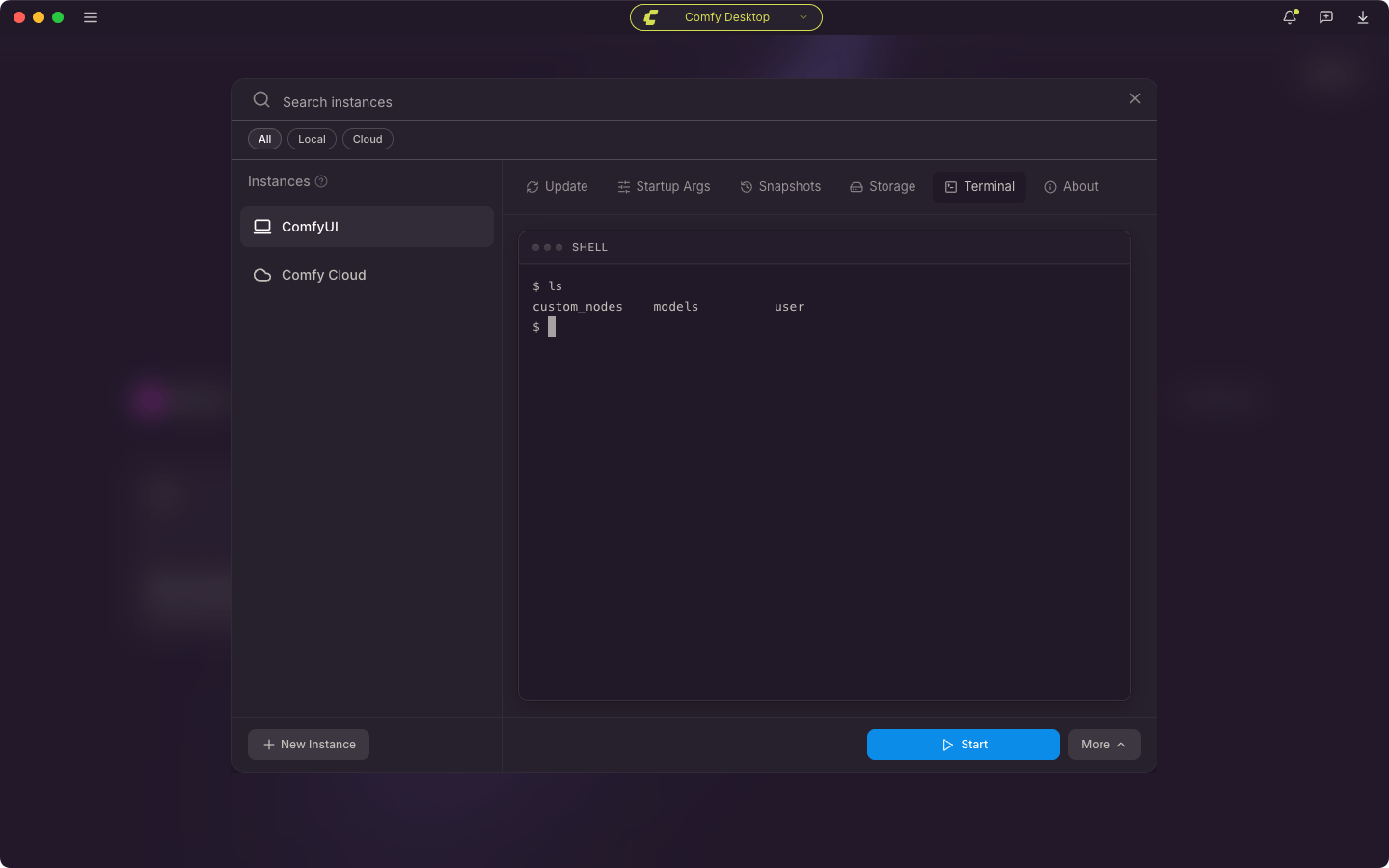
- Use it to inspect startup logs, errors, and Python output.
- Copy, paste, and select-all follow OS shortcuts. Right-click the terminal for the same actions.
About Tab
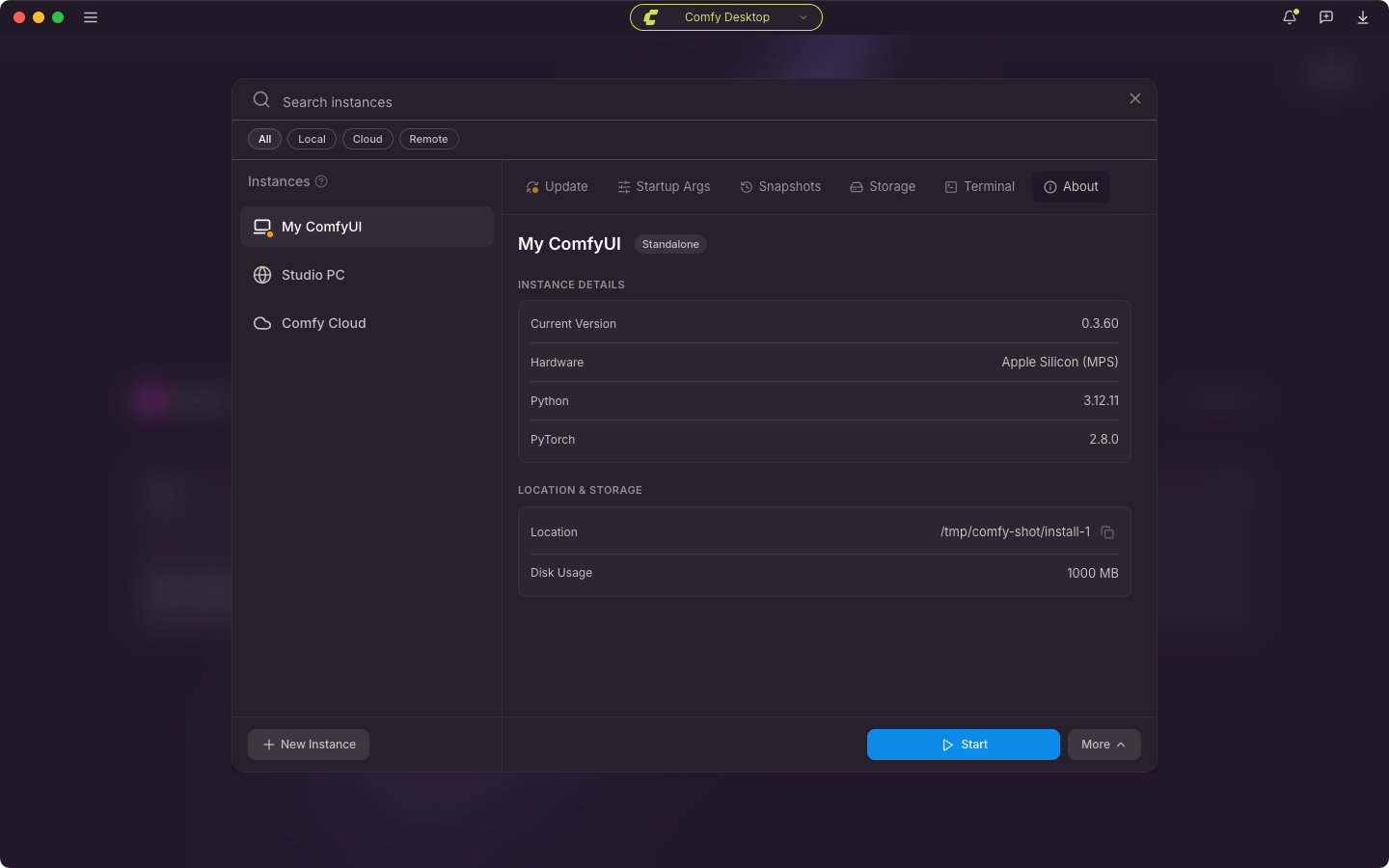
- Instance details: ComfyUI version, hardware, and the Python and PyTorch versions. For a Remote Connection this group holds the connection URL and the date the connection was added.
- Running details: the port ComfyUI is listening on. It appears while the instance is running.
- Location & storage: the full installation path on disk and how much space the installation uses. Only a local installation keeps files on this machine, so Cloud and Remote Connections have no such group.
- Lineage: the instance this one was copied from, and when. It appears on an instance that came from Duplicate Instance, from a copy that changed its version or PyTorch, from a Legacy Desktop migration, or from an in-place adoption.
Rename an Instance
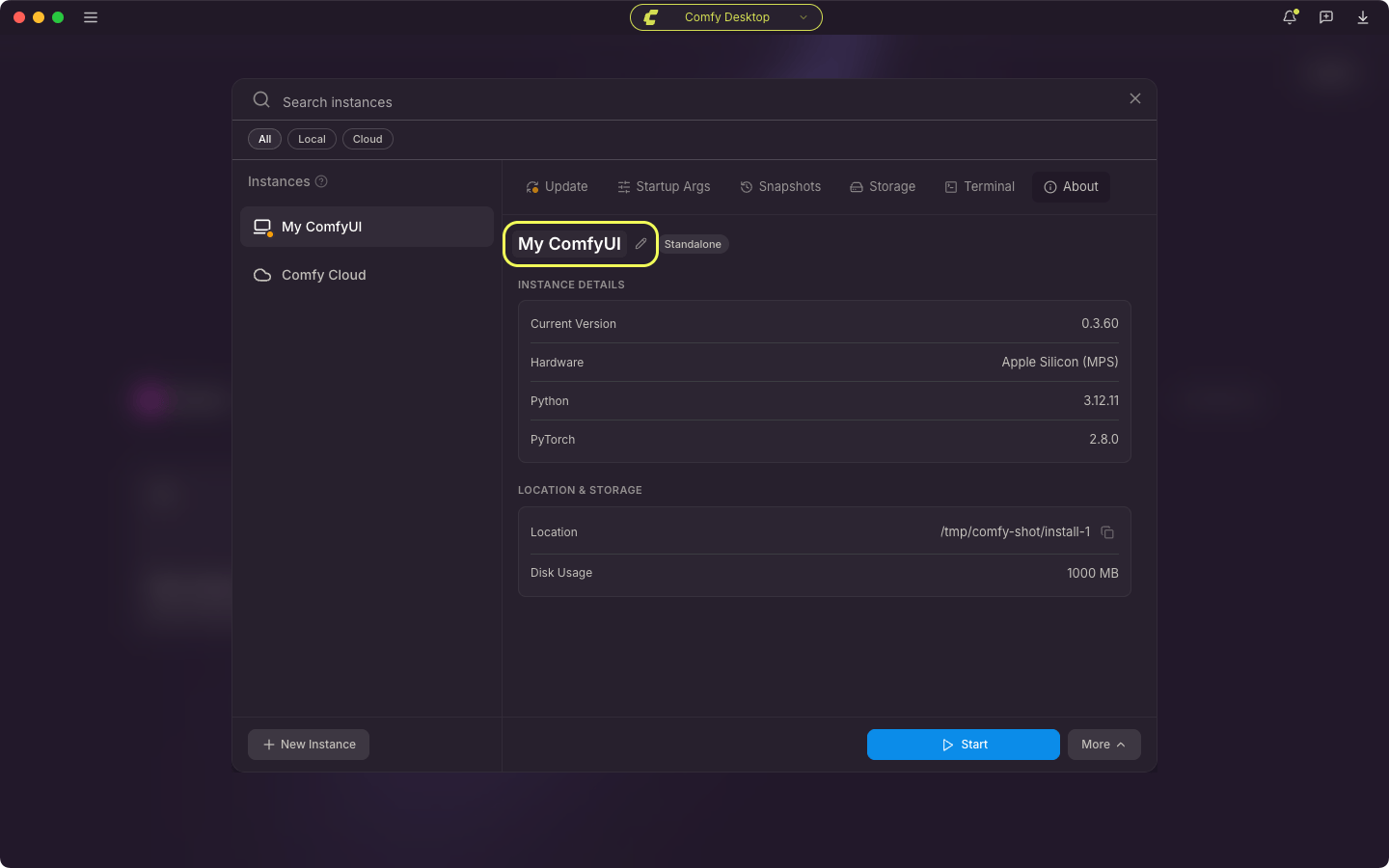
Change a Remote Connection’s URL
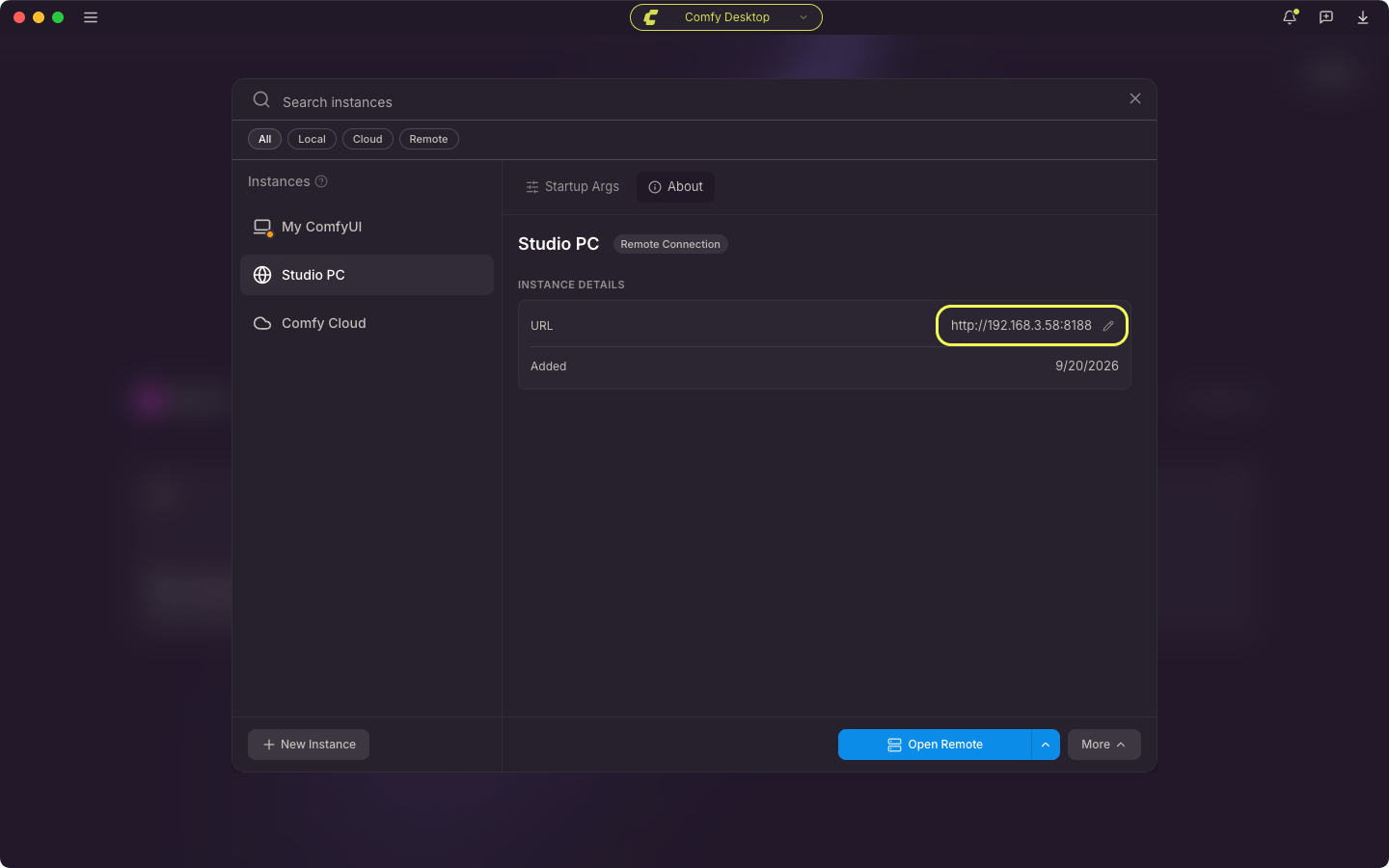
http://, and a trailing slash is dropped when the address is saved.
While the instance is connected, an edited URL takes effect on the next launch: the row shows Restart to apply until you restart the instance, and the running session keeps the old address. An address Comfy Desktop cannot read is not saved, and the row returns to the previous value.