

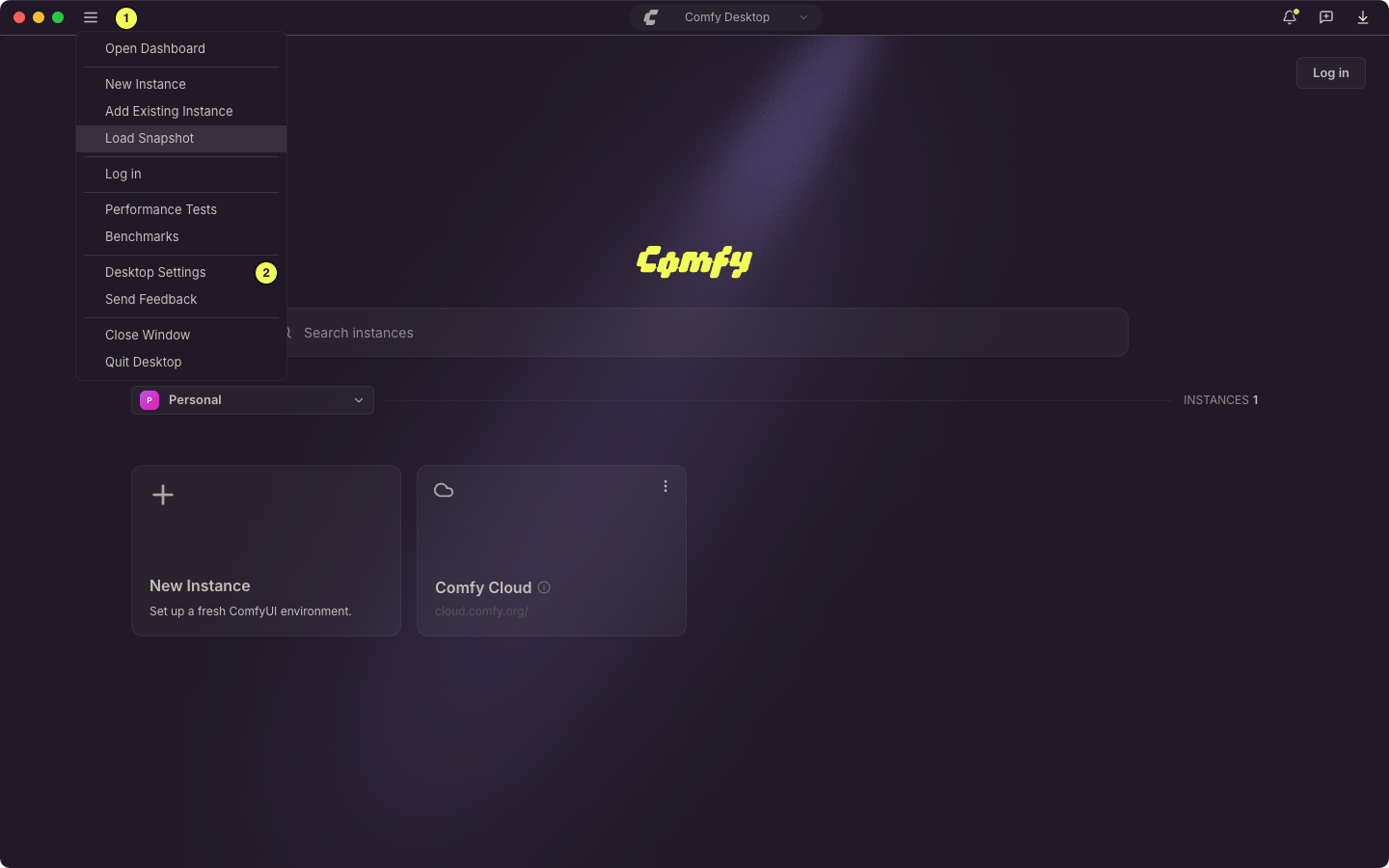
Preferences
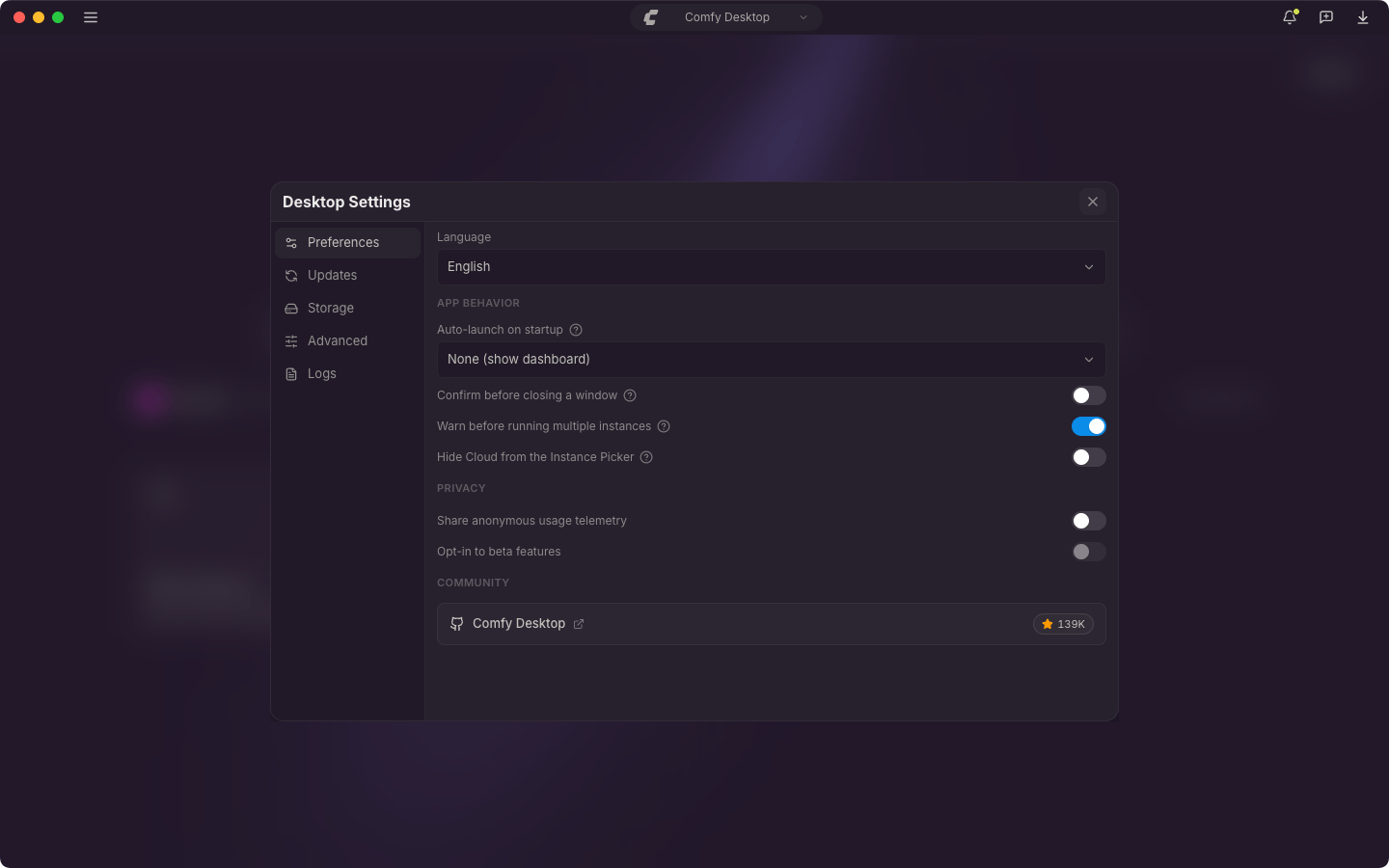
- Language: Choose the display language. English and 简体中文 are available.
App Behavior
- Auto-launch on startup: Pick which instance to start when Comfy Desktop opens. None (show dashboard) is the default. You can also choose Last used instance, or a specific install.
- Confirm before closing a window: Ask for confirmation before closing a window that is running a local install.
- Warn before running multiple instances: Show a warning before launching another local ComfyUI instance while one is already running or starting.
- Hide Cloud from the Instance Picker: Hide the Cloud row from the Dashboard. Cloud still works if you re-enable this later.
Privacy
- Share anonymous usage telemetry: Send anonymous usage data to help improve Comfy Desktop.
- Opt-in to beta features: Let Comfy Desktop turn on early Core features for your instances. The switch stays disabled until you confirm data sharing with Share anonymous usage telemetry, even when telemetry is already on.
Community
- Comfy Desktop: A card linking to the Comfy Desktop GitHub repository, with a star count.
Updates
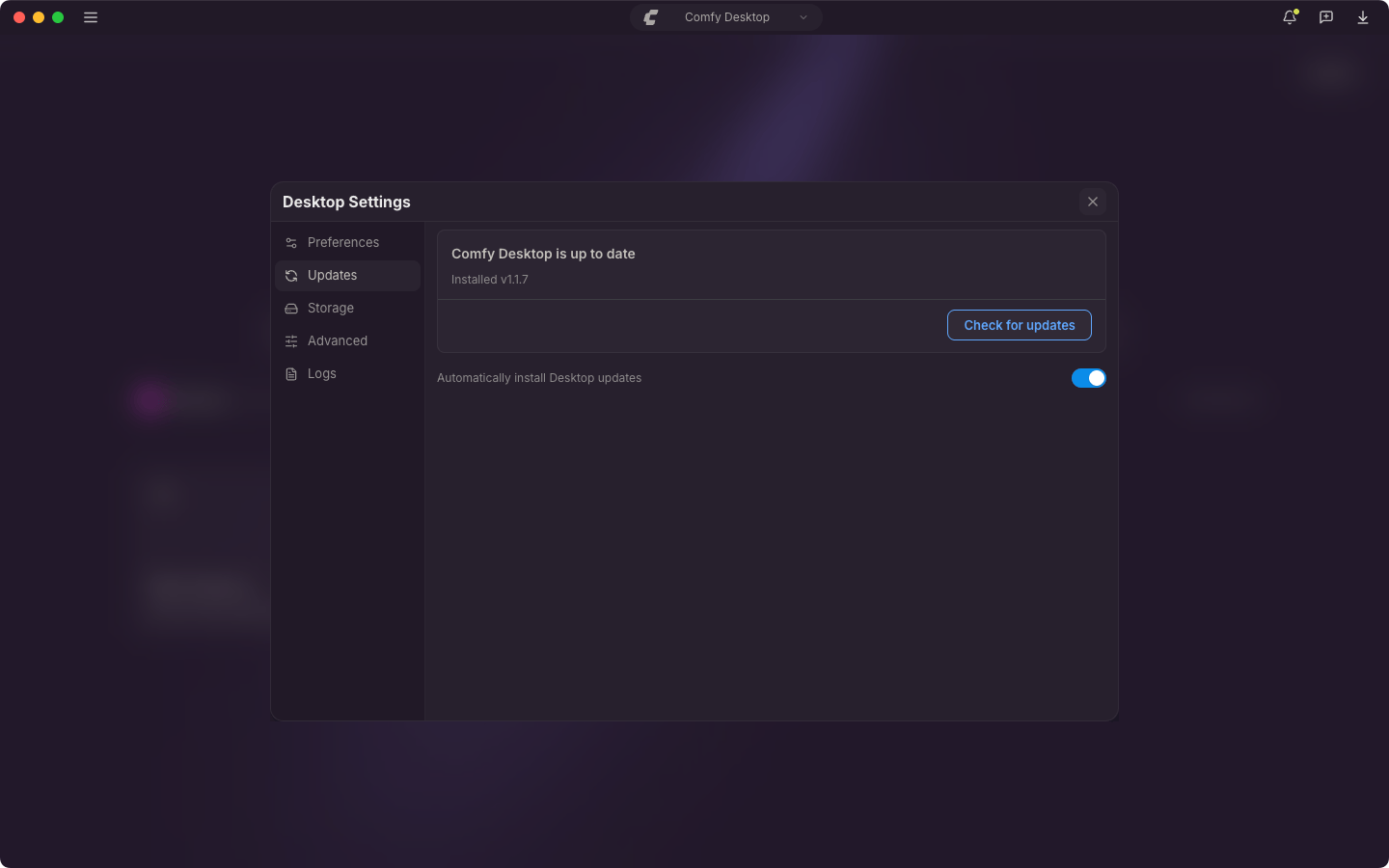
- Status: Shows whether Comfy Desktop is up to date and which version is installed. Once a check has run, it also shows when Comfy Desktop last checked.
- Check for updates: Manually check for a new version. When an update is available the button changes to Download, then to Restart & Update once the download finishes.
- Automatically install Desktop updates: Auto-download and install updates in the background.
Storage
The Storage tab is where you configure where Comfy Desktop finds and stores files. The key concept is sharing: instead of each instance having its own isolated models, inputs, and outputs, you set up shared directories accessible to all instances.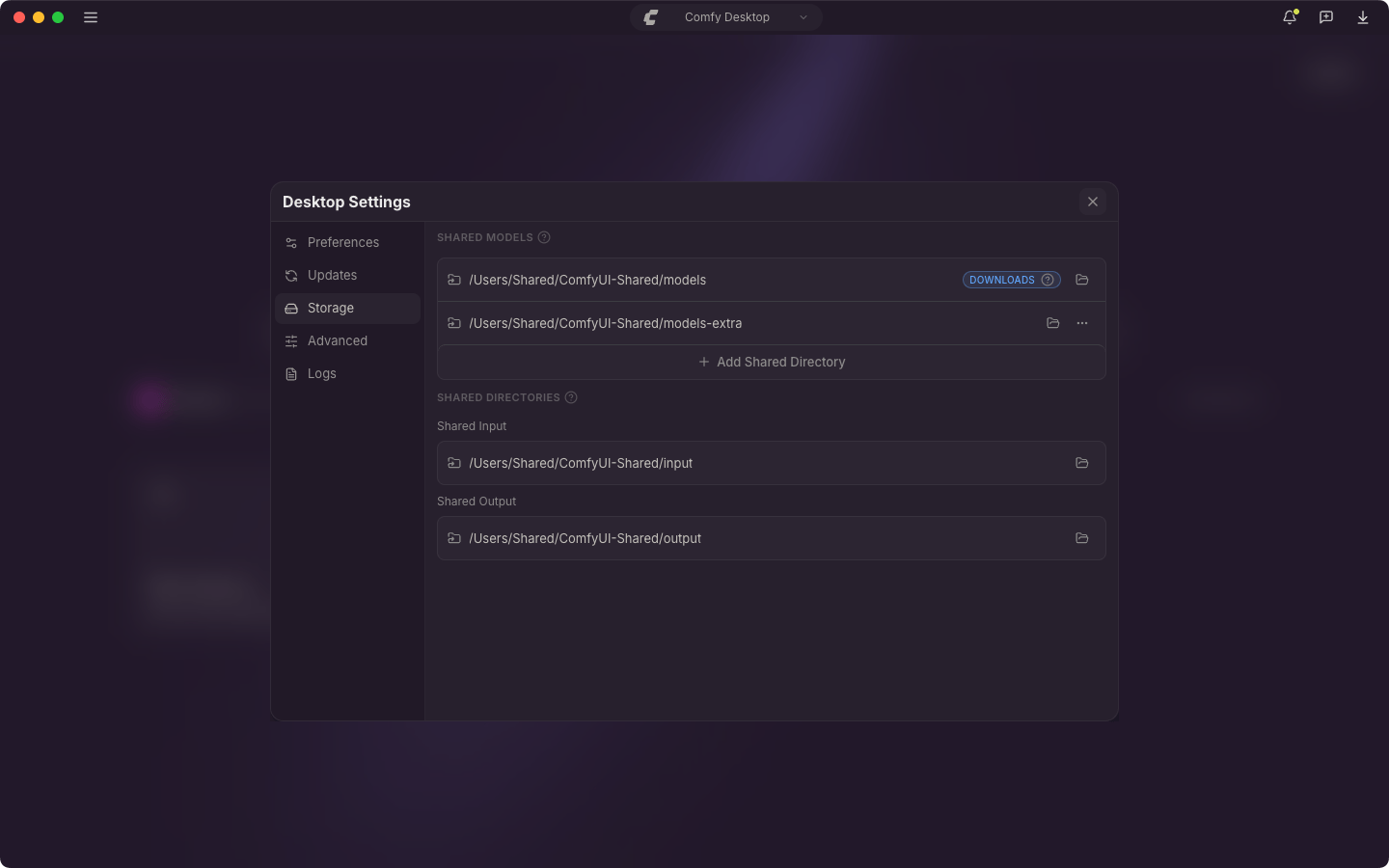
-
Shared Models: Each directory listed here is scanned for models by every instance. New models download to the directory marked with the DOWNLOADS badge.
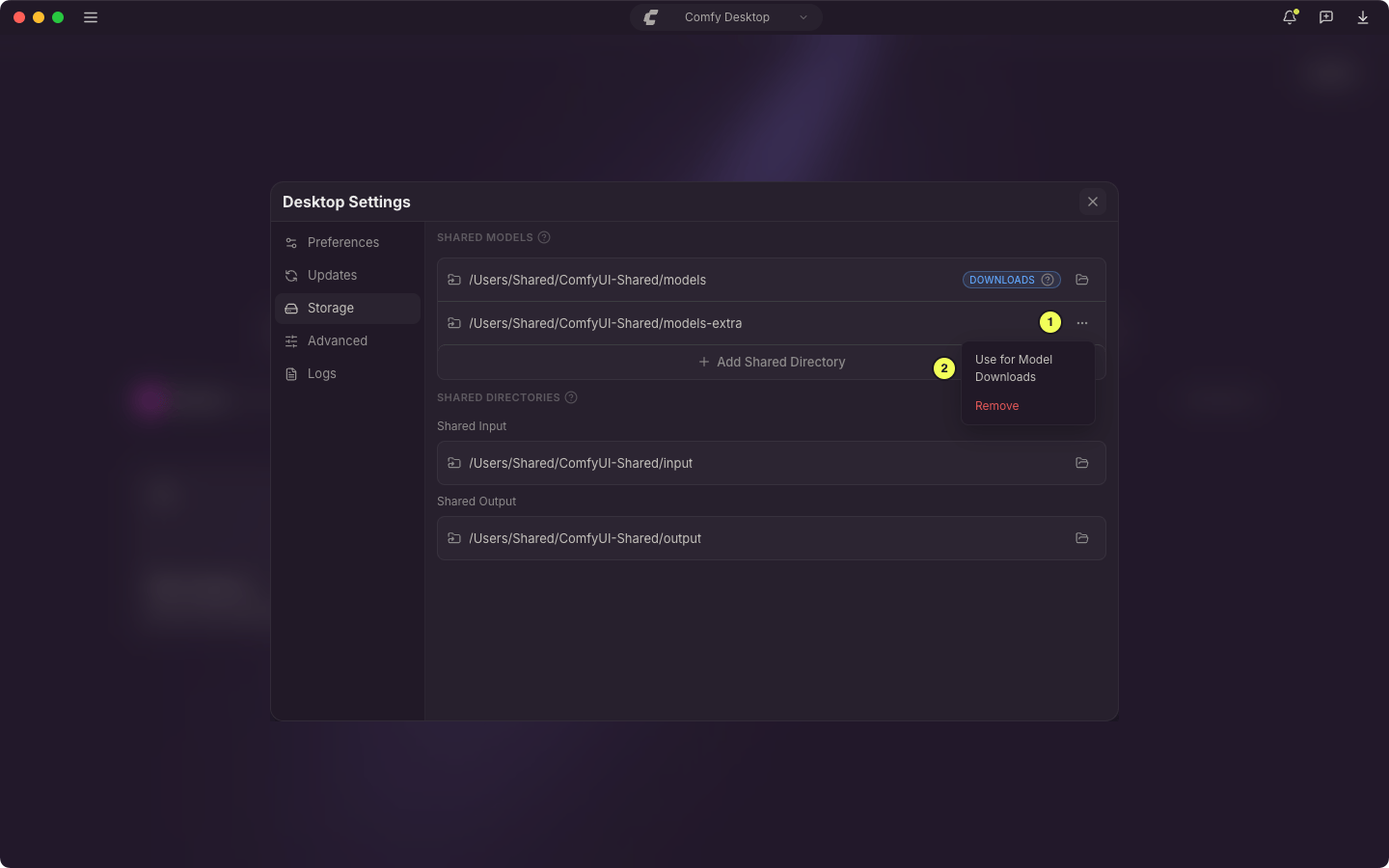
- Click the directory path to open it in your file manager.
- The ⋯ menu (1) appears on every shared directory except the one that already receives downloads. Select Use for Model Downloads (2) to make that directory the download target, or Remove to drop it from the list. Removing a directory keeps its files.
- Click + Add Shared Directory to add more model directories.
- Shared Input: A shared path where all instances look for input files (images, videos, etc.).
- Shared Output: A shared path where all instances save generated outputs. Customizing this lets you keep all results in one place.
- Click the folder icon to browse and select a new path. ? tooltips provide additional details.
Advanced
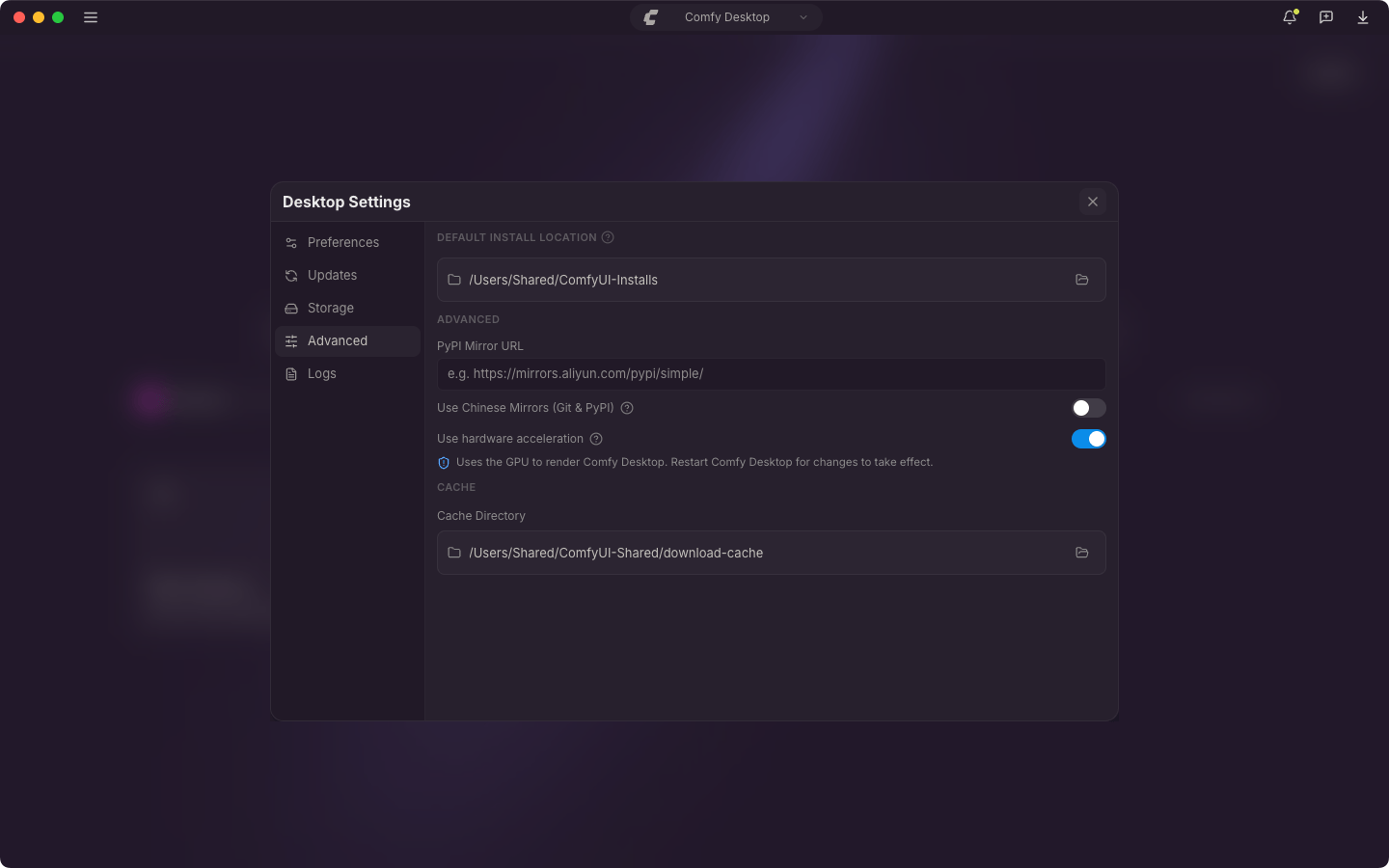
- Default Install Location: Where new standalone instances are created. Click the folder icon to change it.
- PyPI Mirror URL: Custom pip mirror (e.g.
https://mirrors.aliyun.com/pypi/simple/). - Use Chinese Mirrors (Git & PyPI): Use Chinese mirror servers for Git and PyPI. Helpful in mainland China. When the app language is Chinese, this switch sits under App Behavior on the Preferences tab instead.
- Use hardware acceleration: Use the GPU to render Comfy Desktop. Restart Comfy Desktop for changes to take effect.
- Cache Directory: Where Comfy Desktop stores temporary and cached data. Click the folder icon to change it.
Logs
- Diagnostics: Open logs folder reveals the Desktop app log directory (
app.log). See How do I check Comfy Desktop startup logs?.
Data Locations
Comfy Desktop stores data in platform-specific directories.- Windows
- macOS
- Linux
%LOCALAPPDATA%\Comfy-Desktop. If you already had ComfyUI-Installs or ComfyUI-Shared in your user profile before upgrading, those home-root folders are kept. If you installed the app to another drive, large data lives in <drive>\Comfy-Desktop\ instead.Keyboard Shortcuts
Comfy Desktop does not bind
Ctrl+W / Cmd+W, so a stray keystroke cannot close a window with a running instance. Close a window from the ☰ menu’s Close Window instead.
Feedback and Issues
Found a bug or have a suggestion? Comfy Desktop is open source. You can report issues and check planned features here:- Comfy Desktop issues: github.com/Comfy-Org/Comfy-Desktop/issues
- Documentation issues: github.com/Comfy-Org/docs/issues