

About FLUX.3 [klein]
FLUX.3 [klein] is Black Forest Labs’ open-weights FLUX.3 image model for local ComfyUI: text-to-image and instruction-driven image editing in one family, with a full checkpoint and a step-distilled variant for faster 4–16 step runs. Weights ship on Hugging Face under the FLUX Kommunity License. Download once, run on your own GPU, no API key and no per-image credits. Need the hosted path instead? FLUX.3 also runs as a Partner Node through FLUX 3 Image (billed per image). Use local klein weights on your GPU; use the Partner Node when you want the hosted model with no download. Model highlights:- Text-to-image and image editing from the same weights; edits take an instruction prompt plus reference images
- Two checkpoints: full FLUX 3 Image Klein, and Distilled for guidance-free sampling in 4–16 steps
- Multi-reference prompting via
<ref_image_0>,<ref_image_1>, and so on - Optional Qwen3.5 9B prompt upsampler that expands short requests into full captions before generation
- Single-file checkpoints in bf16, int8 (convrot), and nvfp4, with a Qwen3-VL-4B text encoder and the FLUX.2 VAE
FLUX 3 Image Klein Workflows
FLUX 3 Image Klein: Text to Image
Generate an image from a prompt alone, with no input files. The workflow is a subgraph: open it to reach the loaders, the sampler, and the canvas size.
Run on Comfy Cloud
Open in Comfy Cloud
Download Workflow
Download JSON or search “FLUX 3 Image Klein: Text to Image” in Template Library
- Enter your prompt in the subgraph’s positive prompt widget
- Set
widthandheight, or pick a frame fromResolutionSelector(1:1 square by default) - Adjust
steps(50 by default) andcfg(3.5 by default) - The prompt upsampler is on by default, so a short prompt is expanded by the Qwen3.5 9B upsampler before sampling. Turn
enable_prompt_upsampleroff to generate from your own words instead - Click Queue. The image is saved by the
SaveImagenode toComfyUI/output/
FLUX 3 Image Klein Distilled: Text to Image
Generate an image from a prompt with the step-distilled checkpoint, which runs in 16 steps with no guidance. Prompt upsampling is on by default, so a short prompt is expanded into a full caption before sampling.
Run on Comfy Cloud
Open in Comfy Cloud
Download Workflow
Download JSON or search “FLUX 3 Image Klein Distilled: Text to Image” in Template Library
- Enter your prompt. The template upsamples it first, so a short description is enough
- Set
stepsbetween 4 and 16 (16 by default). The distilled checkpoint runs withcfg1, so raisingcfgdoes not help - Pick a frame from
ResolutionSelector - Click Queue to generate

FLUX 3 Image Klein: Image Edit
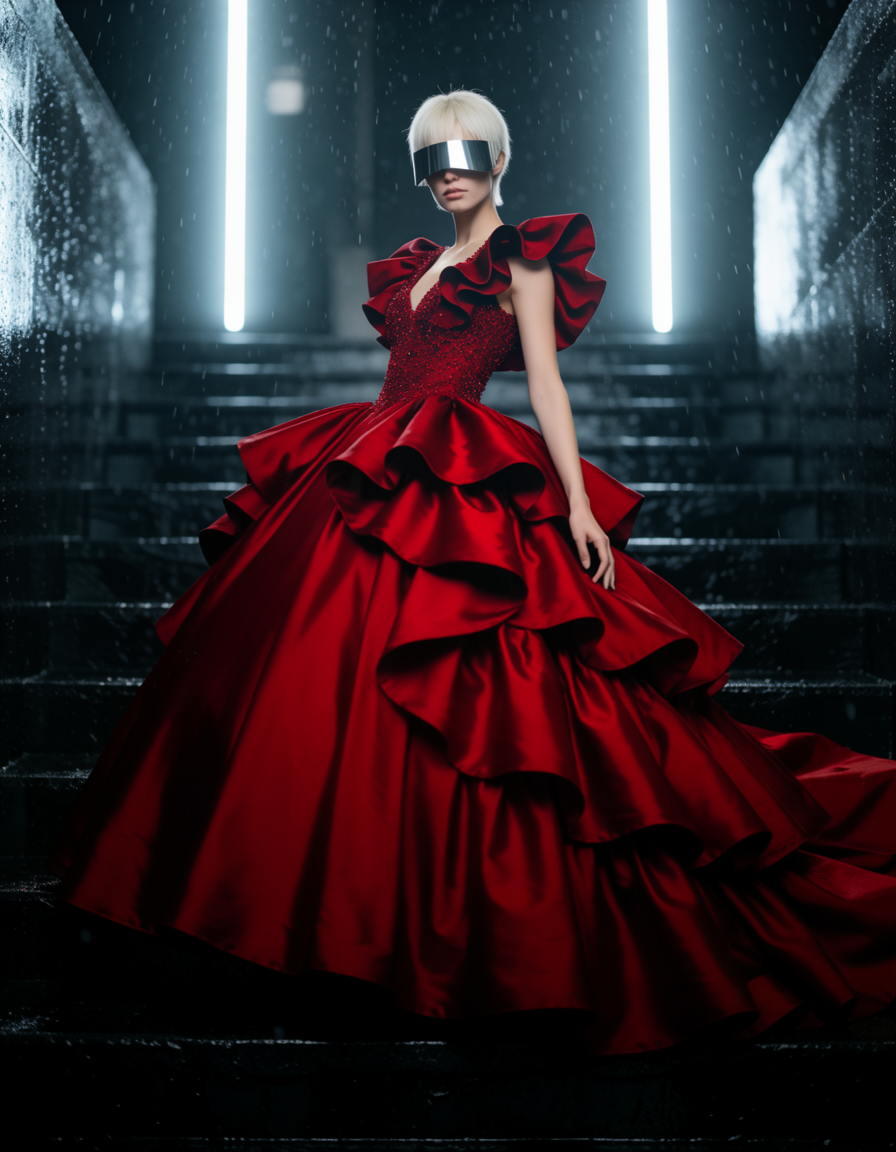
Edit a photo from an instruction prompt, with the original image connected as a reference. The instruction replaces the reference content: here the prompt changes the dress color to red while everything else stays in place.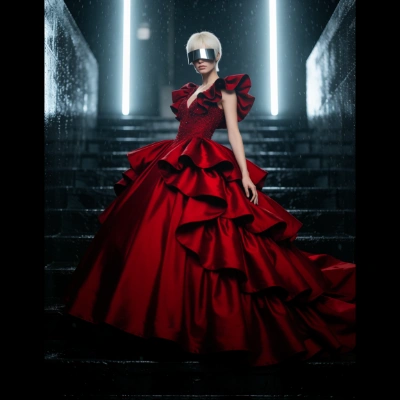
Run on Comfy Cloud
Open in Comfy Cloud
Download Workflow
Download JSON or search “FLUX 3 Image Klein: Image Edit” in Template Library
LoadImage node:
fashion_portrait_blue_silk_gown_vis.png
LoadImage node 54 · fashion_portrait_blue_silk_gown_vis.png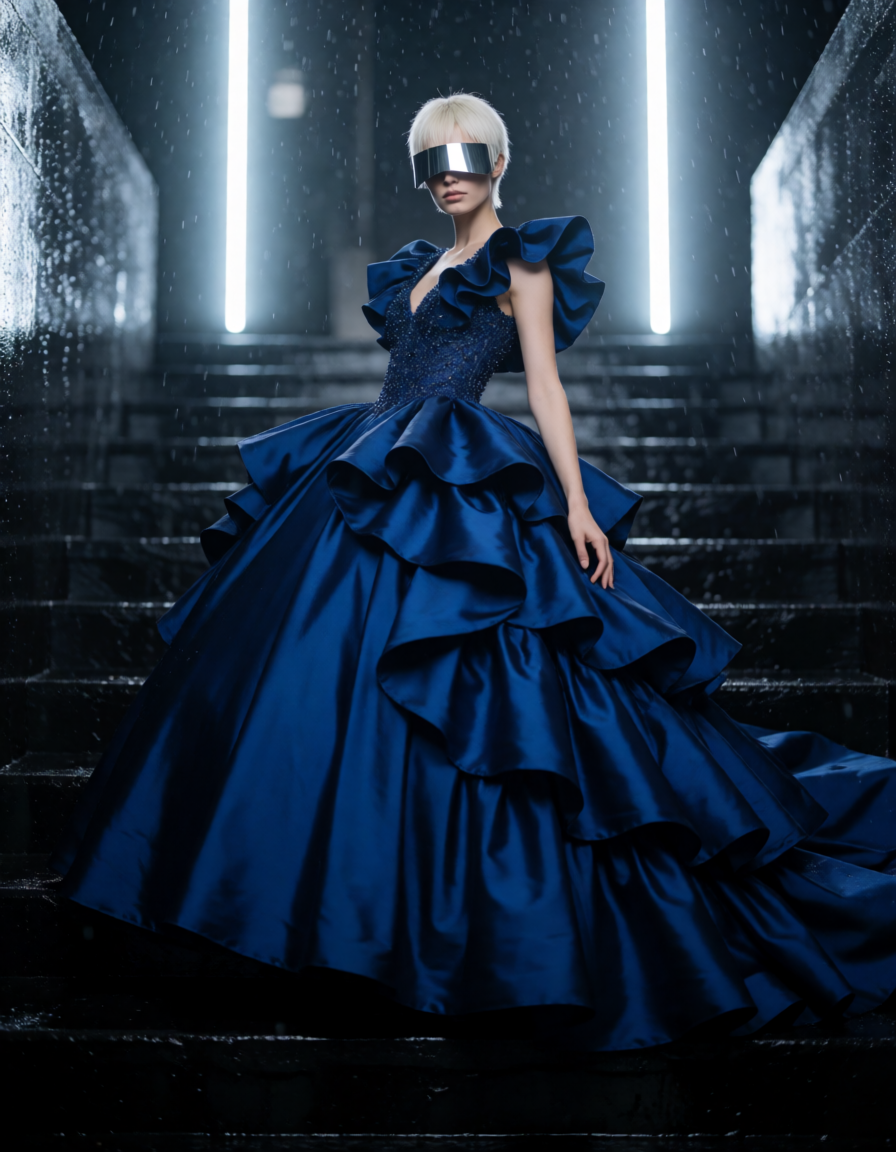
- Load your source image in the
LoadImagenode - Connect it to
Set Reference Multi Latent. The first reference is<ref_image_0>in the prompt, the next is<ref_image_1>, and so on - Write the edit as a full description of the result. In the shipped example the prompt is
In <ref_image_0>, change the dress color <obj_1> to red - Adjust the canvas with
Empty Flux 2 Latent(1024 x 1024 in the template) if you want a different output size - Click Queue.
ImageCompareshows the input and the result side by side
FLUX 3 Image Klein Distilled: Image Edit
Edit an image with the step-distilled checkpoint: one reference image, one instruction prompt, 16 steps, and no guidance.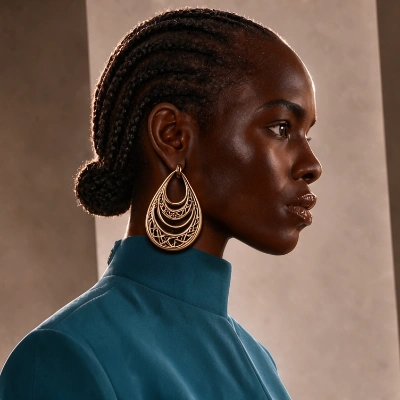
Run on Comfy Cloud
Open in Comfy Cloud
Download Workflow
Download JSON or search “FLUX 3 Image Klein Distilled: Image Edit” in Template Library
LoadImage node:
woman_gold_earring_teal_top_portrait.png
LoadImage node 11 · woman_gold_earring_teal_top_portrait.png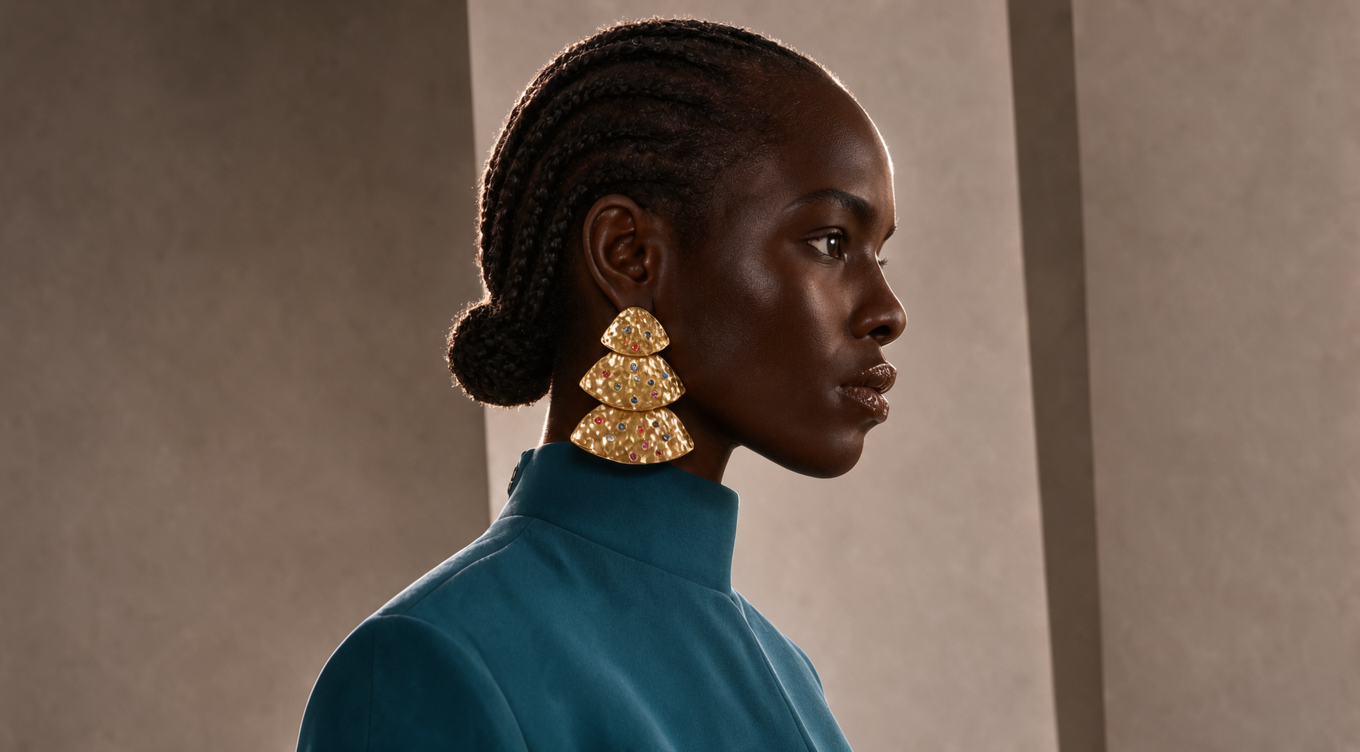
- Load the image you want to edit and connect it to
Set Reference Multi Latent - Write the edit prompt. The shipped example replaces an earring and describes the new one in detail, including what must not appear
- Keep
stepsin the 4 to 16 range and leavecfgat 1 - Click Queue and compare the input with the result in
ImageCompare
FLUX 3 Image Klein Model Downloads
The FLUX 3 Klein weights live in the gated repository black-forest-labs/flux-3-image-klein-comfy. Open it, accept the license agreement, and then download the files. The templates use the int8 (convrot) single-file checkpoints; bf16 and nvfp4 versions of the same checkpoints are in the same repository.The templates load the int8 builds to keep the memory footprint small. With more than 24 GB of VRAM, swap in the bf16 build of the same checkpoint (
flux3-image-klein-base-bf16.safetensors, or flux3-image-klein-bf16.safetensors for the distilled checkpoint) and the bf16 prompt upsampler: they follow long prompts more closely.flux3-image-klein-base-int8-convrot.safetensors
Diffusion model, full FLUX 3 Image Klein checkpoint. The text to image and image edit templates load this file.
flux3-image-klein-int8-convrot.safetensors
Diffusion model, step-distilled checkpoint for 4 to 16 steps.
qwen3vl_4b_int8_convrot.safetensors
Text encoder for both checkpoints. Load it with
CLIPLoader type flux3.qwen3.5_9b_flux3_prompt_upsampler_w4a8.safetensors
Prompt upsampler used by the text to image templates.
flux2-vae.safetensors
VAE for FLUX 3 Klein. The FLUX.2 VAE.
Prompting and reference tips
- Write the result, not the change. The image editing templates expect a full caption of the finished image with the edit folded in, which is why the examples describe the new object in detail instead of saying “change this”.
- References are added to both conditionings. Connect extra images to
Set Reference Multi Latentin order, address them as<ref_image_0>,<ref_image_1>, and so on, and add each one to both the positive and the negative prompt, the way the reference pipeline does. - Reference size is a cost dial. The templates resize each reference to roughly 1 megapixel and the output latent takes that size. Keeping references at their native size, which Black Forest Labs’ own pipeline does up to about 16 megapixels, keeps more detail in the edit at a higher cost.
- Step count depends on the checkpoint. The full checkpoint runs at 50 steps in the templates, with guidance 3.5 on text to image and 1 on image edit. The step-distilled checkpoint runs at 16 steps with guidance fixed at 1, and it is the one to use when you want a fast pass.
- The templates ship a
Create Bounding Boxesnode. It draws boxes over the source image for planning regional edits, and its list of boxes is shown in thePreview Anynode so you can fold the regions into the prompt.