

- Batch seeds: many variations of one prompt
- Batch prompts: one run per prompt
- Batch any setting: one run per value of CFG, steps or any other input
- Loops: Start Loop and End Loop
- Settings grids: crossing two or more settings and laying out the results
- Scripting with the Comfy API: any combination, at any size
Some steps use custom nodes. Every custom node named on this page is installed on Comfy Cloud, where custom nodes are reviewed before they are added. On your own ComfyUI, install the node pack first.
Batch Seeds
The seed decides the starting noise, so a new seed gives a new composition of the same prompt. Changing the seed is the simplest batch.Batch Count
Batch count sits in the run bar next to the Run button. It sets how many times the workflow is queued per click. See the run bar for where it is.- Set
control after generateon theKSamplerseed torandomizeorincrement. - Set Batch count to the number of images you want.
- Click Run. Each queued run gets the next seed.
control after generate works on any number widget that has it, not only the seed. If every widget is set to fixed, every queued run is identical and gives the same image.
batch_size on the Latent
batch_size on the Empty Latent Image node creates several latents at once, and the KSampler denoises them together in one pass. Each image in the batch gets different noise.
- On
Empty Latent Image, setbatch_sizeto the number of images, for example4. - Click Run.
Save Imagesaves all of them.
Specific Seeds
To re-run seeds you already like, for example to compare them under a new setting, feed the seed from a list:- Add an Int node for each seed.
- Add a Create List node and connect each
Intto its next free input. New inputs appear as you connect. - Connect the
listoutput ofCreate Listto theseedinput of theKSampler. - Click Run. The
KSamplerruns once per seed.
Batch Prompts
When a node receives a list, ComfyUI runs it once for each item and passes every result downstream. A list of prompts connected toCLIP Text Encode gives one image per prompt.
One Text Node per Prompt
- Add a Text (Multiline) node for each prompt.
- Join them with
Create List. - Connect the
listoutput to thetextinput of the positiveCLIP Text Encode. - Click Run. Each prompt is encoded and sampled as its own run.
One Prompt per Line
For more than a few prompts, keep them in one text box, one prompt per line, and split it into a list with the splitlines (from data list) node from the Basic data handling pack.- Add a
Text (Multiline)node and write one prompt per line. - Add a splitlines (from data list) node (search for
splitlines) and connect the text to itsstringinput. Leavekeependsoff, so the line breaks are not part of the prompts. - Connect its output to the
textinput of the positiveCLIP Text Encode. - Click Run. Each line becomes its own run.
Batch Any Setting
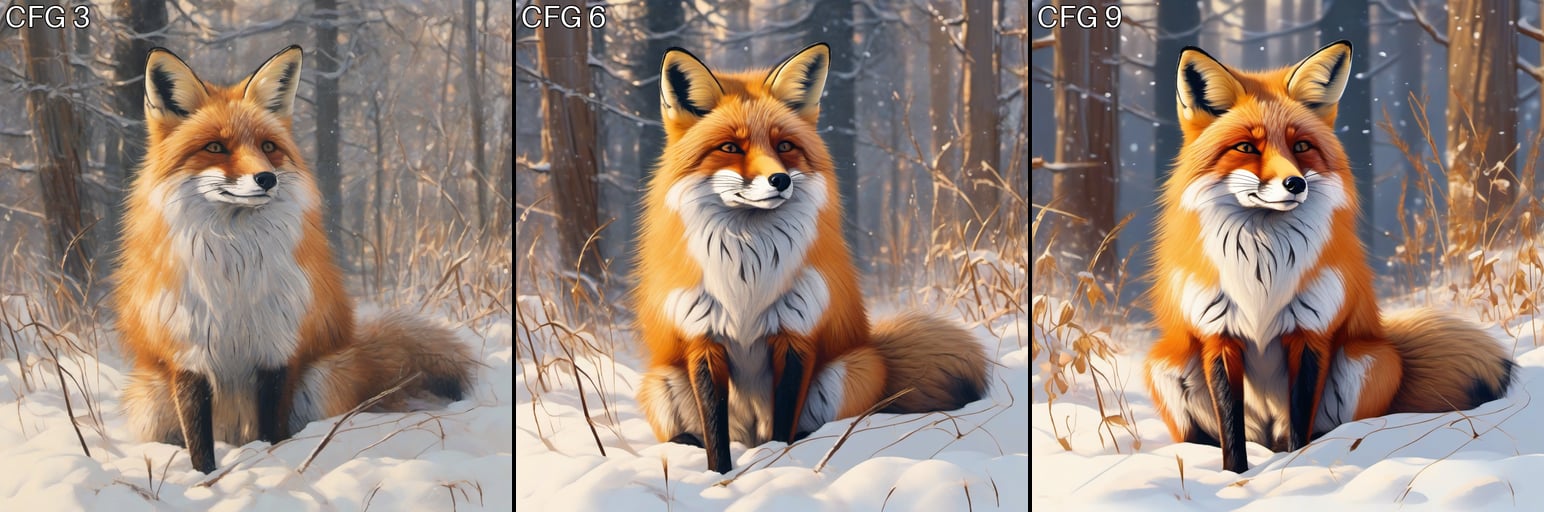
A list can feed almost any input, not only the seed and the prompt. To connect a list to a widget such ascfg, drag the link onto the widget. To sweep CFG:
- Add a Float node for each CFG value, for example
3,6and9. - Join them with
Create Listand connect the list to thecfginput of theKSampler. - Keep the seed fixed: set
control after generateon the seed tofixed. - Connect
VAE Decodeto a Make Image Grid node and then toSave Image. - Click Run. The
KSamplerandVAE Decoderun once per CFG value, andMake Image Gridreceives all the images.
steps, denoise, image size and LoRA strength work the same way, with Int or Float nodes.
Dropdowns. sampler_name, scheduler and model files are dropdowns, which a list of text values cannot feed directly. To compare a few, copy the KSampler and VAE Decode nodes once per value, connect them to the same model, prompts and latent, set each copy differently, and collect the images with Make Image Grid. For samplers and schedulers, the XY plot node in Settings grids is quicker.
Loops
The Start Loop and End Loop nodes run the nodes between them once per iteration.Start Loop has three modes:
To loop over a list of values, for example CFG:
- Build the list with
Floatnodes andCreate List, as above. A list of prompts or seeds works the same way. - Add a
Start Loopnode, setmodetoList, and connect the list to itslistinput. - Connect
list_itemfromStart Loopto the input you want to change, here thecfginput of theKSampler. - Add an
End Loopnode. Connect theIMAGEoutput ofVAE Decodetooutput_value, and turn onaccumulateso End Loop returns the image from every iteration, not only the last one. - Connect the
outputsofEnd LooptoMake Image Grid, then toSave Image. - Click Run.
next_iteration_value on End Loop, current_iteration_value on Start Loop), and a loop can be nested inside another by connecting the outer loop’s iteration_index to the inner loop’s parent_iteration.
Start Loop and End Loop are recent core nodes. If you can’t find them, update ComfyUI. Comfy Cloud updates after each ComfyUI stable release.
Settings Grids
A settings grid holds the prompt, the model and the seed constant, and changes only sampler settings, so any difference between two cells comes from the setting you changed. With a random seed, each cell would also get a different composition, and you could no longer tell whether a change came from the setting or from the noise. The fourKSampler settings that change an image the most, apart from the prompt and the model, are:
A full sweep multiplies quickly: 4 CFG values × 3 step counts × 3 samplers × 2 schedulers is 72 images. Start with one or two settings, find the range that looks good, then narrow it.
Crossing Settings with an XY Plot Node
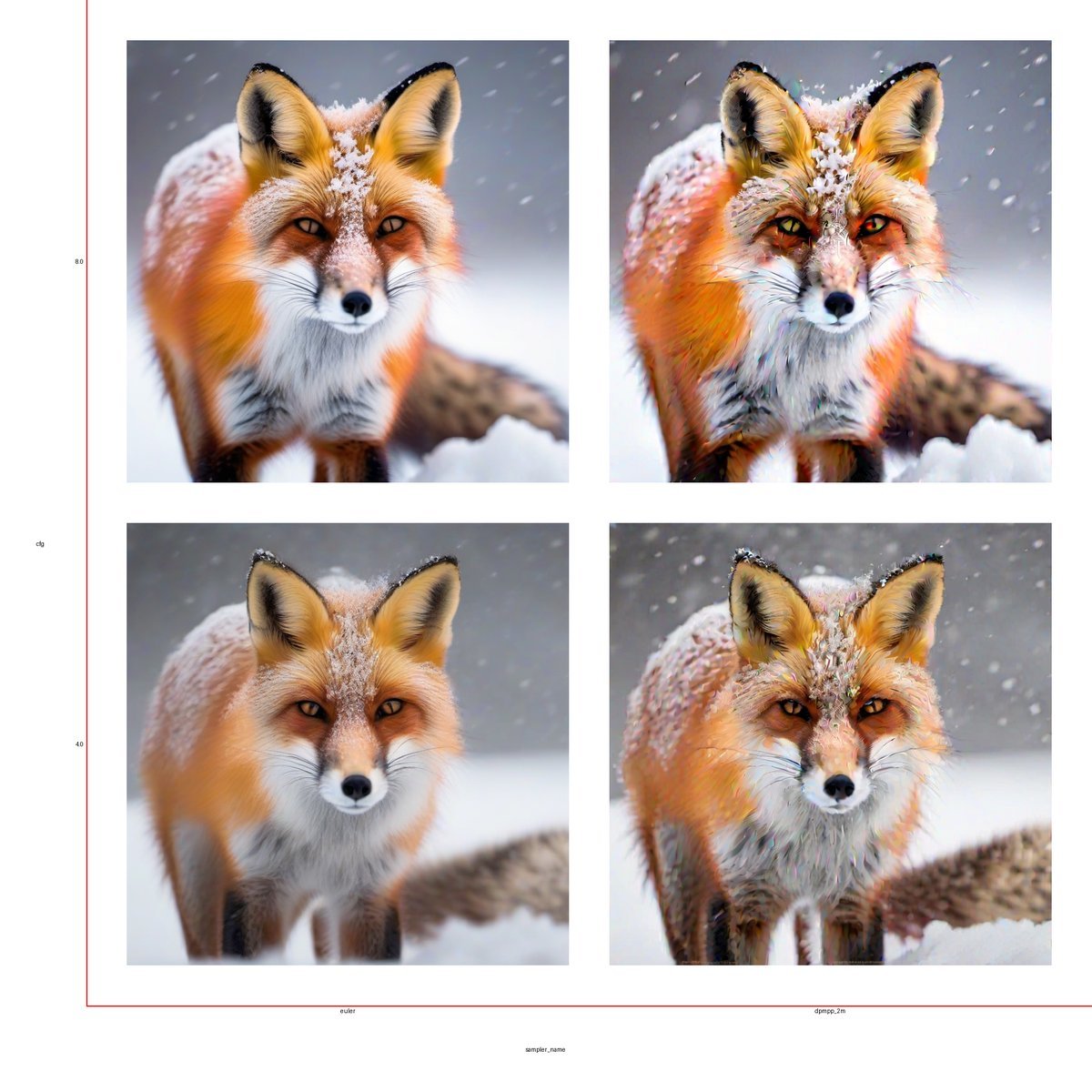
The FL KSampler XYZ Plot node from the Fill-Nodes pack replaces theKSampler and crosses up to three settings for you. It renders every combination and returns one image with the values written along the axes.
- Replace the
KSamplerwith FL KSampler XYZ Plot. Connectmodel,positive,negative,latent_image, and thevaefrom your checkpoint loader. - Set the seed and the base values for the settings you are not changing.
- Set
x_axisandy_axisto two ofsteps,cfg,denoise,sampler_nameandscheduler. - Type the values for each axis into
x_valuesandy_values, separated by commas, for exampleeuler,dpmpp_2mand4,8. - To cross a third setting, set
z_axisandz_values.z_stack_modeplaces the extra grids below or beside each other. - Connect the
IMAGEoutput toSave Imageand click Run.
Laying Out Your Own Grid
When the images come from a list or a loop, the Make Image Grid node arranges them in rows, left to right and top to bottom.
To label each cell, put a Draw Text Overlay node between
VAE Decode and Make Image Grid. Build a second list of labels, such as CFG 3, CFG 6 and CFG 9, with Text nodes and Create List, and connect it to the text input. Because the images and the labels are both lists, each image gets the label at the same position. The grid at the top of this page was made this way.
Scripting with the Comfy API
Past two or three settings, or to cross prompts, seeds and models, a script is simpler than a graph. It builds every combination, submits each one as its own job, and saves the results with a record of what each run changed.1. Export the Workflow in API Format
- Build and test the workflow for one run in ComfyUI.
- Open the workflow menu and choose Export (API). This saves the graph in API format, where every node is keyed by its ID.
- Open the JSON and note the ID of each node you want to change. In the default text-to-image workflow, the
KSampleris"3"and the positiveCLIP Text Encodeis"6".
2. Queue One Job per Combination
Comfy API v2 accepts the API-format graph atPOST /api/v2/jobs and returns a job you can poll at GET /api/v2/jobs/{id}. The same API runs on Comfy Cloud and, through comfy-api-proxy, on your own ComfyUI, so the script below works on both by changing BASE_URL.
Comfy Cloud runs a set number of jobs at a time per plan and holds the rest in a queue:
You can have up to 100 jobs queued. Running more than one job at a time needs the API and a paid plan. See Cloud concurrency limits for details.
In
AXES, each key is <node ID>.<input name> and each value is the list of values to try. The script runs every combination. It keeps at most MAX_IN_FLIGHT jobs submitted at a time, so a large batch never fills the queue, and it backs off when the server answers 429. It needs Python 3.9 or newer and pip install requests. Set COMFY_API_KEY to your API key first.
batch.py
0000_0.png, 0001_0.png and so on), and batch/manifest.json records the settings of each one.
Some common AXES entries:
3. Lay Out the Results
To turn a scripted batch into a grid, assemble the saved files with a few lines of Pillow (pip install pillow). This example puts one setting on the columns and another on the rows, holds the rest fixed, and writes the values along the edges:
make_grid.py
Try It Yourself
- Download the grid image at the top of this page and drag it into ComfyUI. It loads the CFG sweep workflow (it uses
sd_xl_base_1.0.safetensors). - Replace the
Floatnodes withIntnodes and connect the list toseedinstead, or replace them with a splitlines (from data list) node and connect it to the prompt. - When you need every combination of several settings, export the workflow with Export (API) and run it with the script.