

What Seedance 2.0 Real Human is good at
- Real people, cinematic control: Direct camera moves, lighting, and scene changes while keeping the subject believable
- Identity consistency: Facial features and overall appearance remain stable across motion, camera moves, and transitions
- Native audio-video sync: Video and audio (dialogue, ambient, music) are generated together with more reliable lip-sync and expressions
- Multi-reference directing: Mix text with up to 9 images, 3 videos, and 3 audio clips to lock in look, motion, and rhythm
Video guide
Watch the full walkthrough covering verification and both Seedance 2.0 Real Human workflows end to end in ComfyUI.How verification works in ComfyUI
Verification is required before any real person can appear in a Seedance 2.0 generation. It prevents impersonation and unauthorized use of someone’s likeness and is handled by ByteDance, which complies with emerging AI transparency regulations. The entire flow is driven from ComfyUI through the ByteDance Create Image/Video Asset node: you only need to leave ComfyUI briefly to complete the liveness check on your phone or browser.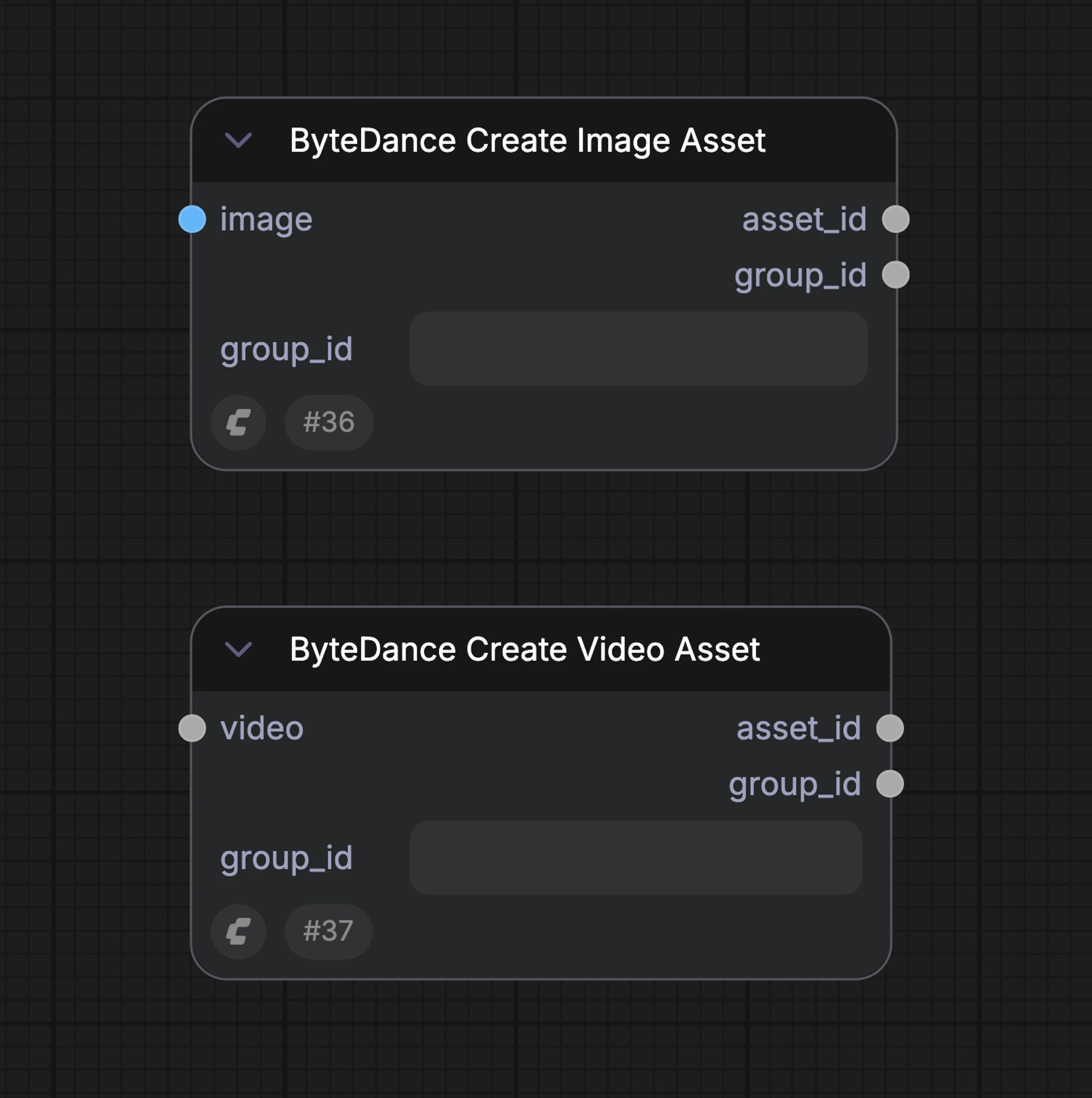
First run (verification required)
- In ComfyUI, add the ByteDance Create Image/Video Asset node to your workflow and upload a portrait image
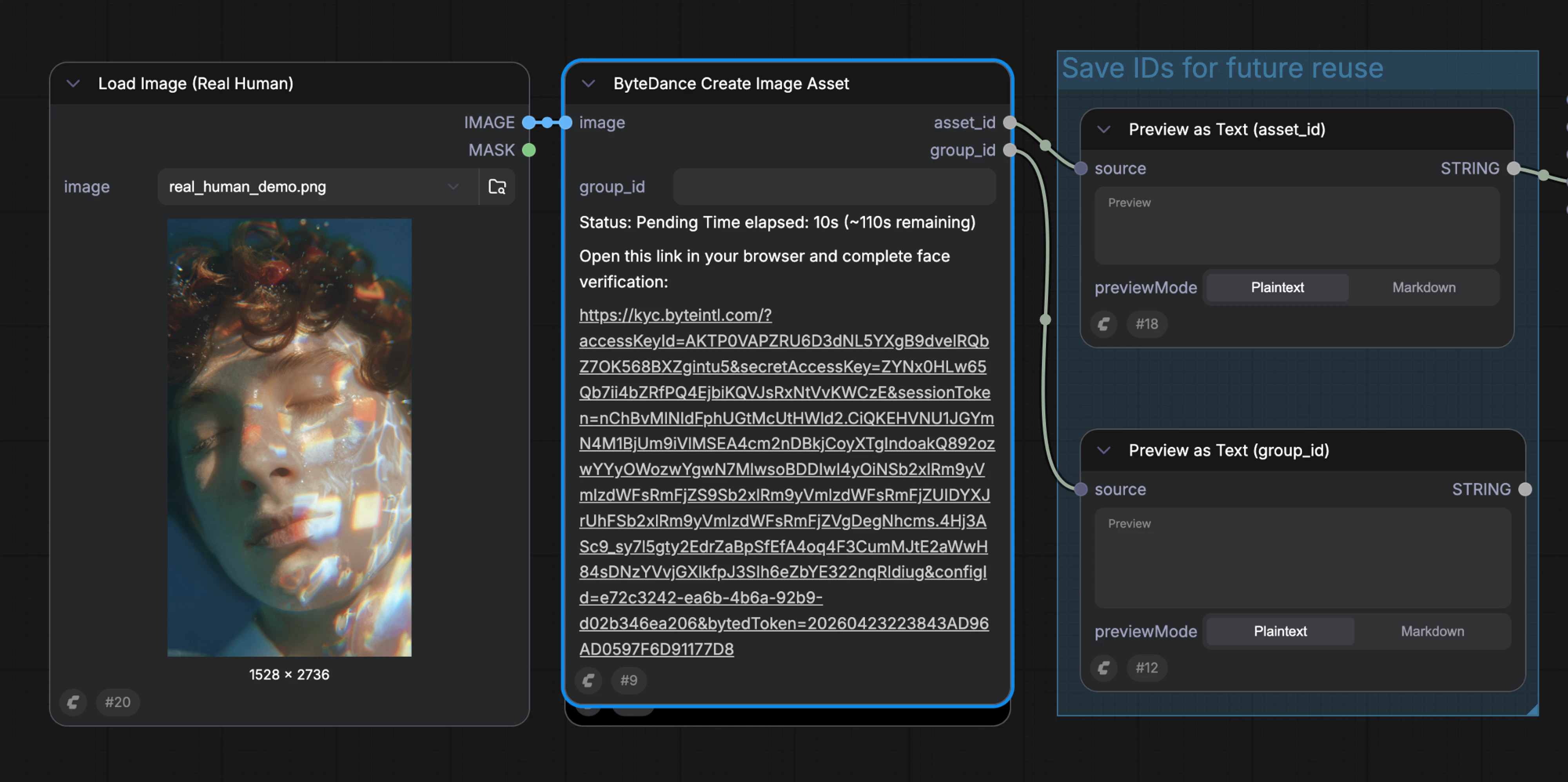
- Run the workflow: ComfyUI returns a verification link from ByteDance
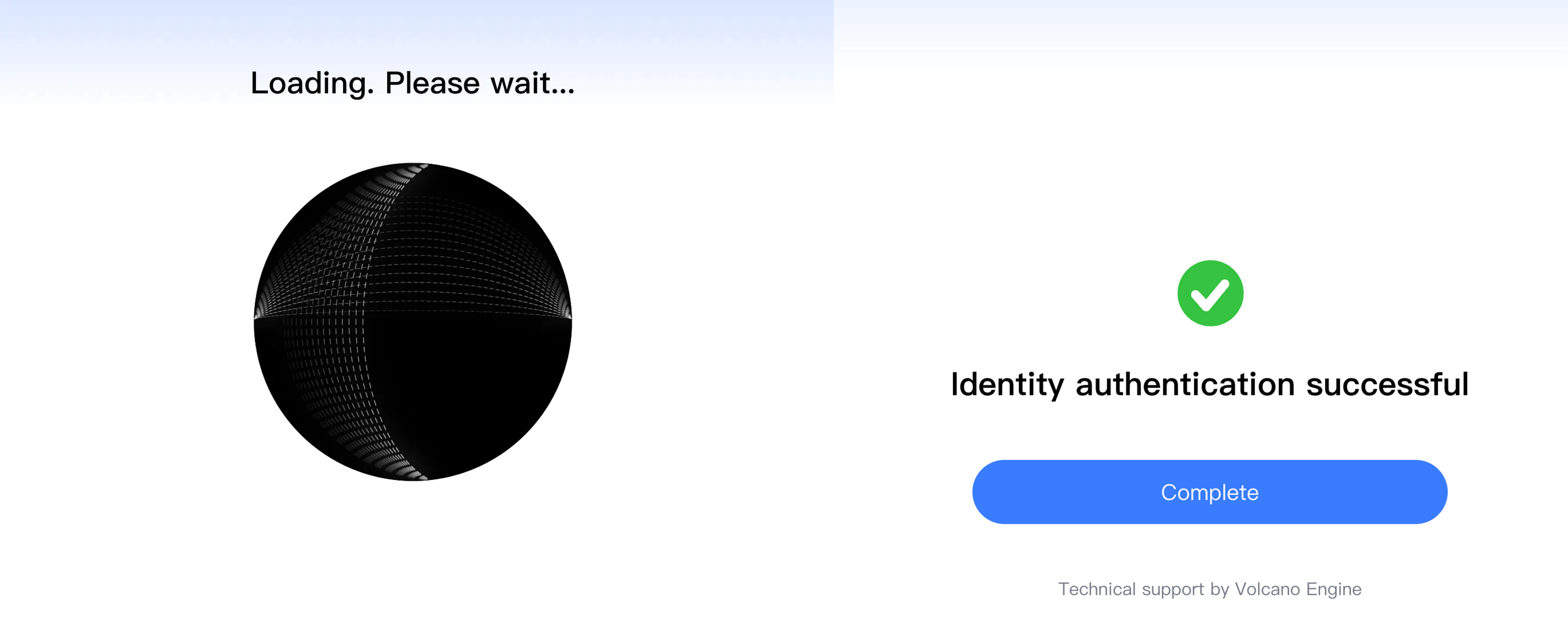
- Open the link on your phone or browser and complete the liveness check (less than 1 minute)
- Once verification passes, return to ComfyUI: the node output now contains the verified asset
Verification flow screenshots
Step 1: Upload and run to start verification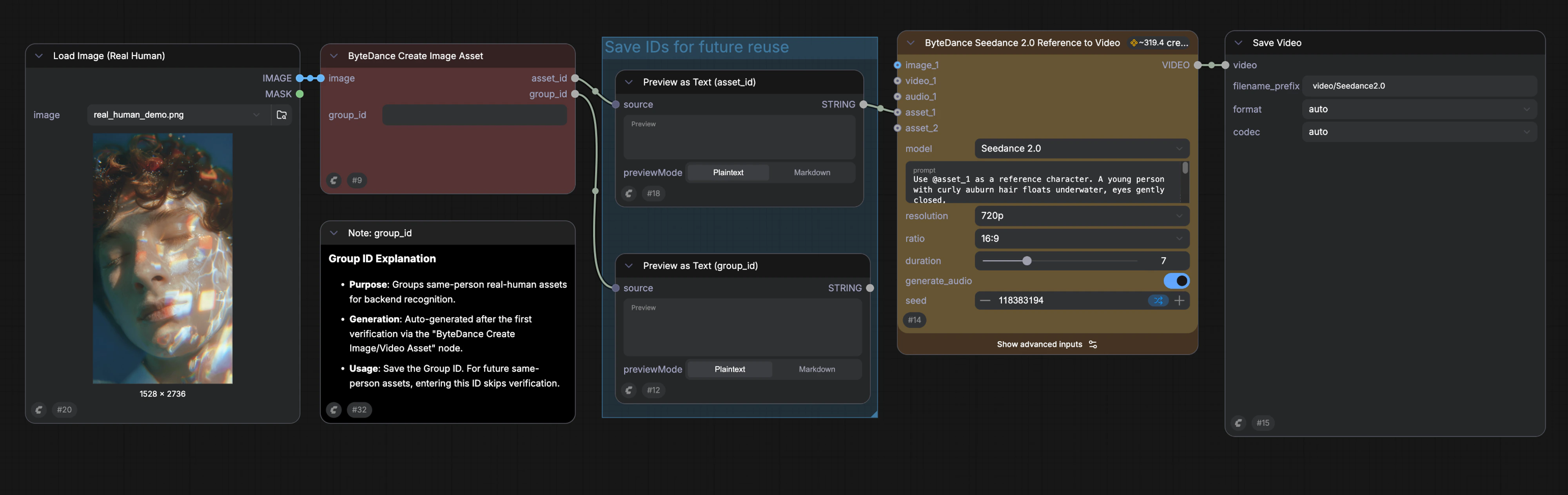
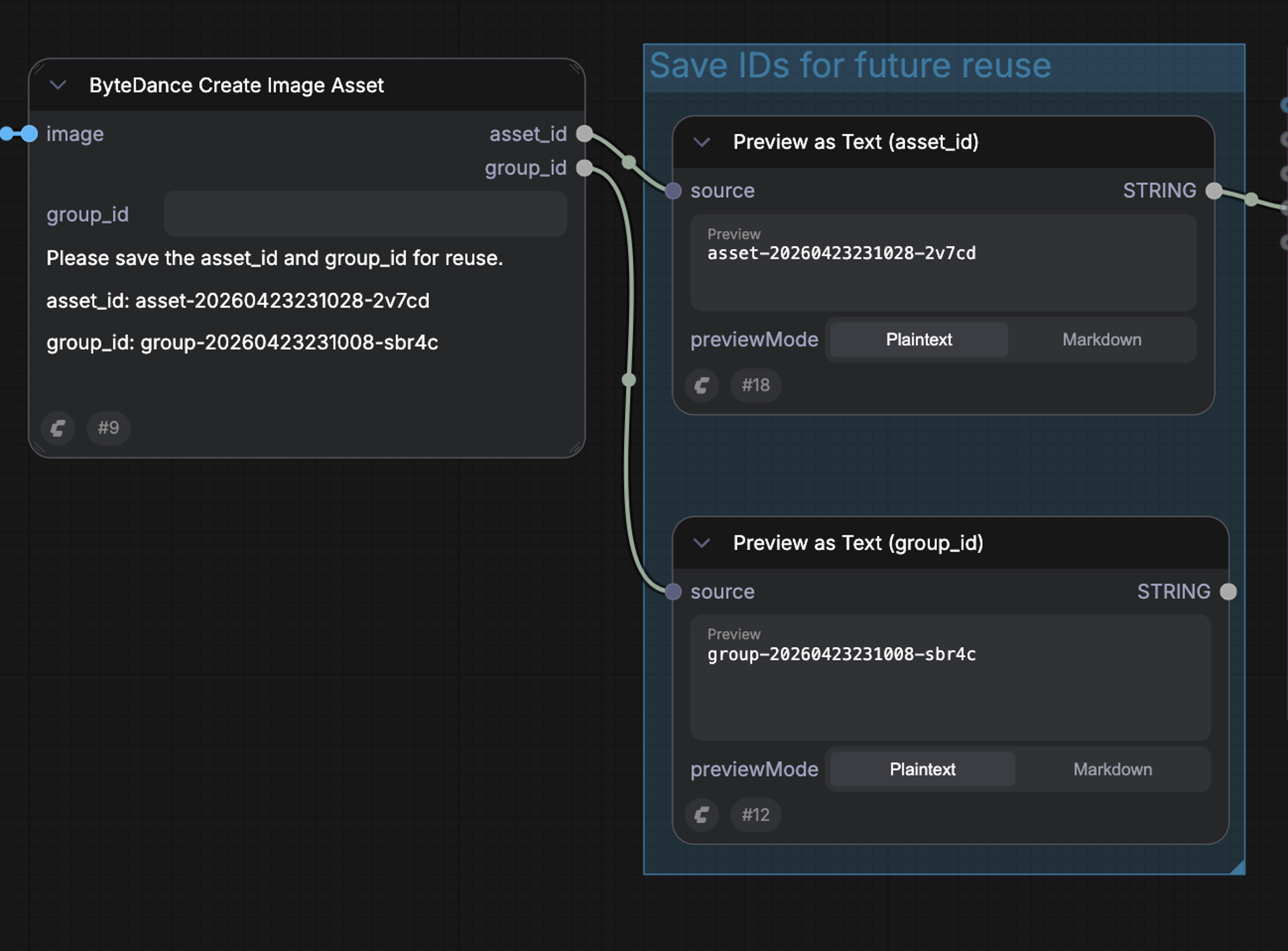
- Group ID: represents the verified person. Save this so you can reuse the same identity later without re-verifying
- Asset ID: represents this specific image. Wire it into a Seedance 2.0 video generation node to produce a video of the verified person; it can be reused across multiple workflows
Future uploads (no verification)
- In ComfyUI, upload a new photo or video of the same person with the ByteDance Create Image/Video Asset node
- Enter the saved Group ID in the node
- On run, ByteDance compares facial features against the original verification
- If it matches, the new asset is activated automatically and returned to ComfyUI, ready to feed into Seedance 2.0 video generation
Skipping verification with an existing Group ID
If you’ve already completed verification once, you can often skip the liveness step for new uploads of the same person by providing the existing Group ID. If ByteDance recognizes the new image as the same person, verification is bypassed.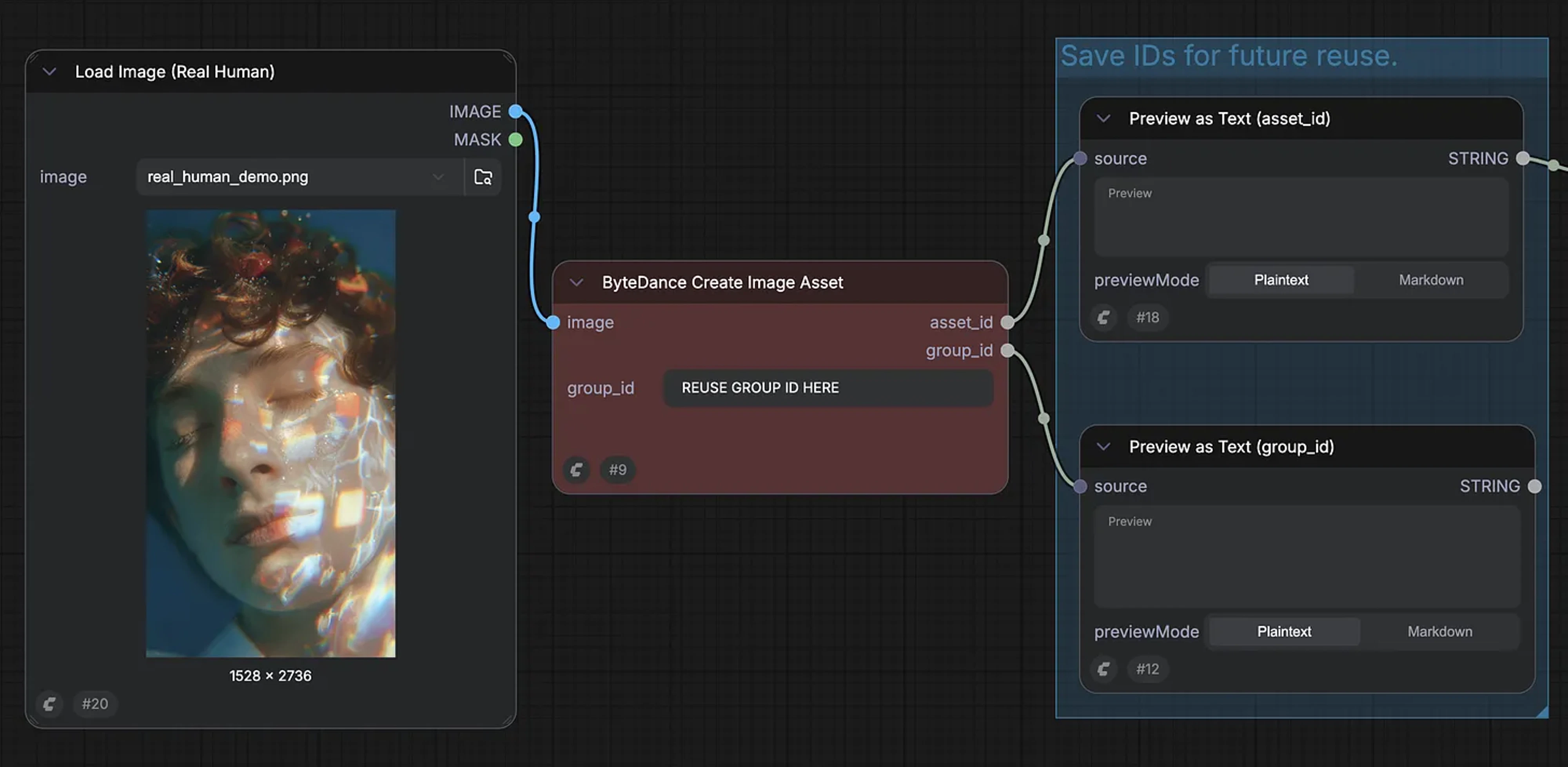
Available workflows
Two prebuilt Seedance 2.0 Real Human templates are available in ComfyUI. Both wire the ByteDance Create Image/Video Asset node into a Seedance 2.0 video generation node so verification and generation happen in a single run.Seedance 2.0 Real Human reference-to-video
Use a verified portrait (plus optional additional reference images, videos, or audio) to drive a Seedance 2.0 video with a consistent real-person identity.
Run Seedance 2.0 Real Human R2V on Cloud
Try the Seedance 2.0 Real Human Reference-to-Video workflow instantly on Comfy Cloud.
Seedance 2.0 Real Human R2V Workflow
Get the Seedance 2.0 Real Human Reference-to-Video workflow file.
Seedance 2.0 Real Human first-last-frame to video
Provide a verified starting frame and ending frame to generate the video between them while preserving the real person’s identity.
Run Seedance 2.0 Real Human FLF2V on Cloud
Try the Seedance 2.0 Real Human First-Last-Frame-to-Video workflow instantly on Comfy Cloud.
Seedance 2.0 Real Human FLF2V Workflow
Get the Seedance 2.0 Real Human First-Last-Frame-to-Video workflow file.