

What Kling 2.6 Motion Control is good at
- Complex motion handling: Execute complicated sequences like dance routines, martial arts, or athletic movements without losing character coherence. The model understands weight transfer and momentum for realistic physical impact.
- Precision hand and finger performance: Hands have traditionally been a weak point for AI video. This feature specifically improves finger articulation and hand movements by mimicking real footage, making it ideal for presentations and demonstrations.
- Scene and environment flexibility: Use text prompts to change the environment while the character continues their referenced motion. You’re not limited to the reference video’s background.
- Advanced camera and perspective modes: Granular control over how the camera interprets your reference with distinct orientation modes.
- 30-second one-shot support: Generate continuous actions up to 30 seconds in a single generation, enabling uninterrupted character motion for narrative scenes.
Character orientation modes
Thecharacter_orientation parameter determines how the model interprets spatial information and constrains output duration:
Model tiers
Kling2.6: Motion Control
Apply precise character actions and expressions from a reference video to your character image with synchronized motion control.
Run on Comfy Cloud
Open in Comfy Cloud
Download Workflow
Download JSON or search “Kling2.6: Motion Control” in Template Library
LoadImage and LoadVideo nodes:
streetwear_fox.jpg
LoadImage node 11 · streetwear_fox.jpgstreet_dancer.mp4
LoadVideo node 2 · street_dancer.mp4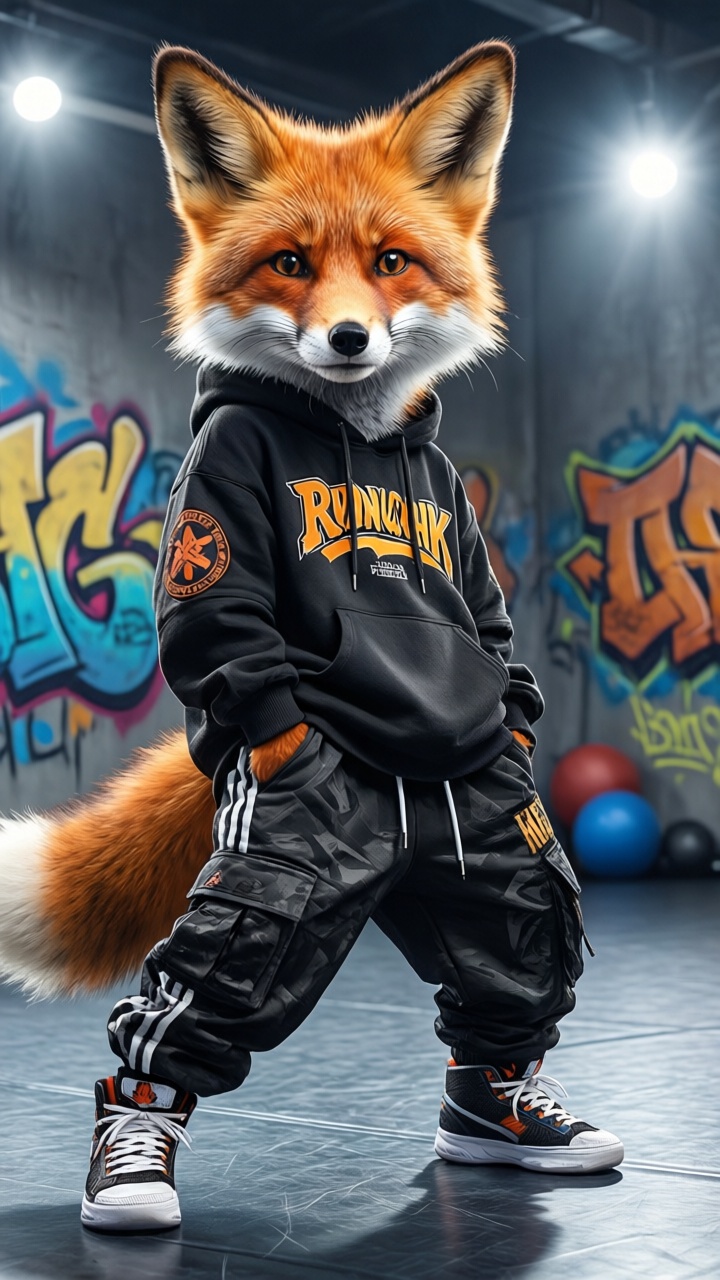
Input requirements
- Image formats: JPG, PNG, WEBP, GIF, AVIF (max 10MB)
- Video formats: MP4, MOV, WEBM, M4V, GIF (max 100MB)
- Video duration: 3-30 seconds depending on orientation mode
- Minimum resolution: 720px width and height
- Subject visibility: Character must clearly show head, shoulders, and torso
Tips for better results
- Match aspect ratios: Ensure your character image and reference video have similar aspect ratios (e.g., both 16:9 or both 9:16) to prevent awkward stretching or cropping.
- Clean backgrounds: Use reference videos with simple or static backgrounds for best motion extraction. High-contrast videos where the actor’s silhouette is distinct work best.
- Clear character angles: If your reference video shows rotation, use 3D-style characters or realistic photos that handle rotation better. Flat 2D cartoons may struggle with back views.
- Visible limbs: Ensure the character’s limbs are visible in the source image. If a character has hands in pockets but the motion requires waving, the AI will hallucinate hands, often leading to artifacts.
- Leave breathing room: Leave negative space around the subject. If the character will dance or move arms wide, they need space within the frame to avoid clipping.
- Framing alignment: Match the framing between your image and reference video. Use a close-up reference for face animations, or a full-body reference for walking/dancing sequences.