

Model-specific inputs
The model dropdown is a dynamic combo. When you change the model, the node updates which inputs appear:- Image slots: shown only for vision-capable models; the number of slots matches the model limit
- Video slots: shown only on Gemini 3.5 Flash and Qwen 3.6 Plus/Flash
- Reasoning effort: shown on reasoning and frontier-reasoning models
- Search context size: shown on Perplexity Sonar models
OpenRouter LLM
Select a model from OpenRouter’s curated list (Claude, GPT, Gemini, etc.). Generate a text response with optional media uploads for vision-capable models.
Run on Comfy Cloud
Open in Comfy Cloud
Download Workflow
Download JSON or search “OpenRouter LLM” in Template Library
LoadImage node:
contact_sheet_app_input_1.png
LoadImage node 2 · contact_sheet_app_input_1.png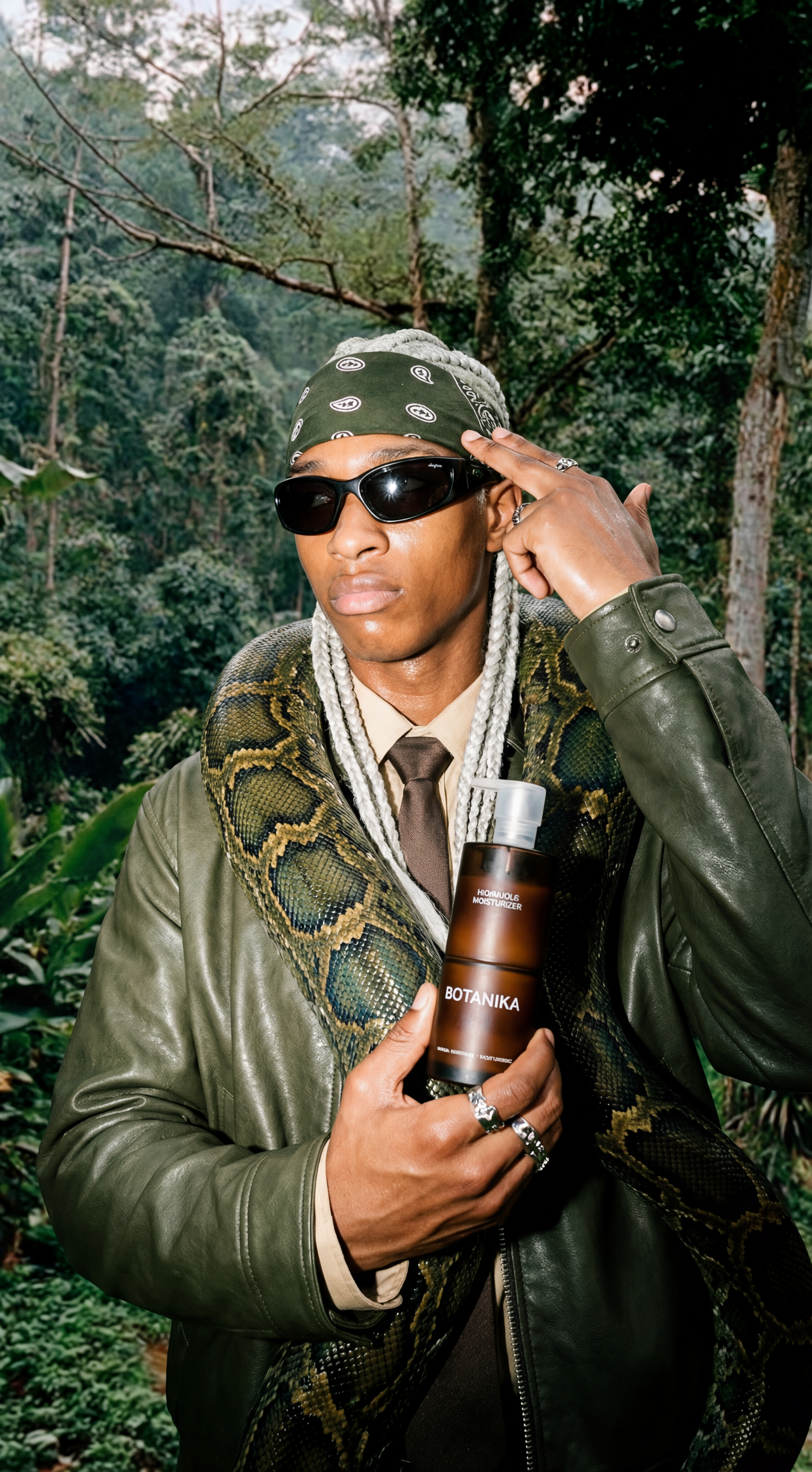
In this sample, the workflow analyzes a reference image and returns a text-to-image prompt for downstream image nodes. You can omit Load Image, change the prompts, or rebuild the graph entirely for your own use case.
- In Load Image, load the reference image (skip for text-only chat)
- In OpenRouter LLM, connect the image to
image_1(more slots appear when the model supports them) - Set prompt, e.g. ask the model to analyze the image and output a generation prompt
- (Optional) Set system_prompt in advanced options for tone, format, or constraints
- Pick a model; adjust reasoning_effort or search_context_size when shown
- Click Run or press
Ctrl(cmd) + Enter - View the reply in Preview Any
Additional notes
- seed: set to
0to omit; most models treat it as a hint only - Reference images and videos are uploaded automatically when the workflow runs; you only wire ComfyUI image/video outputs into the node
- For pricing per model, see OpenRouter on the pricing page