

Recraft V4 text to image workflow
Run on Comfy Cloud
Open in Comfy Cloud
Download Workflow
Download JSON or search “Recraft V4 Text to Image” in Template Library
Steps to run the workflow
- (Optional) Modify the
Recraft Stylenode to control the visual style - (Optional) Edit the
promptparameter in theRecraft Text to Imagenode - (Optional) Change the
sizeparameter for different output dimensions - Click the
Runbutton or use the shortcutCtrl(cmd) + Enterto generate the image - After the API returns the result, view the generated image in the
Save Imagenode
Image showcase
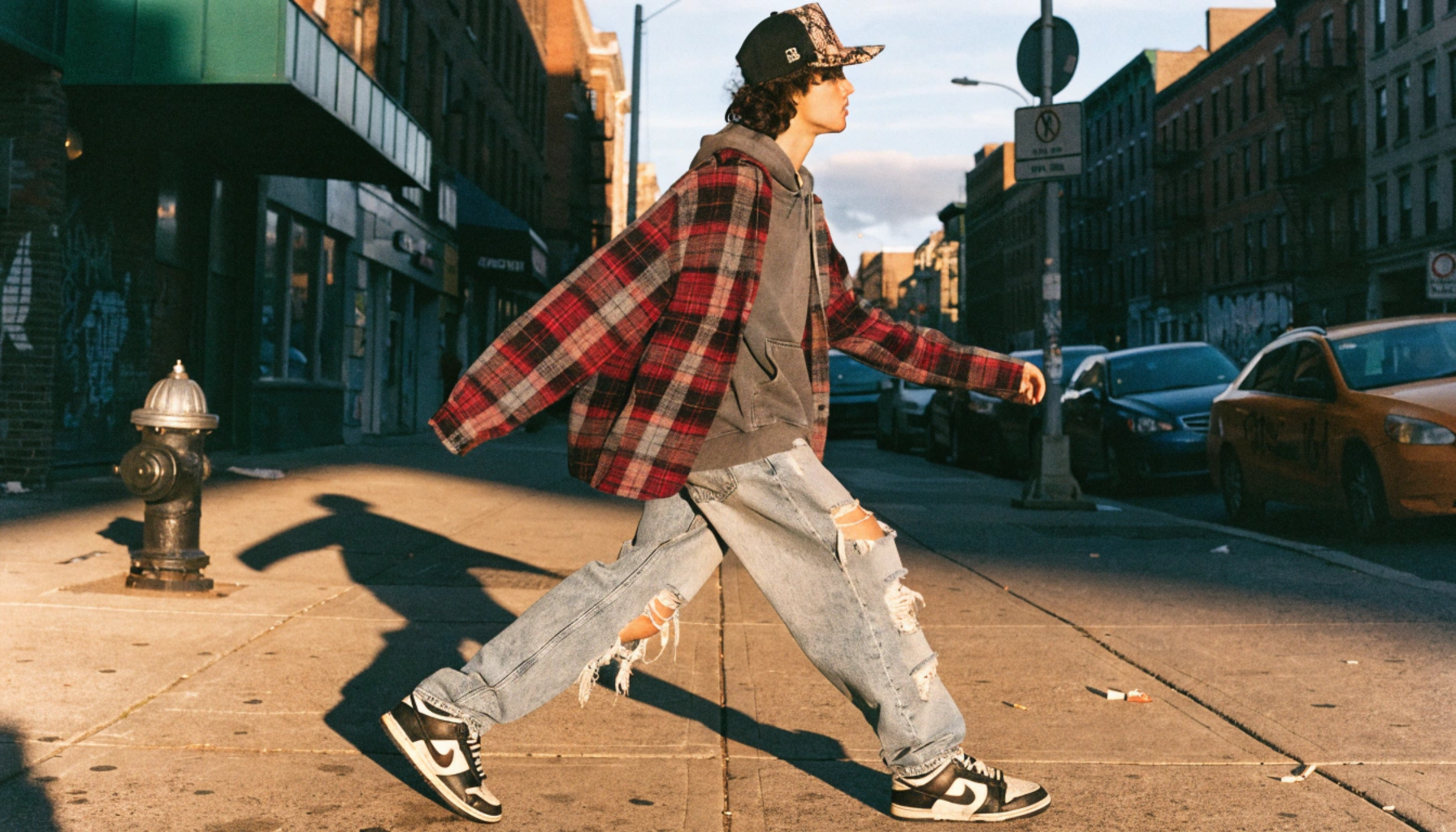 Full-body editorial street photo of a young person wearing an oversized vintage Fear of God flannel layered over a faded Pyrex Vision hoodie, distressed wide-leg denim, original Just Don python-brim snapback, and beat-up Nike Dunk Lows. Shot on a gritty Brooklyn sidewalk, golden hour, 35mm film grain.
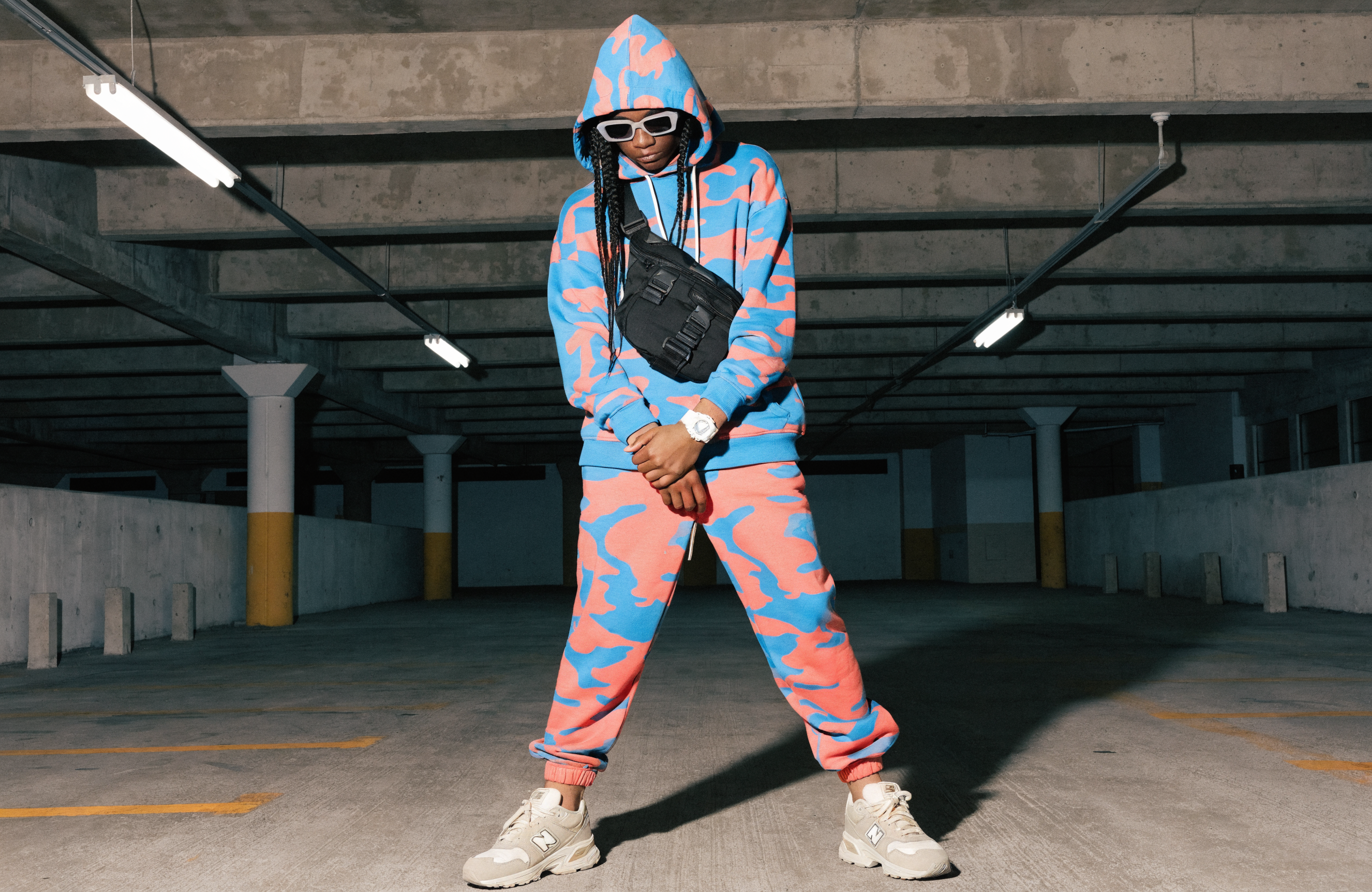 Full outfit shot: electric blue and coral camo hoodie, matching camo joggers, white G-Shock watch, matte black techwear crossbody harness bag, and New Balance 550s in a cream colorway. Concrete parking garage backdrop, harsh fluorescent overhead lighting casting sharp shadows.
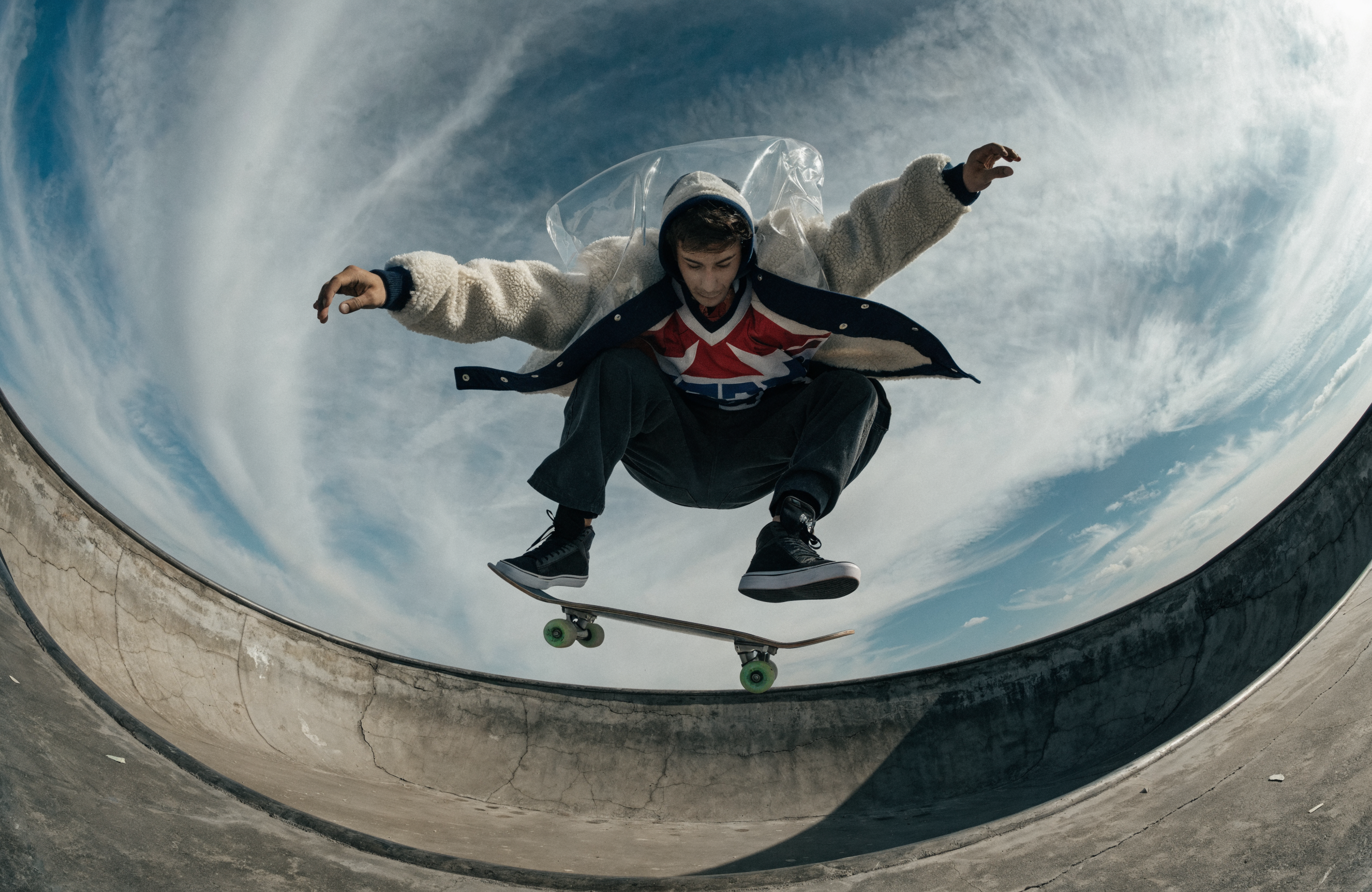 Fish-eye lens, shot from inside an empty concrete pool: a guy in a shearling bomber and transparent PVC shell is mid-kickflip at the lip of the pool directly above the camera, board separating from his feet, his layered outfit catching air and fanning open revealing the hockey jersey underneath.
Recraft V4 text to vector workflow
Recraft V4 can generate production-ready SVG vector outputs directly. This is useful for logos, icons, brand assets, or anything that needs to scale. SVG outputs are compatible with Illustrator, Figma, and Sketch.Run on Comfy Cloud
Open in Comfy Cloud
Download Workflow
Download JSON or search “Recraft V4 Text to Vector” in Template Library
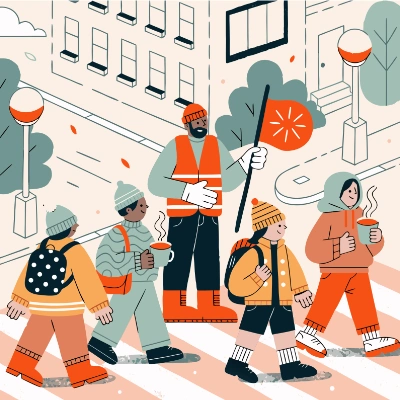
Vector showcase
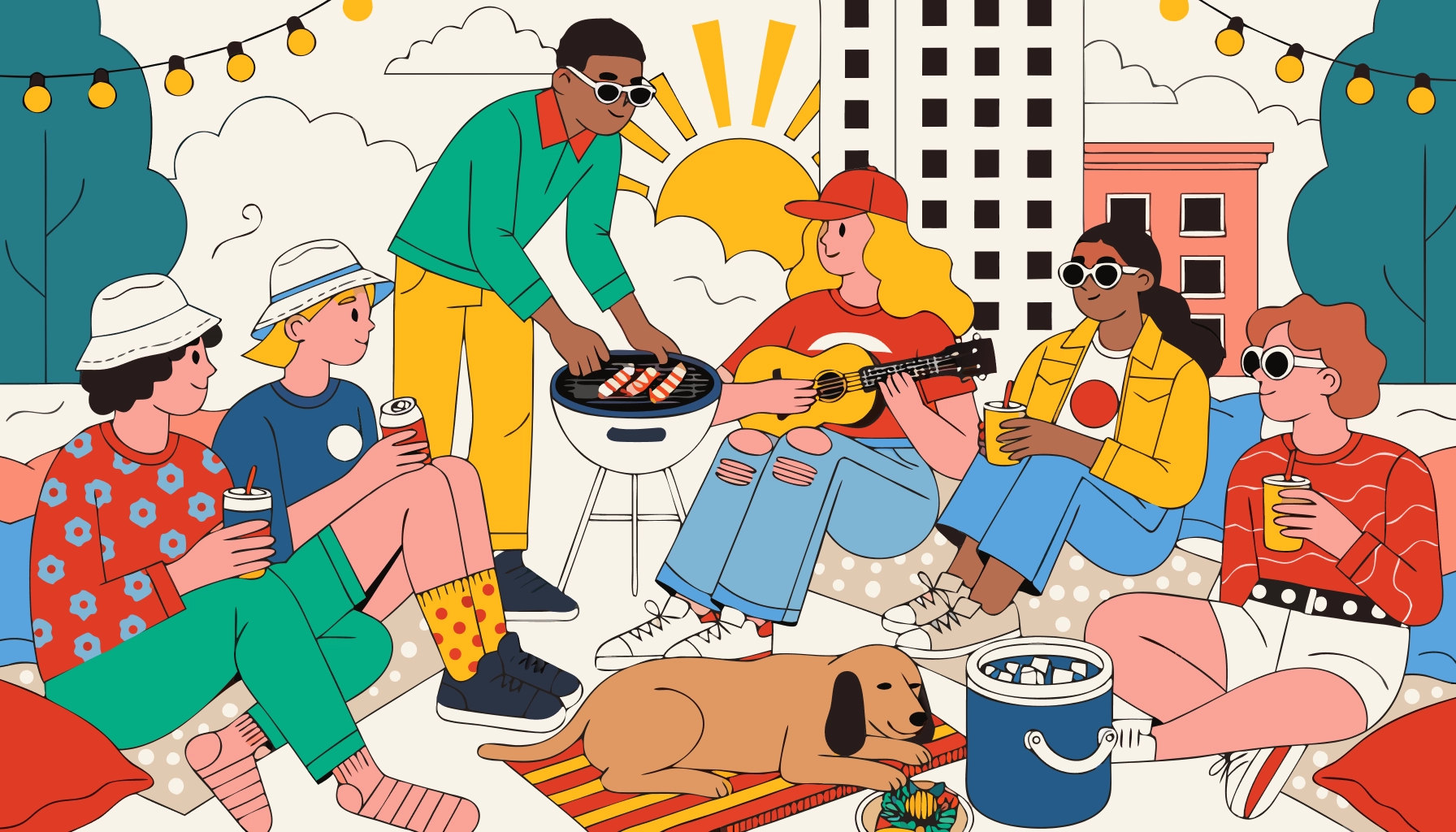 A group of friends lounging on a rooftop at sunset, string lights overhead, one person tending a small grill, another strumming a ukulele, a dog napping on a blanket beside a cooler: warm, relaxed, retro lifestyle illustration
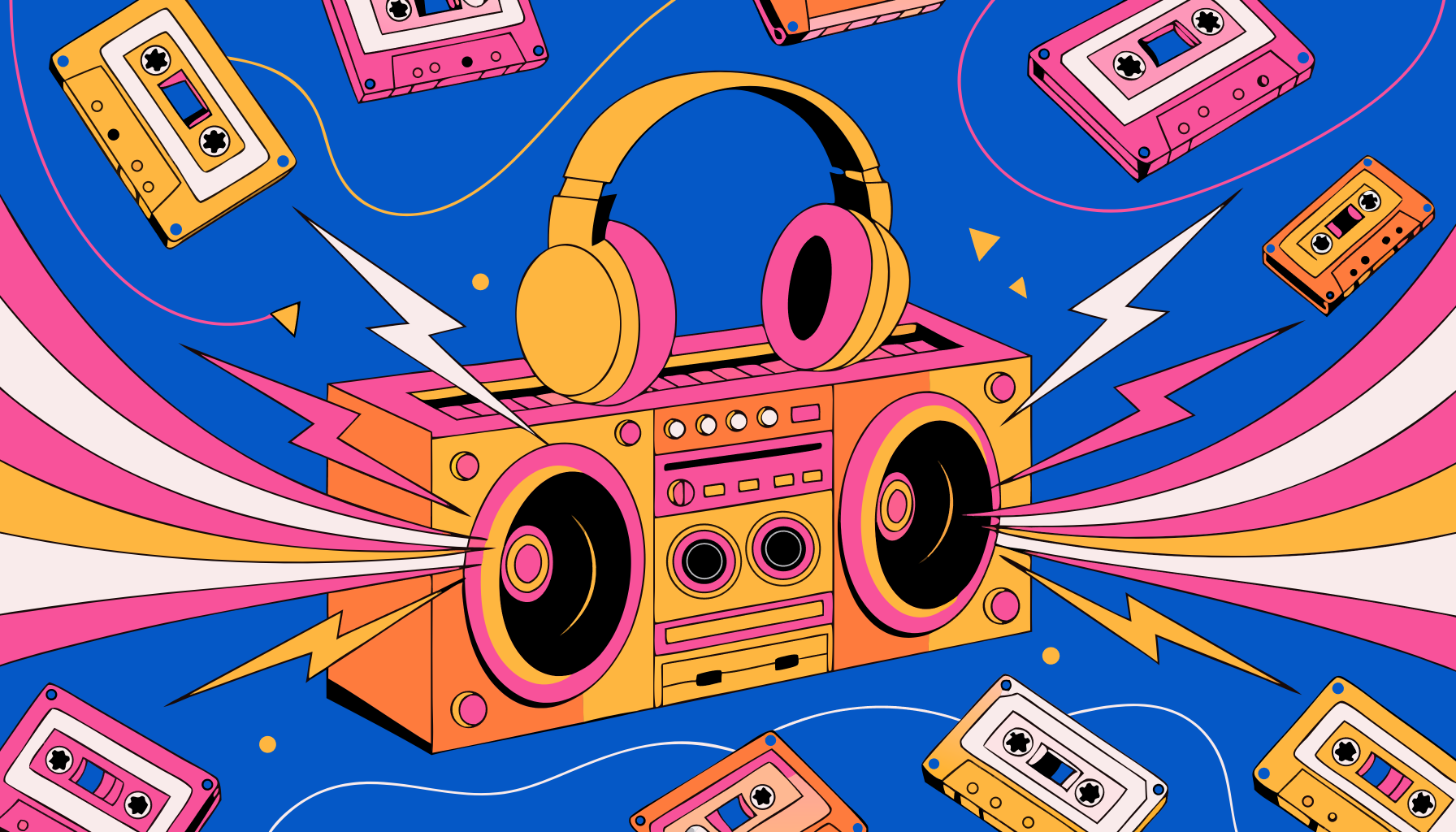 A giant neon boombox blasting music, with lightning bolts and sound waves exploding out of the speakers, melting cassette tapes swirling around it, and a pair of oversized headphones draped on top: bold, chaotic, and electrifying
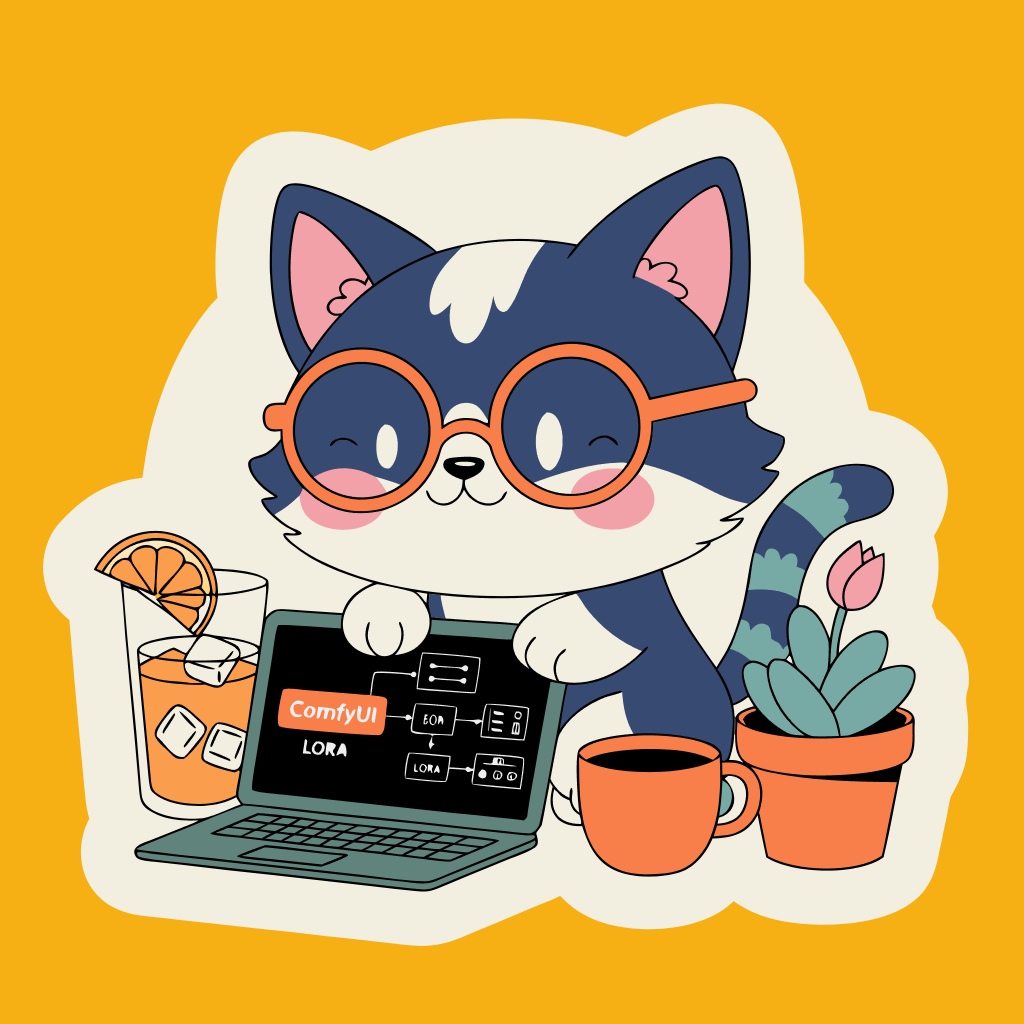 Adorable kitten sticker, the kitten is using ComfyUI on a little tiny laptop
Recraft V4.1 text to image workflow
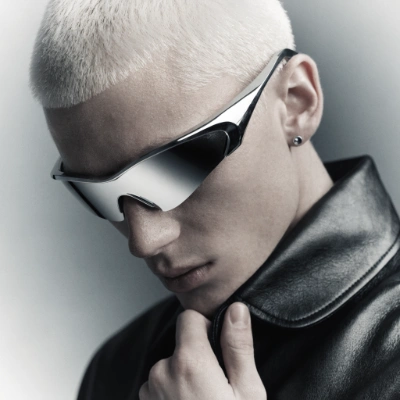
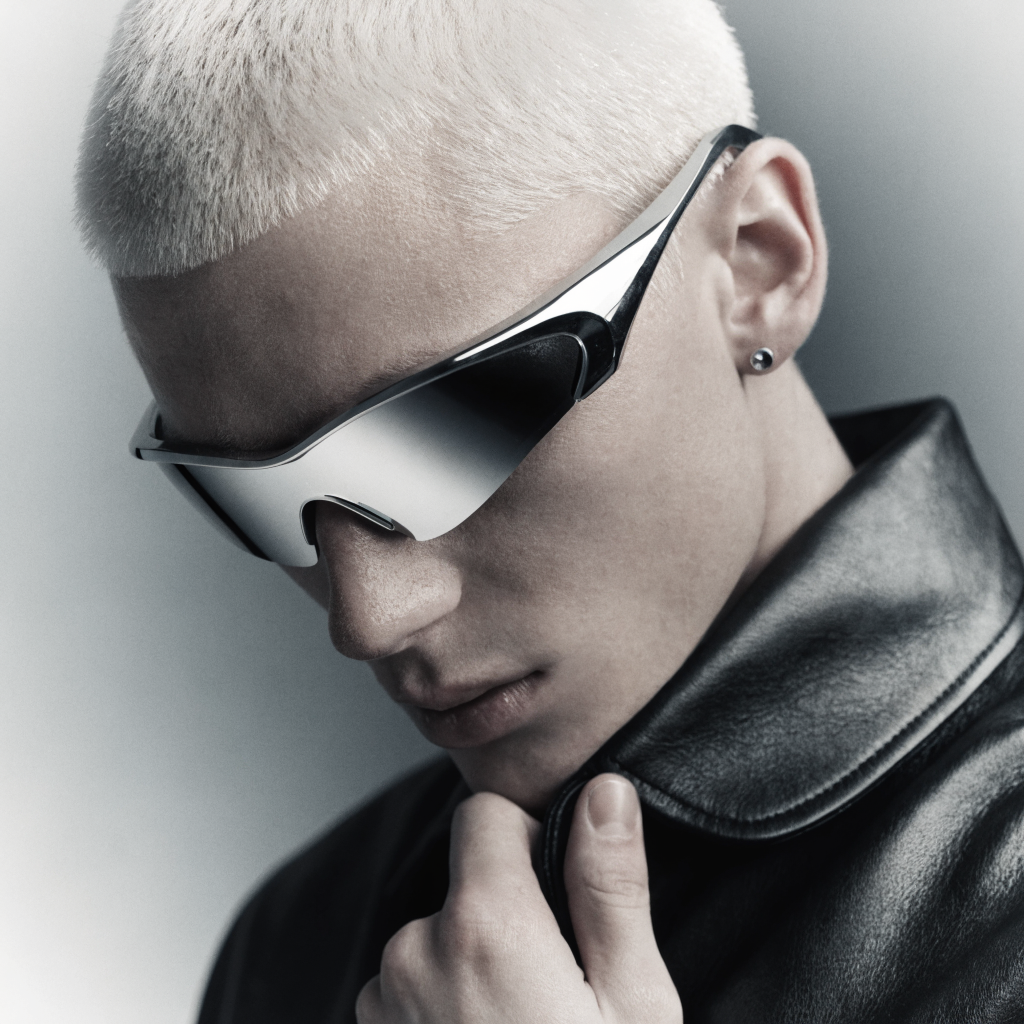
Generate photorealistic and illustrative images from text prompts using Recraft V4.1, producing one high-quality image per generation. The model interprets short prompts and outputs natural photorealistic results.Run on Comfy Cloud
Open in Comfy Cloud
Download Workflow
Download JSON or search “Recraft V4.1” in Template Library
Steps to run the workflow
- (Optional) Modify the
Recraft Stylenode to control the visual style - (Optional) Edit the
promptparameter in theRecraft Text to Imagenode - (Optional) Change the
sizeparameter for different output dimensions - Click the
Runbutton or use the shortcutCtrl(cmd) + Enterto generate the image - After the API returns the result, view the generated image in the
Save Imagenode
Recraft V4.1 text to vector workflow
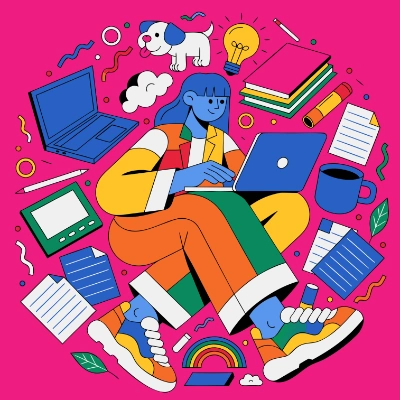
Generate a clean, flat vector logo from a text prompt using Recraft V4.1, producing one scalable SVG output with no file input required. Ideal for branding and logo design, vector illustration projects, and consistent flat-color graphics.Run on Comfy Cloud
Open in Comfy Cloud
Download Workflow
Download JSON or search “Recraft V4.1” in Template Library
Recraft V4 styles
Recraft V4 and V4.1 generation nodes can apply a reusable style. Pass astyle_id or connect style reference images to keep every output consistent with the same look.
- Recraft V4 Create Style: Creates a reusable style from 1 to 10 reference images and returns a
style_id. The style works with every Recraft V4 and V4.1 model of the same output type (raster or vector), and total reference image size is limited to 10 MB - Style-required models: The
recraftv4_stylesandrecraftv4_styles_promodels, plus their vector variants, always require astyle_idor style reference images. Other V4 models accept styles as an optional input - Style inputs:
style_idandstyle_referencescannot be combined in one run. Style reference images are billed on top of the generation, and the node returns the createdstyle_idfor reuse - Style match:
precisereproduces the style in detail,flexiblematches the general look
Additional notes
- Recraft Style: Offers various preset styles like realistic photos, digital art, and logo designs
- Seed Parameter: Only used to determine if the node should run again; the actual generation result is not affected by the seed value