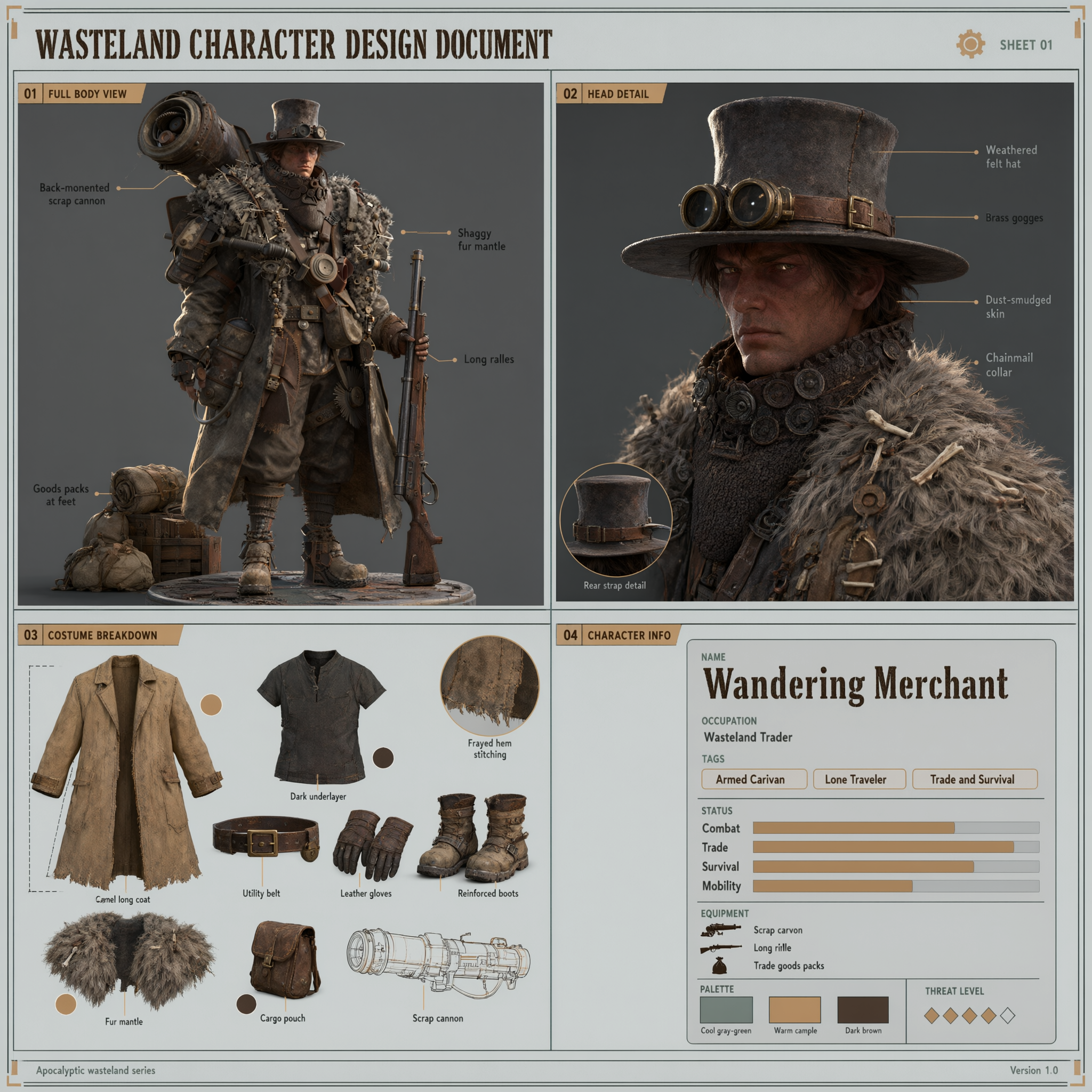
This guide shows how to run the Qwen Image 3.0 Pro workflows in ComfyUI. For what the model is and what it does best, see the Qwen Image 3.0 Pro overview.
To use the Partner Nodes, you need to ensure that you are logged in properly and using a permitted network environment. Please refer to the Partner Nodes Overview section of the documentation to understand the specific requirements for using the Partner Nodes.
Make sure your ComfyUI is updated.Workflows in this guide can be found in the Workflow Templates. If you can’t find them in the template, your ComfyUI may be outdated.If nodes are missing when loading a workflow, possible reasons:
  1. You are not using the latest ComfyUI version (Nightly version)
  2. Some nodes failed to import at startup

Qwen Image 3.0 Pro text-to-image workflow

Generate a detailed image from a text prompt, with Qwen Image 3.0 Pro handling layout, typography, and composition. Qwen Image 3.0 Pro Text-to-Image workflow preview

Run on Comfy Cloud

Open in Comfy Cloud

Download Workflow

Download JSON or search “Qwen Image 3.0 Pro” in Template Library

Qwen Image 3.0 Pro text to image preview

Qwen Image 3.0 Pro image edit workflow

Edit existing images with text instructions. Combine up to 3 reference images, change objects, swap styles, or recompose scenes while preserving the original structure. Qwen Image 3.0 Pro Image Edit workflow preview
Run on Comfy Cloud

Open in Comfy Cloud

Download Workflow

Download JSON or search “Qwen Image 3.0 Pro” in Template Library
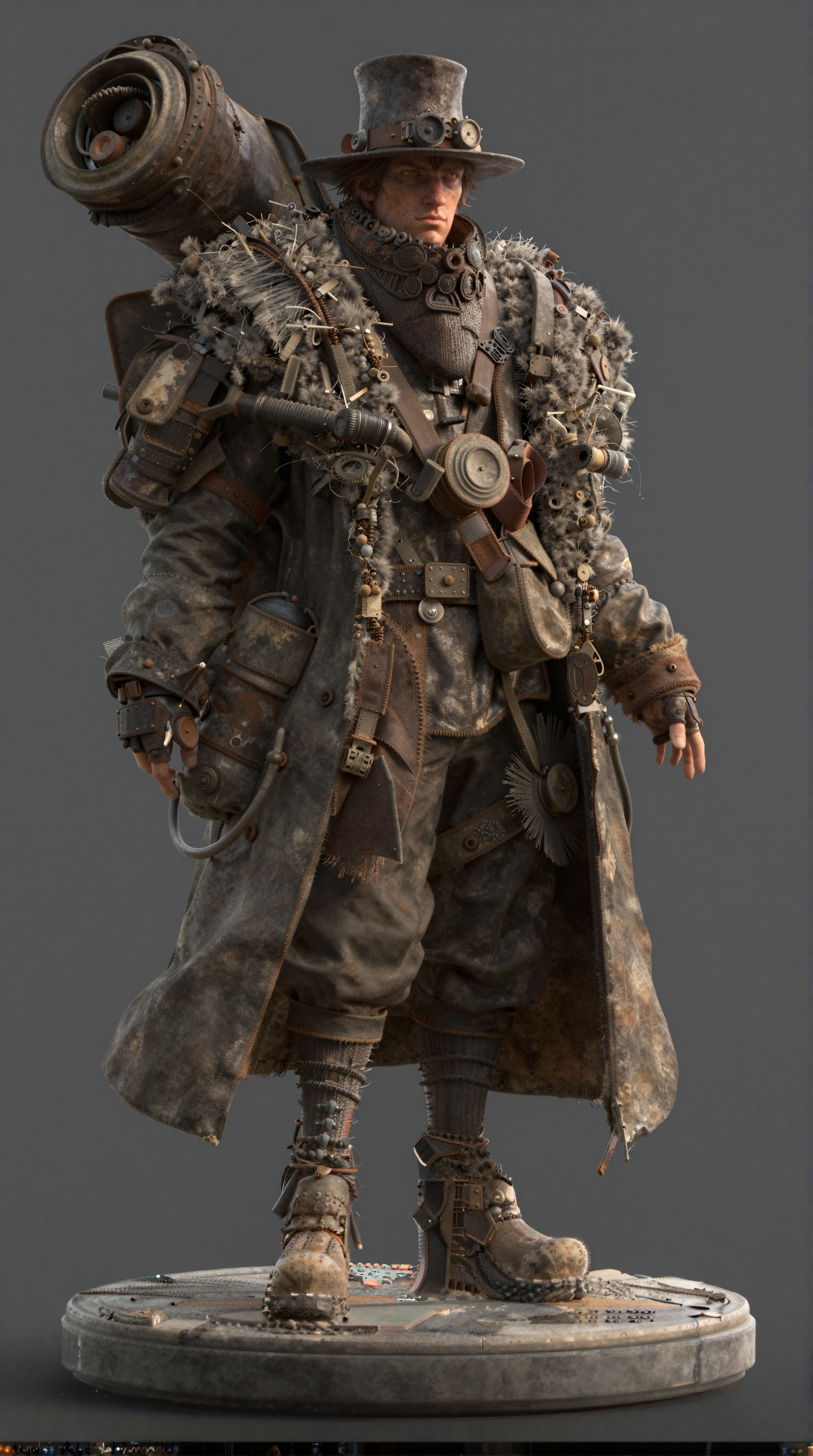
Qwen Image 3.0 Pro image edit input Qwen Image 3.0 Pro image edit output

Get started

  1. Update ComfyUI to the latest version
  2. Go to Template Library, search for Qwen Image 3.0 Pro